Settings
Configure communications
Set up phone, text messaging, email domain, social links, Google Reviews, and notification defaults for your facility.
Communications settings control how your facility reaches customers and how your team receives important updates.
Use this guide before sending portal invites, marketing messages, appointment reminders, invoice emails, or customer texts.
What you will accomplish
- Set up the phone number customers see on texts and calls.
- Prepare your business email domain so messages are less likely to land in spam.
- Add social links and Google Reviews if customers should find them from the portal.
- Review default notification settings so staff get helpful alerts—not noise.
Before you start
- You should be signed in as an admin or manager.
- Know the business phone number your facility wants customers to recognize.
- Know which email domain your facility wants to send from, such as yourfacility.com.
- Have access to your website or domain provider if email verification records need to be added.
- Gather social media profile links and your Google Business Profile information if you use reviews.
Open Communications settings
Go to Settings > Communications.
The page title is Communications.
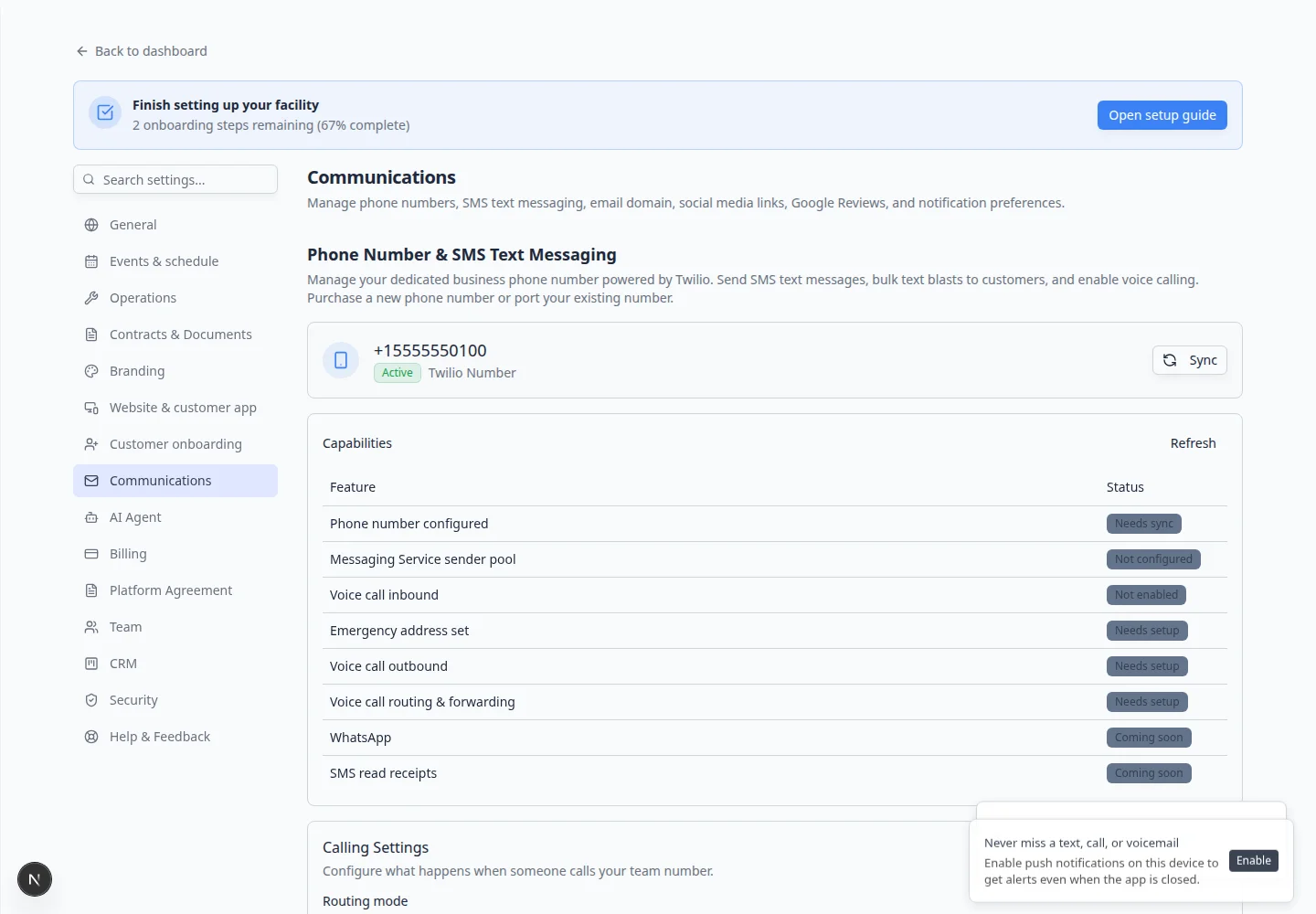
Quick links by job
| I need to… | Section on this page |
|---|---|
| Set the number customers text | Phone Number & SMS Text Messaging |
| Fix emails going to spam | Email Domain & Deliverability Settings |
| Add Instagram or Facebook links | Social Media Links & Profiles |
| Ask customers for Google reviews | Google Reviews |
| Choose which events email your team | Notification Preferences & Alerts |
| Reply to customer texts in threads | Inbox — see Configure communication settings for Inbox |
Set up phone and text messaging
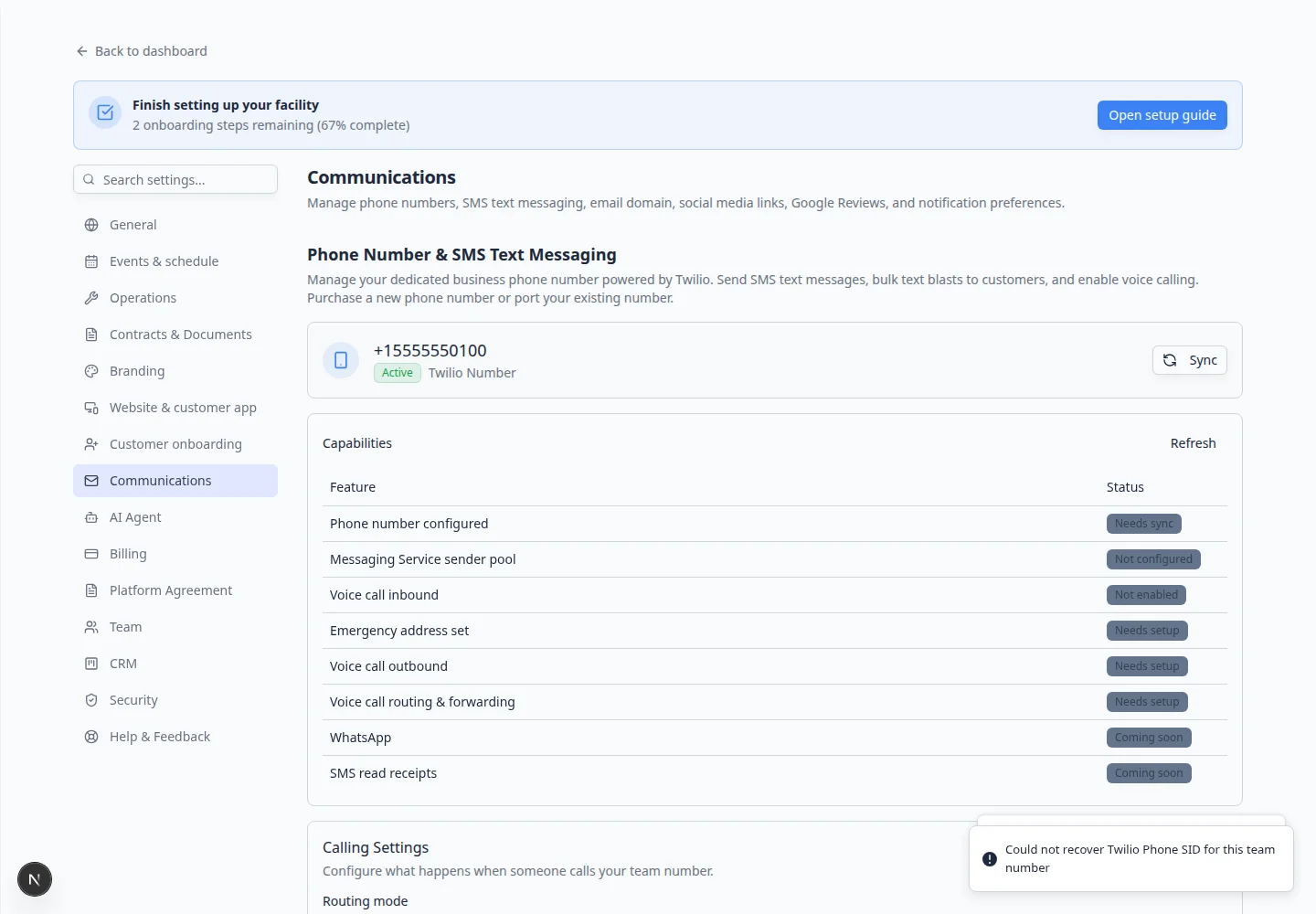
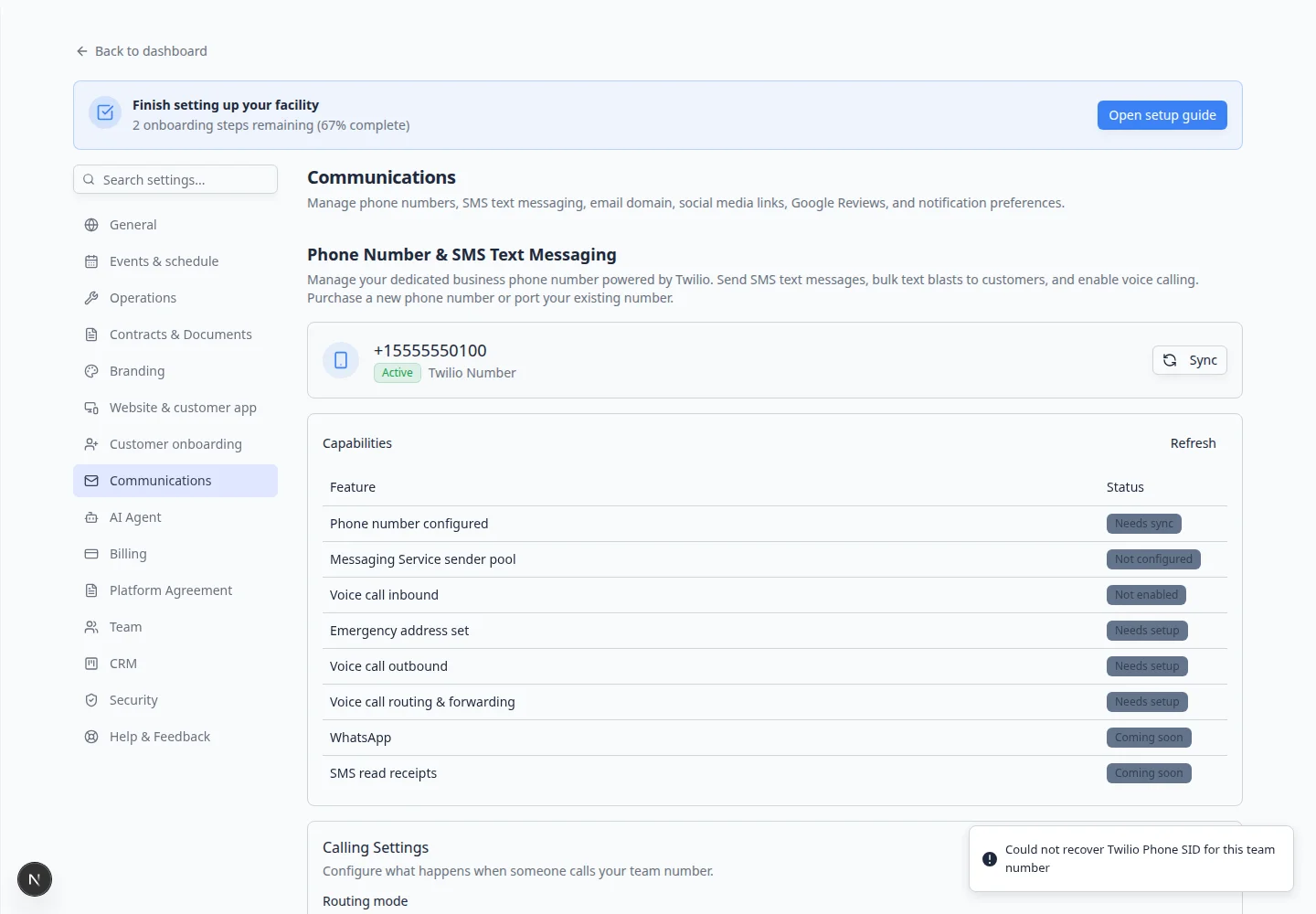
Phone and SMS settings help your team send customer text messages and manage facility calling options.
- Find Phone Number & SMS Text Messaging
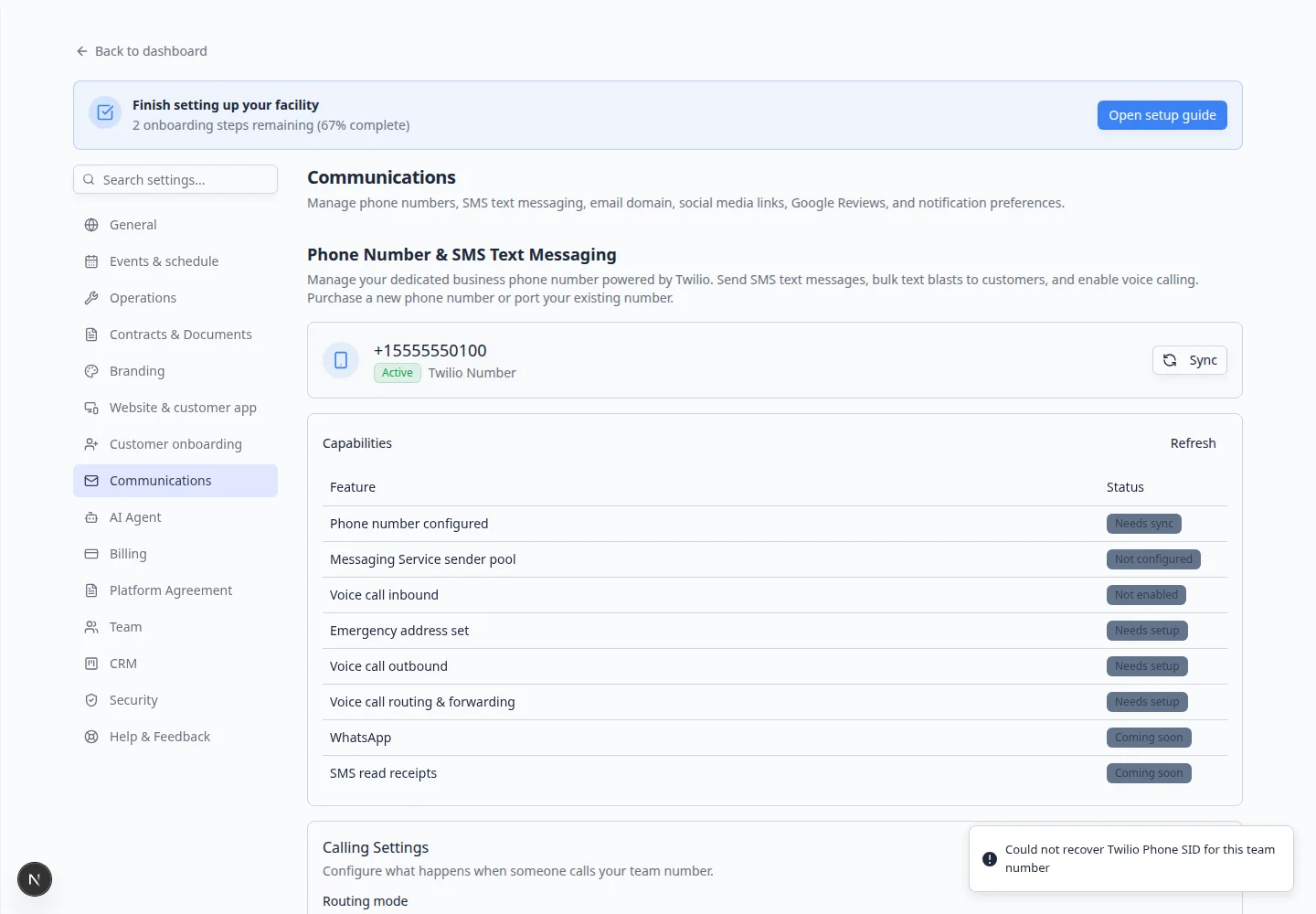
On Settings > Communications, find Phone Number & SMS Text Messaging.
- Choose the phone number path
Follow the on-screen option to purchase a new number, connect a number, or manage an existing number.
If your facility already uses a business number, ask your manager whether you should keep that number or use a new one.
- Review text messaging settings
Confirm which messaging features are enabled for your team.
This can affect customer reminders, bulk texts, inbox messages, and other customer communications.
- Send a small test before using it with customers
If testing is available, send a message to an internal staff phone before sending customer texts.
Expected result
Your team can use the correct phone and text messaging setup for customer communication.
Set up email domain and deliverability
Email domain settings help emails look professional and reduce the chance that important messages go to spam.
- Find Email Domain & Deliverability Settings
Scroll to Email Domain & Deliverability Settings.
- Add or review your sending domain
Follow the on-screen instructions to add your business email domain.
A domain is the part after the @ symbol, such as yourfacility.com.
- Copy each DNS record exactly
The page shows one or more DNS records—think of them as instructions that tell the internet your facility is allowed to send email from your domain.
You may see short names such as SPF, DKIM, DMARC, or MX. You do not need to memorize them. Copy each Name (or Host) and Value field exactly as shown.
Use the Copy button next to each value when the page offers one. A single missing character can cause verification to fail.
- Send the records to whoever manages your website domain
DNS records are added where your domain is managed—often GoDaddy, Namecheap, Cloudflare, Google Domains, or your website host (WordPress, Squarespace, Wix, and similar).
If you are not comfortable doing this yourself, email the copied records to your web person or IT helper with a note such as: “Please add these email authentication records for our car storage software.”
Why this matters: When records are set up correctly, customer invites and invoices are less likely to land in spam folders.
- Verify the domain
After the records are added, return to Settings > Communications and click the Verify (or similar) button shown on the page.
DNS changes can take from a few minutes up to 48 hours to spread across the internet. If verification fails, wait a few hours and try again before changing the records.
Expected result: The page shows the domain as verified or connected.
Plain English: what DNS records do
DNS is the address book of the internet. DNS records are small entries that tell email providers your messages are legitimate.
You are not doing anything risky—you are proving that emails sent from Car Storage Software on behalf of yourfacility.com really come from your business.
If this feels overwhelming, that is normal. Many facility owners ask their website person to add the records once, then never think about them again.
Expected result
Customer emails, invoice emails, portal invites, and notifications can be sent from a more trusted business email setup.
Add social media links
Social media links can appear on customer-facing pages and email footers.
- Find Social Media Links & Profiles
Scroll to Social Media Links & Profiles.
- Paste profile links
Add the full links to the profiles your facility wants customers to find, such as Facebook, Instagram, LinkedIn, YouTube, TikTok, or X.
- Save and preview customer-facing pages
Save the links, then preview a customer-facing page or email footer when available.
Expected result: Customer-facing pages show the social icons you added.
Set up Google Reviews
Google Reviews settings help route happy customers toward public reviews and collect private feedback from customers who need support.
- Find Google Reviews
Scroll to Google Reviews.
- Connect or choose your Google Business Profile
Follow the on-screen steps to connect the correct Google Business Profile.
- Review how review requests behave
Confirm when customers should be asked for reviews and what happens after they rate their experience.
Expected result: Your facility is linked to the correct Google Business Profile for review requests.
Review notification preferences
Notification preferences control which alerts your team receives.
- Find Notification Preferences & Alerts
Scroll to Notification Preferences & Alerts.
- Turn on the important alerts
Choose the notifications your team needs, such as new customer registrations, bookings, event updates, payment received, or other important activity.
- Keep alerts focused
Avoid sending every alert to everyone. Choose the people who can act on each message.
Expected result: The right teammates get email or in-app alerts without everyone being copied on every message.
Test your setup before going live
- Send yourself a test email
After email domain verification, send a portal invite or test invoice to your own work email.
Expected result: The message arrives in your inbox (not spam) and shows your facility name and domain.
- Send a test text (if SMS is enabled)
Text an internal staff phone from Inbox or your facility’s messaging tool.
Expected result: The message shows your facility’s business number as the sender.
- Trigger one notification
Turn on one alert in Notification Preferences & Alerts, then complete a test action (for example, submit a practice registration).
Expected result: Only the teammate who should act on that alert receives it.
What success looks like
- Your team has a clear phone and text messaging setup.
- Your business email domain is added or you know who is completing the domain records.
- Social media links point to the correct public profiles.
- Google Reviews are connected if your facility uses review requests.
- Notification defaults help staff respond without overwhelming them.
- You sent at least one test email and text to yourself before messaging customers.
Troubleshooting
What to do next
After communications are ready, continue with Set up facility branding and Configure portal and website so customer-facing links and the customer app are ready before you invite customers.