AI Assistant
Use the AI Assistant
Open the AI Assistant, ask a clear question, review the answer, and use links to continue your work.
What you will accomplish
You will open the AI Assistant, ask a question by voice or keyboard, read the answer carefully, and know what to do next—including when to start a new chat or open a dashboard page.
When to use this guide
Use this guide for everyday assistant sessions on the dashboard: lookups, schedule questions, parking checks, and follow-up questions about the same customer or vehicle.
For questions from a team iMessage group chat, see Use the AI Assistant from iMessage.
If the assistant shows proposal cards with Confirm All, switch to Review AI proposals before you save anything.
Before you start
- Sign in with a staff account (not a customer portal login).
- Confirm you have permission for the area you are asking about.
- Have one useful detail ready: customer name, vehicle, date, spot number, or invoice number.
- Start New Chat when the topic is new (see Manage your assistant chats).
Open the AI Assistant
- Open from the dashboard
From any dashboard page, click AI Assistant in the left sidebar.
You can also bookmark AI Assistant.
Expected result: The page title says Agent. New Chat appears at the top of the left sidebar.
- Pick voice or typing
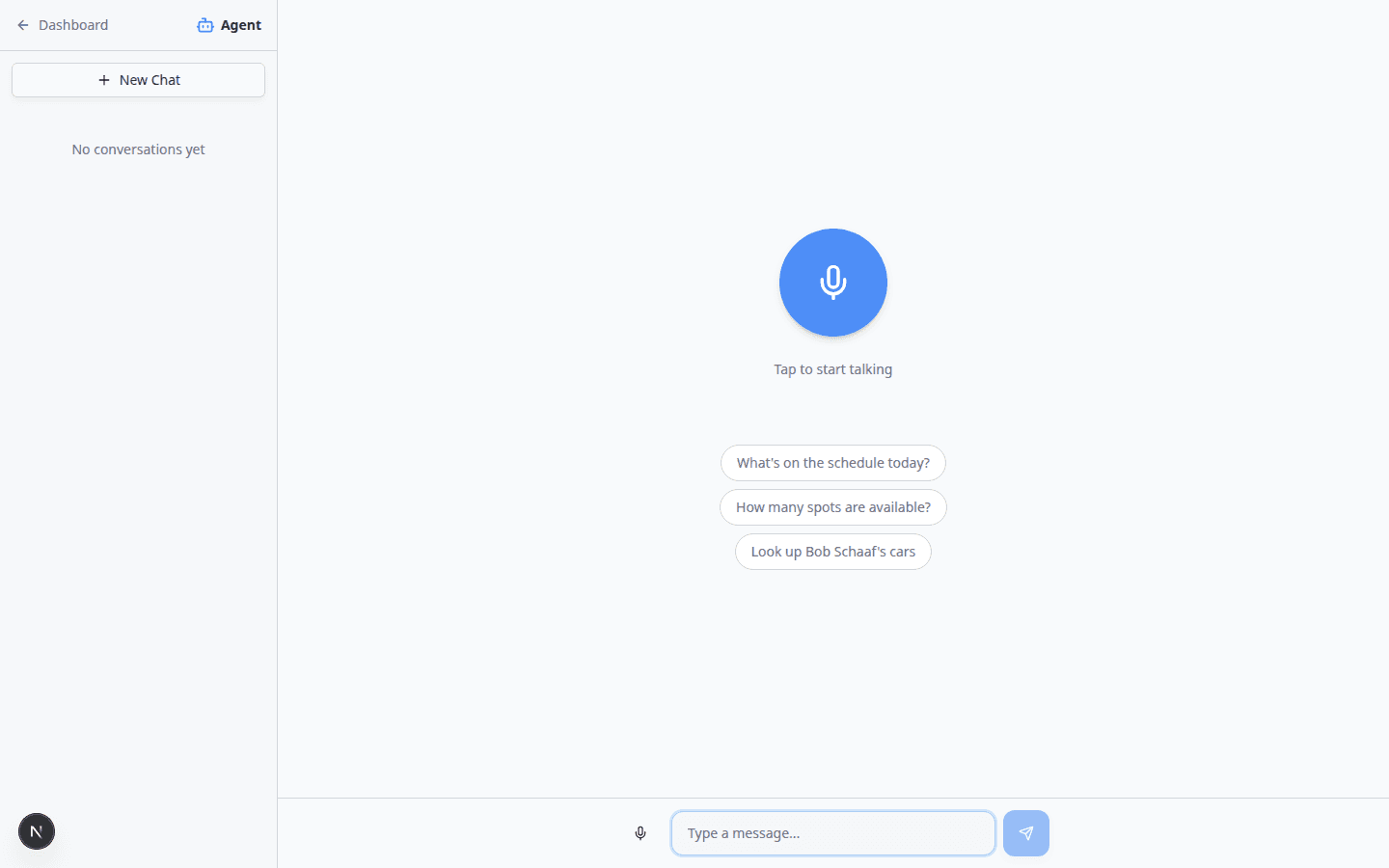
On the start screen (AI Assistant with no messages yet):
- Microphone orb — tap the large round button and speak. Your browser may ask for microphone permission the first time. The helper text says Tap to start talking.
- Type a message... — use the text box at the bottom of the screen anytime. This is the safest choice for names, email addresses, and VINs.
Inside an active chat, a small keyboard icon appears with the tooltip Type instead when you are in voice mode. Click it to switch to typing.
Expected result: You see suggested questions such as What's on the schedule today? and How many spots are available?
Ask one clear question
Clear questions help the assistant find the right record the first time.
- Click Type instead when you are in an active chat
If the bottom of the screen shows a large microphone, click the small keyboard icon to the left. The tooltip says Type instead.
On the start screen (before any messages), skip this step—just type in Type a message... at the bottom.
- Enter your question
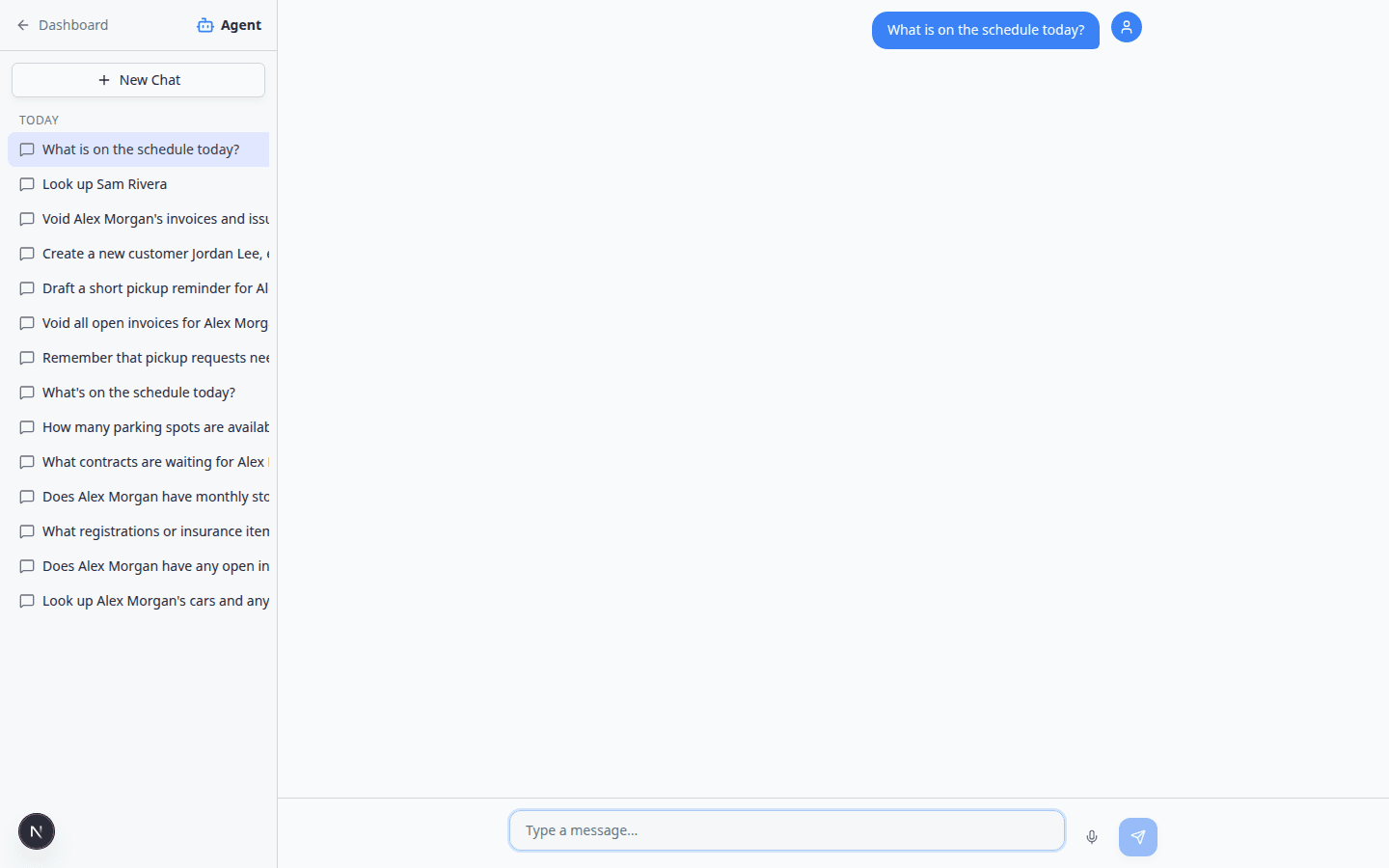
Type or paste your question, then press Enter or tap the send arrow.
Why this matters: Spelling counts for customer names, email addresses, and license plates.
Use this simple pattern:
- Say what you need.
- Add the most specific name, date, or number you know.
- Say what should happen next, if there is a next step.
Good examples:
- Look up Alex Morgan's cars.
- What's on the schedule today?
- How many parking spots are available?
- Where is the 2017 Lamborghini Huracan parked?
- Draft a short pickup reminder for Sam Rivera, but do not send it yet.
Avoid vague examples:
- Find the car.
- What's going on tomorrow?
- Tell the customer.
Those requests often miss the detail the assistant needs.
Expected result: The assistant opens a conversation and shows your question at the top of the chat.
Read the answer before you act
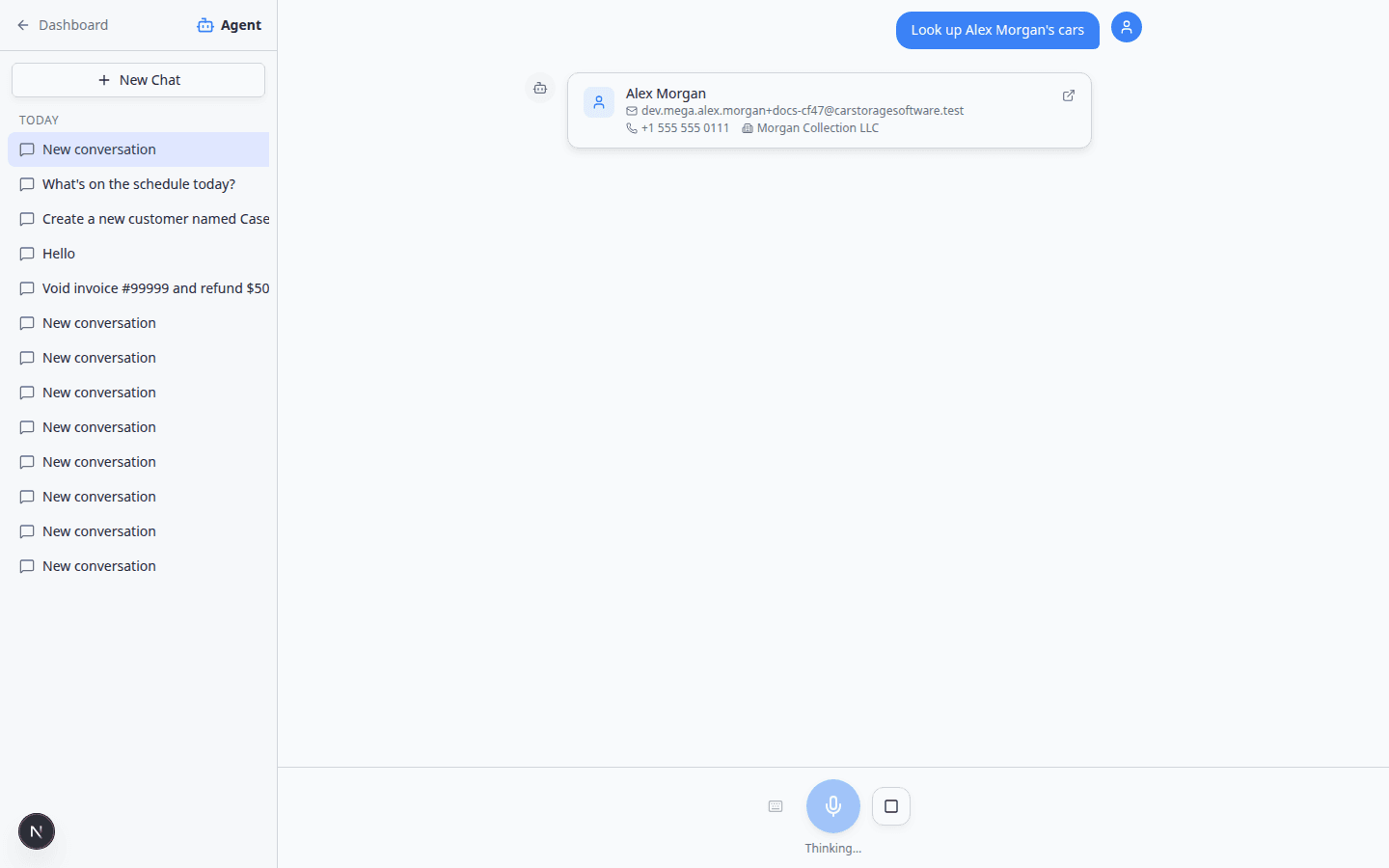
Check:
- Customer name — is it the person you meant?
- Vehicle — year, make, model, color, VIN, or plate.
- Date and time — especially for “tomorrow” or “next week.”
- Parking spot — matches your floor plan.
- Money — invoice or quote amounts need extra care.
Follow up in the same chat
You can ask another question about the same customer or task:
- Show me Alex's other cars.
- Does that car have an appointment this week?
- Take me to the car page.
Expected result: The assistant uses context from the same thread.
Start a new chat when the topic changes
Click New Chat in the left sidebar when you switch to a different customer, vehicle, or unrelated task.
Expected result: The old conversation stays in your history, but the assistant will not mix up two customers in one thread.
When the assistant offers to open a page
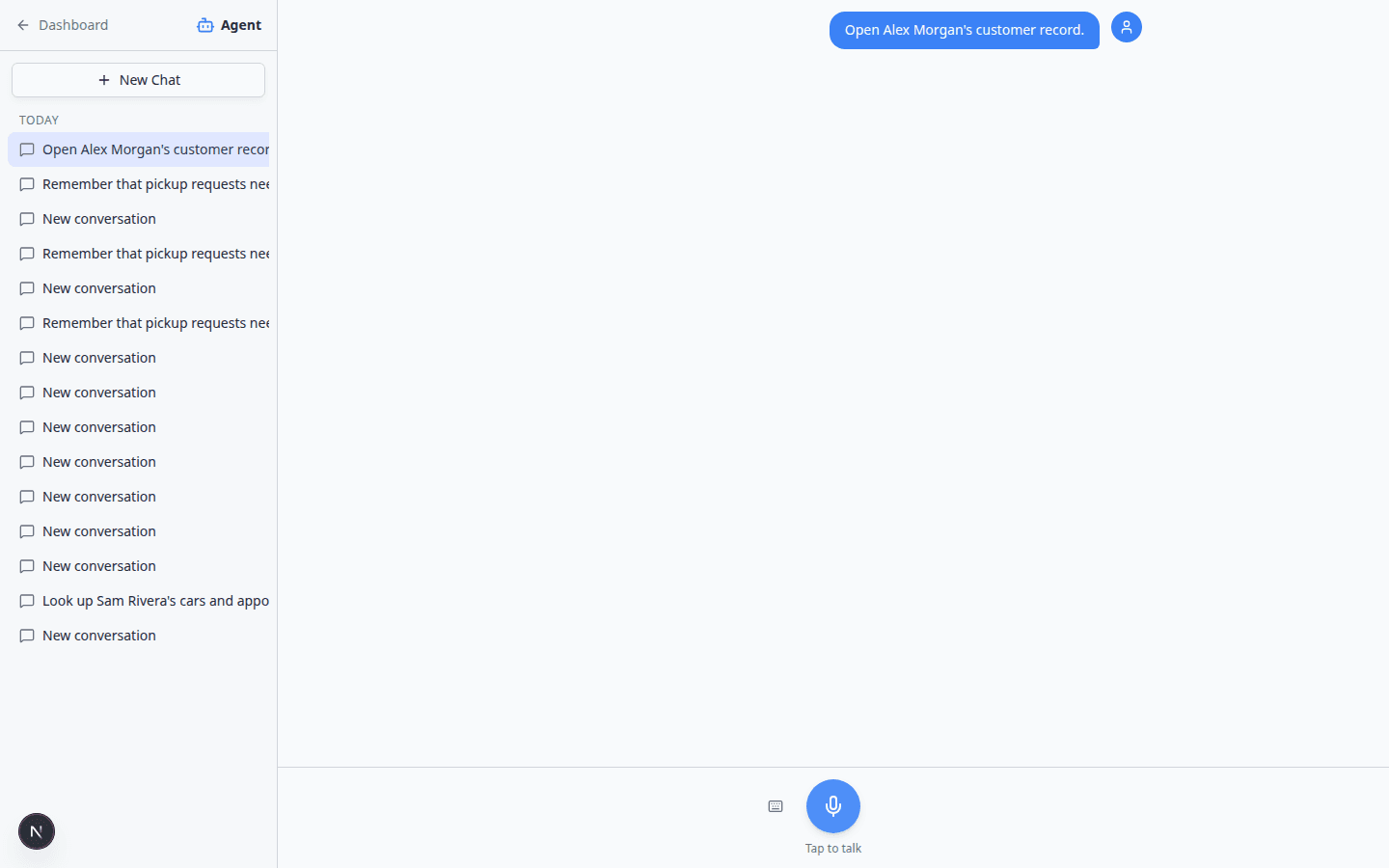
After some answers, a bar may appear at the bottom of the chat:
- A short countdown (for example, Navigating 5s)
- Go now — open the page right away
- Cancel — stay in the chat
- Read where you are going
The bar usually names the page, such as a customer or car record.
- Choose Go now or Cancel
Go now opens the dashboard page. Cancel keeps you in the assistant.
Why this matters: The assistant does not open pages without your choice—unless the countdown reaches zero, in which case it may open the page automatically. Use Cancel when you only needed a quick answer for a phone call.
Expected result: When you choose Go now, you reach the correct dashboard page. When you choose Cancel, you stay in the chat.
Stop a long answer
If the assistant is still writing and you need to stop:
- Look for the stop control
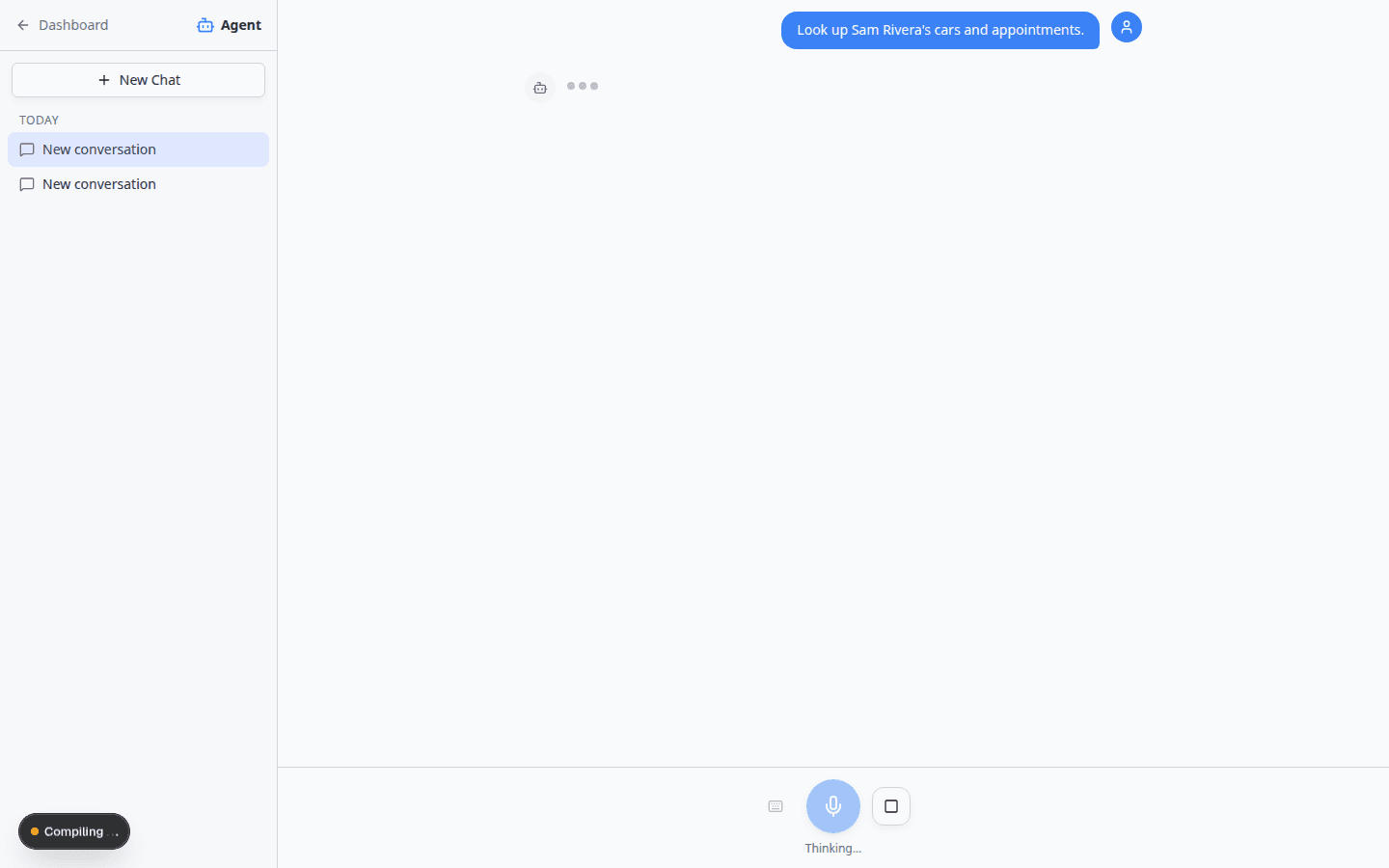
While the assistant is generating, you may see animated dots below your message. A stop button (small square icon) appears near the bottom input area.
- Click stop
The answer stops generating. You can send a clearer follow-up message.
Draft a customer message (do not send yet)
You can ask the assistant to word a text or email while you stay in control of sending.
- Start New Chat
Open AI Assistant and click New Chat so the message is not mixed with another customer.
- Ask for a draft only
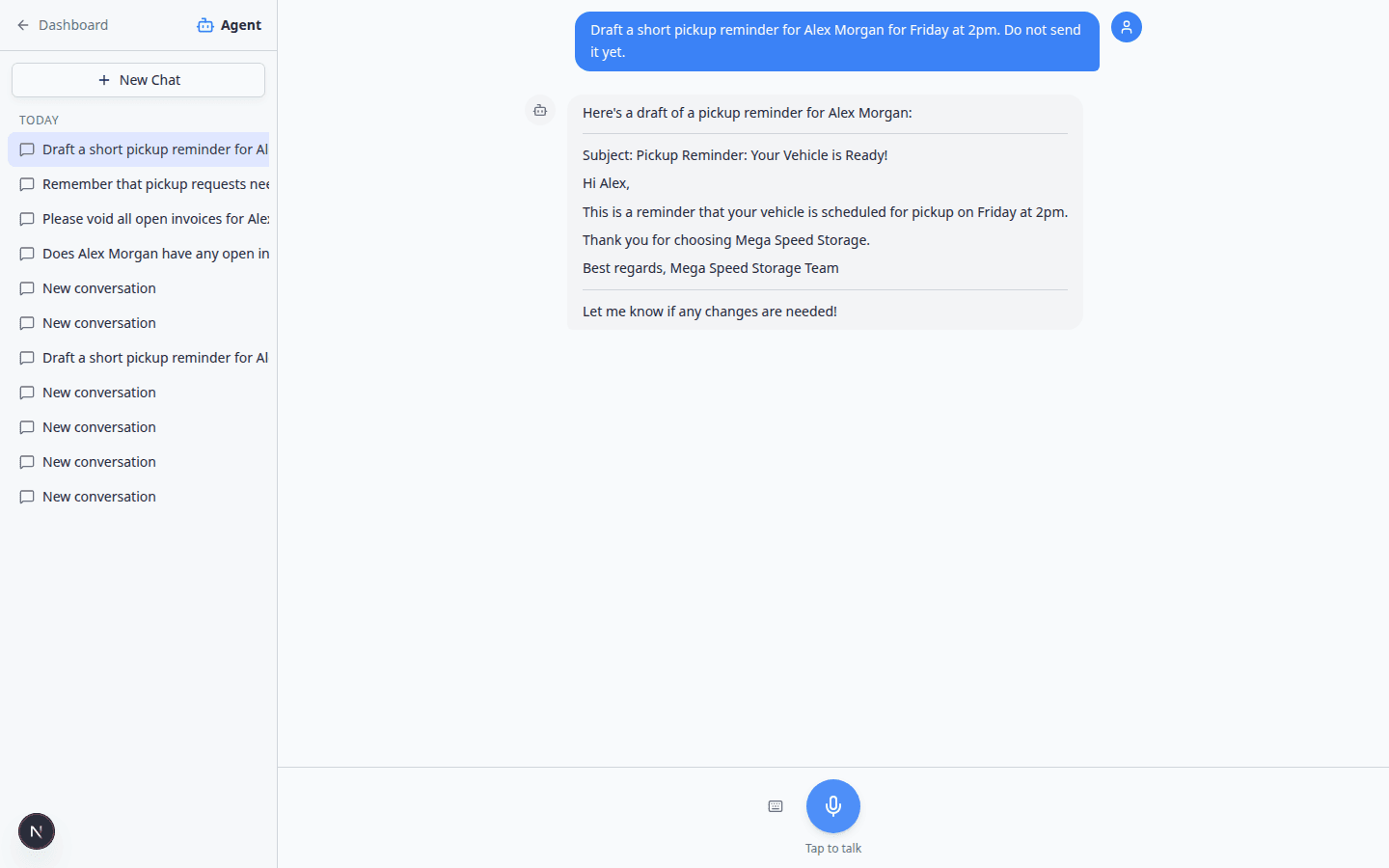
Example: Draft a short pickup reminder for Alex Morgan for Friday at 2pm. Do not send it yet.
Why this matters: Saying do not send keeps the assistant in draft mode. You review the words before anything goes to the customer.
- Read the draft in the chat
The assistant shows subject and body text in the conversation. Read every line aloud if you can.
Expected result: A complete draft appears in the chat—not in Inbox yet.
- Copy into Inbox and send
When the wording looks right, open Inbox, find the customer's thread, paste or retype the message, and send from there.
Expected result: The customer receives only what your team approved in Inbox—not an automatic send from the assistant.
If the assistant asks for more information
- Read what is missing
The assistant may ask for an email, VIN, exact date, or vehicle model.
- Reply with the detail
Type the missing information in the same chat.
- Check manually if needed
Open the related dashboard page if you are unsure.
Troubleshooting
I do not see AI Assistant in the sidebar
You must be signed in as staff. Customer portal logins do not include the staff sidebar.
The microphone does not work
Click Type instead, or allow microphone access in your browser settings. Some shared computers block the mic for privacy. Full help: Fix voice and microphone problems.
The answer found the wrong person or car
Do not continue. Reply with the full name, email, VIN, or license plate. Or search in Contacts or Cars.
The assistant says it does not have permission
Ask a team admin to update your role in Settings > Team. See Who can use the AI Assistant and When the assistant cannot help.
The answer looks incomplete
Open the record in the dashboard. The assistant helps you move faster; the record page is the official source.
The page opened before I was ready
That can happen if you tapped Go now during navigation. Use your browser Back button to return to the assistant, or open AI Assistant again from the sidebar.
What to do next
- Who can use the AI Assistant — if access or permissions are unclear.
- Ask about schedule, parking, and records for common lookup questions.
- Use the assistant during a customer call for phone workflows.
- From AI draft to customer message when you need to send a draft from Inbox.
- Prepare work with the AI Assistant when you need proposal cards for new records.
- When the assistant cannot help for errors and safe fallbacks.
- Review AI proposals before you select Confirm All.