Inbox
Handle incoming phone calls
Answer customer calls from anywhere in the dashboard, open Inbox for context, and follow up in writing when needed.
Use this guide when a customer calls your facility's business number and your team answers inside the app.
You do not have to be on the Inbox page to receive a call. A call alert can appear while you are working anywhere in the dashboard.
What you will accomplish
- Recognize an incoming call alert in the app.
- Answer or decline the call from the alert or call window.
- Open Inbox to see the customer's history after the call.
- Send a short follow-up text or email when a written record helps.
Before you start
- Calling must be set up for your team. If call buttons are disabled, review Configure communication settings for Inbox.
- Keep your computer or tablet volume on so you hear ring tones when calls arrive.
- Allow browser notifications if your facility wants desktop alerts for incoming calls.
When a customer calls
When an inbound call reaches your team, you may see two things:
- A small alert near the bottom-right corner of the screen that says Incoming call with an Answer action
- A centered call window with Answer and Decline buttons
The alert may show the customer's phone number and your facility's business number, separated by an arrow (for example, +1 (555) 555-0111 → +1 (555) 555-0100).
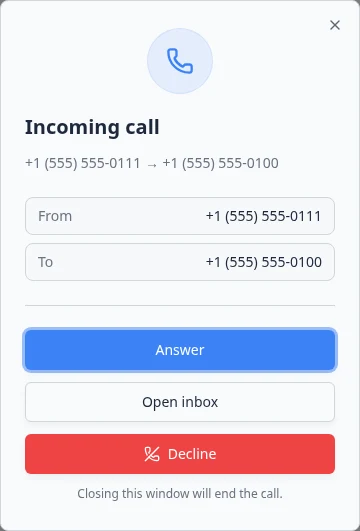
The call window shows:
- A phone icon at the top
- The title Incoming call
- From and To rows with the phone numbers
- A large blue Answer button
- An Open inbox button when you want to read the customer's history first
- A red Decline button below it
Answer the call
- Click Answer on the alert or call window
When the Incoming call alert appears near the bottom-right of the screen, click Answer on that alert.
You can also click the large blue Answer button in the centered call window shown above.
Expected result: The call connects. You may see a Call in progress bar at the top of the screen while you are on the phone.
- Greet the customer
Introduce your facility and confirm who you are speaking with.
Example: "Thank you for calling Mega Speed Storage. This is Alex. How can I help?"
- Take notes if needed
If the question is detailed, jot down the vehicle name, date, and next step while you talk.
Why this matters: A short written follow-up after the call helps the next teammate on shift.
- End the call politely
Summarize what will happen next before you hang up.
Use Hang up on the call bar when you are finished.
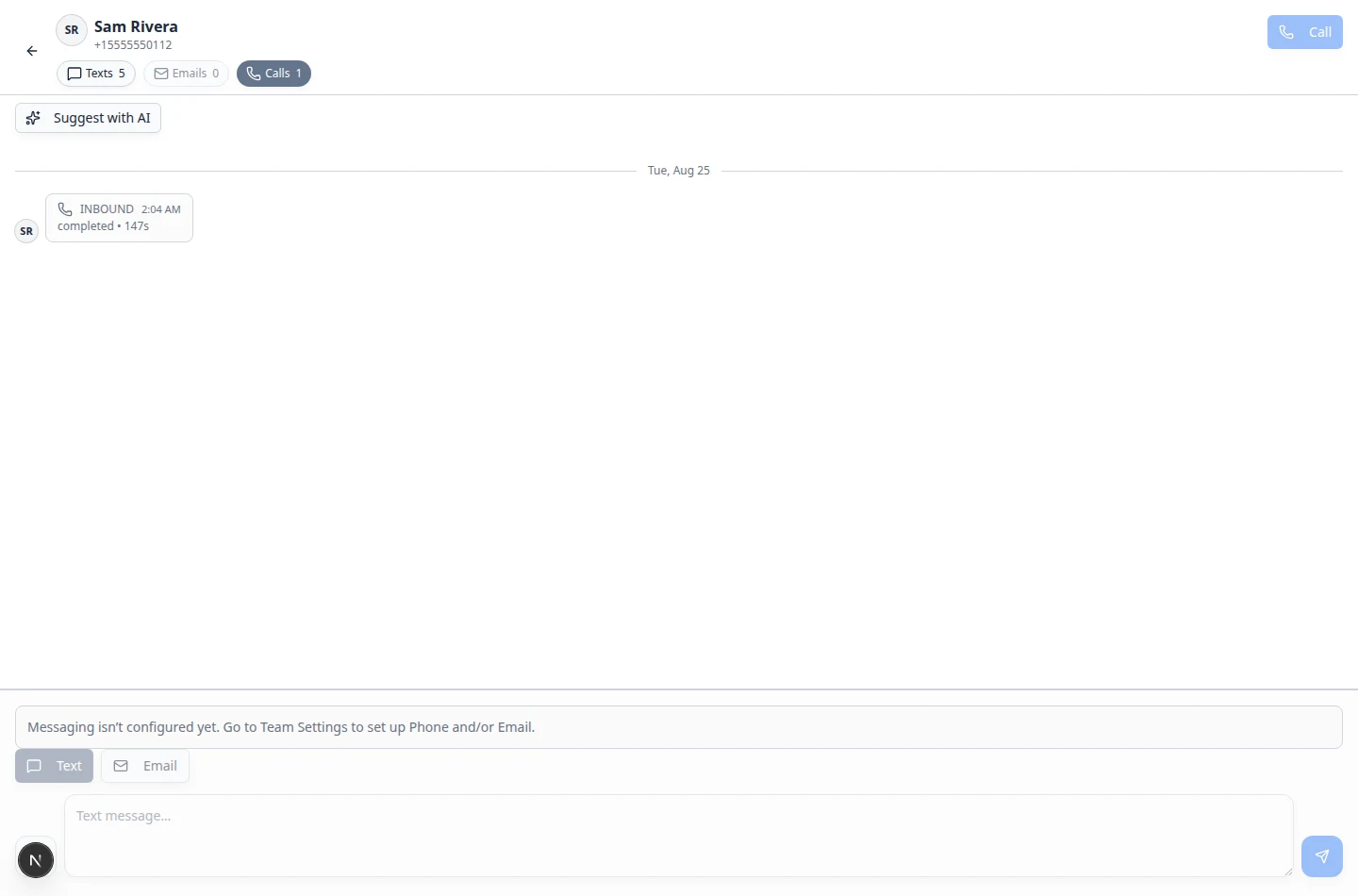
Expected result: The call ends and a new INBOUND entry appears in that customer's Inbox timeline when the number matches a saved customer.
During the call
- Confirm who you are speaking with (full name when possible).
- Ask which vehicle they mean when they own more than one car.
- Repeat important dates and times back to the customer.
- Say what will happen next before you hang up.
Decline or miss a call
- Click Decline or Hang up
Use Decline when your team cannot answer right now.
- Check Inbox afterward
Go to Inbox and look for the customer or phone number.
A missed call or voicemail may appear in the timeline.
- Return the call or send a text
Call back from the customer's conversation, or send a short text that you missed their call.
See Review calls and transcripts and Send a text message from Inbox.
Open Inbox from a ringing call
If the call window offers Open inbox, click it before you answer or right after you decline.
Why this helps: You can read recent texts and emails before you call back or send a follow-up message. The customer's name and phone number should already match the conversation in Inbox.
- Click Open inbox on the call window
While the Incoming call dialog is on screen, click Open inbox.
Expected result: Inbox opens with that customer's conversation selected (when the number matches a saved customer).
- Skim the latest messages
Read the last few texts or emails before you pick up the phone.
Why this matters: Customers appreciate when your team already knows why they are calling.
- Return to the call window to answer
Click Answer on the call dialog when you are ready to speak live.
For more on reading call history and transcripts after the call ends, see Review calls and transcripts.
Follow up in writing after a call
A phone call does not always leave enough detail for the next teammate on shift.
Send a short text or email when:
- The customer asked for a specific time or location
- You promised to check something and report back
- Billing, transport, or service details were discussed
What success looks like
- The call appears in the customer's Inbox timeline.
- The customer knows what happens next.
- Your team has a written follow-up when the details matter.
Troubleshooting
What to do next
For outbound calls and Quick call, see Review calls and transcripts.
For team coordination while multiple people use Inbox, see Coordinate with your team in Inbox.