AI Assistant
From AI draft to customer message
Turn an AI Assistant draft into a real text or email in Inbox—without sending anything by accident.
What you will accomplish
You will take words the AI Assistant helped you write and send them to a customer through Inbox—after you read and edit them.
The assistant does not send messages to customers by itself. Your team always reviews and sends from Inbox. This guide connects those two steps so nothing goes out by mistake.
When to use this guide
Use this guide when:
- You asked the assistant to draft a pickup reminder, appointment confirmation, or polite follow-up.
- You used Suggest with AI inside an Inbox conversation and want to understand the full path.
- A manager is training staff on safe customer communication.
Before you start
- You have AI Assistant and Inbox permissions.
- You know which customer should receive the message.
- You started New Chat if you drafted in the assistant (one customer per chat).
- You read the draft for correct names, dates, times, prices, and promises.
Path A: Draft in the AI Assistant, send from Inbox
Use this path when you wrote a message in AI Assistant first.
- Ask for a draft only
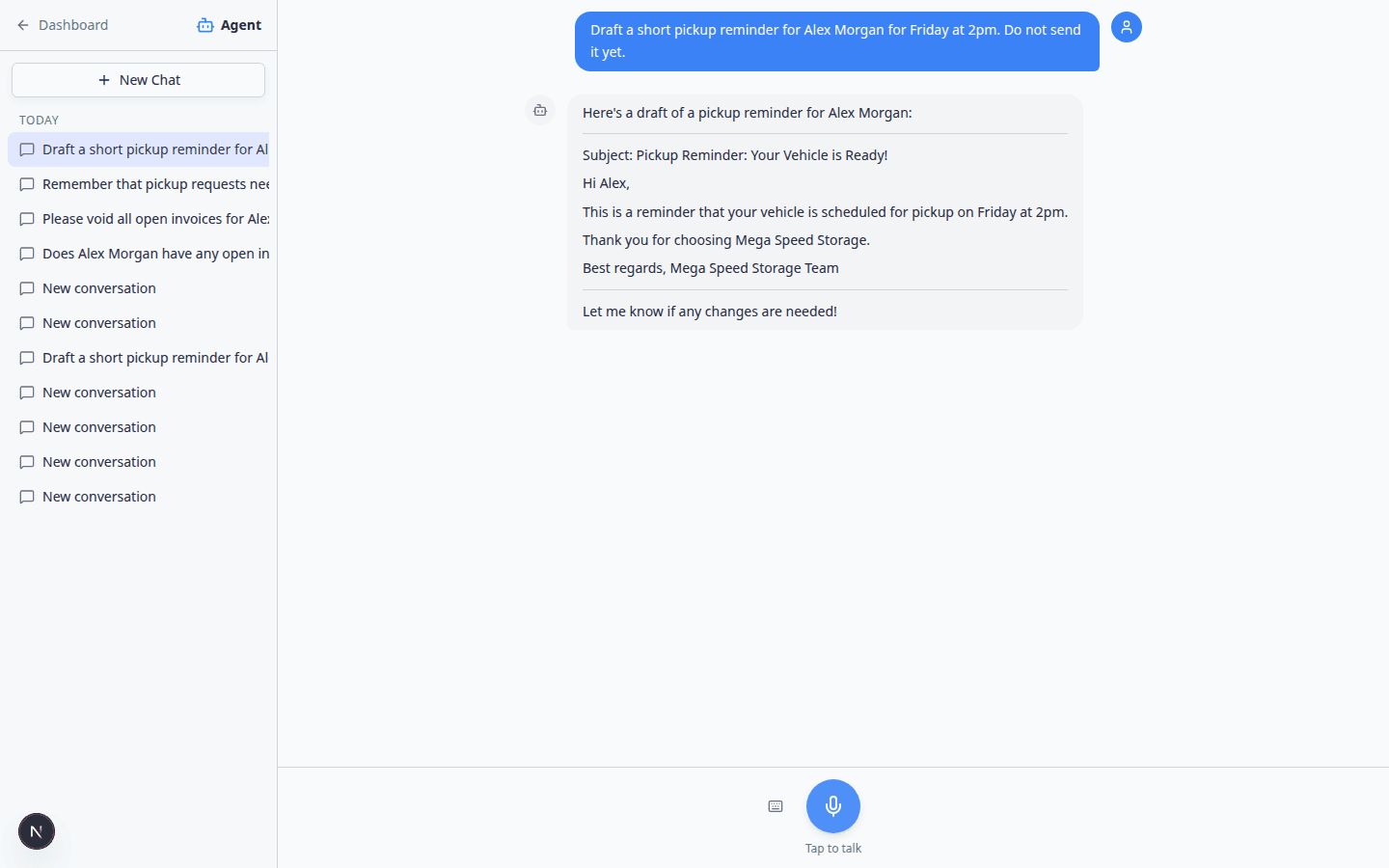
In AI Assistant, click New Chat. Use Type instead and ask clearly:
Draft a short pickup reminder for Alex Morgan for Friday at 2pm. Do not send it yet.
Why “do not send” matters: Those words keep the assistant in draft mode. It will word the message in the chat for you to copy—not send it automatically.
- Read every sentence
Check the customer name, vehicle, date, time, and any price or policy wording.
Expected result: The draft sounds professional and matches what your facility can actually do.
- Open Inbox
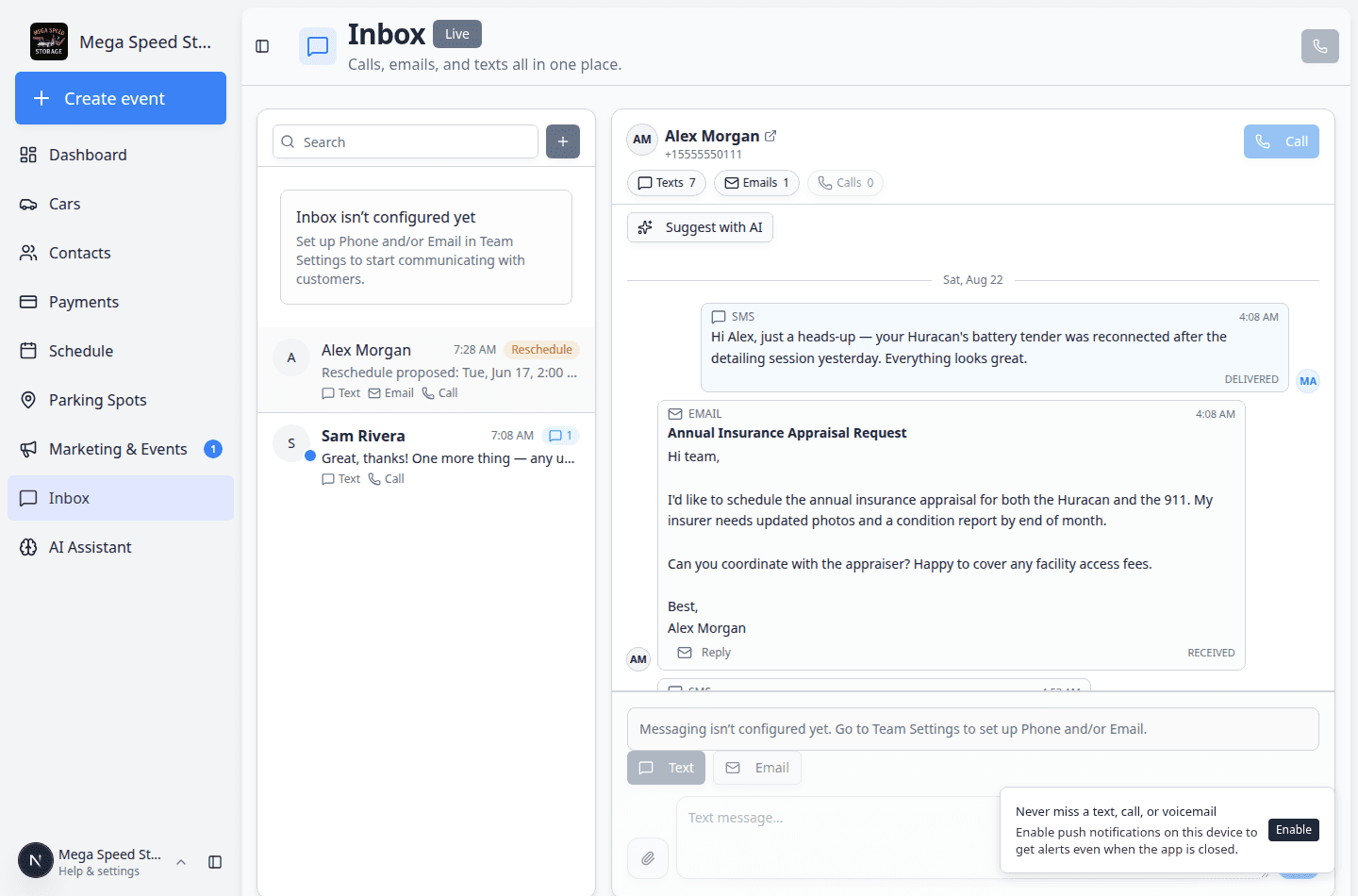
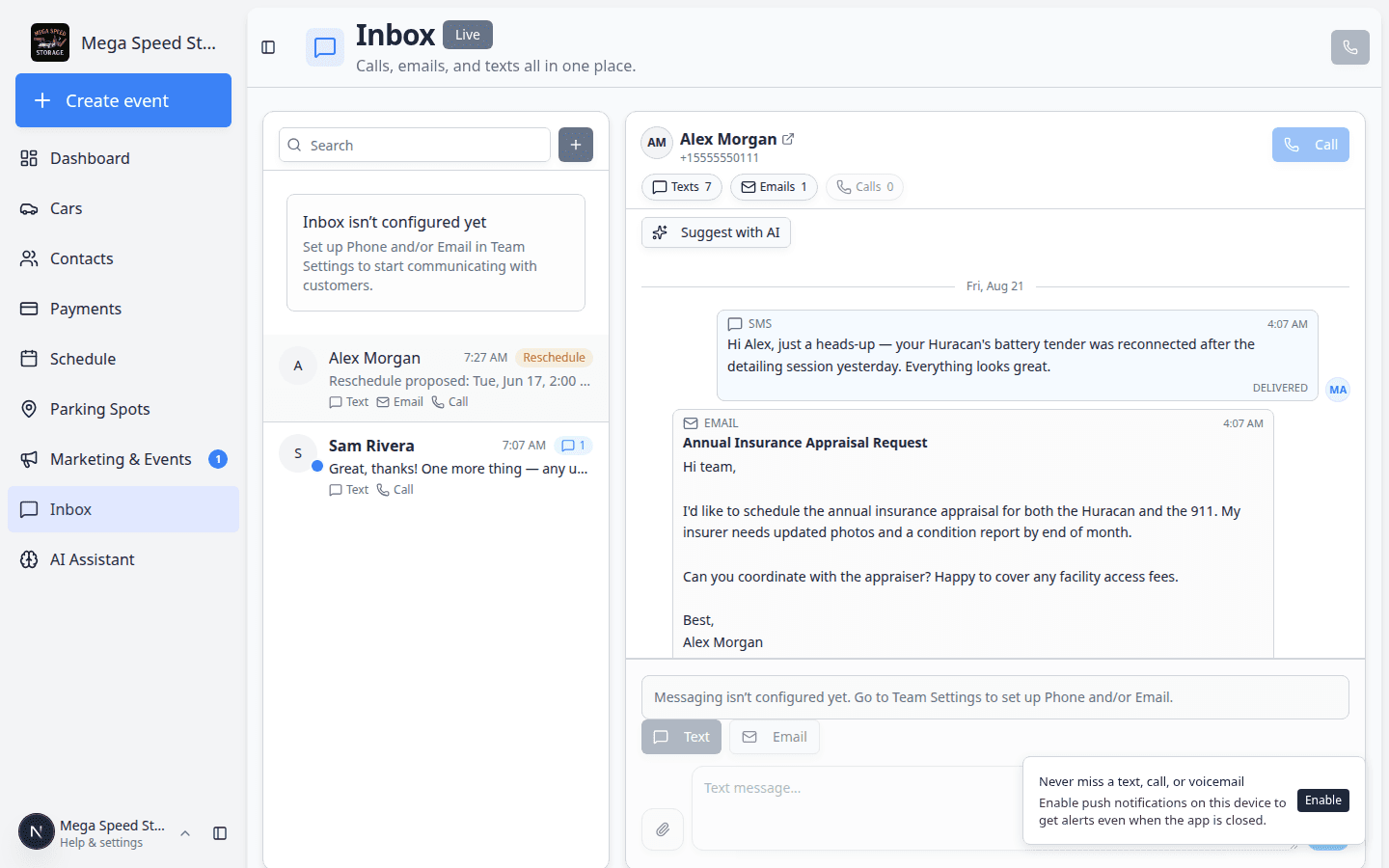
Go to Inbox. Search for the customer in the conversation list on the left.
Click their name so the conversation opens on the right. You should see their recent texts, emails, or calls in the timeline.
- Choose Text or Email
- Text — short, fast, good for reminders and quick updates.
- Email — longer answers, subject lines, and a formal record.
See Send a text message from Inbox or Send an email from Inbox.
- Paste or retype the draft
Copy the assistant's words into the message box—or retype them in your own voice.
Why retyping helps: You catch small errors and adapt the tone for this customer.
- Send from Inbox
Click Send only when you are satisfied.
Expected result: The message appears in the customer's timeline in Inbox. The customer receives it on their phone or email—not from the assistant page.
Path B: Suggest with AI inside Inbox
Use this path when you are already reading the customer's thread in Inbox.
- Open the conversation
In Inbox, click the customer on the left.
- Read recent messages yourself
Skim texts, emails, and calls so you know what the customer already said.
- Click Suggest with AI
Above the timeline, click Suggest with AI (sparkle icon).
The app drafts a possible reply based on recent messages in this conversation.
- Edit before Send
Fix names, dates, and promises. Remove anything the AI guessed incorrectly.
Full steps: Use AI-suggested replies in Inbox.
What to check before you send
- Customer name — spelled the way they expect.
- Vehicle — correct year, make, and model if mentioned.
- Date and time — matches Schedule.
- Money — no invoice total unless you verified it in Payments.
- Promises — do not agree to work or discounts your manager must approve.
- Channel — text vs email is appropriate for the message length.
Common mistakes
Troubleshooting
I cannot find the customer in Inbox
Create or locate them in Contacts first. See Start a new Inbox conversation.
Suggest with AI is grayed out
You may need message history in that thread, or your account may lack Inbox permission.
The draft mentions the wrong appointment
Open Schedule, find the correct event, and fix the message manually.
What to do next
- Use AI-suggested replies in Inbox — deeper guide for Suggest with AI.
- Use the assistant during a customer call — lookup first, message after you hang up.
- Respond to a conversation — everyday Inbox habits.