Schedule
Understand tentative and service plan events
Learn why some Schedule events look striped or tentative, what service plans create automatically, and what your team can change.
What you will accomplish
You will understand events on Schedule that look different from normal confirmed visits—often with striped styling or a tentative label—and know what your team is allowed to change.
Expected outcome: You stop second-guessing whether a visit is confirmed, avoid editing system-generated plan work the wrong way, and route customers to the right next step.
When this guide helps
- A calendar block has diagonal stripes instead of a solid color.
- A customer asks “Am I confirmed?” and you are not sure from the calendar alone.
- Future visits appeared on the calendar that no one on staff booked by phone.
- You try to edit an event and some fields (assignee or status) seem locked.
Two common reasons an event looks tentative
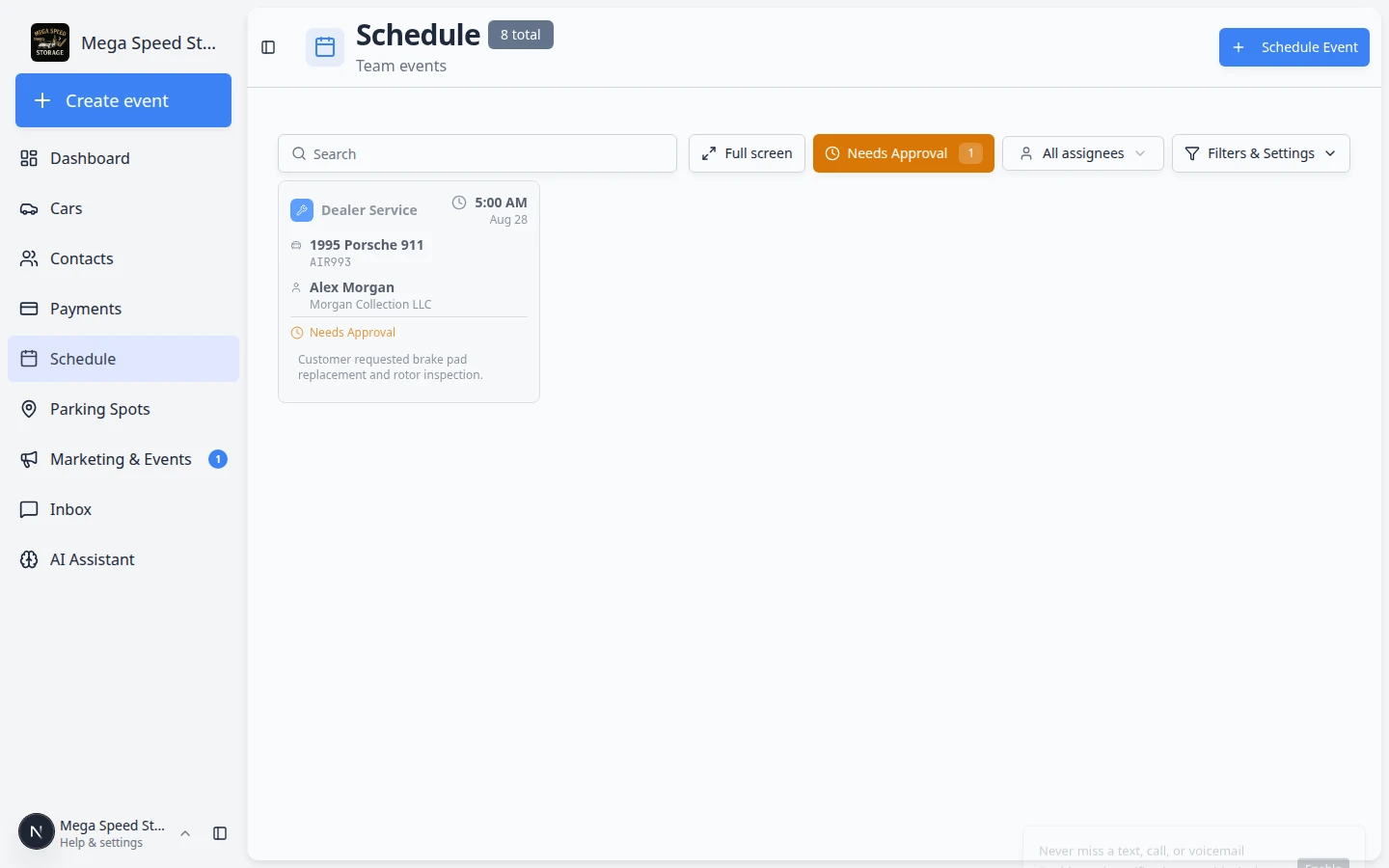
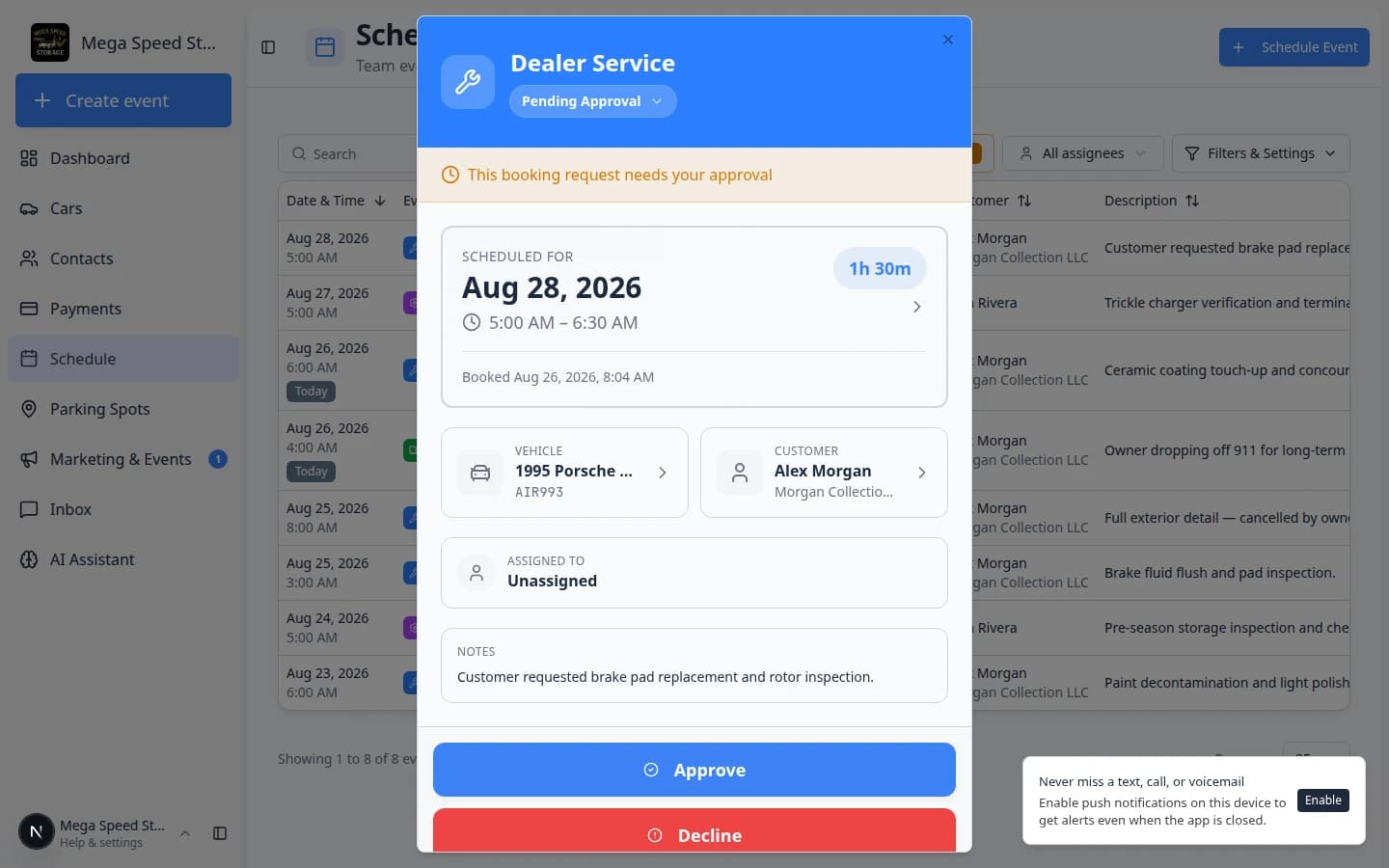
Online booking needs your approval — A customer requested a time on your website. The event waits in Needs Approval until staff approve, decline, or suggest a new time. Guide: Approve or decline a customer booking request.
Service plan generated the visit — Your facility uses vehicle service plans (battery checks, fluid top-offs, seasonal inspections). The app can place future visits on the calendar automatically so nothing is forgotten. Setup: Set up vehicle service plans.
| What you see | What it usually means | What to do first |
|---|---|---|
| Striped block + Needs Approval filter shows the event | Customer booked online; not confirmed yet | Approve or decline before you promise the time |
| Striped block but not in Needs Approval | Often a service plan placeholder | Open the event; confirm with the customer if needed |
| Solid color block, status Scheduled | Normal confirmed visit | Run or reschedule like any other appointment |
| Status Tentative in the detail panel | Plan-generated or not yet confirmed | Read notes; check the vehicle’s service plan on the car record |
How to tell which type you are looking at
- Open the event on Schedule
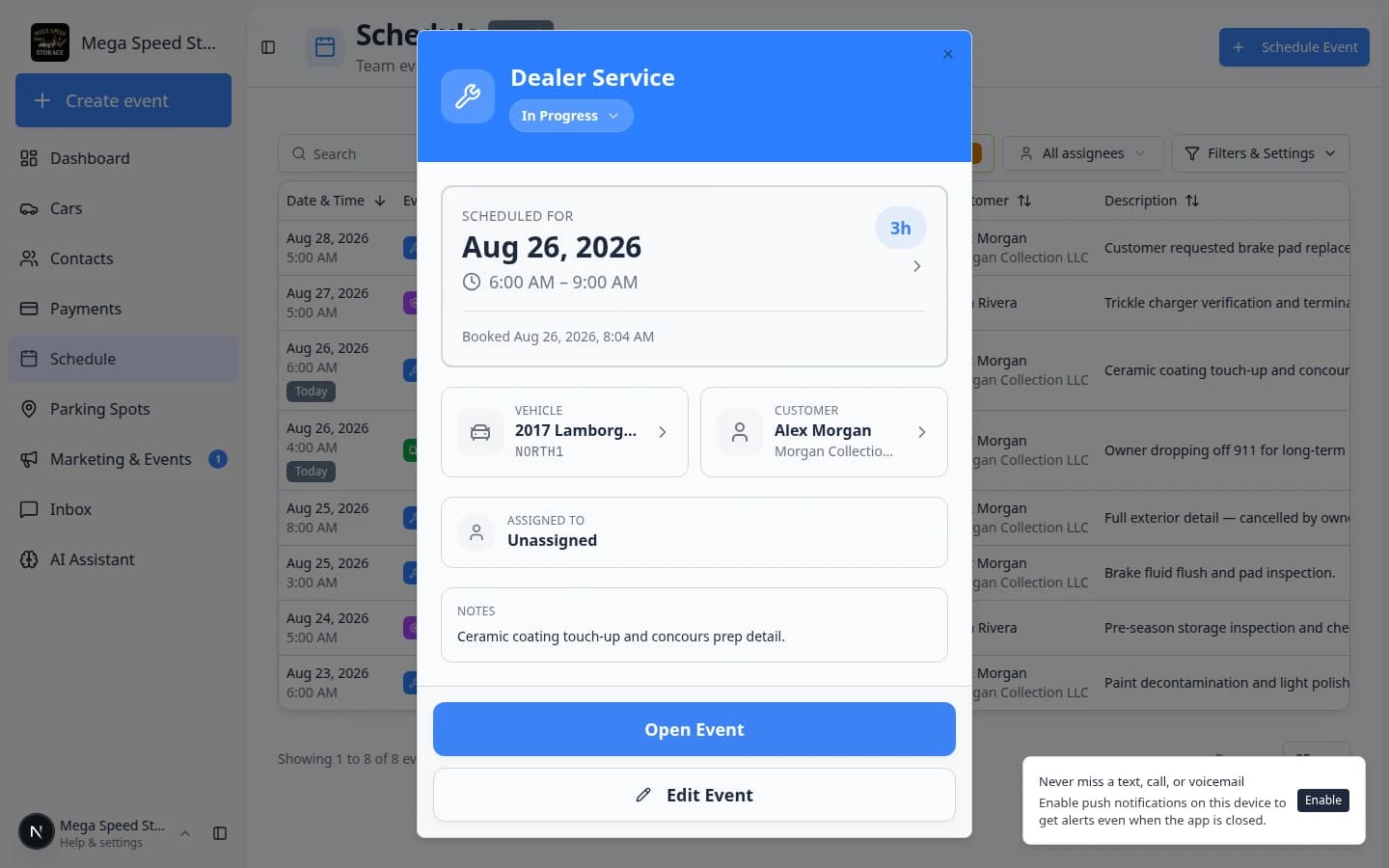
Click the striped block on Schedule.
Expected result: A detail panel opens on the right with the event name, time, vehicle, and status.
- Read the status near the title
Look for words such as Needs Approval, Tentative, or Scheduled.
- Needs Approval — a customer booked online and staff have not approved yet.
- Tentative — often a service plan placeholder (maintenance due soon).
- Scheduled — a normal confirmed visit (solid color on the calendar).
- Check the Needs Approval filter
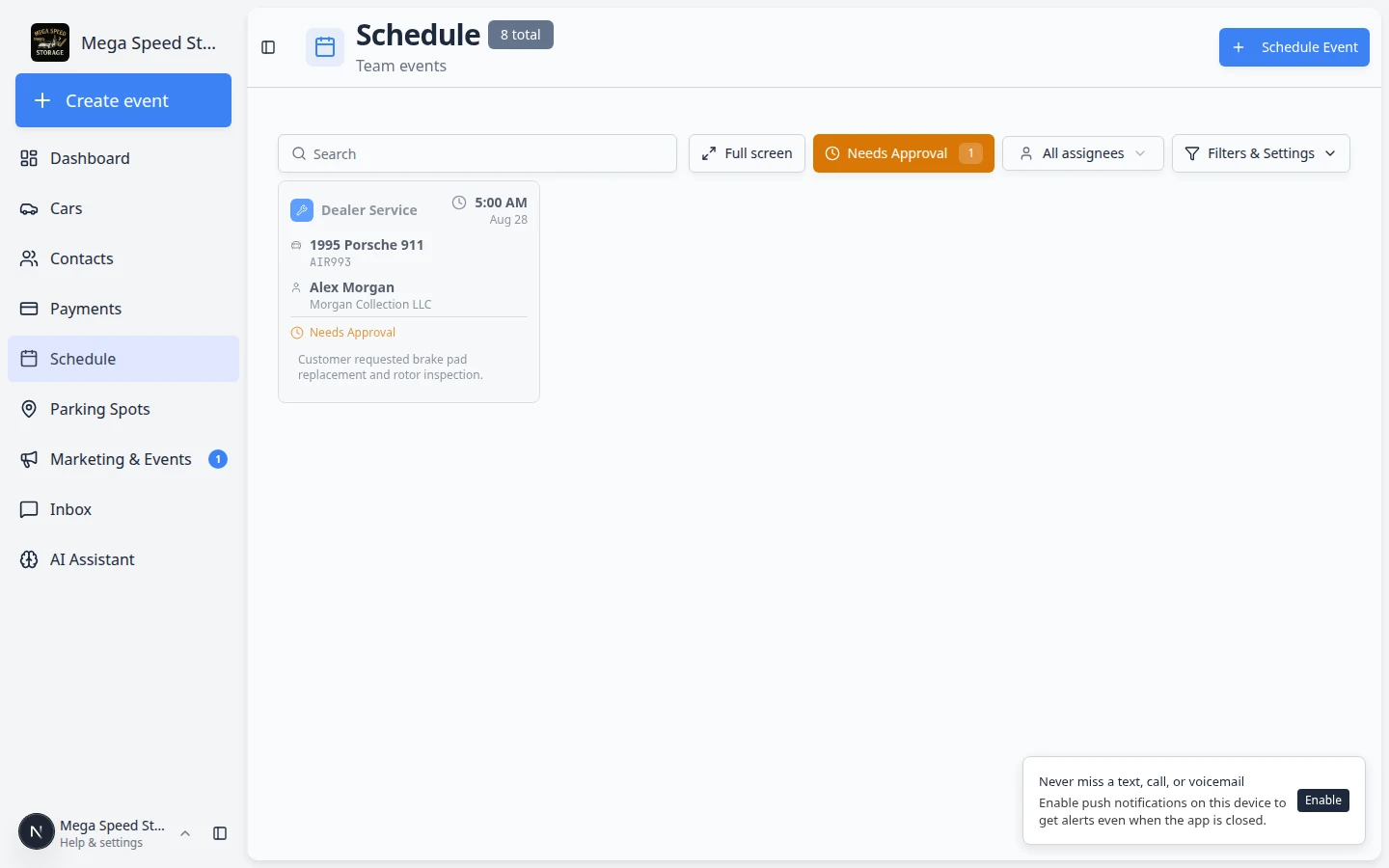
At the top of Schedule, look for Needs Approval. If it shows a number badge, click it.
Expected result: Only pending portal requests remain visible. If your event appears here, follow the approval guide before you promise the time to a customer.
- Open the vehicle record when unsure
From the event panel, open the linked car in Cars. Review Service or service-plan sections when you are not sure why the visit exists.
Why this matters: Service-plan visits are reminders for your team—they are not always a promise to the customer until your process says they are.
How service plan events behave
Service plan visits are helpful placeholders. They remind your team that maintenance is due—they are not always a promise to the customer until your process says so.
- They often appear ahead of time on the calendar so managers can staff the week.
- They may look tentative (striped styling) compared with a phone booking you entered yourself.
- Some fields may be restricted—for example assignee or status—because the plan still owns the schedule logic.
- Completing the real work still happens through Open Event (photos, checklists) when your team is on the floor.
What staff can usually do
| Situation | What to do |
|---|---|
| Customer confirms they want the visit | Treat it like any appointment—assign staff, add notes, communicate the time. See Assign team members and vendors to events. |
| Visit should move to another day | Use Edit Event if allowed, or reschedule following Update, assign, or reschedule an event. Read any warning before you save. |
| Work is not needed this cycle | Ask a manager whether to cancel this occurrence or adjust the service plan on the car record. |
| Customer never booked online but event is striped | Check Needs Approval first—it may still be a portal request. |
What to tell customers (plain language)
For a service-plan visit: “We have your battery check on the calendar for next Tuesday—we will confirm the exact time the day before.”
For an unapproved portal request: “We received your request and will confirm shortly once our team reviews the schedule.”
Never say “you are confirmed” while the event still shows Needs Approval or striped tentative styling.
What to check before calling a customer
- Look at the status label
Open the event and read the status near the title (Scheduled, Tentative, Needs Approval, and so on).
- Check Needs Approval filter
On Schedule, click Needs Approval if the button shows a number badge.
Expected result: If the event appears here, follow Approve or decline a customer booking request before you promise the time.
- Read notes and the vehicle record
Open the linked car in Cars and review Service / plan sections when you are unsure why the visit exists.
- Use plain language with the customer
For plan visits say: “We have your battery check on the calendar for next Tuesday—we will confirm the exact time the day before.” For unapproved portal requests say: “We received your request and will confirm shortly.”
Icons that often appear together
Striped tentative styling may sit beside other badges (repeat arrow, dollar sign, damage flag). For a full legend, read Read calendar icons and badges.
Common mistakes to avoid
Troubleshooting
What to do next
- Approve portal bookings: Approve or decline a customer booking request
- Configure plans: Set up vehicle service plans
- Run the visit: Run event workflow from Schedule
- Learn calendar symbols: Read calendar icons and badges