Marketing & Events
Create a text, push, or social campaign
Send a text message, phone notification, or social post to customers—not only email—using the same campaign tools on the marketing calendar.
What you will accomplish
- Start a text, push, or social campaign from Marketing & Events.
- Write a short message customers will see on their phone or social feed.
- Choose the right audience and schedule or publish the send.
Expected result: Customers receive your update on the channel you chose—not in email.
Use Create a campaign first if you are brand new to campaigns. This guide focuses on channels other than email.
When to use each channel
| Channel | Best for | Example |
|---|---|---|
| Text (SMS) | Short, urgent reminders customers read quickly | "Doors open at 9 AM for Cars & Coffee. Reply if you need directions." |
| Push | App users who enabled notifications | "Your detail appointment is tomorrow at 10 AM." |
| Social post | Announcing an event on Facebook or Instagram | Photo of your facility with open-house date and link |
| Longer stories with photos and buttons | Monthly newsletter—see Create a campaign |
Before you start
- You can open Marketing & Events.
- For text campaigns: text messaging is configured in Settings > Communications.
- For push campaigns: your customer mobile app is live and customers have installed it.
- For social campaigns: your social accounts are connected in Settings > Communications.
- You know what you want to say in one or two short sentences (especially for text).
Step 1: Start the campaign from Create New
- Open Marketing & Events
Go to Marketing & Events.
- Click Create New
Click Create New in the top-right corner.
Expected result: A menu lists campaign and event types.
- Pick your channel
Choose the type that matches your goal:
- Text message (or SMS) — for phone texts.
- Push notification — for app alerts.
- Social post — for Facebook, Instagram, or similar.
Why this matters: You cannot switch a campaign from text to email after creation. Pick the right channel now.
- Name the campaign
Type a name your team will recognize on the calendar—for example Open House Text Reminder or July Instagram Post.
Click Create Campaign (or Create).
Expected result: You land on the campaign detail page with a draft badge.
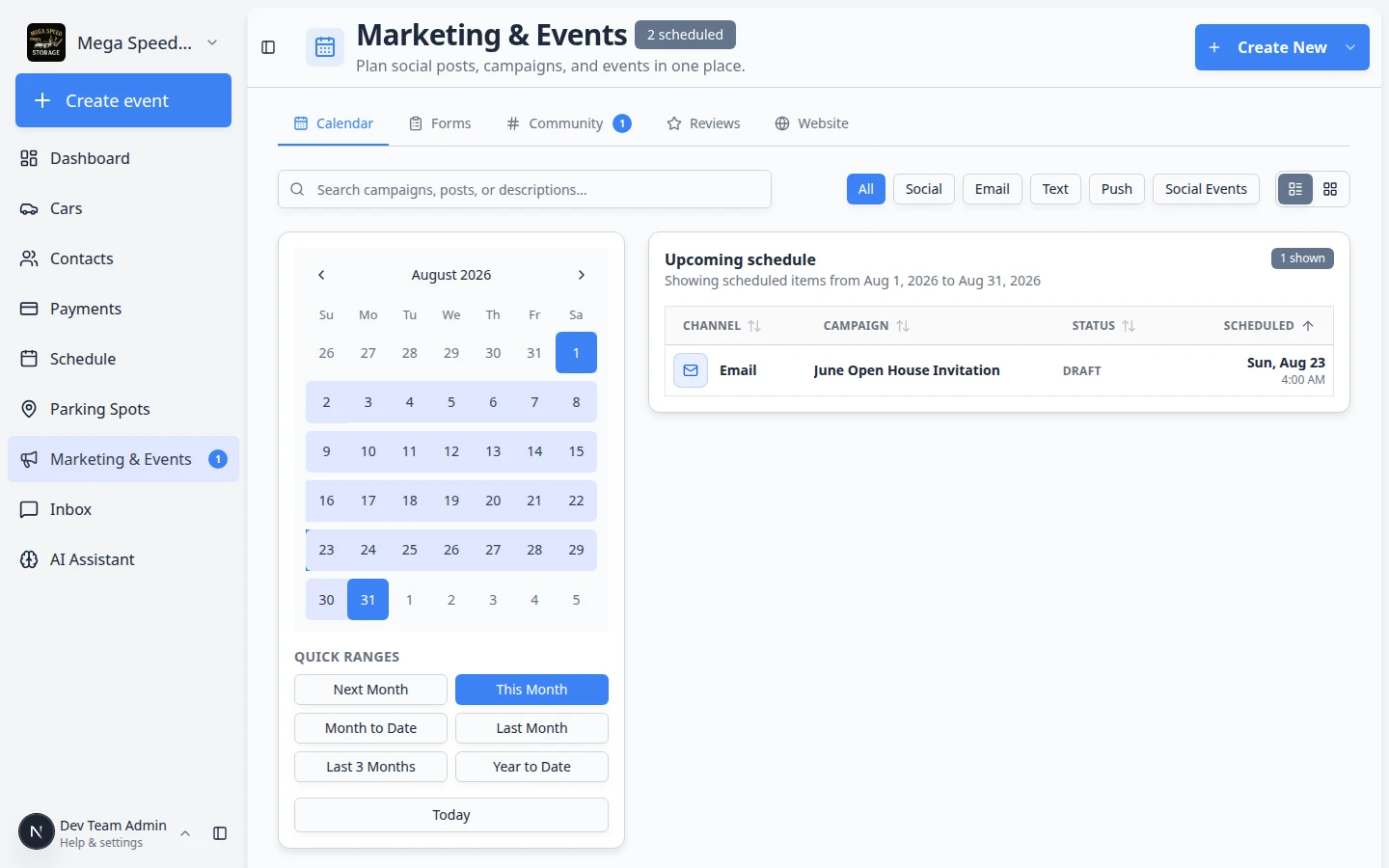
Step 2: Write the message for your channel
- Find the message card
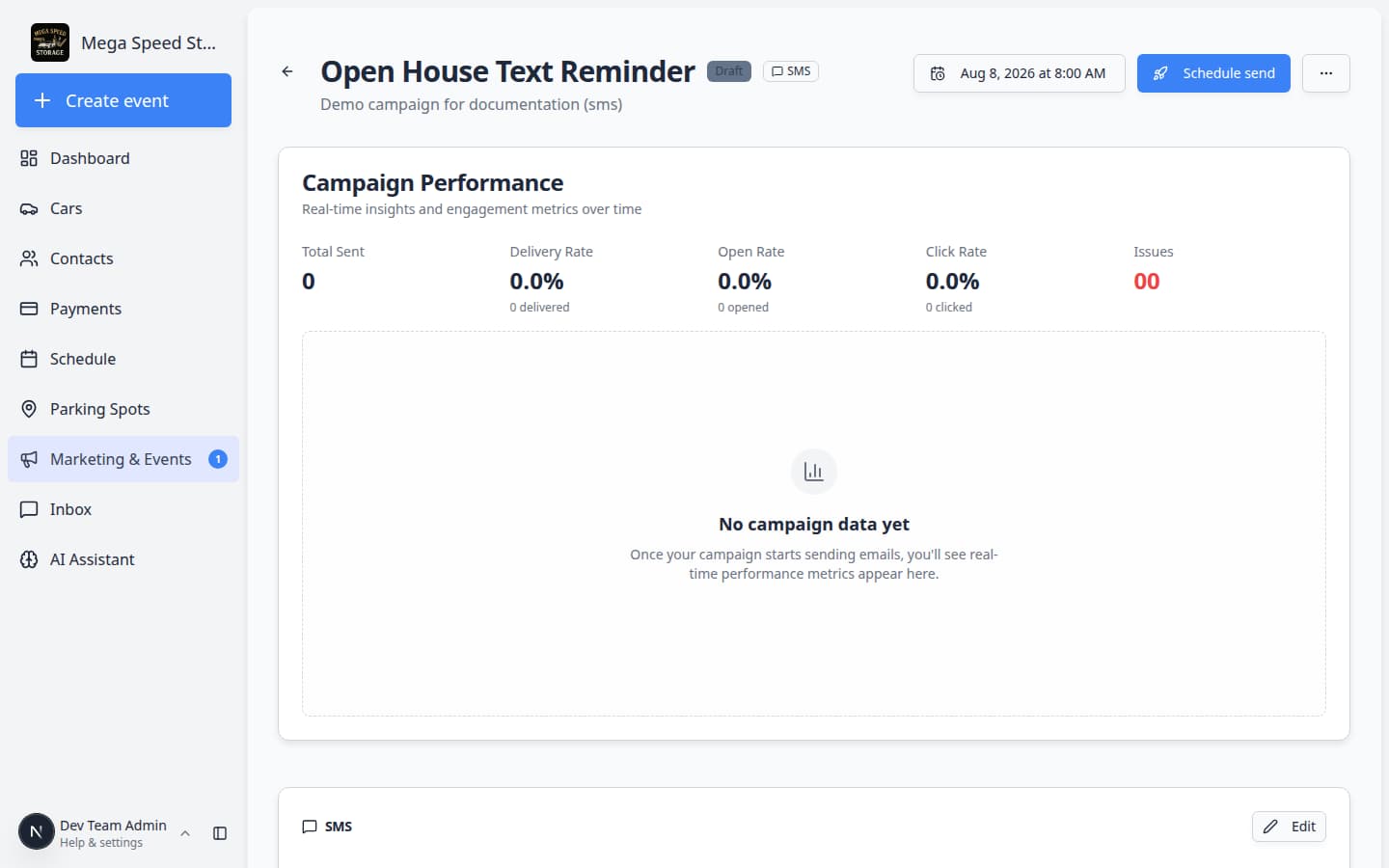
On the campaign detail page, find the card labeled SMS, Push, or Social (wording matches your channel).
- Click Edit
Click Edit on that card.
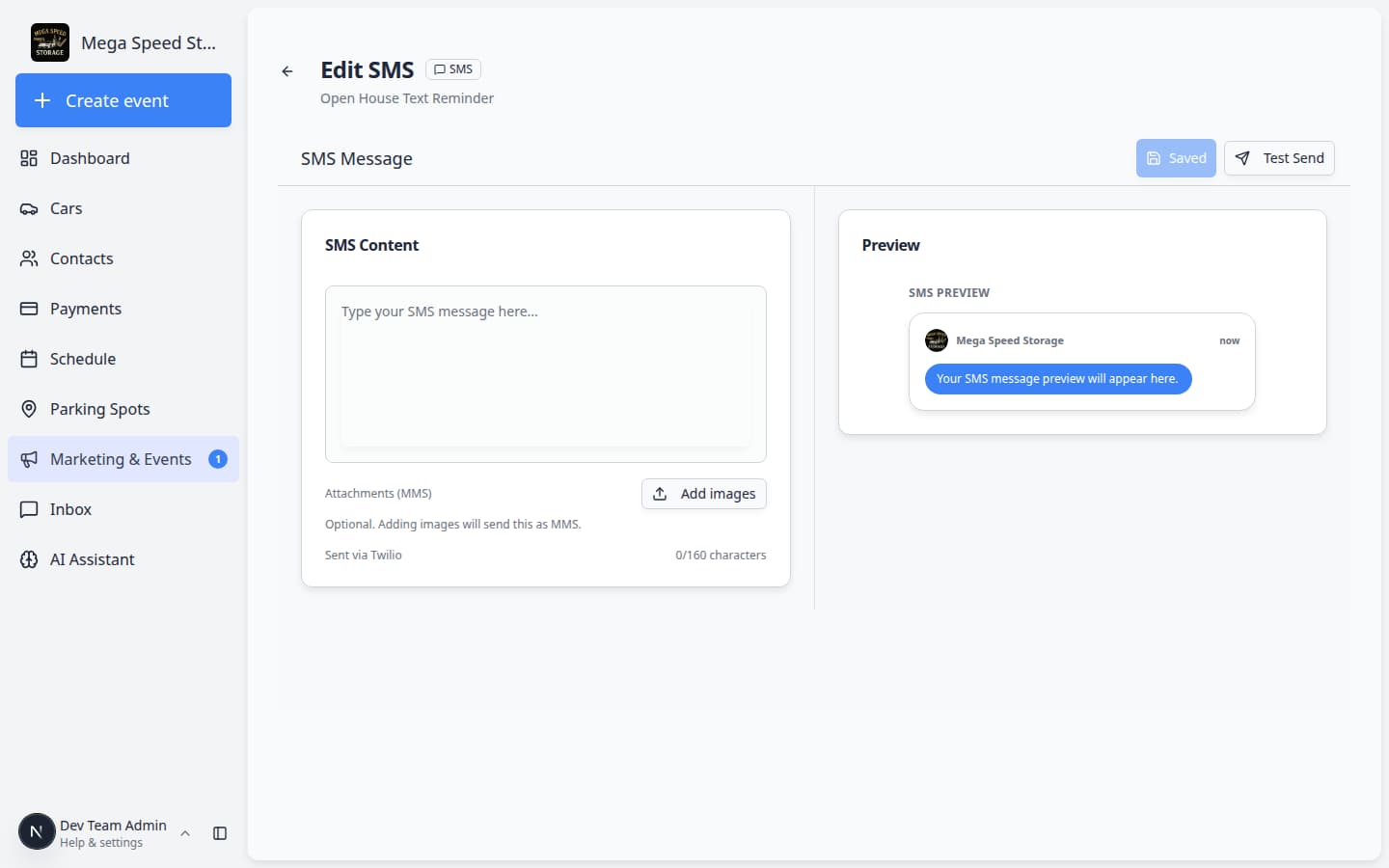
Expected result: An editor opens for that channel only.
- Write short, clear text
- Text: Keep it brief. Include date, time, and one link if needed. Avoid long paragraphs—texts truncate on small screens.
- Push: Add a short title and message. Tell customers what to tap or do next.
- Social: Add caption text and attach an image when the editor allows.
Why this matters: Customers skim these messages in seconds. Lead with the most important fact.
- Save and return
Save your work and return to the campaign detail page.
Expected result: The message card shows a preview of what customers will see.
Step 3: Choose who receives the message
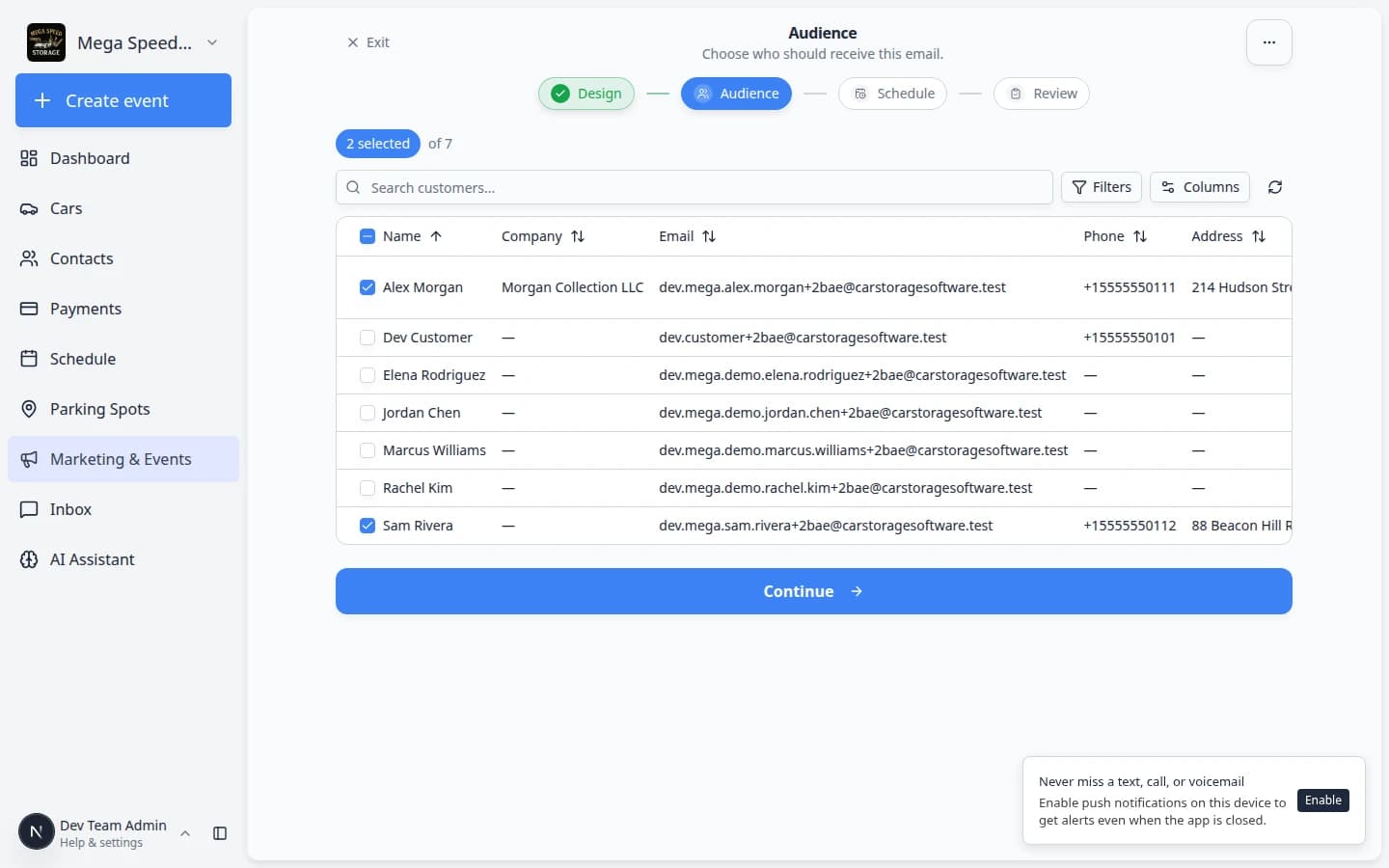
Follow the audience steps in Add campaign message, audience, and publish.
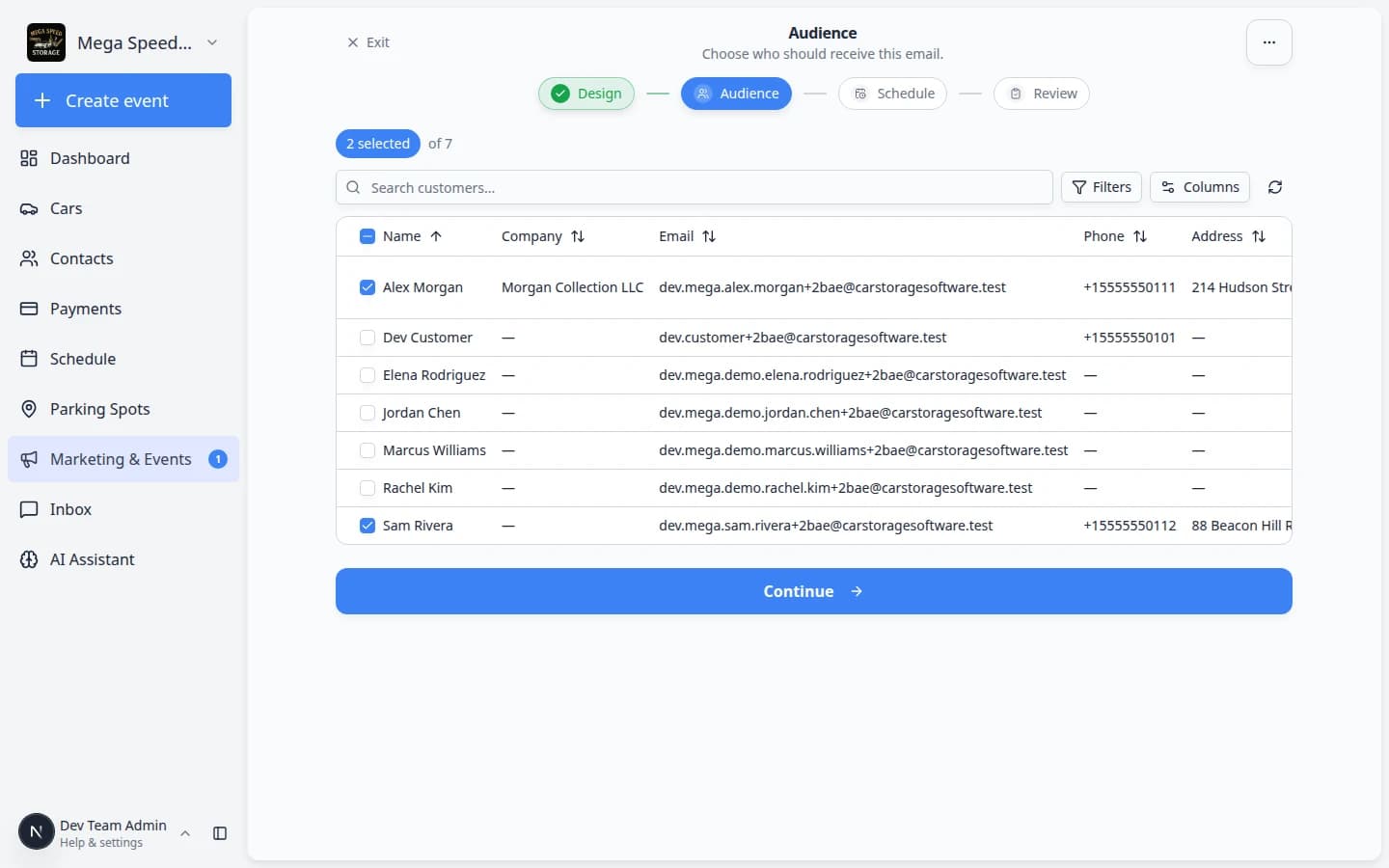
- Search and check the customers who should receive this message.
- For texts, confirm each customer has a valid mobile number on their contact record.
- Read the recipient count before you publish—texts to the wrong group are hard to take back.
Step 4: Schedule or publish
- Choose Schedule send or Publish Campaign
On the campaign detail page, use Schedule send when you want a future date and time. Use Publish Campaign when the message should go out as soon as processing finishes.
Why this matters: Scheduling lets you write reminders during the day but send them the morning of your event.
- Confirm in the dialog
Read the confirmation window. It should show the channel, audience size, and send time.
Click the button to confirm.
Expected result: The campaign status changes from draft to scheduled or published. It appears on the Marketing & Events calendar.
What success looks like
- The campaign shows on the marketing calendar with the correct channel label (Text, Push, or Social).
- Test customers (or your own phone) receive the message at the expected time.
- Your team knows which channel was used so they can answer customer replies in Inbox.
Troubleshooting
What to do next
- Add campaign message, audience, and publish — full publish checklist for any channel.
- Create a social event — when customers need RSVP and check-in, not just a text blast.
- Marketing & Events overview — see how campaigns fit with forms, community, reviews, and website traffic.