Basics
Install the mobile app
Add Car Storage Software to your phone home screen so staff and customers can open it like a native app from Safari, Chrome, or other mobile browsers.
What you will accomplish
You will save Car Storage Software to your phone’s home screen so it opens full-screen — like a regular app — without typing the web address every time.
This works for:
- Staff who start work from Create event on the shop floor
- Customers who check cars, events, and messages from the customer portal
You do not download anything from an app store. Your phone’s browser creates a shortcut that opens the same secure website you already use.
When to use this guide
- A team member wants faster access to Create event on a phone or tablet.
- A customer asks how to “get the app” on their iPhone or Android phone.
- Your facility uses a Mobile App Install step in customer onboarding.
- You want a QR code at the front desk that opens the customer sign-in page (see Share customer login links).
Before you start
- You are on an iPhone or Android phone with a modern browser (Safari, Chrome, Samsung Internet, or similar).
- You are signed in to the page you want to save — Create event for staff or the customer portal for customers.
- You know which browser you are using. Safari and Chrome on iPhone use different buttons to reach Add to Home Screen.
Staff vs customer — which page to save
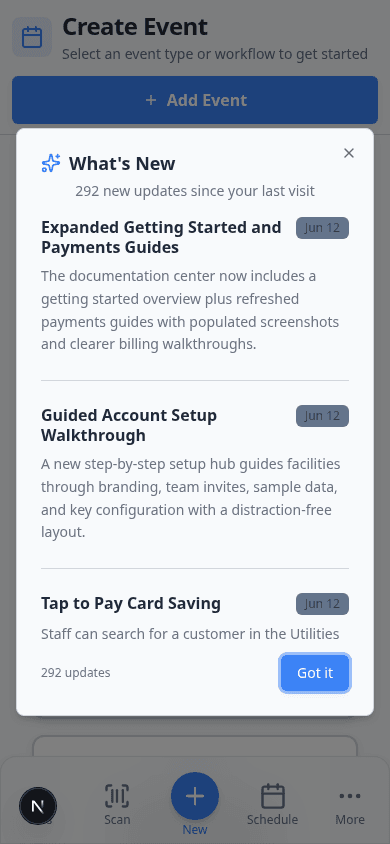
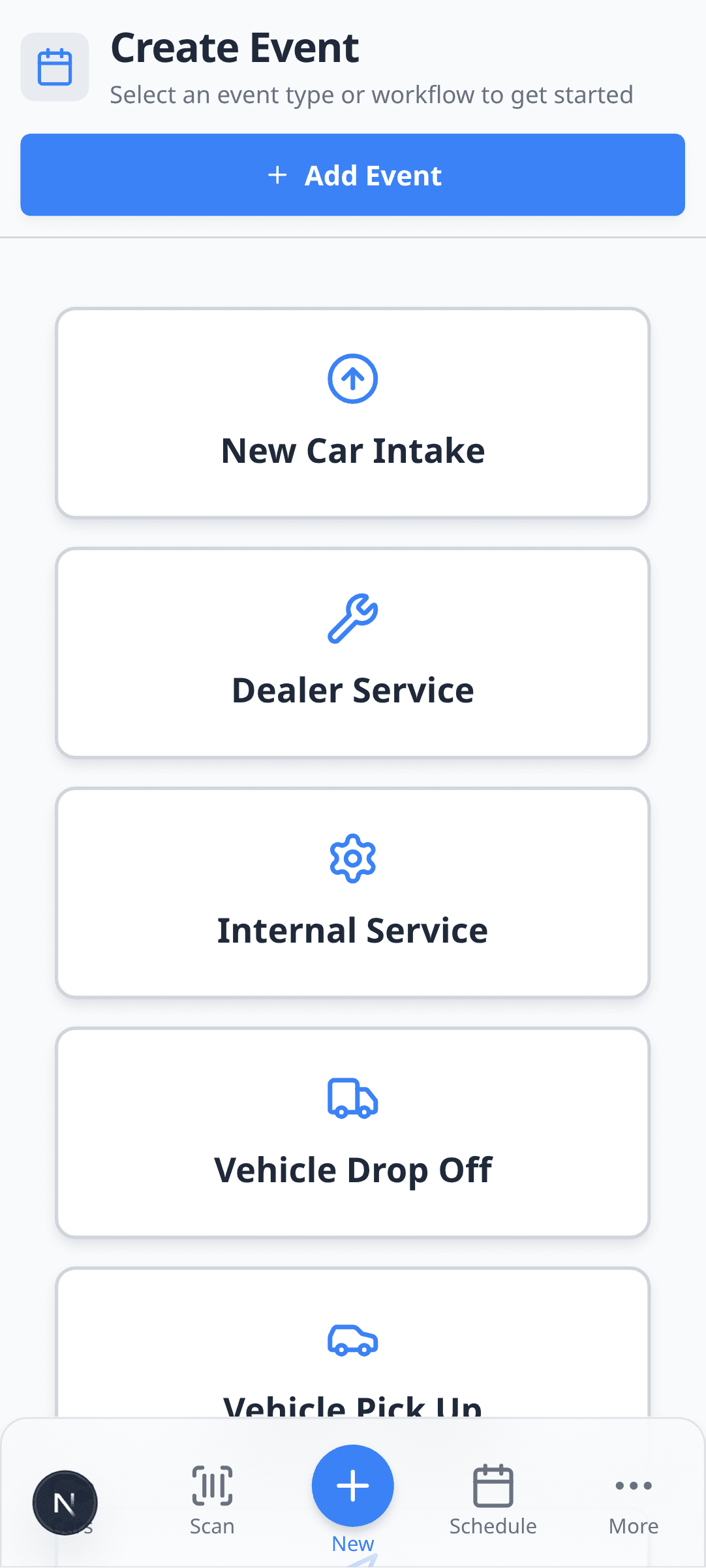
Staff dashboard — Open Create event (or Dashboard if that is your daily starting point). Sign in as staff, then follow the steps below.
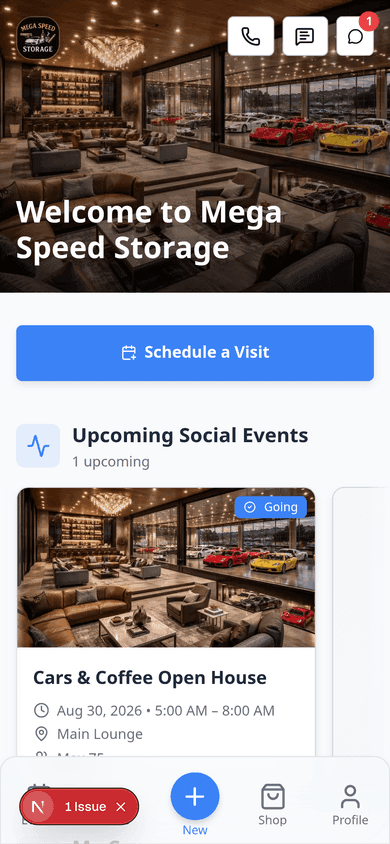
Customer portal — Open your facility’s customer sign-in link, complete the email sign-in, and land on Social Events or My Events. Then follow the same Add to Home Screen steps.
Safari on iPhone
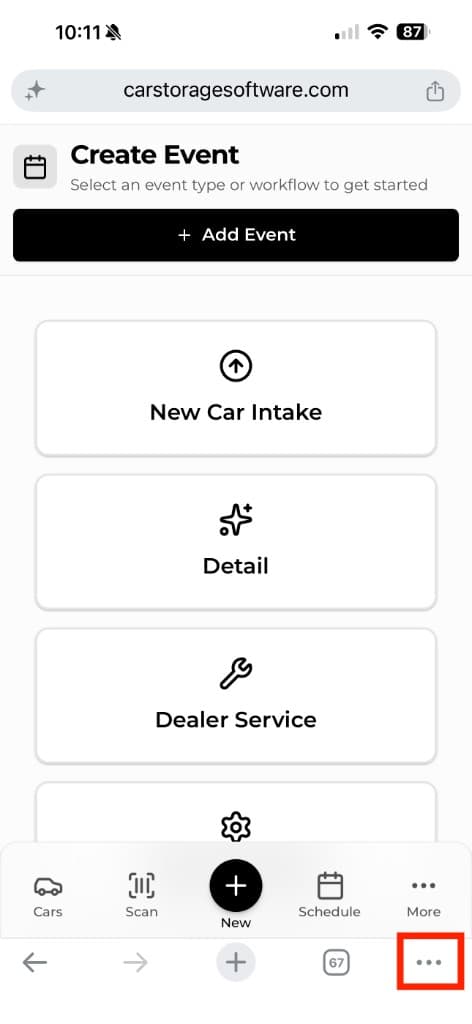
In Safari, the browser menu is at the bottom-right of the screen. You open that menu first, then Share, then Add to Home Screen.
1. Open the Safari menu
Sign in to Car Storage Software in Safari. Look at the bottom browser bar and tap the ⋯ (three-dot) menu button in the bottom-right corner.
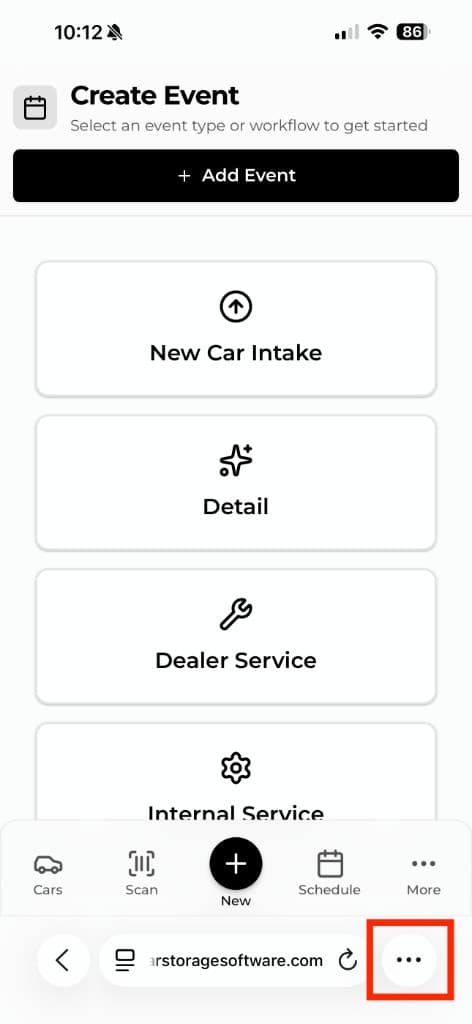
Expected result: A menu slides up from the bottom of the screen.
2. Tap Share
In the menu that appears, tap Share — the option with the square-and-arrow icon at the top of the list.
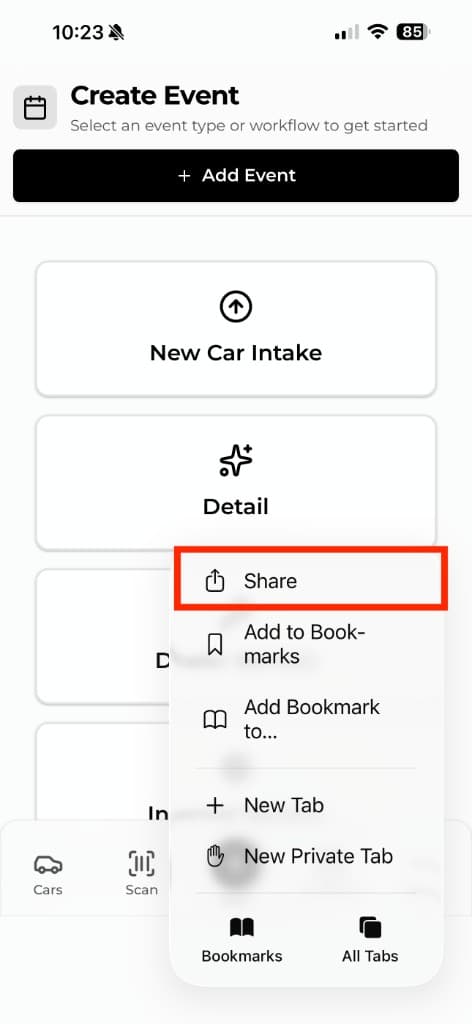
Expected result: The iOS share sheet opens with actions for this website.
3. Tap Add to Home Screen
Scroll the share sheet if needed, then tap Add to Home Screen.
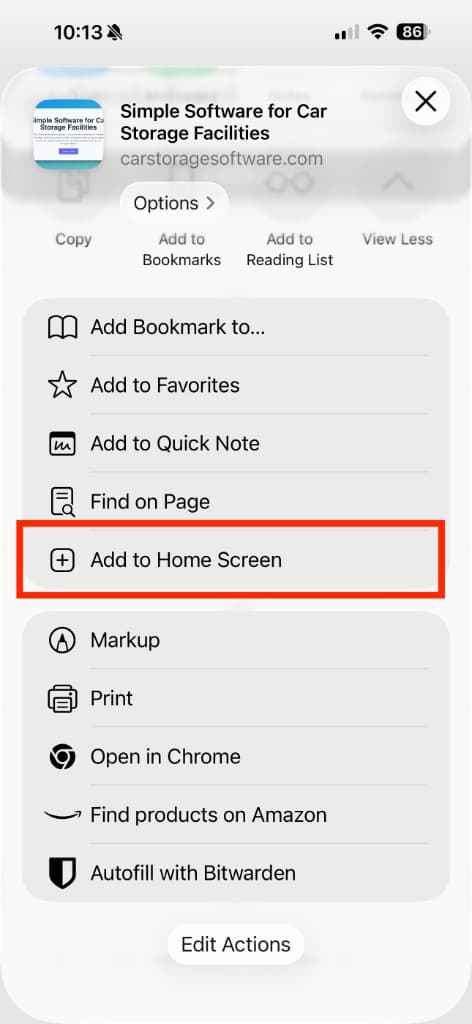
Expected result: A confirmation screen appears where you can name the icon.
4. Tap Add
Review the name under the icon. Leave Open as Web App turned on if you see that toggle. Tap Add in the top-right corner.
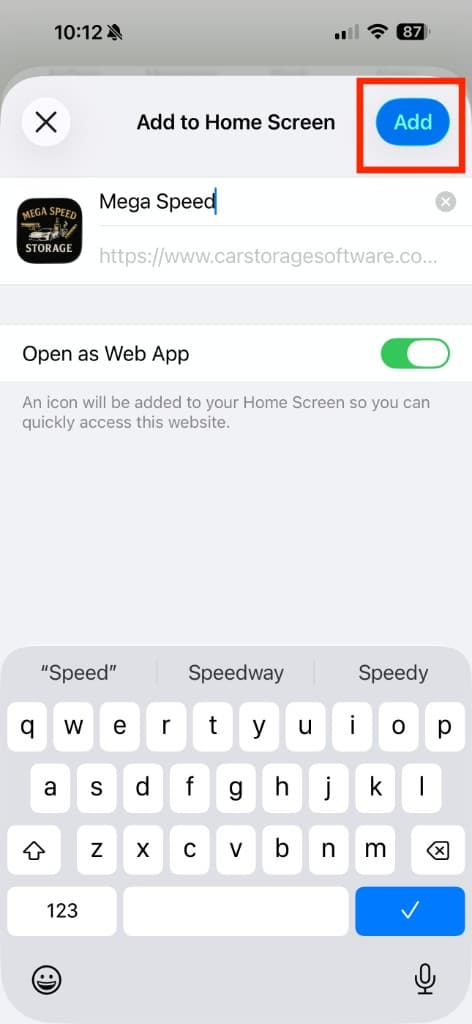
Expected result: A new icon appears on your home screen. Tap it to open Car Storage Software full-screen without the browser address bar.
Chrome on iPhone
In Chrome, the Share button is in the top-right corner of the address bar. Chrome skips the extra browser menu step that Safari uses — Share opens the share sheet directly.
1. Tap Share in the address bar
Sign in to Car Storage Software in Chrome. Look at the top of the screen and tap the Share button (square with an arrow pointing up) in the top-right corner of the address bar.
Expected result: The iOS share sheet opens.
2. Tap Add to Home Screen
Scroll the share sheet if needed, then tap Add to Home Screen.
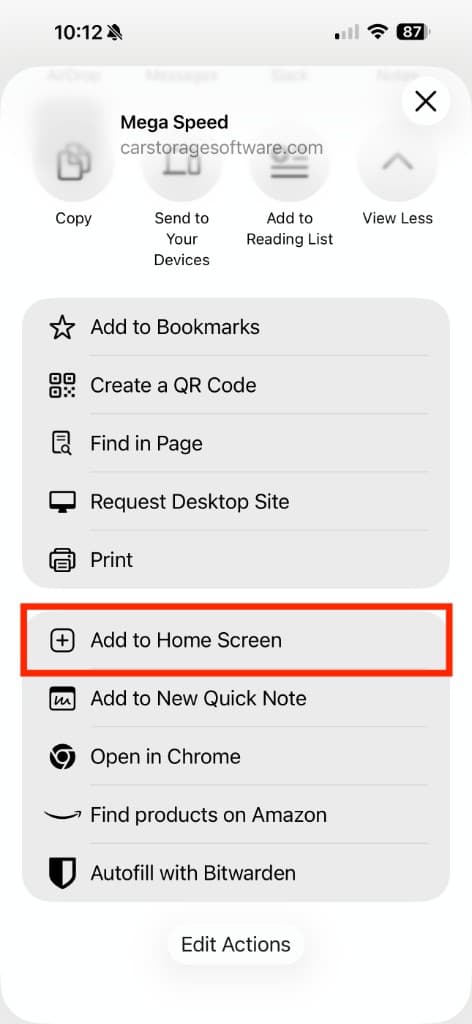
Expected result: The confirmation screen appears.
3. Tap Add
Review the name, keep Open as Web App on if shown, and tap Add in the top-right corner.
Expected result: The home screen icon is added. Open it like any other app.
Android (Chrome and similar browsers)
Android phones use a different menu layout than iPhone, but the idea is the same: open the browser menu, then choose Add to Home screen, Install app, or Add page to.
- Open the site in your mobile browser
Sign in to the staff dashboard or customer portal in Chrome, Samsung Internet, Firefox, or your phone's default browser.
Expected result: You see the same pages as on desktop — for example Create event cards for staff or My Events for customers.
- Open the browser menu or Share action
- Chrome on Android: Tap the ⋮ (three-dot) menu in the top-right, then Add to Home screen or Install app.
- Samsung Internet: Tap the menu icon, then Add page to → Home screen.
- Firefox on Android: Tap the menu, then Install or Add to Home screen if shown.
Why this matters: The menu lives in the browser toolbar — not inside a button on the Car Storage Software page.
- Confirm the shortcut
When prompted, confirm the name and tap Add, Install, or Create shortcut.
Expected result: An icon appears on your home screen or app drawer. Tap it to open Car Storage Software full-screen.
What happens after you install
- Tap the new icon
Open the shortcut from your home screen like any other app.
Expected result: The page opens without the browser’s address bar at the top (when Open as Web App stayed on during install).
- Sign in when asked
Staff and customers still use secure sign-in. The home screen icon does not store a password.
Expected result: Staff reach Create event or your saved page. Customers reach the portal after email sign-in.
- Use the app for daily work
Staff can start Vehicle Drop Off from the saved icon. Customers can open My Events and vehicle details. See Use the Create event home page for staff workflows.
Troubleshooting
What success looks like
- A home screen icon opens Car Storage Software full-screen without the browser address bar.
- The icon shows your facility name (or the short App name from branding settings).
- Staff can start work from Create event or customers can open Events and Cars from the saved icon.
- Your team knows the shortcut is not a separate app store download — it is the same secure website, faster to open.
What to do next
- Staff — Practice starting a drop-off from the home screen icon. Read Use the Create event home page.
- Customers — Share the customer login link first, then help them install. See Share customer login links.
- Managers — Print a QR code for the front desk from QR code generator.