Settings
Configure portal and website
Set up the customer app home screen, portal behavior, shareable links, booking widget, and public facility pages before inviting customers.
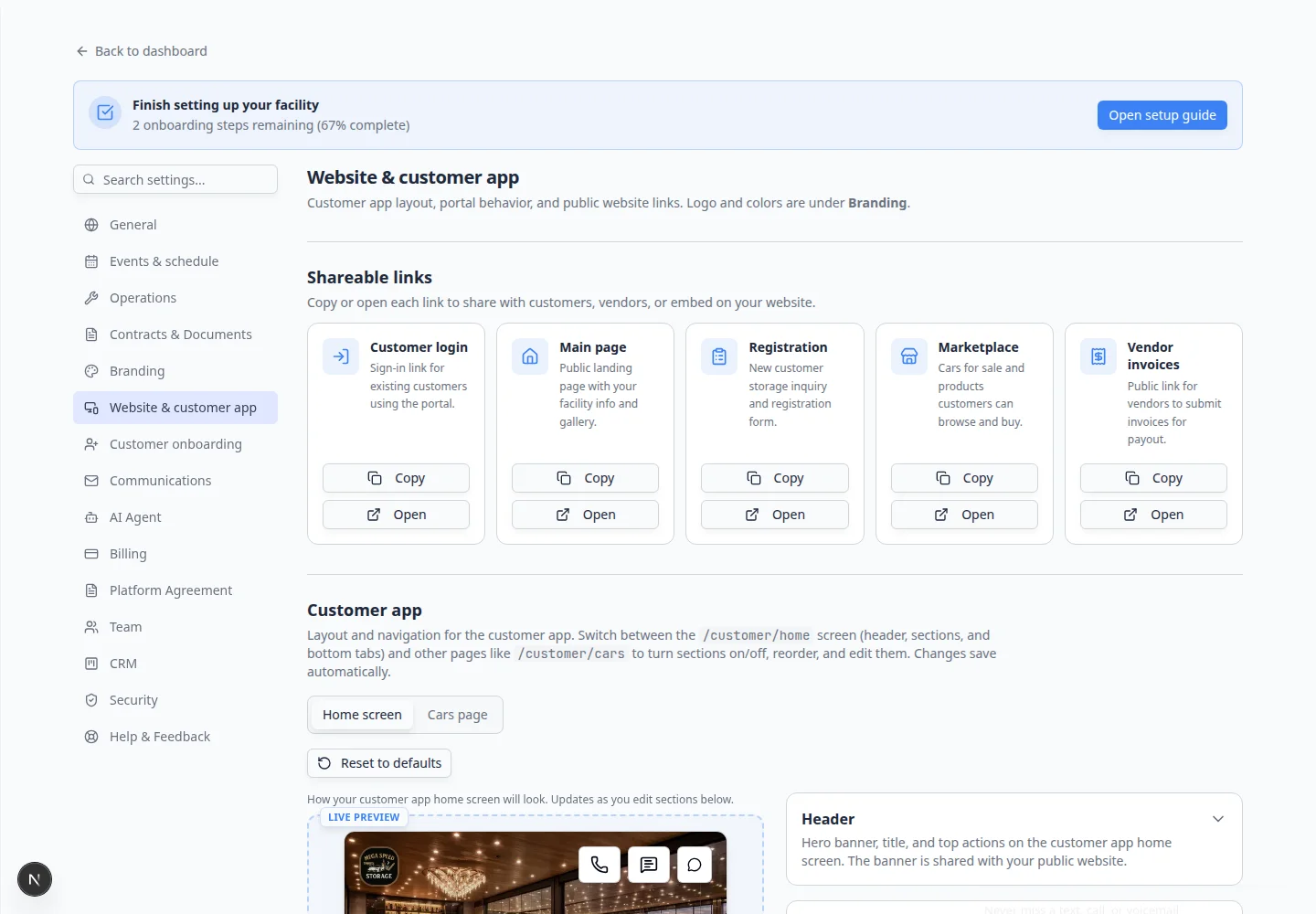
The Website & customer app settings control what customers see outside your staff dashboard: how the signed-in app looks, which links you share publicly, and how your facility page appears online.
Use this guide before you invite customers to sign in, add a booking widget to your website, or publish your public facility page.
What you will accomplish
- Arrange the signed-in Customer app home screen and bottom tabs.
- Choose what customers see on each vehicle Car page.
- Copy and test Shareable links (customer login, registration, public facility page).
- Embed the Website schedule widget on your marketing site (optional).
- Turn on Customer shop and Community only when you are ready for customers to use them.
- Preview every link in a private browser window before sending it to real customers.
Before you start
- Complete Set up facility branding so previews show your logo and colors.
- Review Connect payment processing before turning on paid signup or shop items.
- Review Configure communications before sending portal invites or registration emails.
- If you plan to place code on your website, know who manages your website (WordPress, Squarespace, Wix, and similar).
Open Website & customer app settings
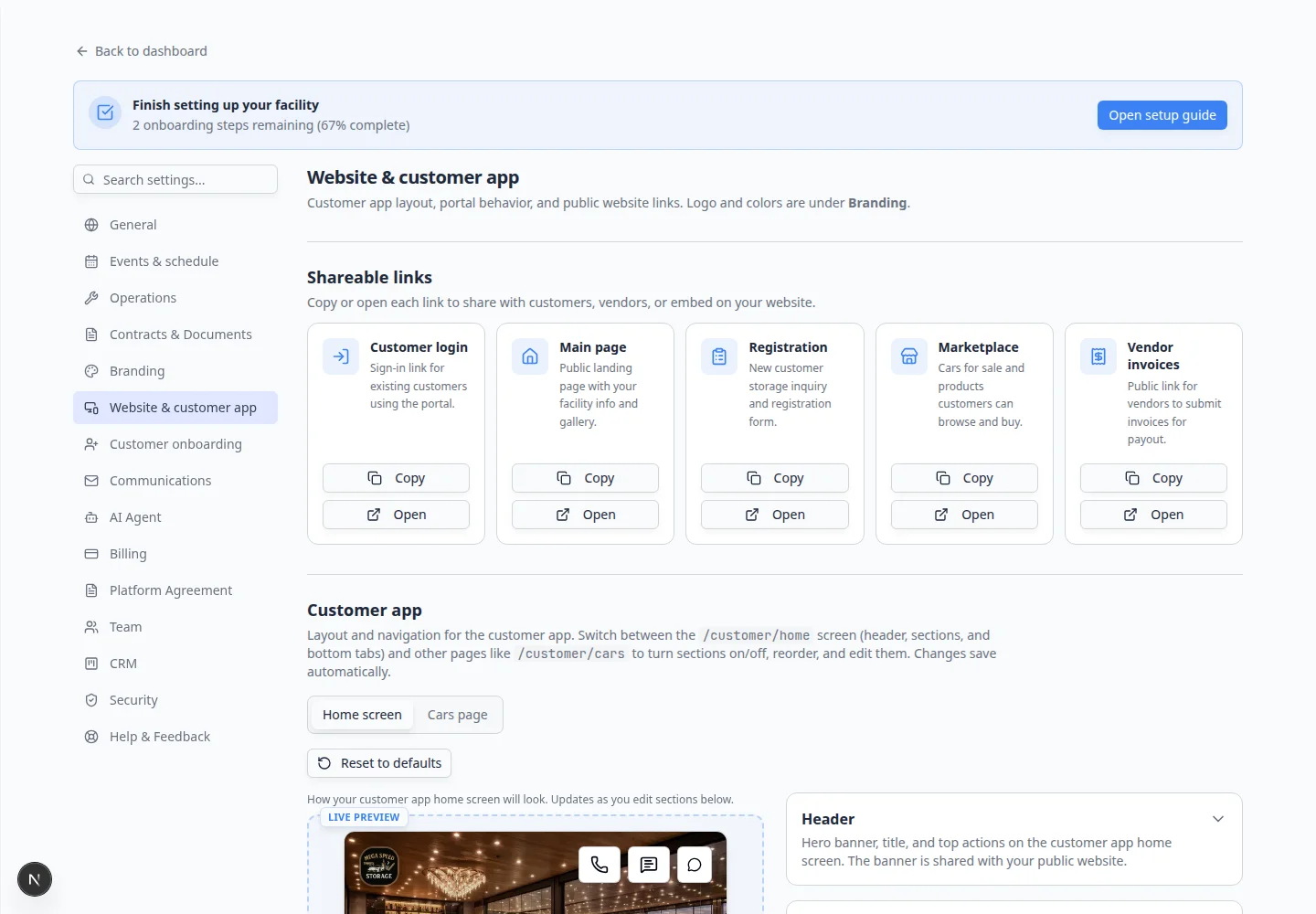
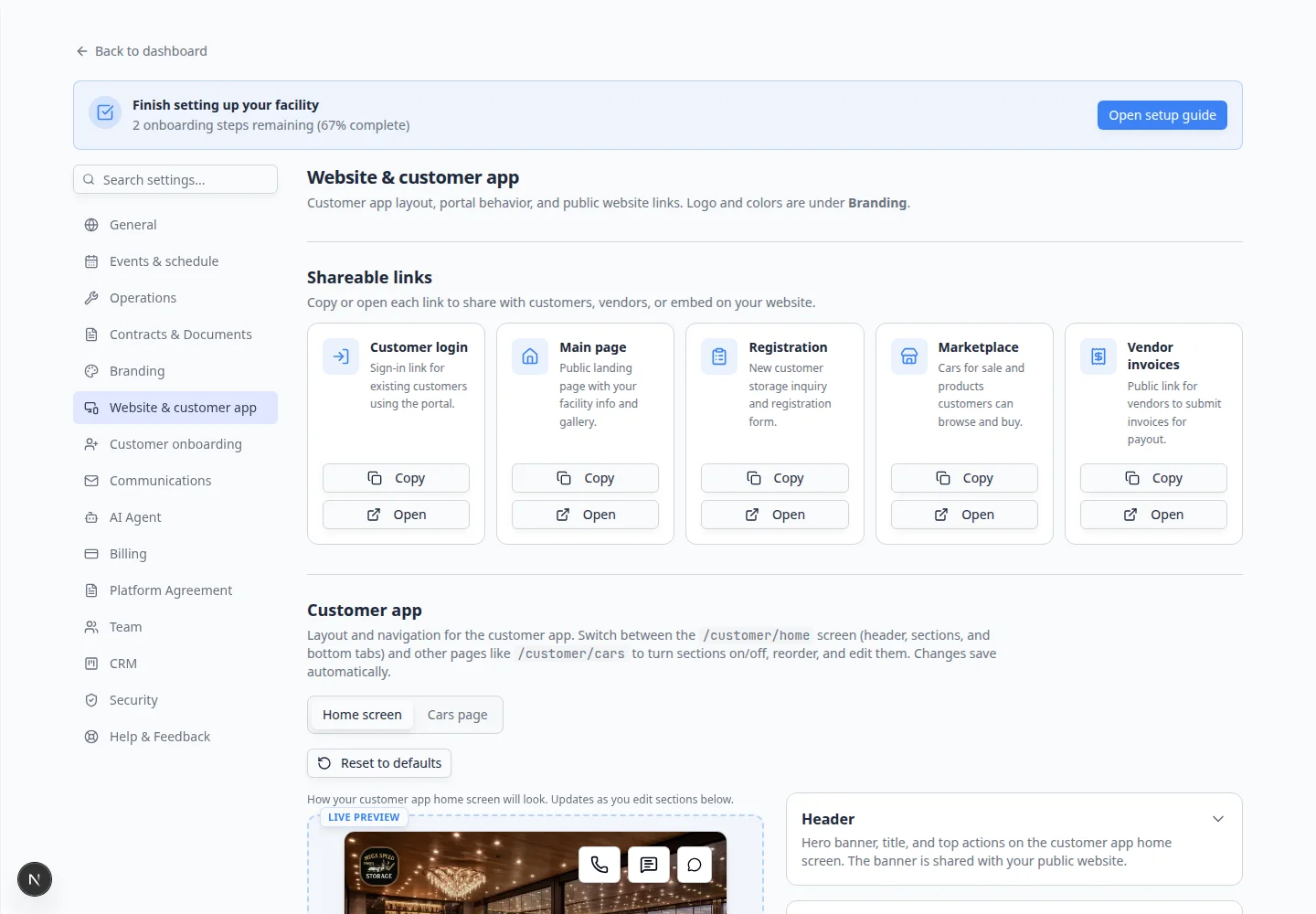
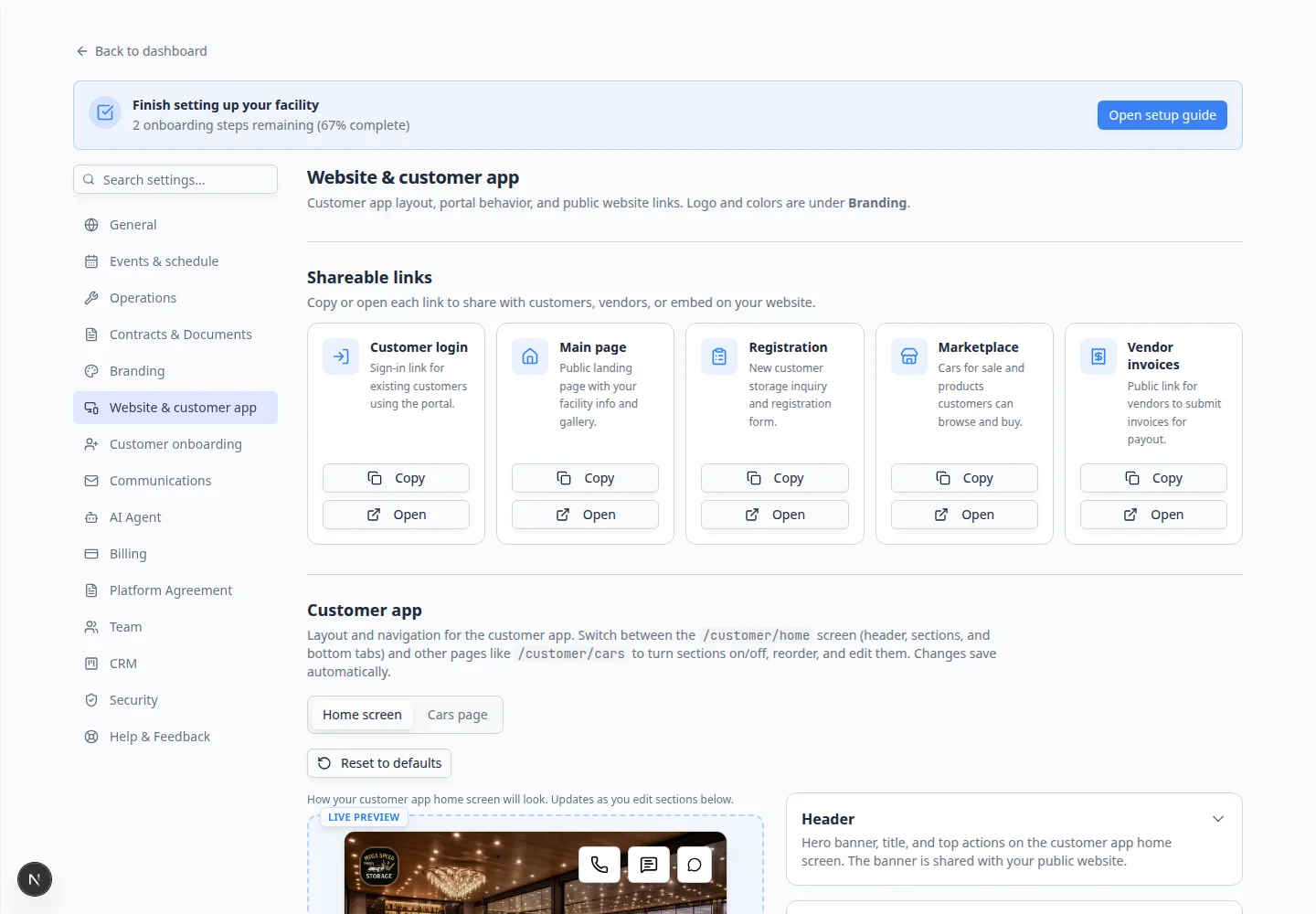
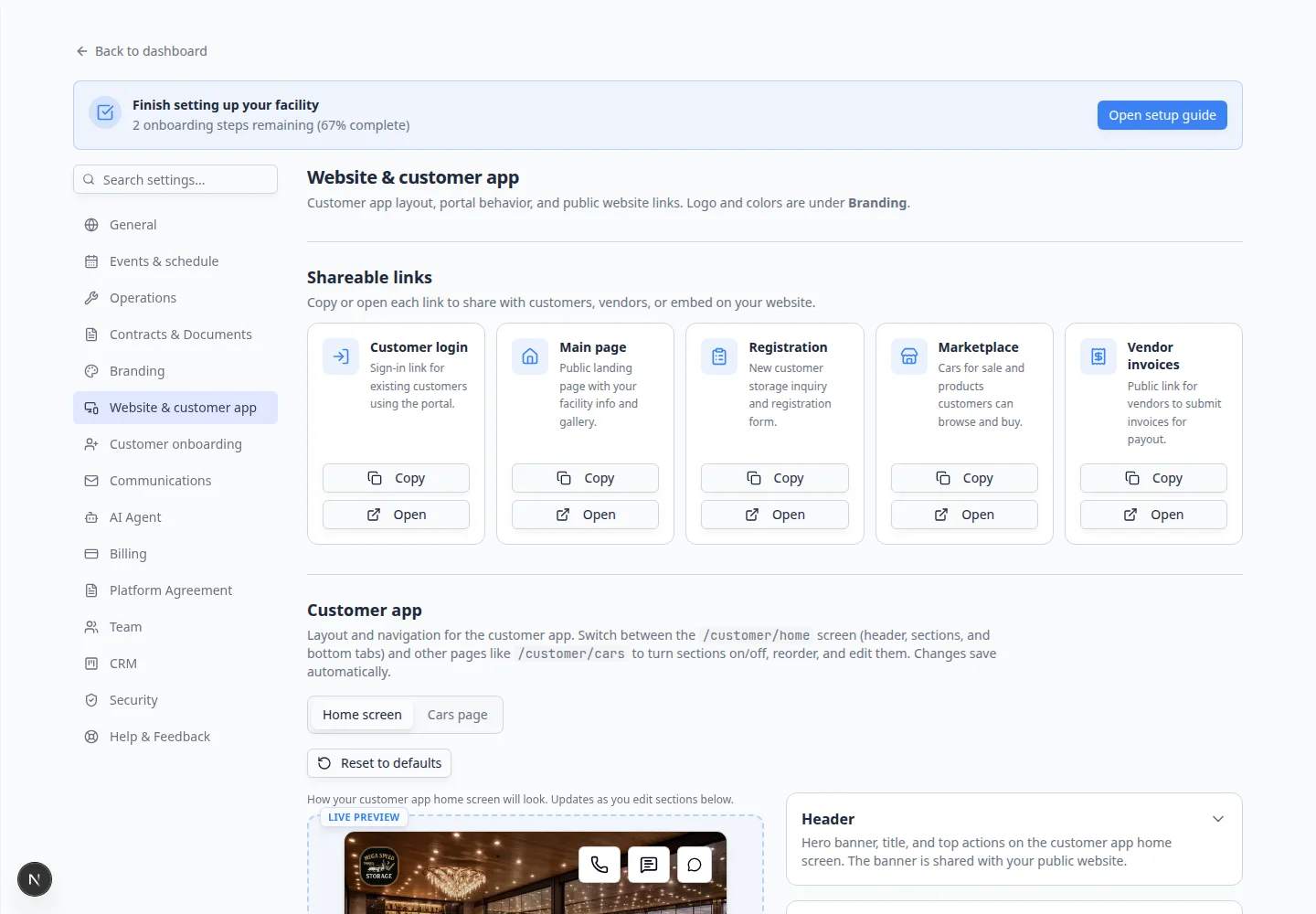
Go to Settings > Website & customer app.
The page title is Website & customer app.
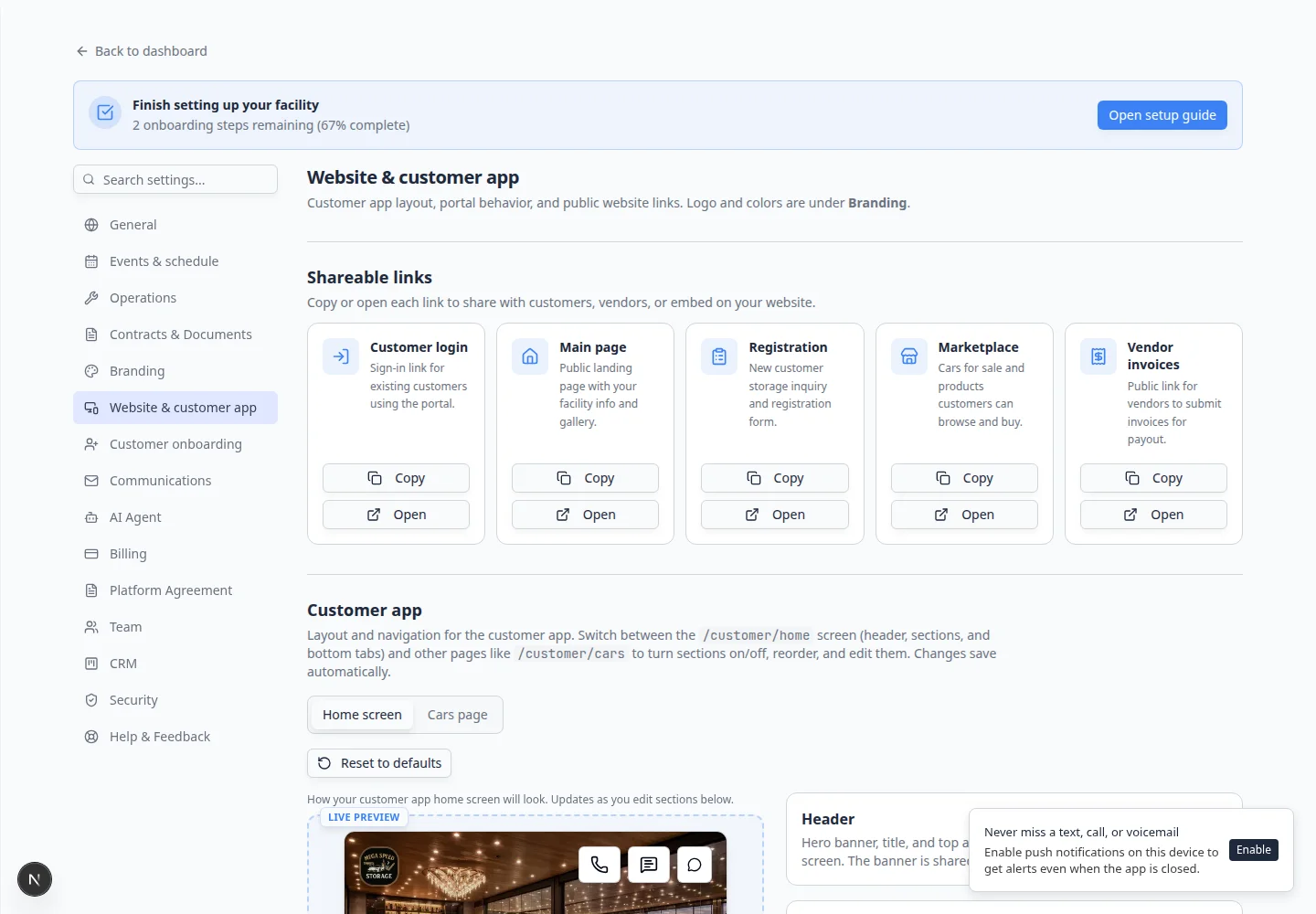
Expected result: You see Shareable links near the top, then sections for Customer app, Public website, Car page, Customer shop, Community, and Website schedule widget as you scroll down.
Copy shareable links first
Most teams start here because you need these URLs for emails, your website, and text messages.
- Find Shareable links
At the top of Settings > Website & customer app, find Shareable links.
Each card shows a link type (for example customer sign-in, registration, or your public facility page) with a short description.
- Copy the customer login link
Find the card for customer sign-in (often labeled Customer login link).
Click Copy next to the URL.
Why this matters: This is the link you send when you invite someone to the portal. It is not the same as your staff dashboard link.
- Test in a private browser window
Paste the link into a private or incognito window.
Expected result: You see a customer sign-in page with your facility name and logo—not the staff Dashboard.
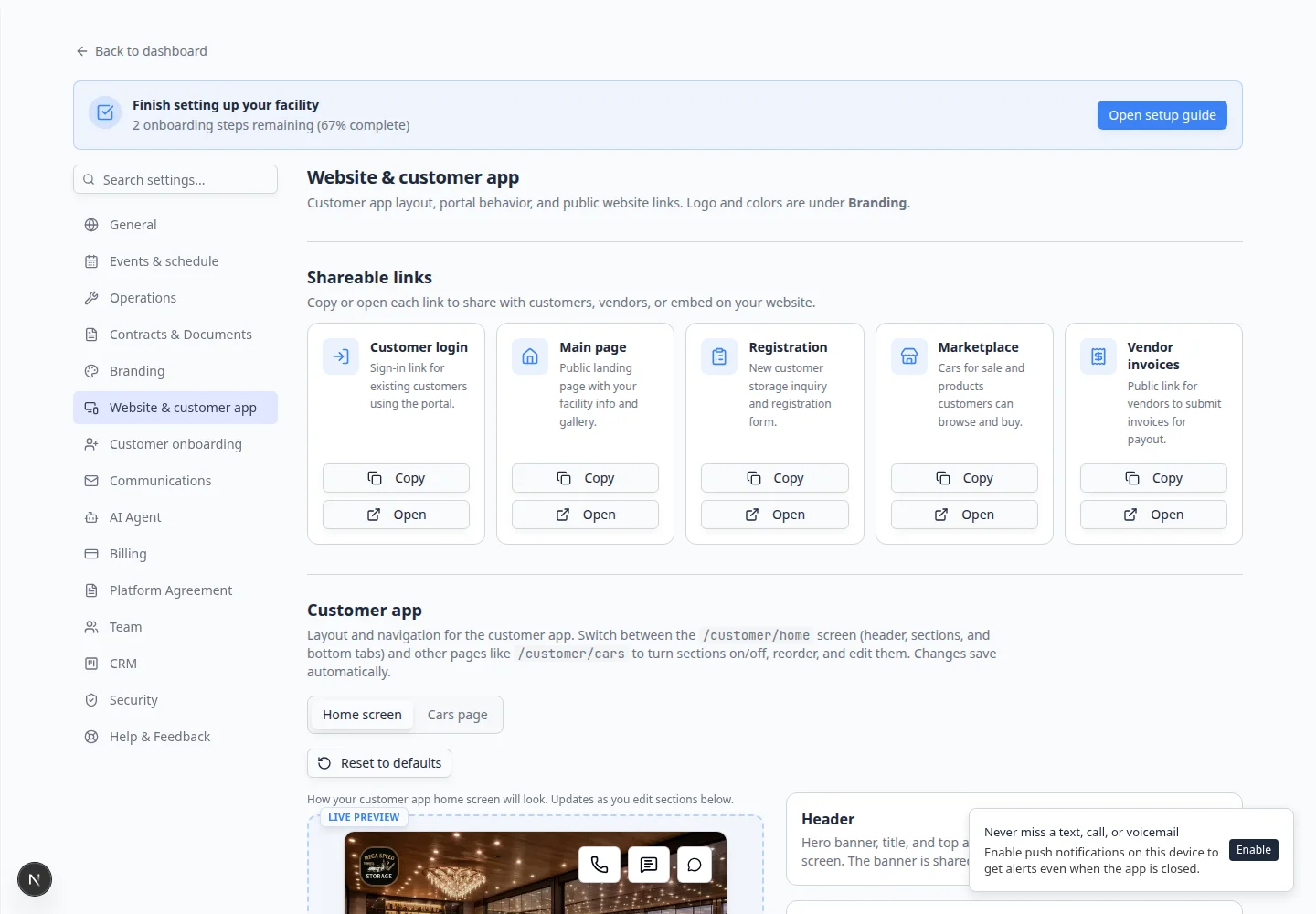
For a full guide on which link to share when, read Choose the right public link to share.
For printable QR codes that stay stable when you change destinations, read Set up printable QR codes when QR codes appears in your Settings sidebar.
Set up the customer app home screen
The customer app home screen is the first page customers see after they sign in.
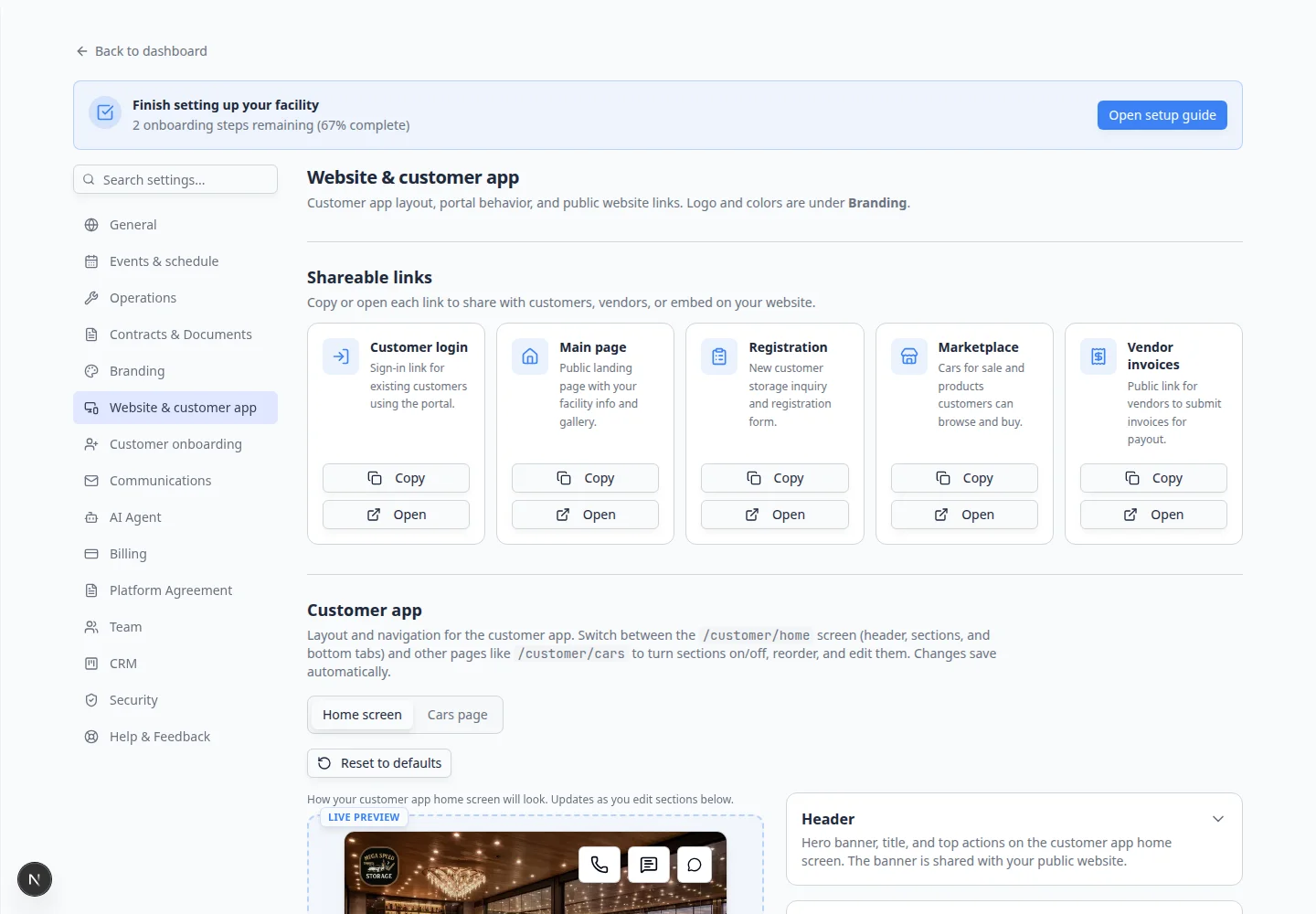
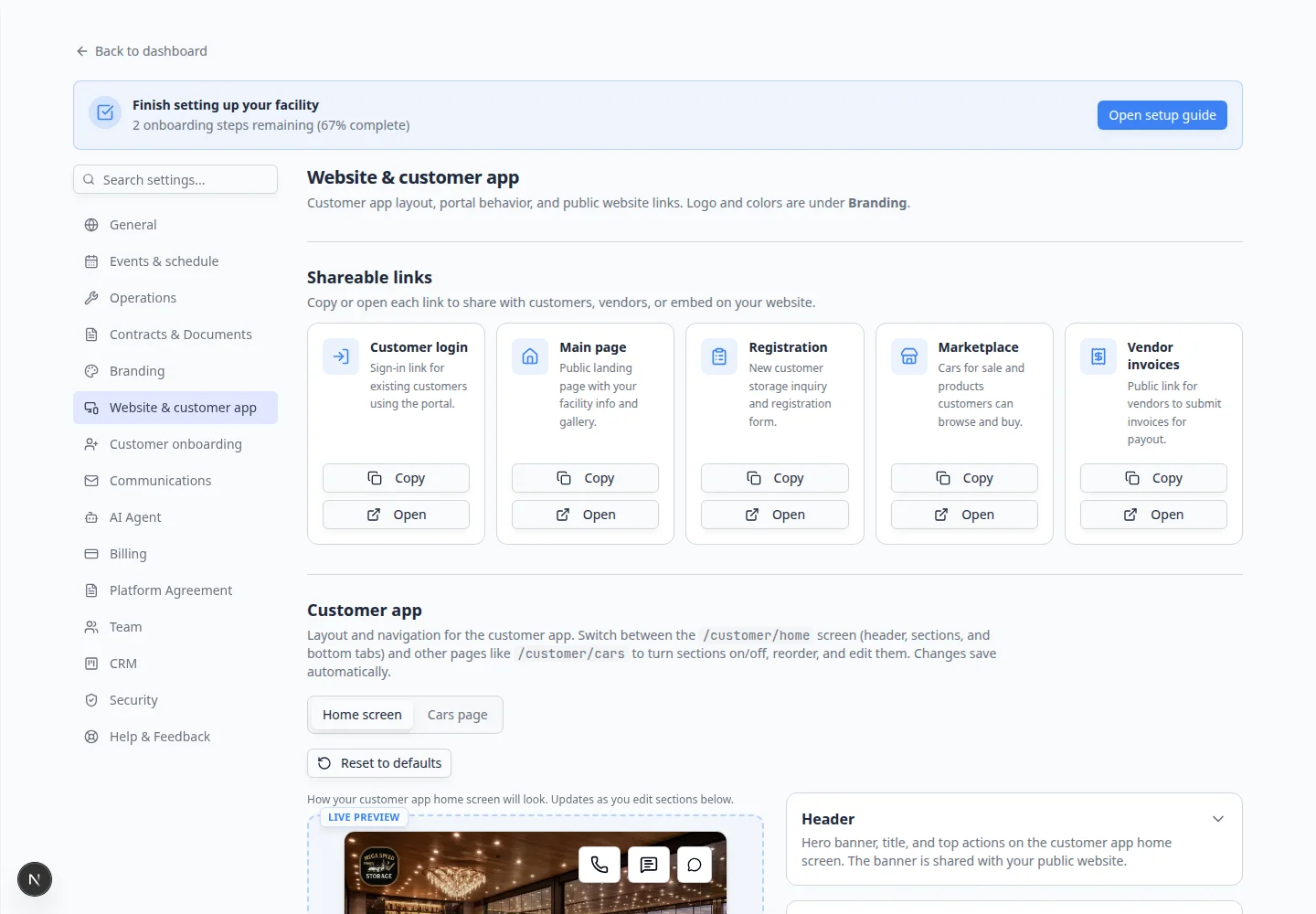
- Scroll to Customer app
Scroll to the Customer app section (below Shareable links).
Use the live preview on the right to see how the home screen will look on a phone.
- Adjust header and banner
Confirm the banner image, title, and subtitle match how you want to greet customers.
Add call or text buttons if your team wants one-tap contact from the app home screen.
- Choose dashboard sections
Turn sections on or off, such as My Cars, Upcoming Events, or Shop tiles.
Drag sections to reorder them.
Why this matters: Customers should see the most important actions first (view cars, book service, pay invoices).
- Review bottom navigation
In Bottom navigation, choose which tabs appear at the bottom of the customer app and what each tab is called.
Expected result: The preview matches the experience you want before you send invite emails.
Control what customers see on each vehicle page
- Scroll to Car page
Scroll to the Car page section (below Public website).
This controls which blocks appear inside the Vehicle Details card when a customer opens one of their cars in the portal.
- Turn sections on or off
Use the toggles to show or hide sections such as photos, service history, documents, and market data.
Turn off anything that should stay internal to your team.
- Drag to reorder sections
Use the drag handle on the left of each row to change the order customers see information.
Why this matters: Put the most important details first (for example photos and parking location before long notes).
- Review damage photo visibility
Open the settings for photo-related sections if your team uses damage or inspection photos.
Decide whether customers can see those images, or only staff can see them on the dashboard.
Why this matters: Some facilities share condition photos with owners; others keep inspection notes staff-only.
Configure the public facility page
Your public facility page can show your landing page, registration link, marketplace listings, and vendor invoice portal depending on your settings.
- Scroll to Public website
Find the Public website section on Settings > Website & customer app.
A live preview updates as you edit the page slug, banner, and content blocks.
- Turn the page on
Enable the public page and confirm the page address (often called a slug).
Keep it short and close to your facility name.
- Add public details
Add description, photos, services, reviews, and marketplace options your team wants customers to see.
- Preview before sharing
Open the public page in a new tab and confirm it looks correct.
Expected result: A stranger can learn about your facility and find the right next step (register, browse cars, or sign in).
For a detailed landing page walkthrough, read Configure the facility landing page.
Add a website schedule widget
The Website schedule widget is a small embed you paste into a website builder such as WordPress, Squarespace, Wix, or Webflow. Visitors can open your schedule booking flow without calling first.
- Scroll to Website schedule widget
On Settings > Website & customer app, scroll to Website schedule widget (near the bottom of the page).
- Choose widget options
Pick the size, button text, or display choices shown on the page.
- Copy the embed code
Click Copy to copy the HTML embed code.
- Paste on your website
Send the code to whoever manages your website, or paste it yourself into an HTML or embed block.
Expected result: The schedule widget loads on your public website and lets customers book without calling first.
For step-by-step website instructions, read Add a website embed.
Set up the customer shop
If customers can buy products or add-ons in the portal (detailing packages, storage extras, merchandise), use the Customer shop section to control how those items appear.
- Find Customer shop
On Settings > Website & customer app, scroll to Customer shop (or use the
#customer-shoplink on the page). - Choose how product options display
Find Group product options.
- On: Products with several price choices appear as one card. Customers tap the card to see all options (cleaner shop page).
- Off: Each price option appears as its own card (more detail at a glance).
Why this matters: A storage facility with many add-on sizes looks less cluttered when options are grouped.
- Set tag display order (optional)
Below Group product options, find Customer tag display order.
Drag tags into the order you want customers to see on vehicle cards in the portal.
Click Save order after you rearrange tags.
Expected result: Vehicle tags in the customer app follow your chosen order (for example VIP before Monthly wash).
Turn on Community chat for customers
Community lets customers join chat channels your team manages in Marketing & Events.
- Find Community
Scroll to Community on Settings > Website & customer app.
- Turn Community Channels on
Turn on Community Channels when you are ready for customers to see a Community tab in the portal.
Why this matters: Community is optional. Many facilities turn it on after they create at least one channel and set expectations for staff monitoring.
- Create and manage channels
After you turn Community on, set up channels in Marketing & Events > Community. See Manage community channels.
Set registration and onboarding (quick pointer)
Public registration and first-login steps moved to their own Settings page:
- Public registration form (questions strangers answer online): Configure customer onboarding.
- Steps after sign-in (contracts, uploads, payment): same guide, Customer app onboarding section.
- Approve new registrations: Review and approve registration requests.
What success looks like
- The customer app home screen shows the sections and tabs your team wants customers to use.
- Vehicle pages show only information your team is comfortable sharing.
- Shop and tag settings match how you want products and labels to appear (if you use the customer shop).
- Community is on only when channels are ready and staff can monitor messages.
- You copied and tested the customer login link in a private browser window.
- Your website schedule widget loads correctly (if you use one).
- Your public facility page looks ready before you share it on social media or email signatures.
Troubleshooting
What to do next
- Set up registration and first-login steps in Configure customer onboarding.
- Invite a test customer first, then follow Invite a customer to the portal.
- Use Go-live checklist for public pages before marketing your public links widely.