Parking Spots
Parking Spots overview
Learn how Parking Spots helps your team track where every vehicle is located in your facility.
What you will accomplish
After reading this overview, you will know which Parking Spots guide to open first, how map view and table view differ, and how reservations differ from cars that are physically parked.
When to use Parking Spots
Your team can answer one important question quickly:
Where is each car right now?
Use the Parking Spots page from the left sidebar whenever a car moves in your building. Parking Spots connects your real floor layout to your customer and vehicle records. When the map stays current, staff find cars faster, avoid putting two vehicles in the same space, and see which areas still have room.
This section is written for anyone who parks, moves, or retrieves vehicles—front desk staff, valets, porters, and facility managers. You do not need technical skills. If you can read a floor map and click a spot, you can use Parking Spots.
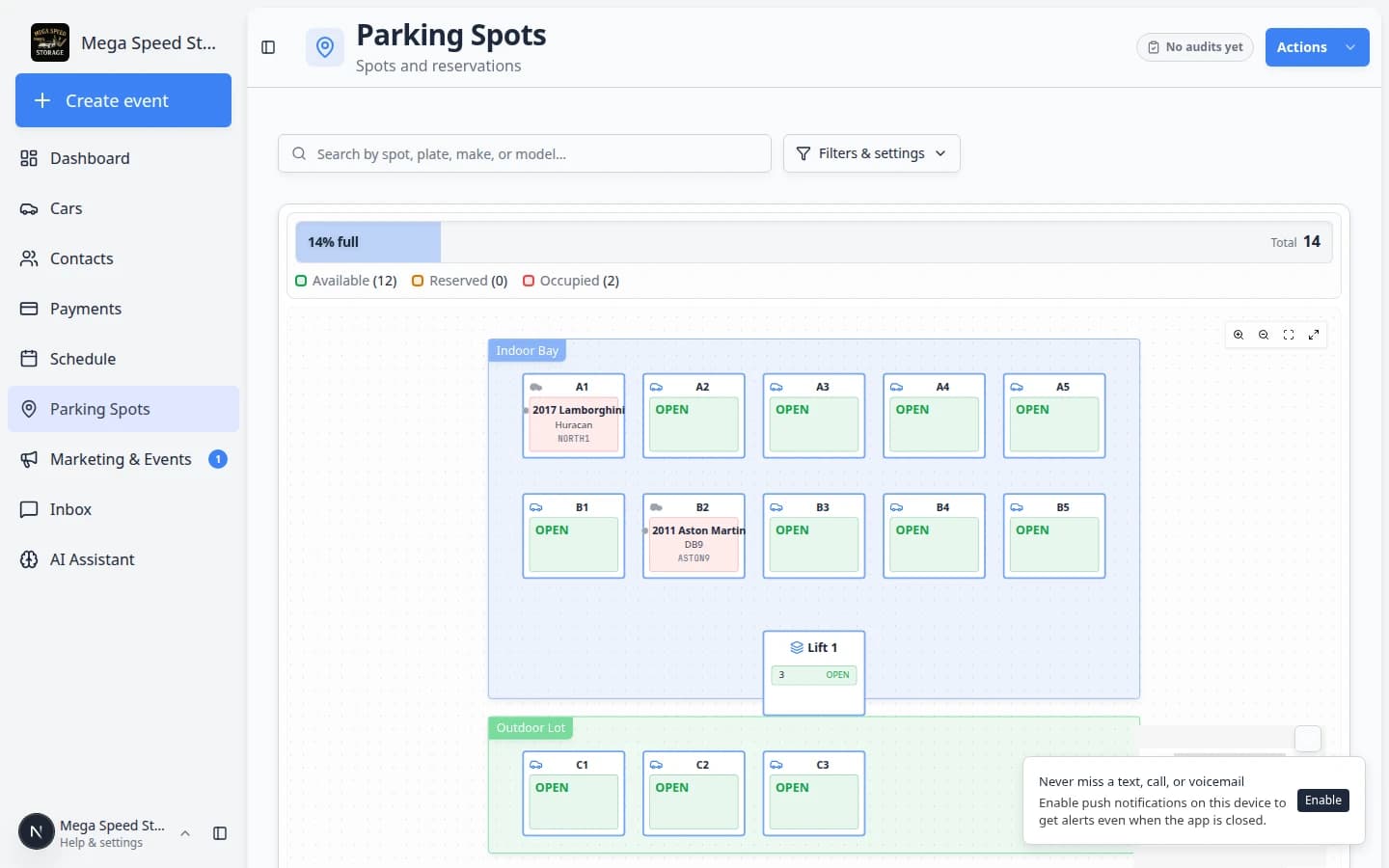
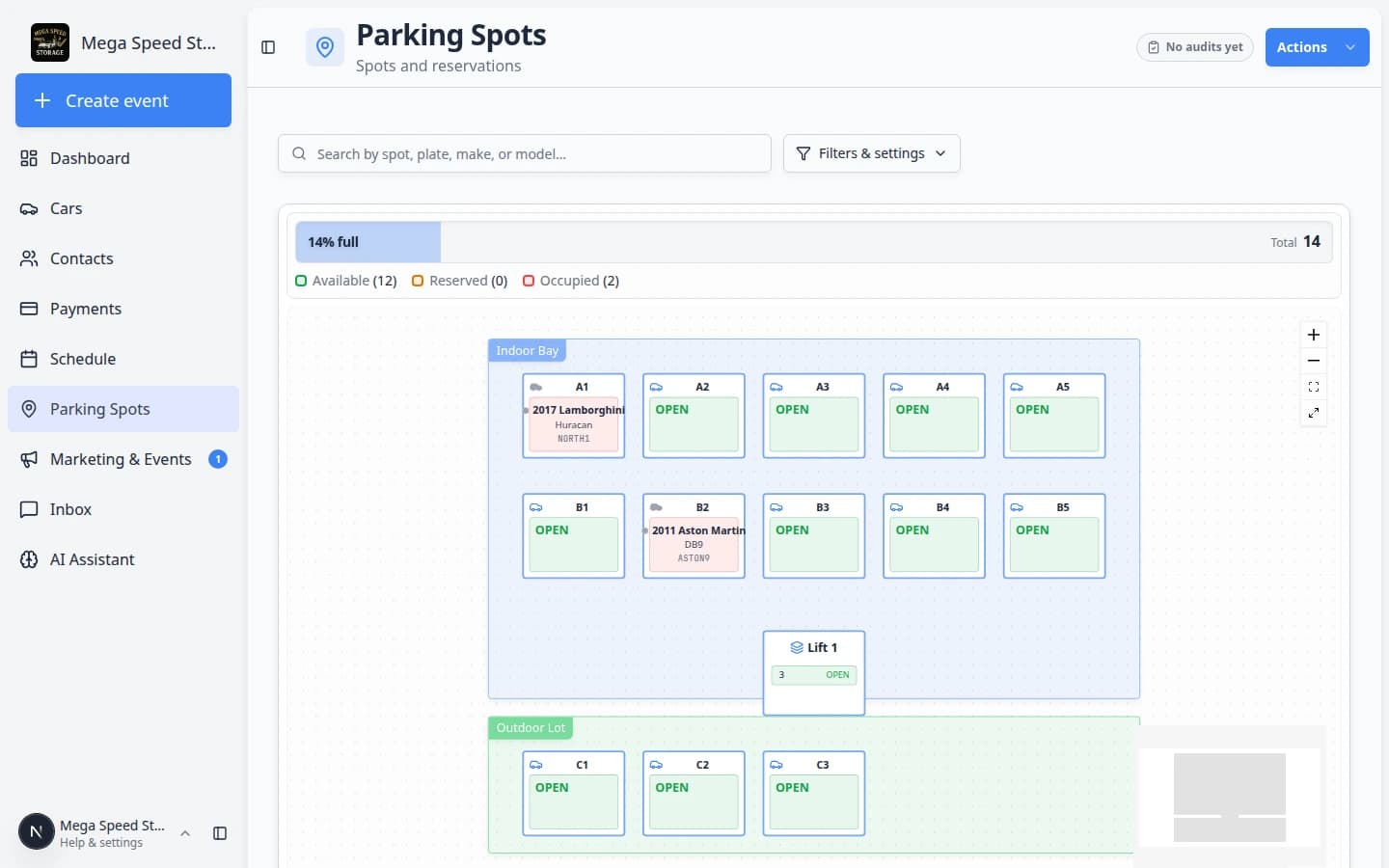
Read the occupancy bar at the top
Just above the map (or table), look for a short summary line. It usually shows:
- A percent full number (for example 14% full)
- Available — spots with no car parked there and no active hold showing on the map
- Reserved — spots held for a future arrival (when your team uses reservations)
- Occupied — cars physically parked right now (the map may also say Present on a spot)
Expected result: The numbers change when someone assigns a car, saves a reservation, or moves a vehicle. They should match what you see on the map.
Search from the top of the page
The search box at the top works in both Map and Table view. The placeholder says:
Search by spot, plate, make, or model…
Type a spot name (for example A1), a license plate, a make or model, or a customer-related match. Press Enter or pick a suggestion to jump to that spot on the map or narrow the table.
For step-by-step search help, see Find parking spots and available spaces.
What you can do from Parking Spots
- Create named spots such as A1, A2, Front Row 3, or Lift 1.
- Group flexible areas into zones, such as Main Storage, Outdoor Lot, or Service Area.
- Assign a vehicle to a spot or move it when the physical car moves.
- Reserve a spot for a customer or car before the vehicle arrives.
- Record when a car leaves for an outside vendor (transport, detail, mechanical work).
- Search the map or switch to table view when you need to find a spot quickly.
- Open the parking report to review which cars occupied which spaces during a date range.
Quick links by job
| I need to… | Open this page | Step-by-step guide |
|---|---|---|
| Set up spot names and the floor map | Settings > Floor Plan | Set up parking spots and zones |
| Park a car during a drop-off visit on Schedule | Schedule → Open Event | Assign parking during a Schedule event |
| Park a car that just arrived | Parking Spots | Assign a parking spot |
| Find an open spot or a customer's car | Parking Spots | Find parking spots and available spaces |
| Park cars in a flexible zone (outdoor lot) | Parking Spots → click colored zone | Work with zones on the map |
| Park a car when finishing a Schedule visit | Schedule → Open Event | Assign parking during a Schedule event |
| Record a car at transport or an outside shop | Cars → parking button | Send a car to an outside vendor |
| Hold a spot before the car arrives | Parking Spots → Table view | Reserve a parking spot |
| Send a car to transport, detail, or off-site work | Parking Spots → Move Vehicle | Send a car to an outside vendor |
| Review parking history for billing | Parking Spots Report | Review the parking report |
Open Parking Spots
- Sign in to the dashboard
Use your staff login. Customer portal logins do not include Parking Spots.
- Click Parking Spots in the sidebar
In the left sidebar, click Parking Spots. You can also go directly to Parking Spots.
Expected result: The page title says Parking Spots and you see either the facility map or a table of spots.
- Use the top buttons when you need them
Report opens the parking history page. Add Parking Spot opens the floor plan editor when your team needs to create or edit spots (usually an admin task).
Expected result: You see Parking Spots as the page title, a search bar, Filters & settings, and Report / Add Parking Spot on the right.

When a car arrives from Schedule
Many cars enter storage after a drop-off or intake appointment on Schedule. Parking Spots and Schedule work together: the calendar tells you when the car is coming; Parking Spots tells everyone where it ended up.
- Finish or start the scheduled event
Open Schedule and find today's drop-off or intake. When the vehicle is physically in the building, mark the event In progress or Completed if your team uses those statuses.
Why this matters: Staff who only watch the calendar know the car arrived. Staff who only watch the map know where it is parked. Both updates help the whole team.
- Assign the parking location right away
If your event type asks for parking at the end of the visit, click Open Event on Schedule and follow Assign parking during a Schedule event. Otherwise go to Parking Spots and follow Assign a parking spot.
Expected result: The map shows the car as Present or Occupied. The car record shows Spot: or Zone: at the top.
- Clear a reservation if one was waiting
If the spot was Reserved before arrival, confirm Currently Parked shows Present after you assign the car. Use Reserve a parking spot to clear or edit the hold if the plan changed.
Start with the right guide
- Set up the facility layout first
If this is a new workspace, start with Set up parking spots and zones. This creates the spot names and map layout your team will use later.
- Assign cars as they enter storage
Use Assign a parking spot when a car arrives, moves to another spot, or needs its record corrected. If your team finishes drop-offs from Schedule, use Assign parking during a Schedule event so parking is recorded when the visit ends.
- Find the right spot before you change anything
Use Find parking spots and available spaces when the facility is busy and you need to search by spot name, car, customer, plate, or occupancy.
- Use zones for flexible parking areas
Use Work with zones on the map when cars park in outdoor lots or overflow lanes without exact spot numbers.
- Reserve space before the car arrives
Use Reserve a parking spot when a customer has an approved spot but the vehicle is not physically parked there yet.
- Assign parking when a Schedule visit ends
Use Assign parking during a Schedule event when your event types ask for a spot at the end of intake or drop-off workflows.
- Track cars at outside vendors
Use Send a car to an outside vendor when a vehicle leaves for transport, detail, or repair off-site.
- Review history and occupancy
Use Review the parking report when you need a date-based list of parking activity for operations, billing review, or an internal audit.
Map view and table view
The Parking Spots page has two useful views:
Map view shows the floor plan. Use it when you want to understand the facility visually or click a spot on the map.
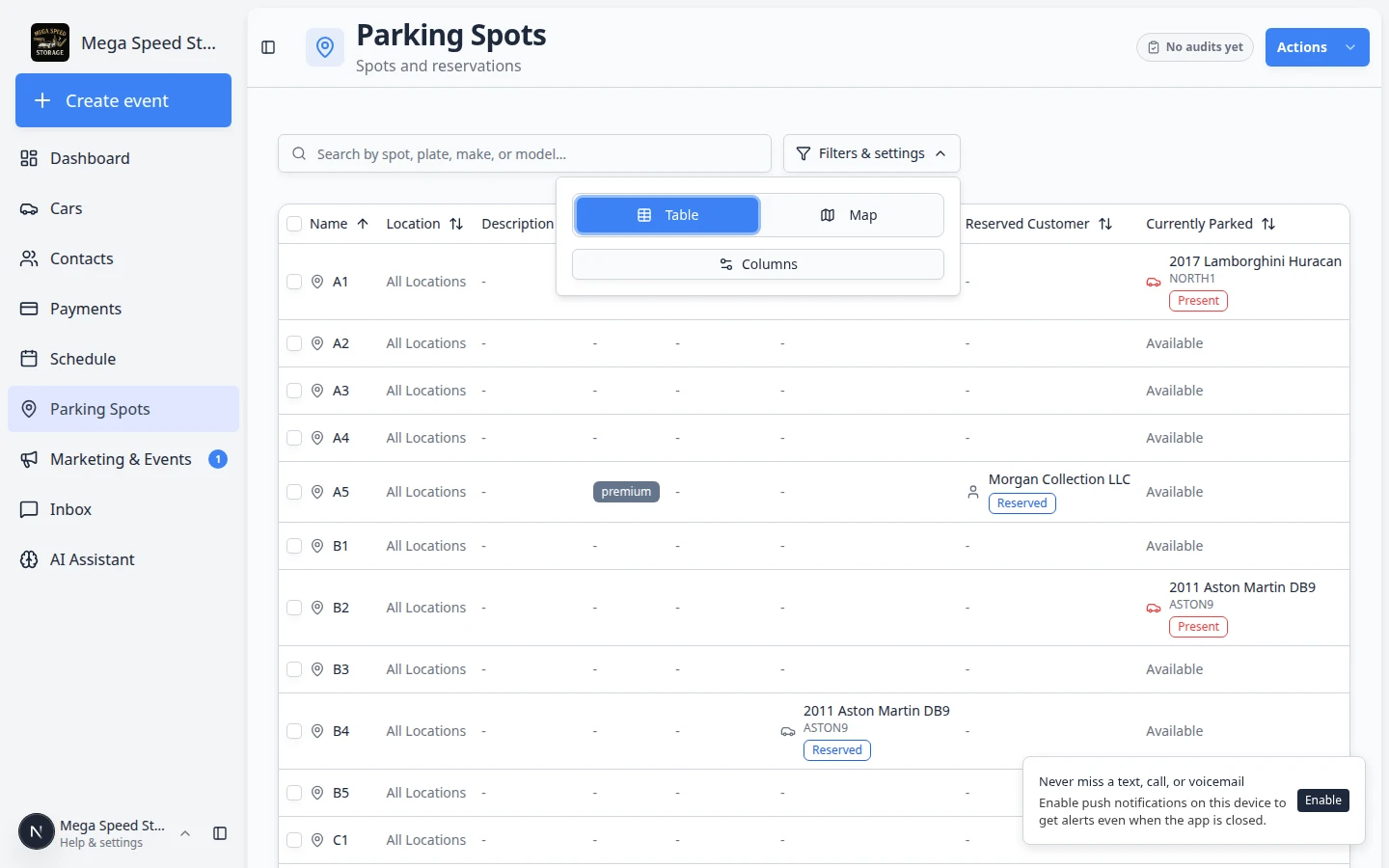
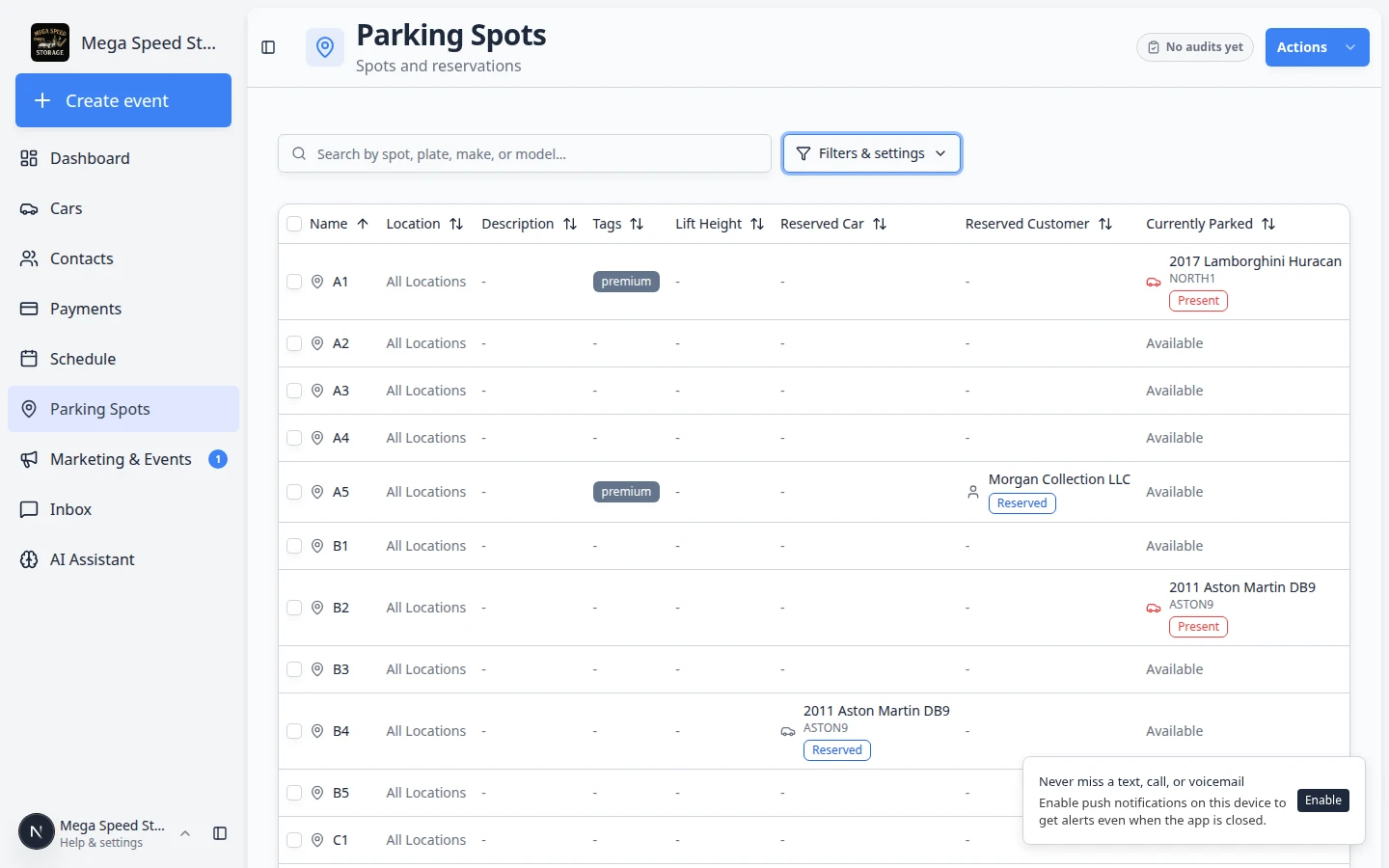
Table view shows rows and columns. Use it when you want to sort, scan many spots, reserve a spot from the row menu, or select multiple spots to delete.
- Open Parking Spots
Click Parking Spots in the left sidebar, or go to Parking Spots.
- Open Filters & Settings
Near the top of the page, click Filters & Settings.
- Choose Map or Table
Under the view options, click Map to see the floor plan, or Table to see a sortable list of every spot.
Tip: The Table / Map buttons live inside the filters & settings panel—not on the main toolbar. Open that panel first if you do not see them.
- Close Filters & Settings
Click outside the panel or press Escape to return to the main page.
Expected result
You can switch between a visual map and a detailed list without losing your place. Both views show the same parking information.
Helpful terms
Parking spot means one exact place where a vehicle can be assigned, such as A1 or B4.
Zone means a larger flexible area (for example Outdoor Lot or Indoor Bay) where a car can be assigned without a numbered spot. The map shows the zone as a colored background behind the spots.
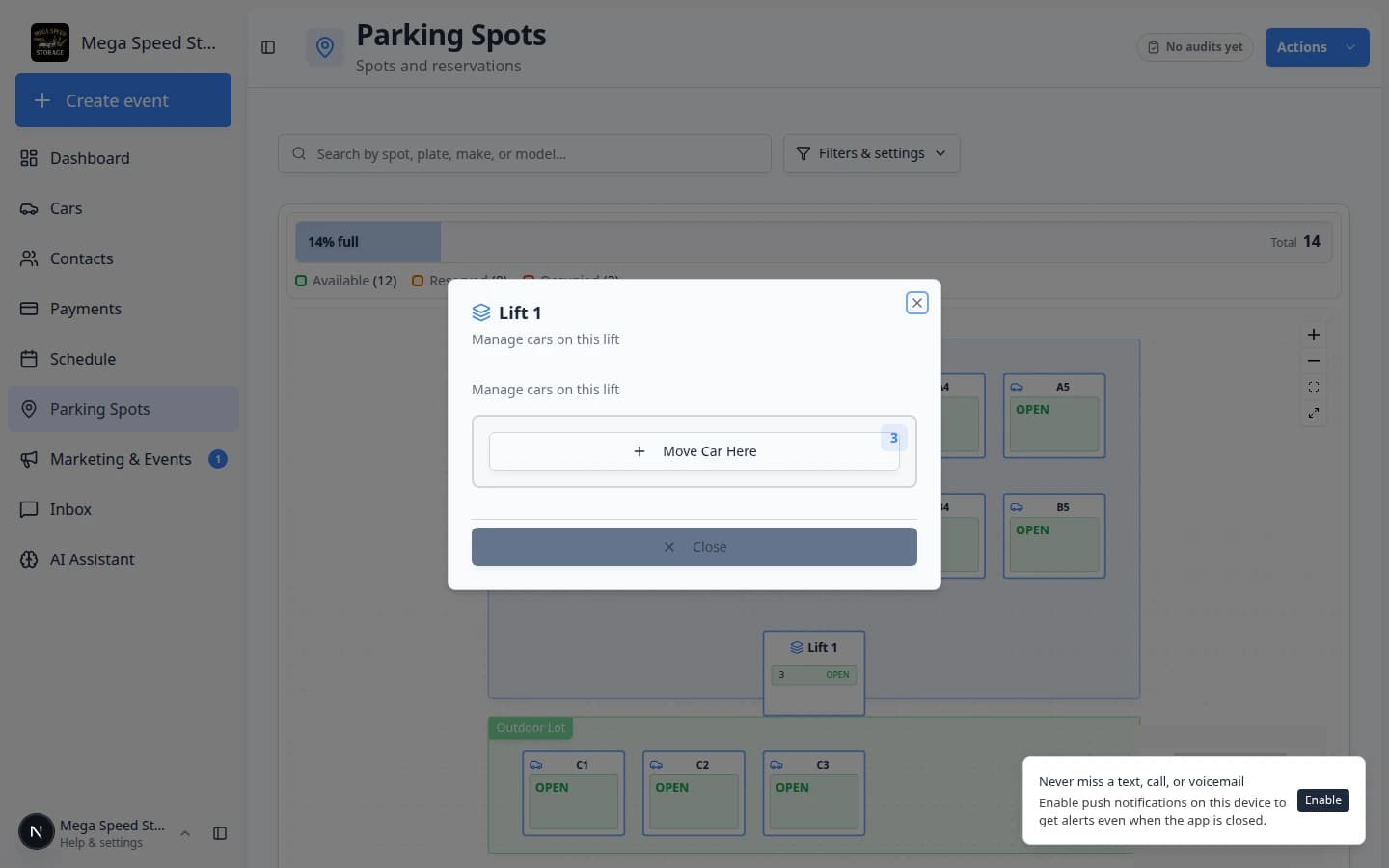
Lift spot means a stacked parking space. One lift position can hold more than one vehicle, such as ground level and upper level. Levels can be labeled with numbers (1, 2, 3) or letters (A, B, C), depending on how your facility marks them.
Reservation means a spot is held for a customer or car, but the car may not physically be there yet.
Present (or Occupied) means the car is physically parked in that spot now.
Available means no car is parked there and no reservation is showing for that spot.
Vendor (on the car record) means the vehicle is at an outside company—not in a facility spot or zone.
Lift spots, zones, and numbered spots
- Numbered spot: Use when staff need an exact location such as A1 or B4 for retrieval and customer communication. The map shows each spot as its own labeled box.
- Lift spot: Use when one physical lift holds two or more cars. Each level can show Occupied or Reserved separately. Set up lifts in Set up parking spots and zones.
- Zone: Use when cars park anywhere inside a larger area (outdoor lot, service lane, overflow). Assign the car to the zone from the car record or map when an exact spot number is not required. A car in Outdoor Lot may not have a numbered spot but still appears on the map inside the green zone area.
Keep the map trustworthy
The map is most useful when your staff updates it at the same time they move the car in the real facility.
- Update the record right after a car is parked or moved.
- Use clear spot names that match signs, floor labels, or your team's normal language.
- Use zones for flexible areas where cars move around often.
- Review the parking report regularly to catch stale or missing assignments.
Recommended path for your first week
- Day 1 — Build the map
Follow Set up parking spots and zones so spot names match your building.
- Day 2 — Park the first cars
Use Assign a parking spot each time a vehicle moves in the facility.
- Day 3 — Teach search habits
Share Find parking spots and available spaces so staff can search by plate, customer, or spot name.
- Before busy arrivals
Use Reserve a parking spot when a space is promised but the car is not there yet.
- Weekly check-in
Open Review the parking report to confirm assignments look right for billing or audits.
How parking connects to events and intake
Some workflows ask staff to park a car while finishing an appointment—for example after storage intake or a dealer drop-off.
- Set the event to ask where the car is going (admin setup)
In Settings > Events & schedule, open the event type (for example Storage Intake). Under When this event completes, choose Ask where the car is going and leave Parking spot or zone checked.
Read Configure event types for the full setup path.
- Finish the event on Schedule
When staff complete the appointment on Schedule, the app can open Assign Parking Location and ask where the car should go.
- Confirm on the map
After staff save, the car should appear on Parking Spots in the spot or zone they chose.
Expected result: You do not need a second manual update if staff completed the parking step during the event.
Mark a spot out of service (inactive)
When a bay is blocked for repair, construction, or safety, do not just tell staff to avoid it—mark the spot Inactive in Settings > Floor Plan so it is clear in Table view.
- Open the spot in the floor plan editor and turn Active off (or use Edit Selected Spots).
- In Table view, the Status column shows Inactive for that row.
- Do not assign or reserve inactive spots until the bay is ready again.
Related dashboard areas
Parking Spots works closely with other parts of the app:
- Cars — every vehicle should link to a customer and show a parking location on its record.
- Contacts — customer names appear on reservations and the parking report.
- Payments — the parking report helps confirm how long a car was stored before billing.
- Schedule — drop-offs and pickups on the calendar should match where cars are parked on the map.
How-to guides in this section
- Set up parking spots and zones — build the floor map admins use every day.
- Assign a parking spot — park or move a car in a numbered spot, zone, or lift.
- Assign parking during a Schedule event — pick a location when finishing a calendar workflow.
- Find parking spots and available spaces — search the map or table before you move a car.
- Work with zones on the map — use flexible outdoor or overflow areas.
- Reserve a parking spot — hold a space before the vehicle arrives.
- Send a car to an outside vendor — track transport and off-site work.
- Review the parking report — history for billing and audits.
What success looks like
When Parking Spots is working well for your facility:
- Staff can answer “where is this car?” in seconds using search or the map.
- Reserved spots are clearly marked before customers arrive, so two cars are never promised the same space.
- The map legend counts (Available, Reserved, Occupied) match what staff see on the floor.
- Off-site cars show Vendor: on the record—not a misleading spot on the map.
- The parking report shows believable history because moves are recorded when they happen.
Troubleshooting
What to do next
- New facility? Complete Set up parking spots and zones before daily use.
- Car just arrived or moved? Follow Assign a parking spot—or Assign parking during a Schedule event if you finish the visit from the calendar workflow.
- Need to hold a space for a future arrival? Follow Reserve a parking spot.
- Finishing a drop-off on the calendar? Follow Assign parking during a Schedule event.
- Car left for transport or detail? Follow Send a car to an outside vendor.