Schedule
Use full-screen schedule display
Show the team calendar on a wall monitor or TV without dashboard menus getting in the way.
What you will accomplish
- Open Schedule in full-screen mode from the normal Schedule page.
- Choose the view (Calendar, Table, Whiteboard, or Progress) that works best on your display.
- Return to the regular dashboard when you are done.
Use this guide when your team wants the Schedule page on a large screen in the shop — front desk, detail bay, or manager office — so everyone can see what is happening today without extra clicks.
Full-screen mode hides the usual dashboard chrome and keeps the same calendar, filters, and views you already use.

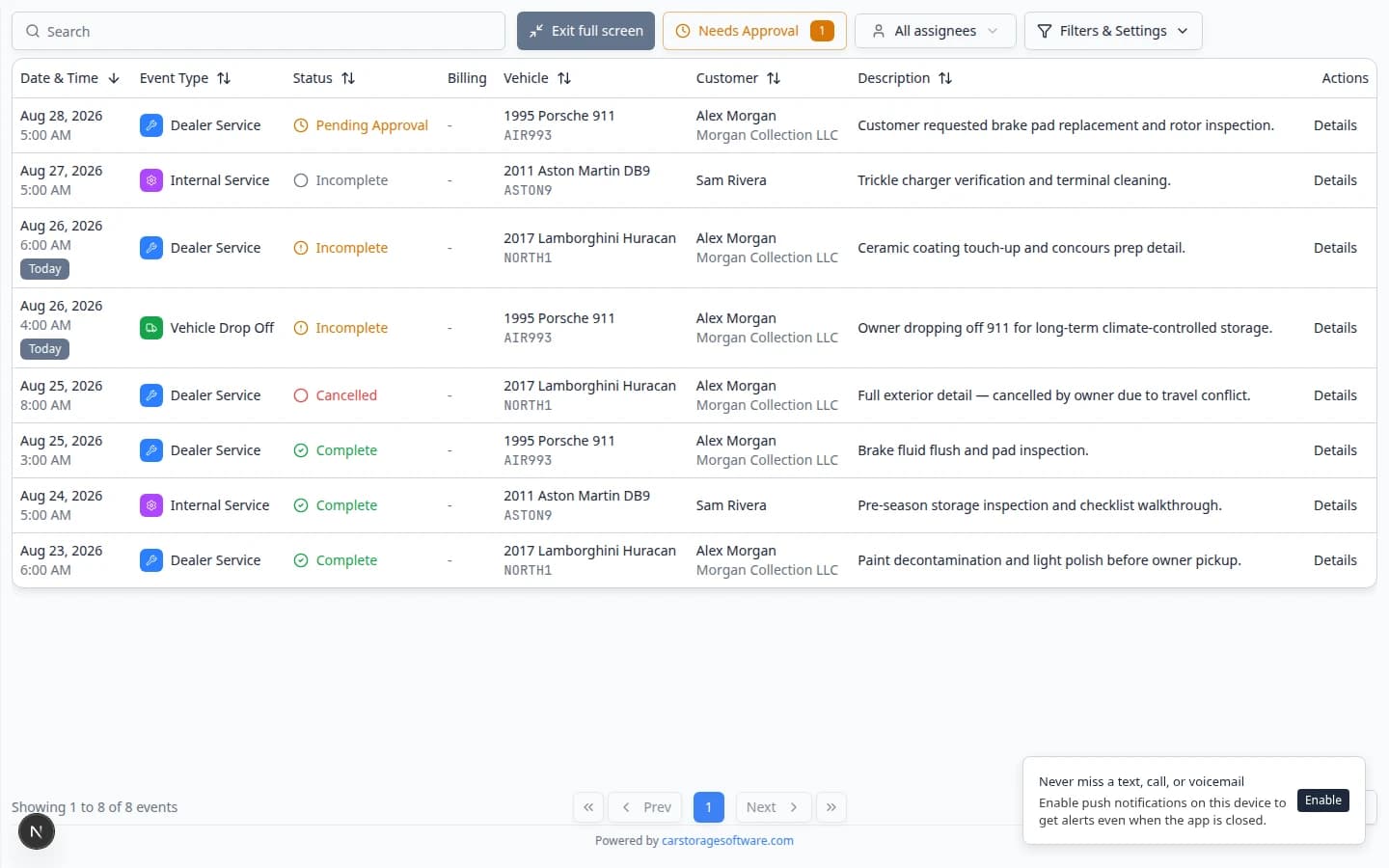
When to use full-screen display
- Your shop has a TV or monitor that should always show today’s work.
- Managers want a quick glance at the week without signing in on a personal laptop.
- Your team runs stand-up meetings around a shared screen and needs a live schedule.
Before you start
- Sign in on the computer or browser that is connected to the display.
- Open Schedule first so you know events are loading correctly.
- Decide which view your team prefers on the wall — many facilities use Calendar in 1 Day or 3 Day mode.
What full-screen mode changes (and what it does not)
What changes: The left dashboard menu and most page chrome hide so the schedule uses the full monitor.
What stays the same: Your events, filters, and view mode (Calendar, Table, Whiteboard, or Progress) work the same way. You are not looking at a separate “TV app”—it is the same Schedule page, enlarged.
What it does not do: Full-screen mode does not sign in guests automatically. The computer connected to the TV must stay signed in to your facility account.
Open full-screen mode
- Go to Schedule
Open Schedule from the dashboard sidebar.
Expected result: You see the schedule header with Schedule Event, Full screen, and Filters & Settings.
- Click Full screen
Click Full screen near the top-right of the page.
Expected result: The page opens in display mode. The address bar shows
/dashboard/schedule/display. The sidebar and most dashboard menus are hidden so the calendar uses the whole screen. - Set the view your team wants on the wall
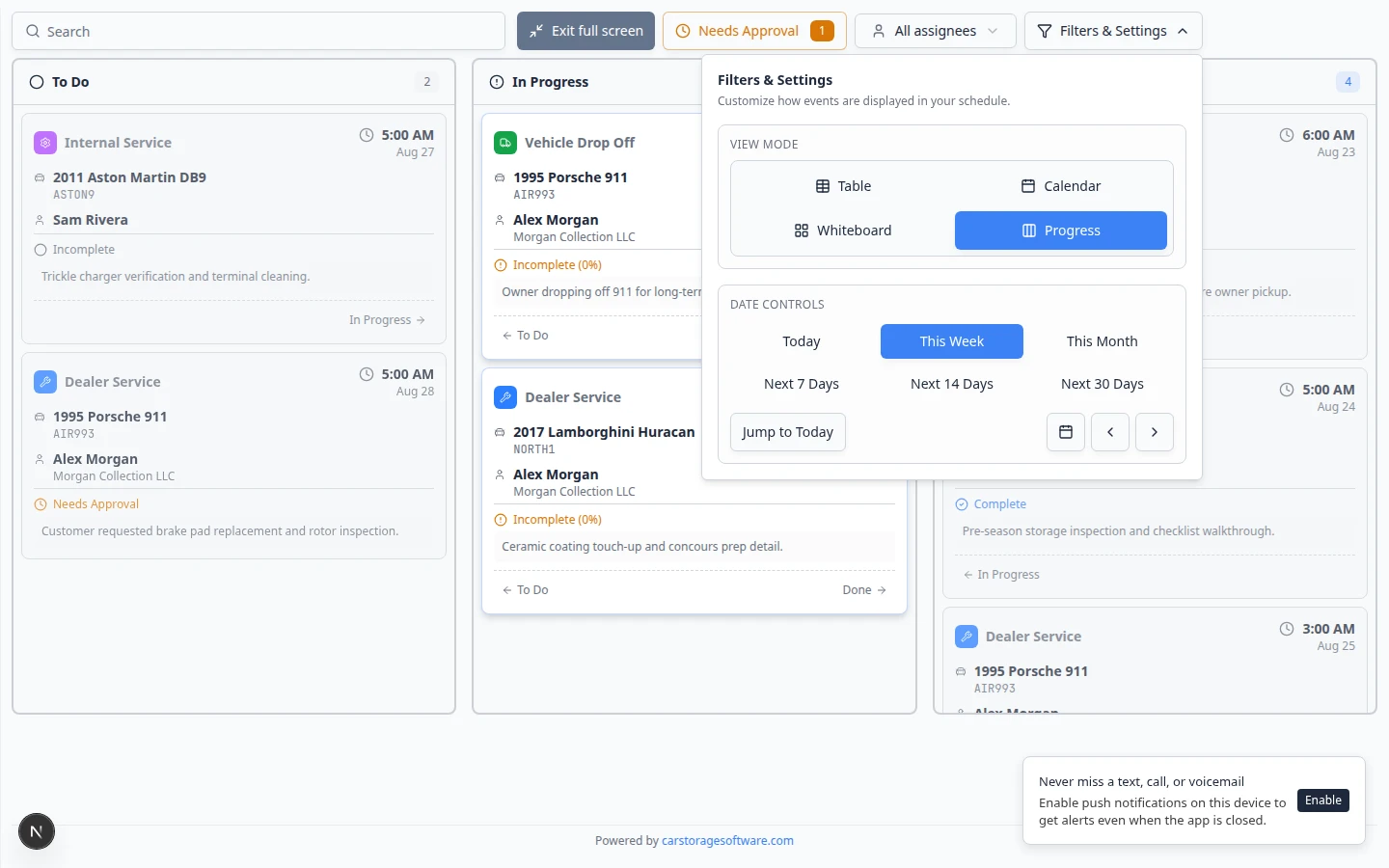
Click Filters & Settings and choose:
- Calendar with 1 Day or 3 Day for time-based planning, or
- Progress when the wall should show To Do, In Progress, and Done columns.
Expected result: The display shows the same filtered work your team cares about, just larger and easier to read.
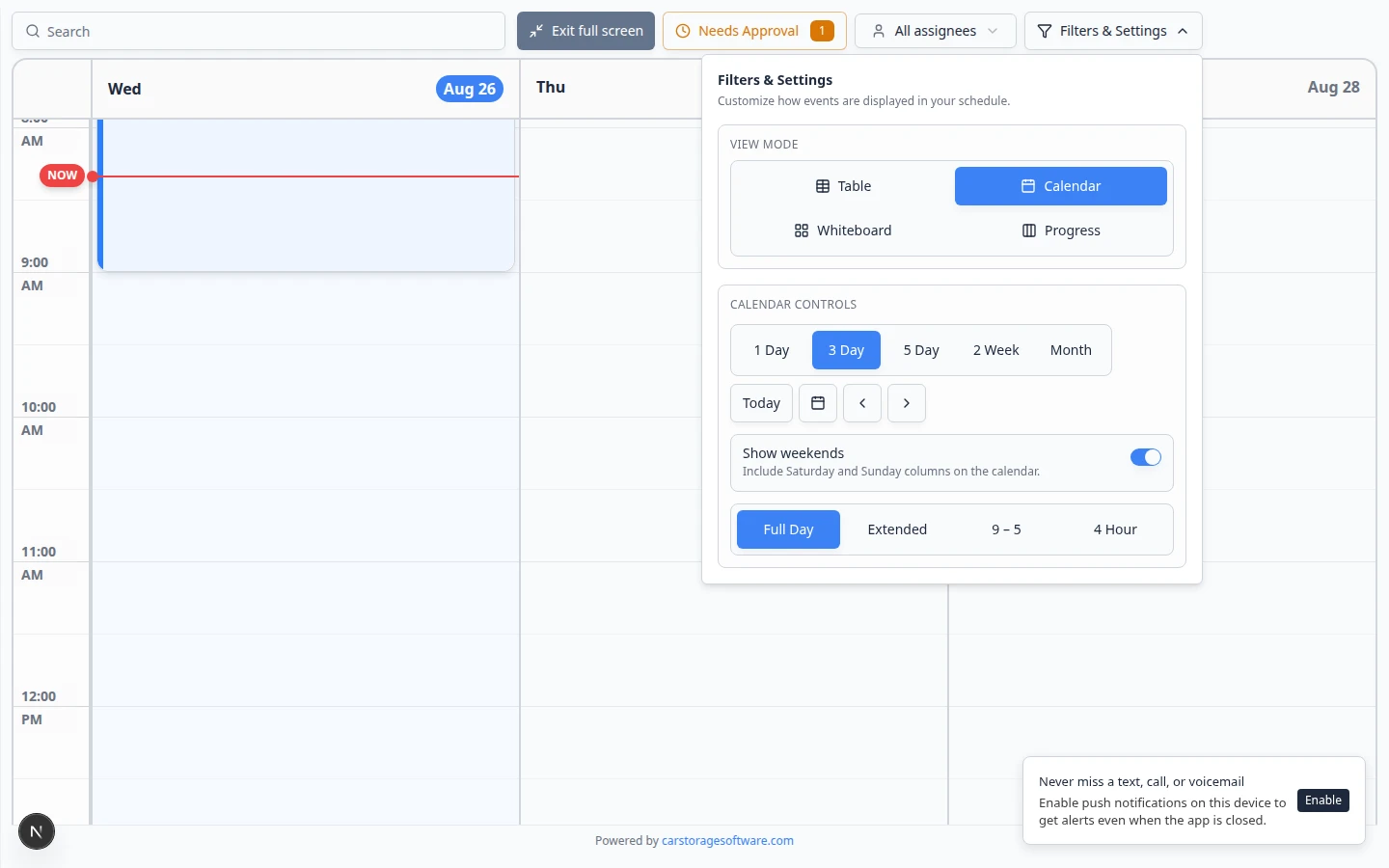
Show Calendar view on a wall monitor
Progress is great for status boards. Calendar is better when the wall should answer “What is happening at 2 PM?”
- Set Calendar before you go full screen
On the normal Schedule page, open Filters & Settings, choose Calendar, then pick 1 Day or 3 Day so the time grid is easy to read from across the room.
- Click Full screen
Click Full screen. The same calendar fills the monitor without the dashboard sidebar.
- Zoom the browser if needed
On the display computer, zoom in until event titles are readable from a distance.
Expected result: Staff can see customer and vehicle names on each colored block without walking up to the TV.
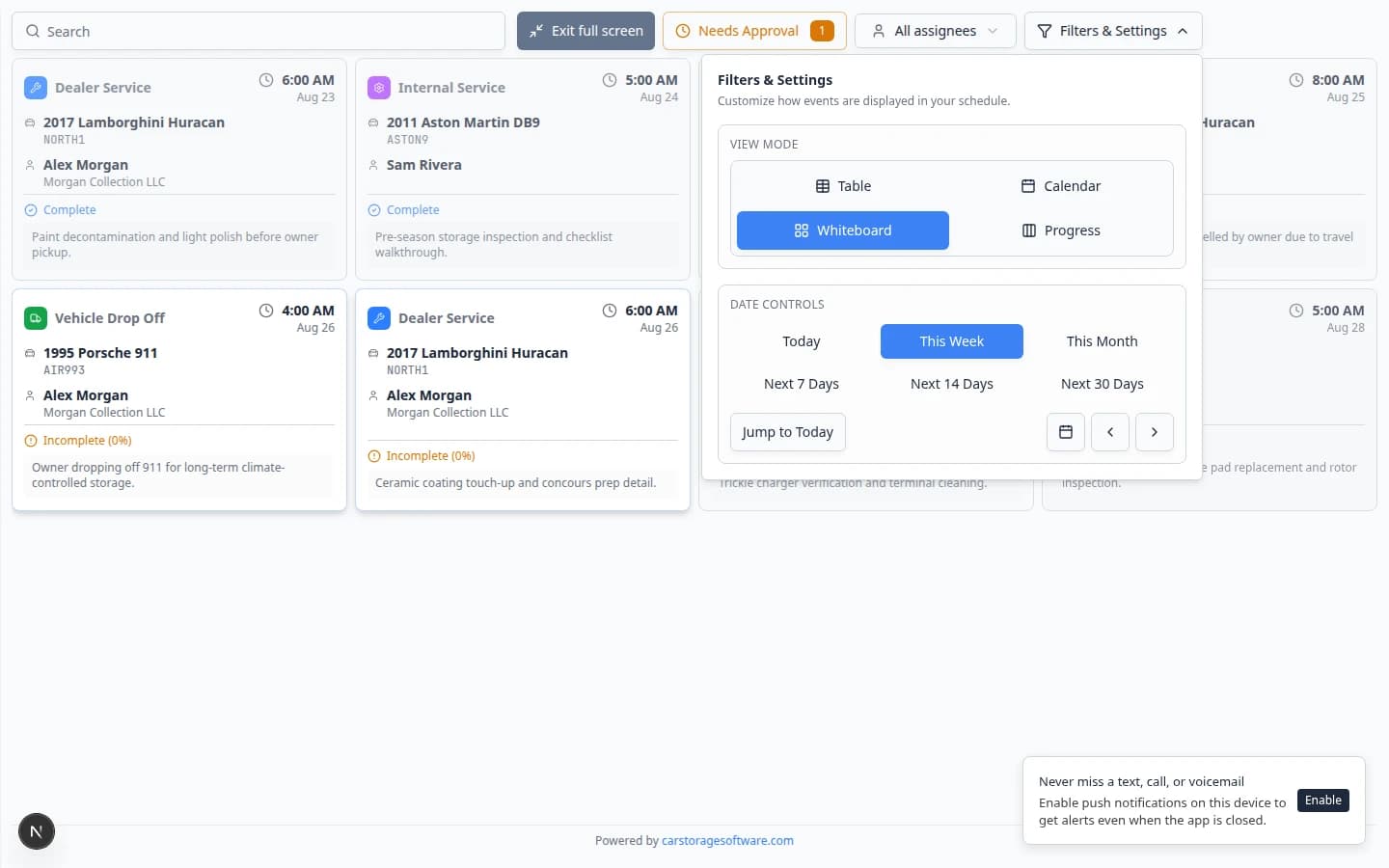
Show Whiteboard on a wall monitor
Some teams prefer Whiteboard cards on the TV during stand-up instead of a clock grid.
- Set Whiteboard on the display page
Open Schedule, click Full screen, then open Filters & Settings and choose Whiteboard. Set DATE RANGE to Today or This Week.
Expected result: Each visit appears as a card your team can read from across the room.
- Walk through cards during stand-up
Read event type, vehicle or customer, and time on each card before the first vehicle arrives.
Why this matters: Cards are easier to scan than a time grid when you only care about what is on the list today.
Exit full-screen mode
- Click Exit full screen
Click Exit full screen in the top area of the display page.
Expected result: You return to the regular Schedule page with the dashboard sidebar.
- Or press Escape on a keyboard
If a keyboard is connected to the display computer, press Escape.
Expected result: Full-screen mode closes the same way as Exit full screen.
Set up a dedicated shop computer (recommended)
Many facilities use a small PC or Mac mini behind the front-desk TV. This keeps personal laptops out of the workflow.
- Sign in once on the display computer
Open your browser, sign in to Car Storage Software, and open Schedule.
Expected result: Events load with real customer and vehicle names (not an empty calendar).
- Open Full screen and leave the tab open
Click Full screen, then leave that browser tab on the TV input.
Why this matters: Closing the tab or letting the session expire shows a sign-in screen instead of today’s work.
- Disable sleep on the display computer
In the computer’s power settings, turn off sleep while plugged in (or use your IT provider’s kiosk settings).
Expected result: The wall schedule stays visible during shop hours without someone tapping the mouse every hour.
Keep the wall display readable
- Zoom the browser if text looks small on the TV
On the display computer, use the browser zoom (often Ctrl and + on Windows, or Cmd and + on Mac) until event titles are easy to read from across the room.
Expected result: Staff can read customer and vehicle names without walking up to the screen.
- Hide the mouse cursor when possible
Some teams use a wireless mouse only for setup, then leave the cursor in a corner. A clean screen reduces distraction during stand-up meetings.
Tips for wall displays
Troubleshooting
What to do next
- Learn daily filters with Find and filter scheduled work.
- Put new work on the calendar with Create an appointment.
- Track same-day completion on the wall with Track work in the Progress view.
- Return to Schedule overview for the full list of Schedule guides.