Contacts
Manage additional contacts
Add spouses, assistants, bookkeepers, and other people who help manage a customer's account.
Use this guide when someone besides the main customer needs messages, scheduling updates, or their own portal sign-in.
What you will accomplish
- Add a spouse, assistant, bookkeeper, or other helper under the main customer record.
- Choose which messages each person should receive (invoices, scheduling, car updates, and more).
- Turn on portal access and send a separate sign-in link when that person should use the customer portal with their own email.
- Edit or remove additional contacts when roles change.
Some customers have more than one person involved in their account. A spouse may need car updates. An assistant may schedule appointments. A bookkeeper may need invoices. A vehicle manager may handle drop-off and pickup.
Before you start
- Open the correct main customer record first.
- Have the additional person's first name and last name ready.
- Add an email address if they should receive messages or have portal access.
- Decide whether this person should be the primary contact.
- Decide which types of messages this person should receive.
- Know whether this person needs their own portal sign-in (separate email) or only copies of messages.
Open the Contacts section on the customer record
- Go to All Contacts
Open All Contacts.
- Find the main customer
Search for the customer who owns the account.
- Open the customer detail page
Click the customer row or View Details.
- Scroll to Contacts
Scroll down to the Contacts section.
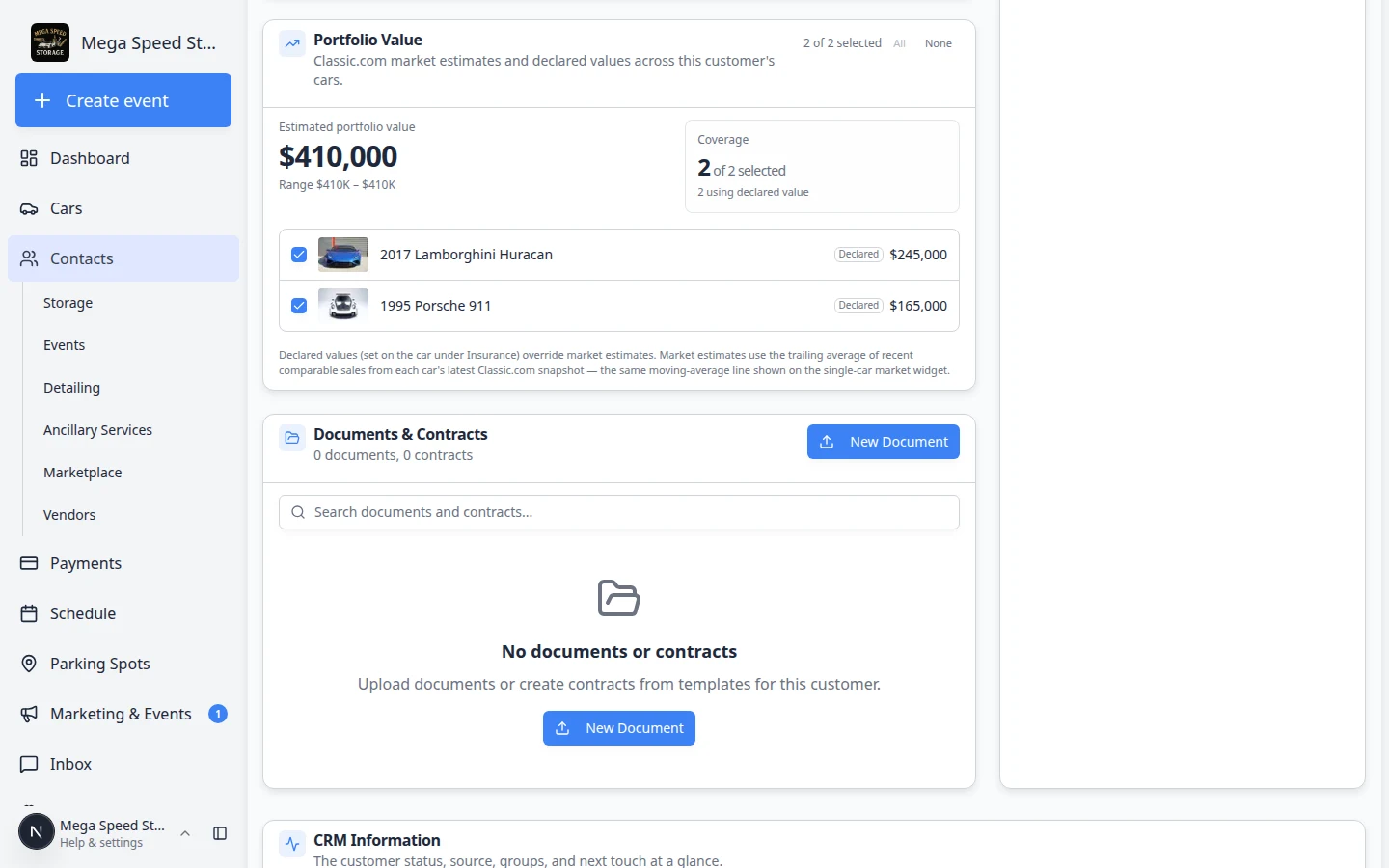
Add an additional contact
- Click Add Contact
In the Contacts section, click Add Contact.
- Enter the person's name
Fill in First Name and Last Name. These fields are required.
- Add email and phone if you have them
Add an email address if this person should receive messages, invoices, contracts, or portal access.
Add a phone number if your team may call or text them.
- Choose the role
Use Role to explain who this person is, such as spouse, assistant, bookkeeper, or other.
If you choose Other, add a clear role description.
- Choose access and status
Turn on Primary contact (main point of contact for this customer) only if this person should be your main contact. Most facilities leave the main customer as primary and add helpers as additional contacts.
Turn on Can access customer portal (login with their email) only if this person should sign in to the portal themselves—not just receive email copies.
Why this matters: Portal access gives someone their own sign-in link. Communication preferences only control which automatic messages they receive.
- Choose communication preferences
Under Communication Preferences, check only the message types this person should receive:
- Invoices & Billing
- Estimates & Quotes
- Scheduling Notifications
- Car Updates
- Contracts
- Social Events
- Marketing
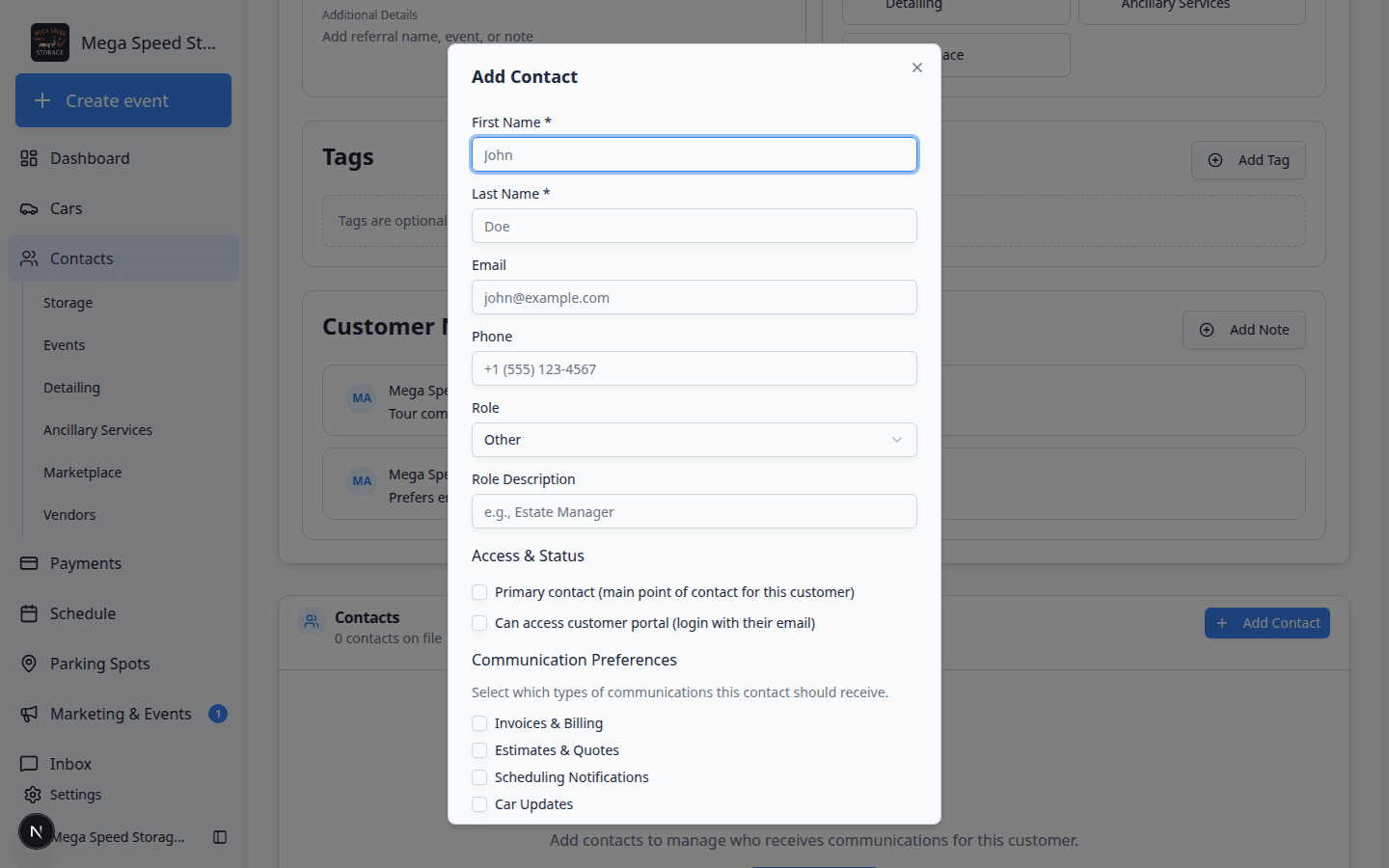
Turn on only the message types each person should receive. A bookkeeper may need Invoices only; an assistant may need Scheduling and Car Updates. Why this matters: The main customer and each additional contact can receive different messages. A bookkeeper may need Invoices & Billing but not Marketing. An assistant may need Scheduling Notifications and Car Updates only.
Expected result: The contact row shows a communication count (how many types are turned on). Fewer checked boxes means fewer automatic messages to that person.
- Click Add Contact
Click Add Contact to save the person under the customer record.
Expected result: The new person appears in the Contacts section with their role, email, communication count, and portal access status.
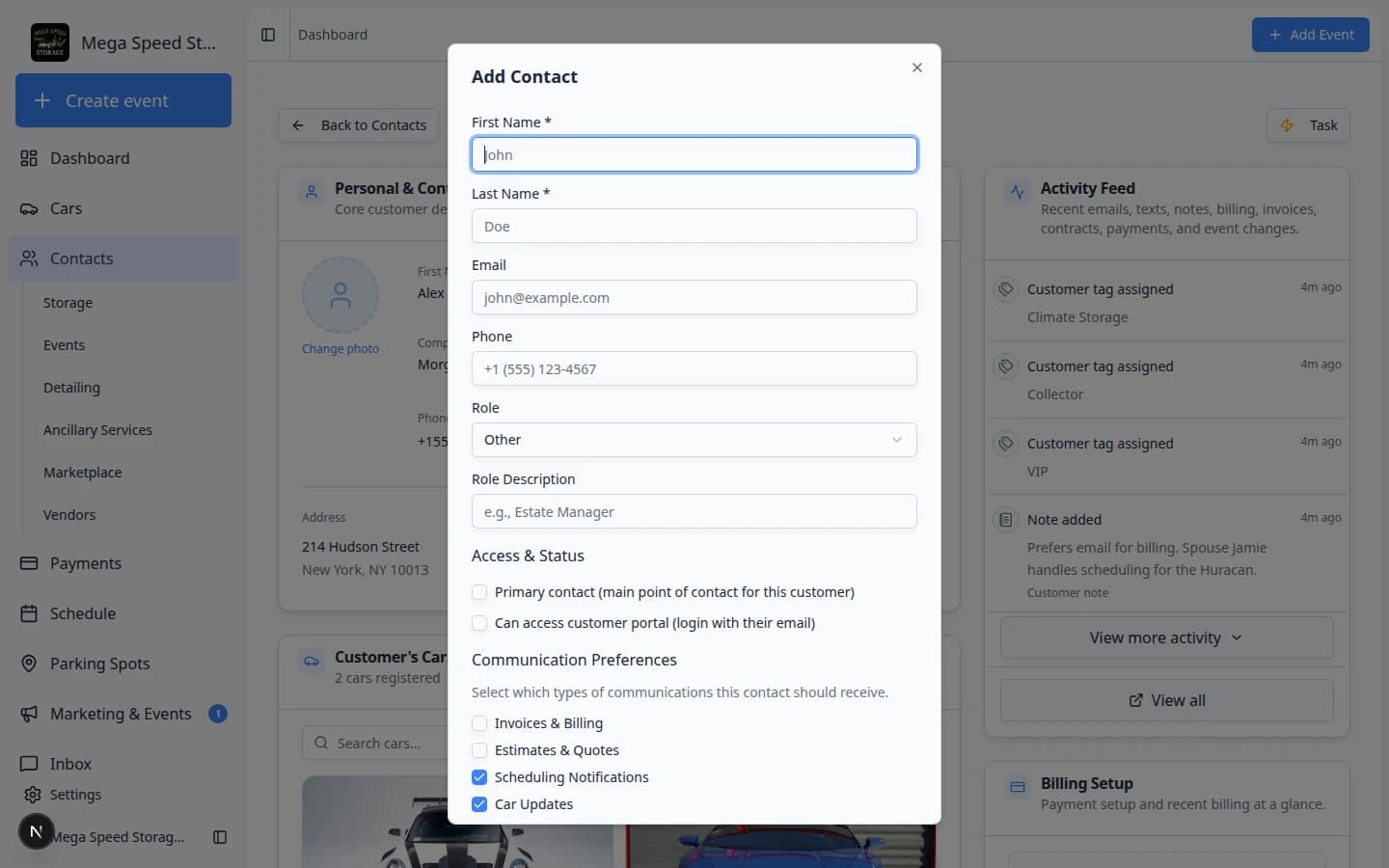
Edit an additional contact
- Open the customer record
Find the customer in All Contacts and open the detail page.
- Go to the Contacts section
Scroll to Contacts.
- Click the edit button
Click the pencil (edit) icon beside the additional contact—or use the edit button with the pencil icon in the Actions column.
Expected result: A window titled Edit Contact opens with the person's current information filled in.
- Update the information
Change the name, email, phone, role, portal access, or communication preferences.
- Click Save Changes
Save the changes and confirm the contact row now shows the right information.
Send a portal invite to an additional contact
If Can access customer portal (login with their email) is turned on and the contact has an email address, you can send that person their own portal invite.
- Open the customer record
Go to All Contacts and open the main customer record.
- Scroll to Contacts
Find the additional contact.
- Confirm portal access is enabled
The contact should show Portal Access in the Access column.
- Click the send invite action
Click the send (mail) icon beside the contact.
Expected result: The system sends a sign-in email to that contact's email address. They use their own email—not the main customer's—to open the portal.
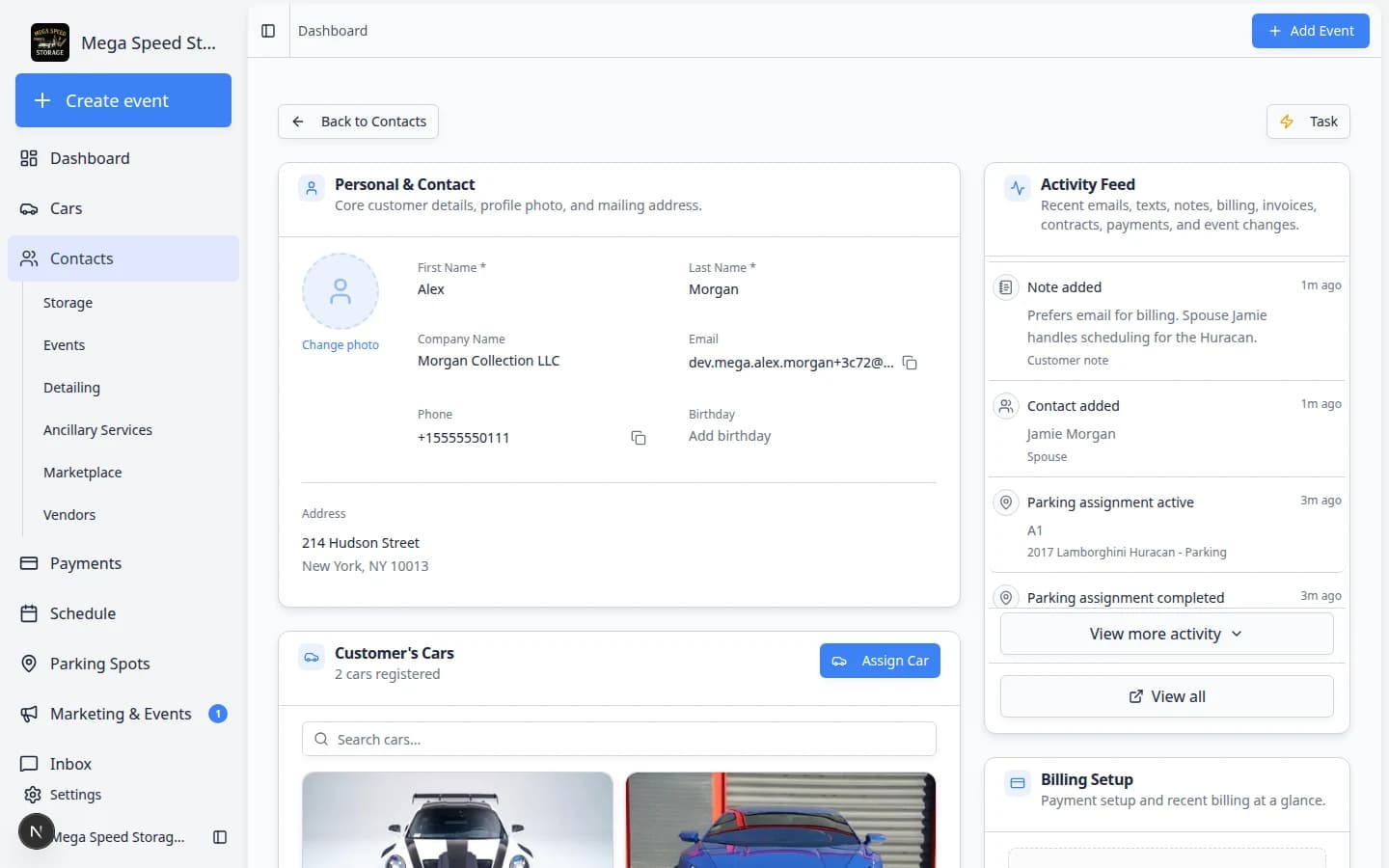
If someone needs help after they receive the invite, use Guide a customer through the portal to explain what they can see and do.
Remove an additional contact
Remove a contact only when the person should no longer be connected to the account.
- Open the customer record
Go to All Contacts and open the customer.
- Go to the Contacts section
Find the additional contact.
- Click the delete action
Click the trash (delete) icon beside the contact. Confirm when the app asks.
Why this matters: Deleting removes portal access and stops messages tied to that person. The main customer record stays.
- Confirm the removal
Confirm only after checking that this person no longer needs messages or portal access.
Common examples
| Person | Suggested role | Common preferences |
|---|---|---|
| Spouse or partner | Spouse | Scheduling, Car Updates, Contracts |
| Assistant | Assistant | Scheduling, Car Updates |
| Bookkeeper | Bookkeeper | Invoices, Estimates |
| Vehicle manager | Other | Scheduling, Car Updates, Contracts |
What happens next
After adding additional contacts, review the main customer record:
- The correct person is marked primary, if needed.
- Only the right people have portal access.
- Communication preferences match each person's role.
- The main customer still has the correct email and phone number.