Facility Web Pages
Publish marketplace listings
Make cars, products, or services visible on customer-facing marketplace pages.
What you will accomplish
Your facility will show the right cars, products, or services on a marketplace page that matches your business rules (public, customers only, or signed-in users). You will preview the page as a customer before sharing the link.
Overview
Use this guide to show cars, products, services, or memberships on a customer-facing marketplace page.
When you finish, customers or prospects can open the marketplace and view items your facility wants to share.
Use marketplace listings when you want to:
- sell or promote cars
- offer storage plans or memberships
- show services customers can request or buy
- create a simple public catalog for your facility
Before you start
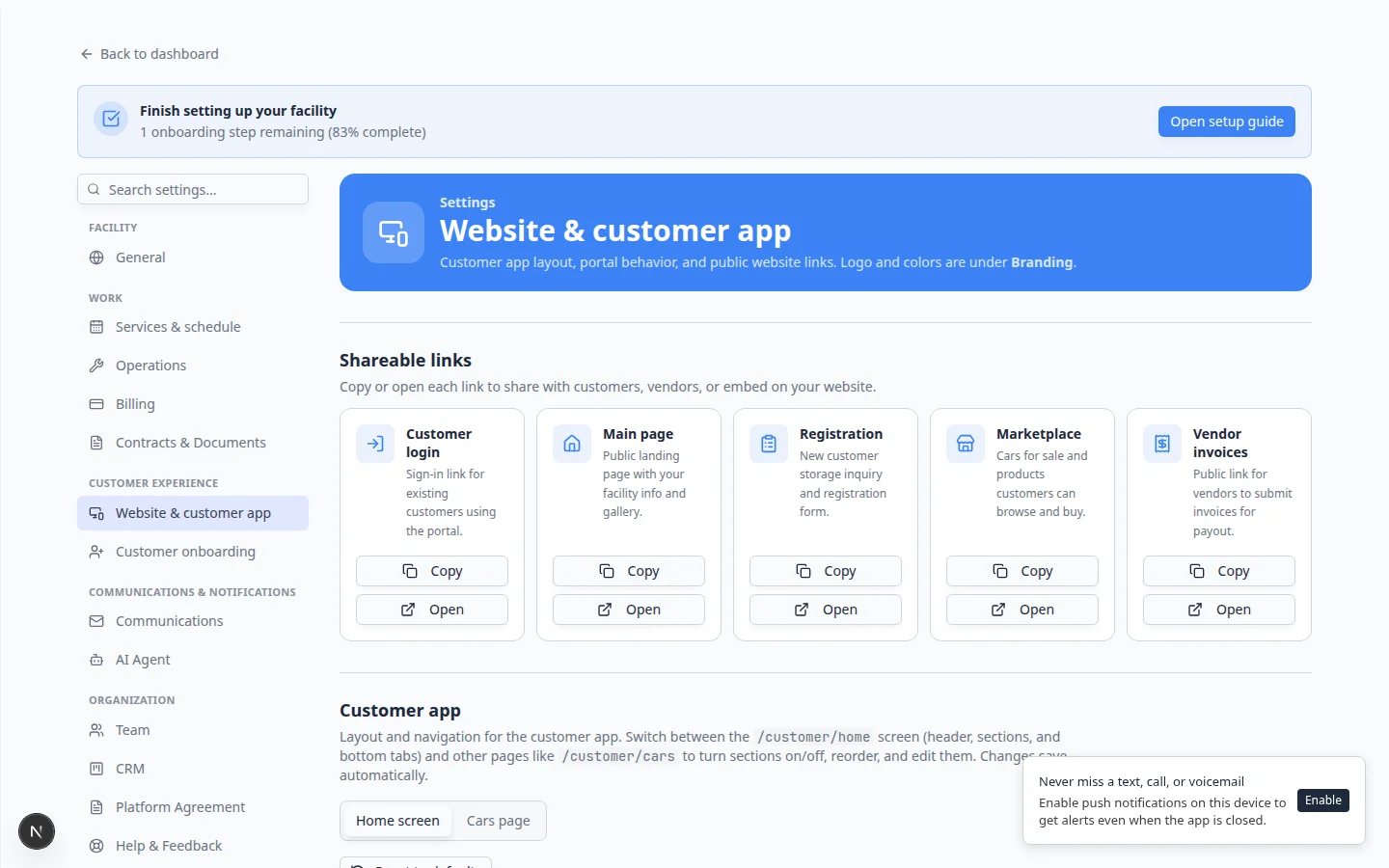
- Turn on Public Facility Pages in Settings > Website & customer app.
- Decide who should see the marketplace: everyone, all Car Storage Software users, or only your customers.
- Prepare customer-friendly names, descriptions, prices, and photos.
- Review payment processing before accepting online checkout for products.
Two marketplace pages to know
Your facility has two customer-facing marketplace URLs:
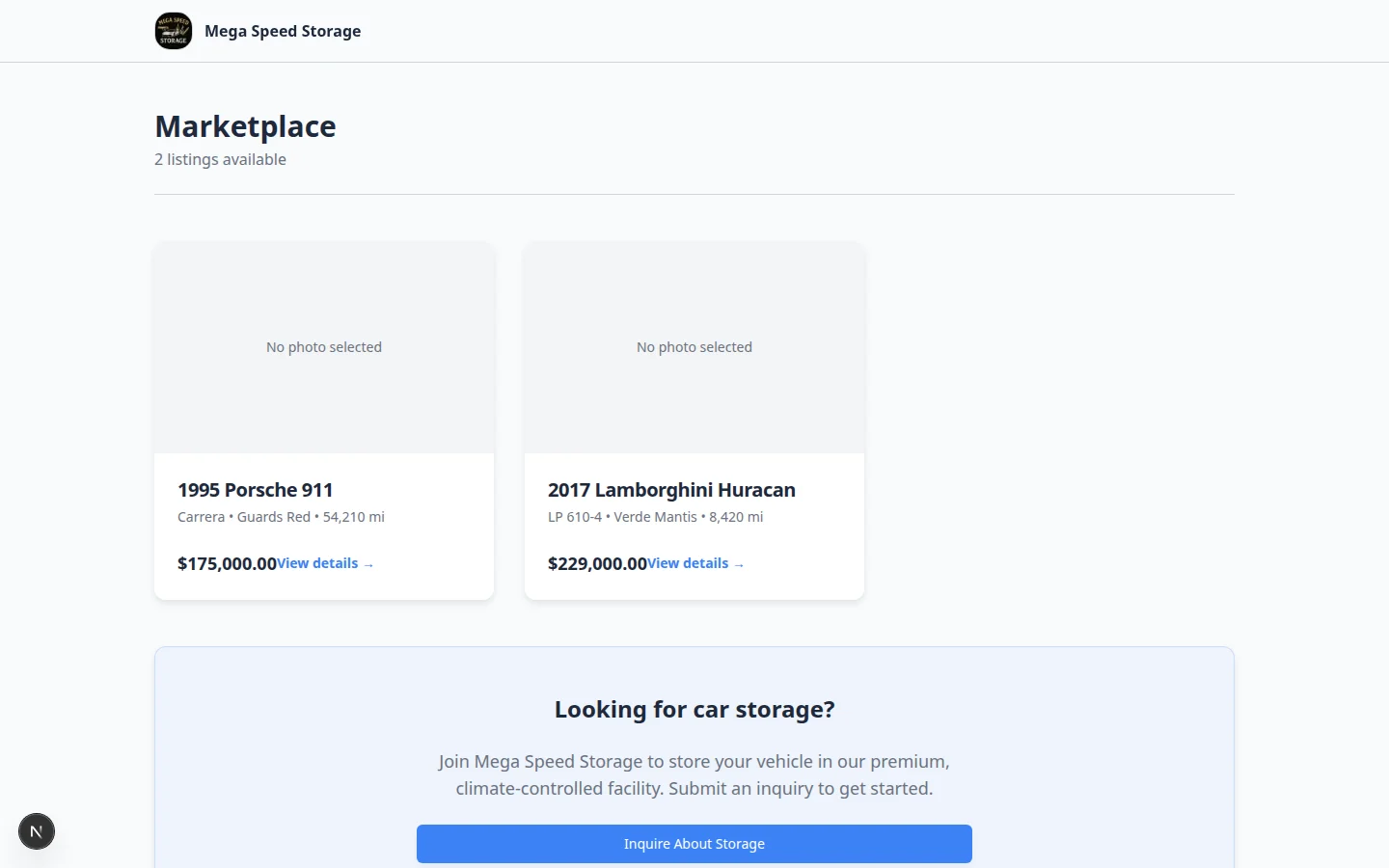
Vehicle marketplace — /facility/your-facility-name/marketplace — cars listed for sale or express interest.
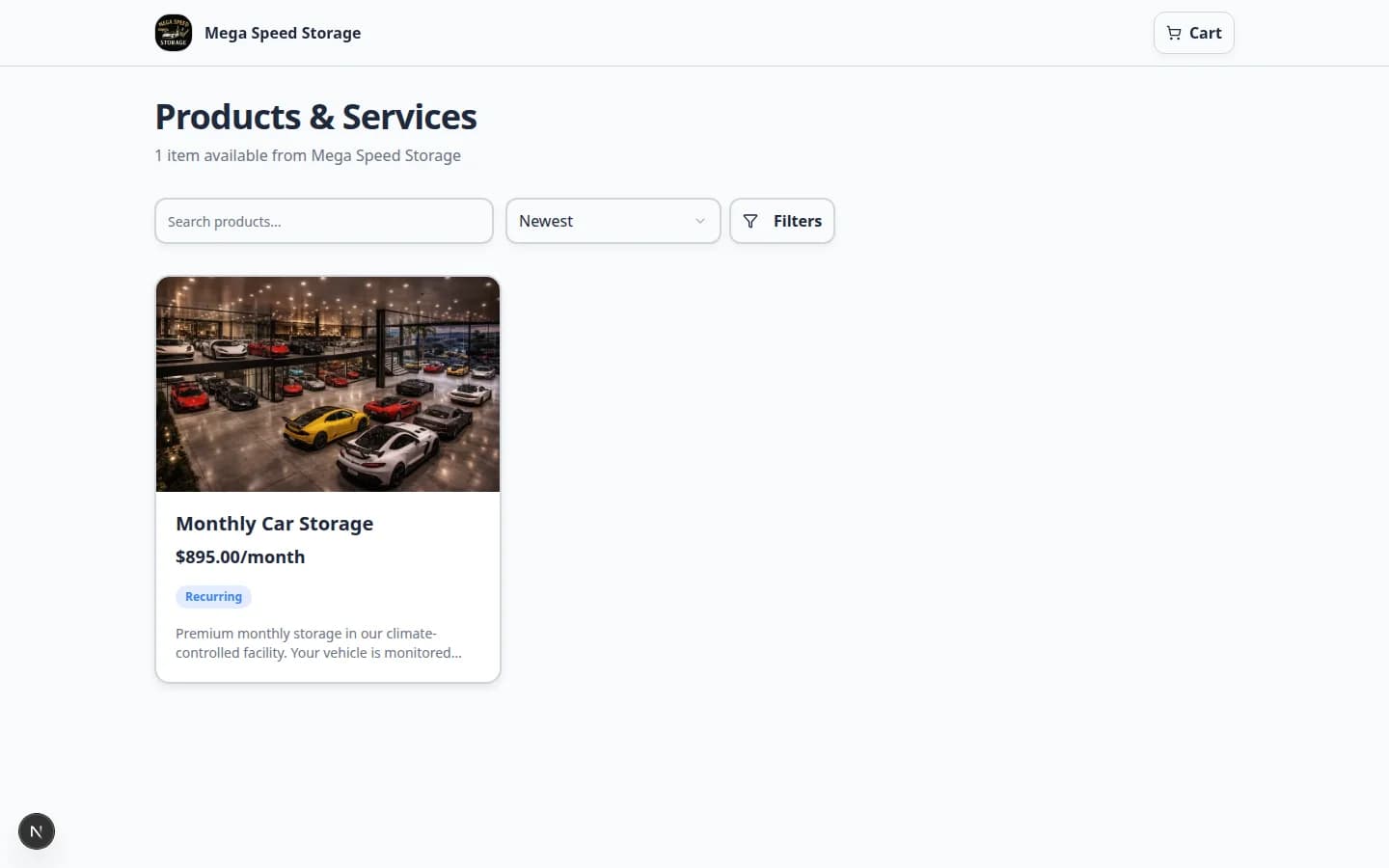
Product marketplace — /facility/your-facility-name/marketplace/products — storage plans, services, memberships, and other products with online checkout.
Customers see Cars for sale and Products as separate tabs or menu items on your public site when both are enabled.
Step 1: Open Marketplace in the dashboard
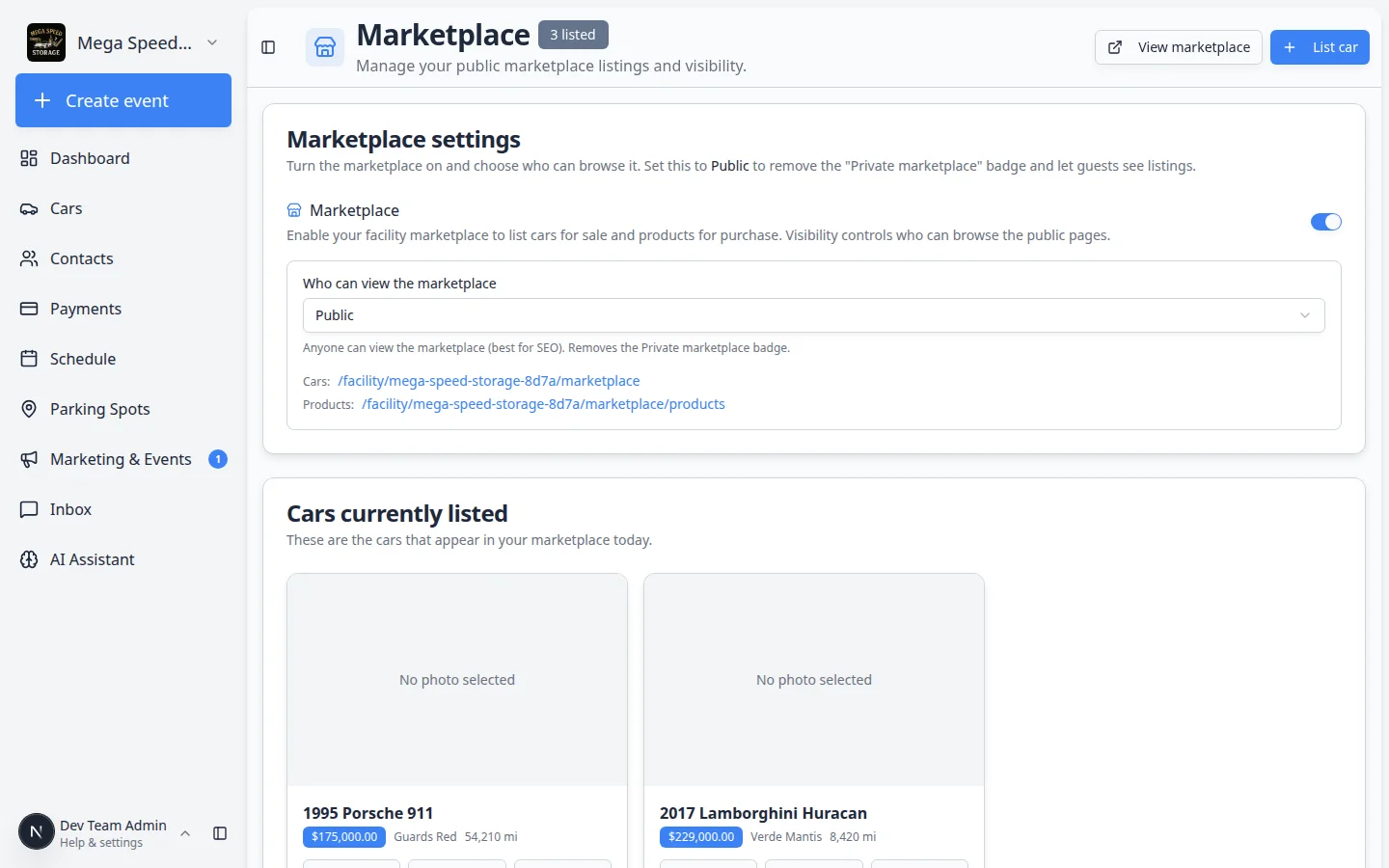
Go to Marketplace in the dashboard sidebar.
The page title is Marketplace. You may see an ALPHA badge next to the title while this area is still being improved—your listings still work; report confusing behavior to your facility owner or support contact.
Step 2: Turn on marketplace for your facility
Marketplace visibility can be set in two places on Settings > Website & customer app. Use both when you want cars and products to appear on your public site.
- Open the Marketplace section (top of the page)
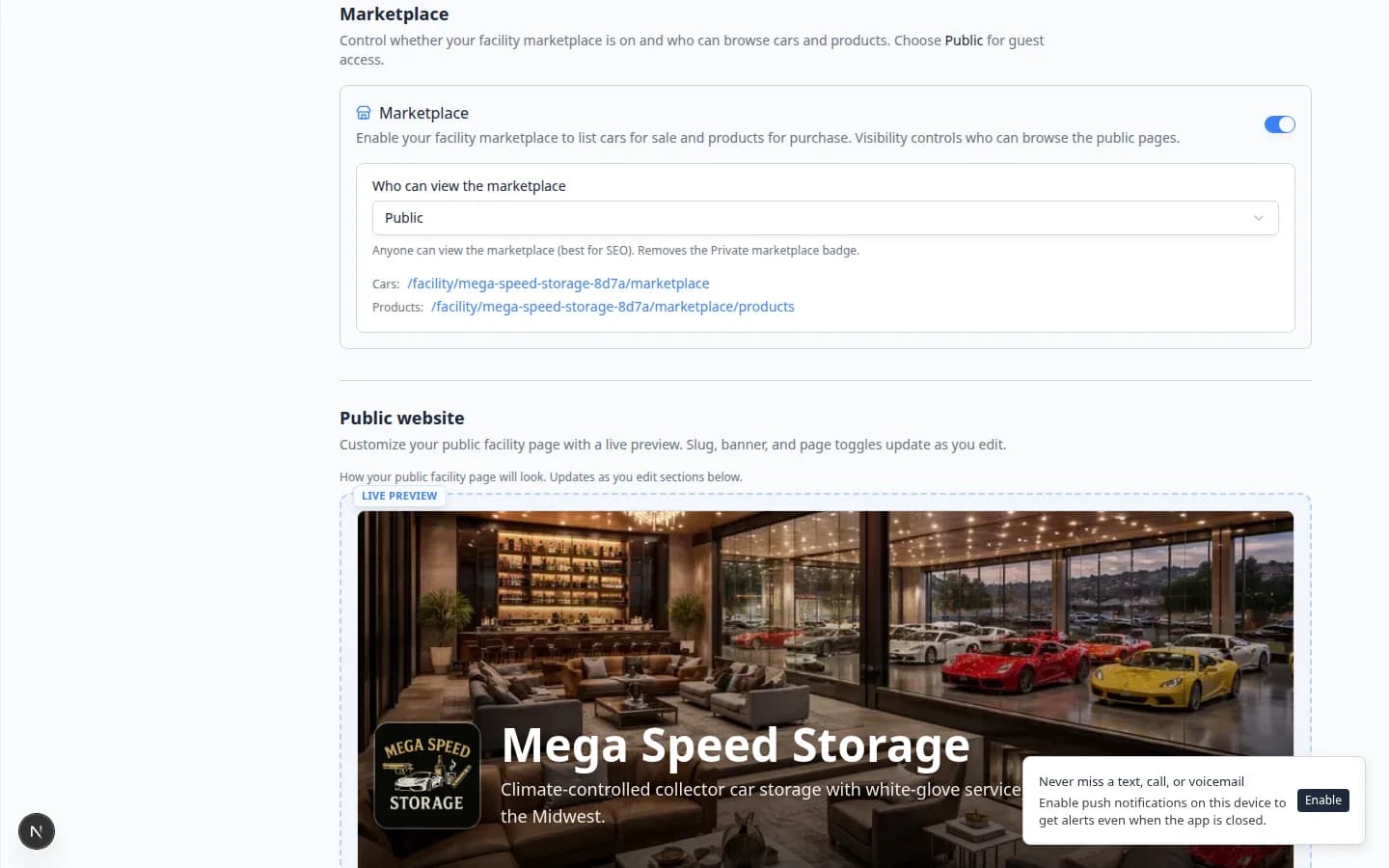
Scroll to Marketplace—between Customer app and Public website.
Turn on marketplace options for your facility and choose default visibility (Public, Customers only, or All Car Storage Software users).
Why this matters: This section controls whether marketplace features are available at all for your facility.
- Turn on the Marketplace page section
Scroll to Public website and open the Page editor. Turn on the Marketplace draggable section so visitors see marketplace content on your Main page.
Expected result: The live preview shows marketplace content when the section is on.
Step 3: Choose marketplace visibility
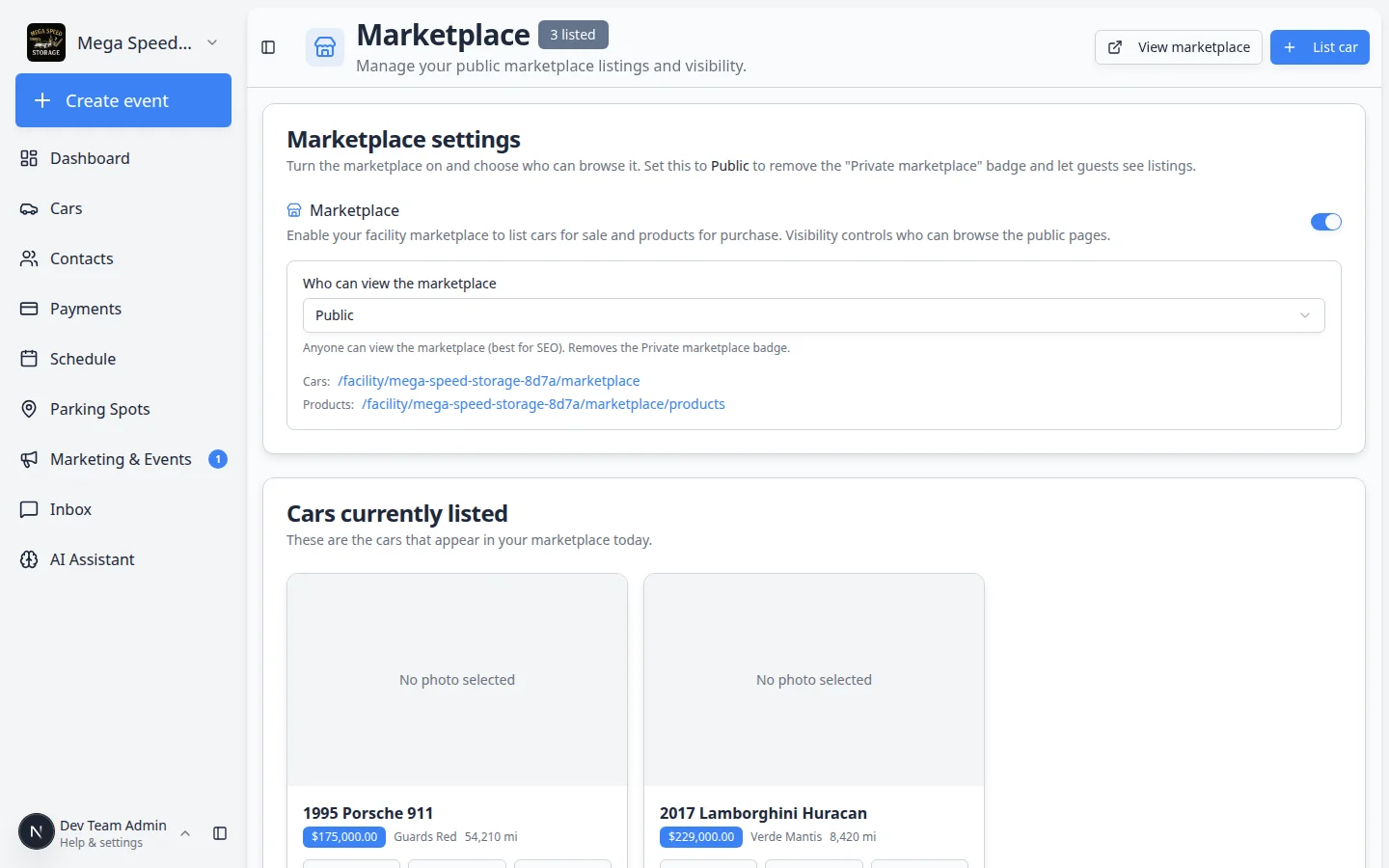
On the Marketplace section, choose who should be able to view listings.
- Customers only
Use this when only your facility customers should see the marketplace.
- All Car Storage Software users
Use this when any signed-in Car Storage Software user can view the marketplace.
- Public
Use this when anyone with the link can view the marketplace.
From Marketplace, use View marketplace to preview the public page. Each car card shows View, Edit, Unlist, and Mark as sold. Scroll to Products currently listed for storage plans and services from Payments > Products and services.
Step 4: Publish a car listing
Use this flow when a vehicle should appear for sale or express interest.
- Open Marketplace and click List car
Go to Marketplace and click List car.
Why this matters: This is the fastest path to list a vehicle. You can also open a car in Cars and use for-sale settings on the car record.
- Select the vehicle
Search for the car by customer name, plate, or VIN. Pick the correct vehicle if the customer owns more than one.
- Add listing details
Add a clear description, asking price, and confirm photos look professional.
Click List for sale (or save) when the details are ready.
- Review on the public vehicle marketplace
Open
/facility/your-facility-name/marketplacein a private browser window and confirm the car appears.Expected result: The car shows on the vehicle marketplace with correct price and photos.
- Submit one test inquiry
Step 5: Publish a product, service, or membership
Use this flow when customers should see a product, service, storage plan, or membership with online checkout.
- Open products and services
- Open the product or service
Choose the item customers should see.
- Review the customer-facing details
Confirm the name, description, price, billing schedule, and photo.
- Add at least one pricing variant
On the product detail page, scroll to Pricing variants (sometimes labeled Add variant).
Create one option customers can select—for example Standard monthly at $895.00/month.
Why this matters: If a product has no pricing variant, the marketplace shows Contact for pricing instead of Add to cart. Customers cannot complete online checkout until a real price option exists.
For full steps, see Manage products and services.
- Turn on Show on marketplace
Find Show on marketplace and turn it on. This is the switch that makes the item visible on
/marketplace/products.Expected result: The product appears on the product marketplace list when you open it in a private browser window.
- Test checkout if customers can buy online
If the item can be purchased online, follow Test marketplace checkout before sharing the link.
Expected result
The product, service, or membership appears on the product marketplace where customers are allowed to view it.
Step 6: Open the public marketplace pages and review them
Open both marketplace URLs in a private browser window:
- Vehicle marketplace: add
/marketplaceto your Main page link - Product marketplace: add
/marketplace/productsto your Main page link
Check the pages as if you are a customer.
Review:
- Item names are clear.
- Descriptions explain what the customer gets.
- Prices are correct.
- Photos look professional and are not confusing.
- Buttons lead to the right next step (Express interest, Add to cart, or Checkout).
- Private items are not visible to the wrong audience.
Step 7: Test the customer action
If customers can buy products online, complete a test checkout with Test marketplace checkout.
If customers can express interest in a car, submit one test inquiry and confirm your team sees it in Contacts or Inbox.
Expected result
Your team knows what the customer sees and what your staff receives after the customer acts.
What success looks like
- Marketplace visibility matches your business rules.
- Every visible item has a clear name, description, price, and photo if needed.
- Checkout or interest forms have been tested.
- Your team knows where new purchases, requests, or leads will appear.
Troubleshooting
What to do next
After listings look correct, test checkout if customers can buy online. Then add the marketplace link to your public facility page or your existing website. If you need the marketplace on your own website domain, follow Connect a custom domain.