Parking Spots
Set up parking spots and zones
Create the spots, lifts, and zones your team will use to track where cars are stored.
What you will accomplish
You will create the spot names, lifts, and zones your team uses every day, arrange them on the floor plan, and save a map that matches the real building.
When to use this guide
Use this guide when you are setting up a new facility map or adding more spaces to an existing map.
When you finish, your team will be able to open Parking Spots, see the facility layout, and assign cars to the right places.
Before you start
- You should have permission to open Settings > Floor Plan.
- Know the spot names your staff uses in the facility, such as A1, B12, Lift 2, or Outdoor 4.
- Decide whether you need exact spots, larger zones, or both.
- If your facility has stacked lifts, know how many cars each lift position can hold.
Open the Floor Plan Editor
- Go to Parking Spots
Open the Parking Spots page from the dashboard sidebar.
- Click Add Parking Spot
In the top-right area of the page, click Add Parking Spot. This opens Settings > Floor Plan.
- Confirm you are on Floor Plan Editor
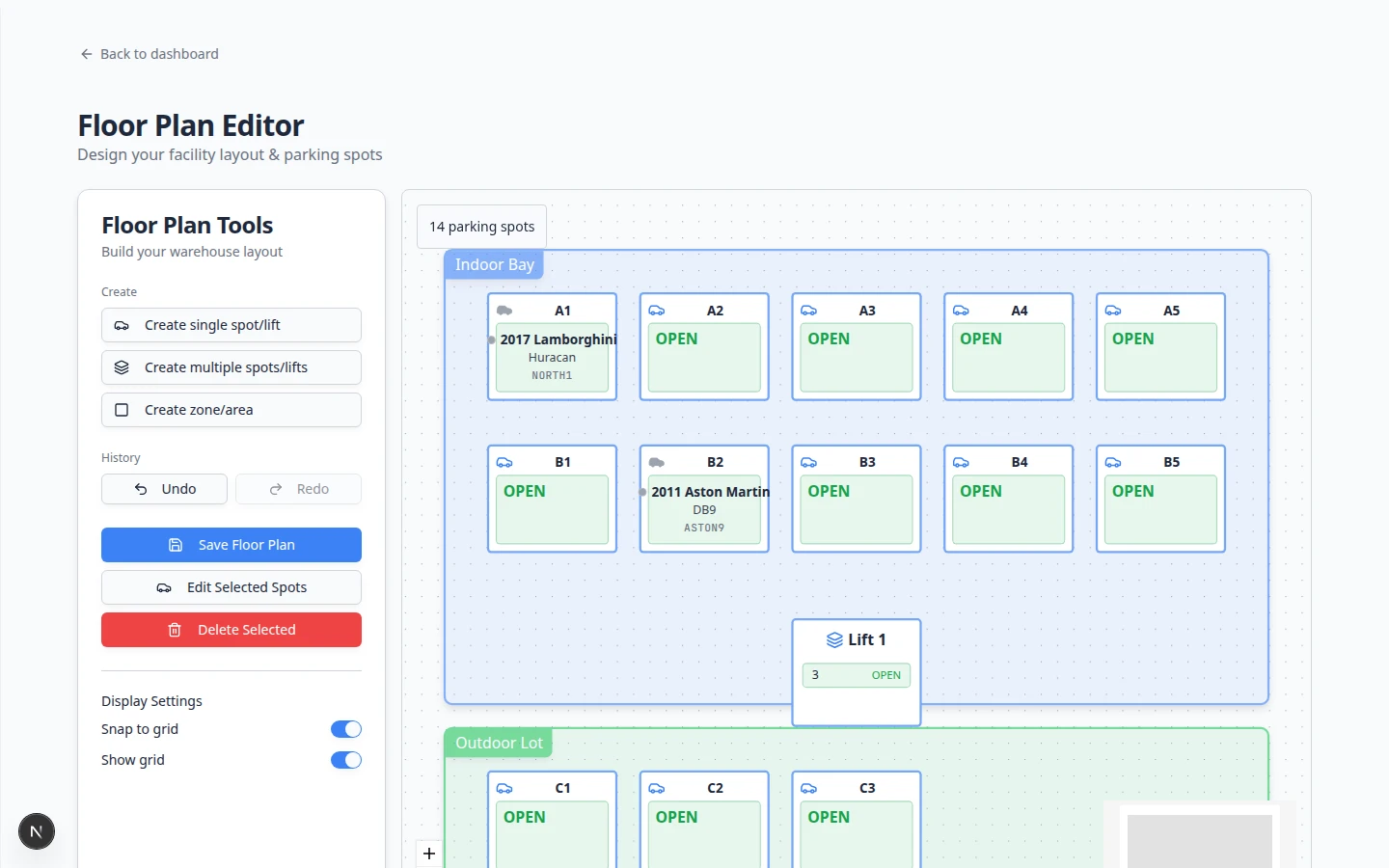
The page title should say Floor Plan Editor. The left side shows Floor Plan Tools. The large area on the right is the map canvas where your spots and zones appear.
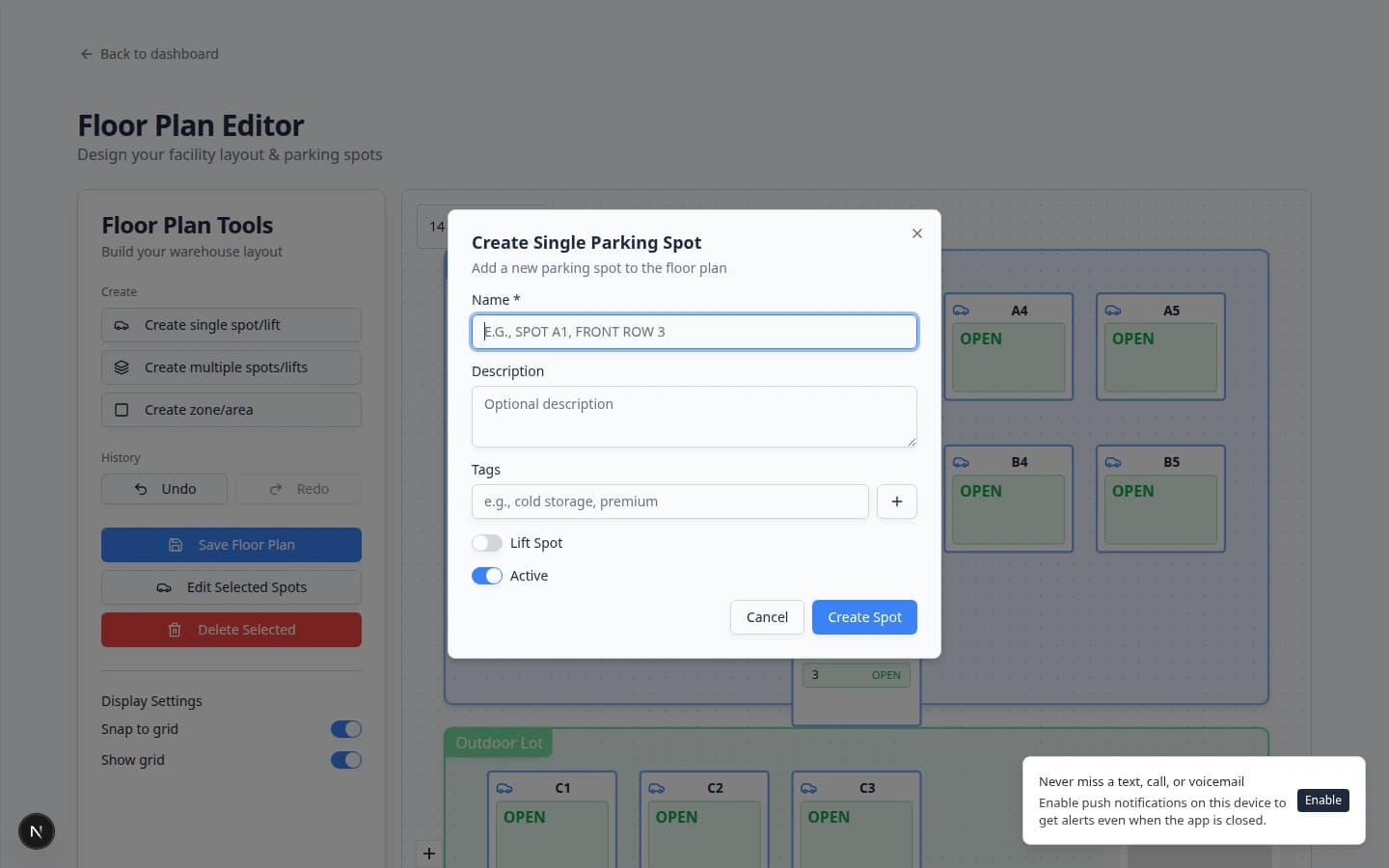
Create one spot or lift
Use this option when you only need to add one new space or one lift position.
- Click Create single spot/lift
In Floor Plan Tools, click Create single spot/lift.
- Enter the spot name
In Name, type the exact name your team will recognize, such as A5, FRONT ROW 3, or LIFT-2.
Keep names short and consistent. For example, use either A1, A2, A3 or A-1, A-2, A-3. Do not mix both styles unless your real facility uses both.
- Add an optional description
Use Description for helpful details, such as "near front door", "wide spot", or "reserved for lift access".
- Add optional tags
Use Tags for simple labels like Front Row, Climate Controlled, or Premium. Tags help staff filter and understand spots later.
- Turn on Lift Spot only if this is a stacked lift
If the space is a lift, turn on Lift Spot and enter Spots Per Lift Position. For example, enter 2 if the lift holds one car on the ground and one car above it.
Choose Level Labels to match how your facility marks each level:
- Per-lift numbers (L1, L2, …) creates names like LIFT-1-L1, LIFT-1-L2 (shown as levels 1, 2)
- Letters (A, B, C, D) creates names like LIFT-1-LA, LIFT-1-LB (shown as levels A, B)
- Sequential pairs (1/2, 3/4, …) names each platform with consecutive numbers across all lifts. With 2 spots per lift and start 1, the first lift is 1 (ground) and 2 (top), the next is 3/4, and so on.
Optionally set Level Direction:
- Bottom → top puts the first label (1 / A) on the ground level
- Top → bottom puts the first label on the highest level
- Leave Active turned on
Keep Active turned on when staff can use the spot. Turn it off only for a spot that should not be used, such as a blocked bay or a space under repair.
Why this matters: Inactive spots still appear on the map but show Inactive in Table view so staff do not assign cars there by mistake.
- Click Create Spot
Click Create Spot. The new spot appears on the floor plan.
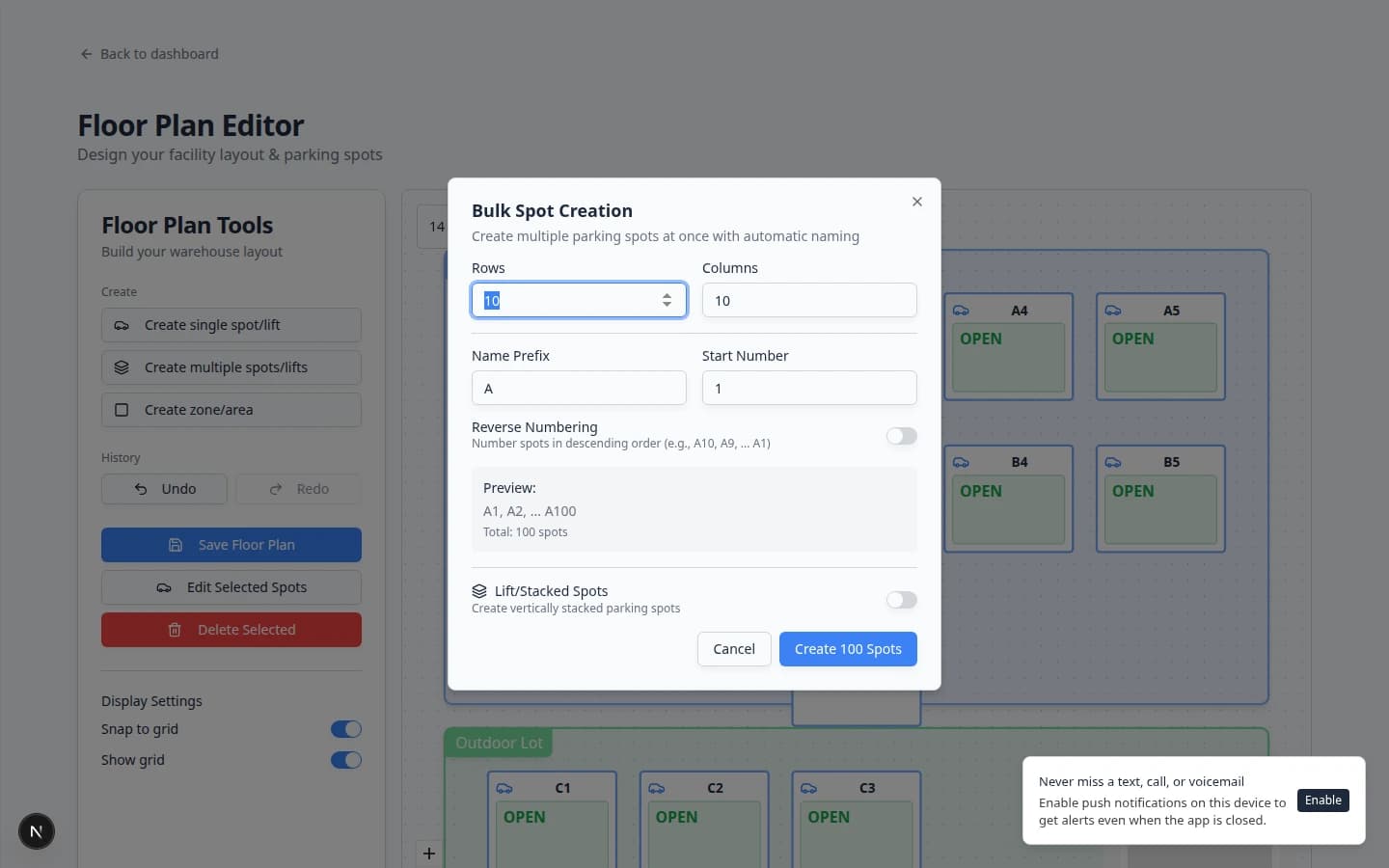
Create many spots at once
Use this option when you are setting up a row, section, or whole facility.
- Click Create multiple spots/lifts
In Floor Plan Tools, click Create multiple spots/lifts.
- Enter Rows and Columns
Rows means how many lines of spots to create. Columns means how many spots are in each line.
Example: 2 rows and 5 columns creates 10 spots.
- Enter Name Prefix and Start Number
Name Prefix is the first part of the name, such as A or OUTDOOR. Start Number is the first number.
Example: Prefix A and Start Number 1 creates A1, A2, A3, and so on.
- Review the Preview
The Preview shows the names that will be created. Stop here if the names do not look right. It is easier to fix names before creating spots.
- Use Lift/Stacked Spots only when needed
Turn on Lift/Stacked Spots only if these spaces are stacked lifts. Then enter Spots Per Lift Position.
Choose Level Labels if your facility uses letters or continuous numbering for stack levels:
- Letters (A, B, C, D) creates names like A1-LA, A1-LB (shown as A, B on the map)
- Per-lift numbers creates names like A1-L1, A1-L2
- Sequential pairs (1/2, 3/4, …) is for facilities that number every platform in order (ground 1, top 2, next lift 3/4, through 100). Set Start Number to the first number and Spots Per Lift Position to 2.
Use Level Direction when the facility numbers or letters from the top down (for example A or the lower number on the highest platform instead of the ground).
- Click Create Spots
Click the create button at the bottom of the dialog. The spots appear on the map in a grid.
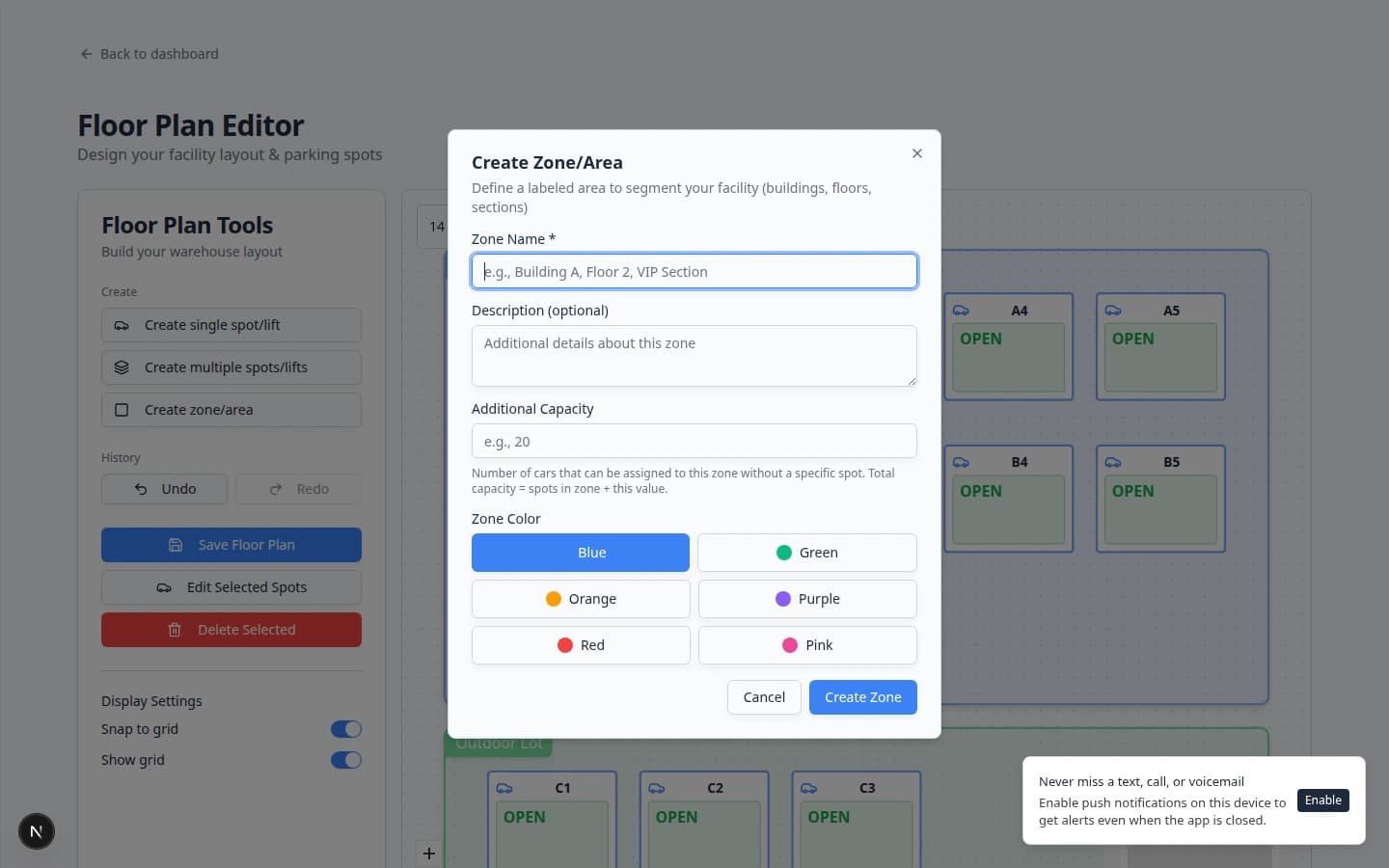
Create a zone or area
Zones are helpful for flexible spaces where cars can be parked without an exact numbered spot.
Examples:
- Outdoor Lot
- Service Area
- Main Storage
- Waiting for Pickup
- Detail Bay Area
- Click Create zone/area
In Floor Plan Tools, click Create zone/area.
- Enter Zone Name
Type a simple name your staff will understand, such as Main Storage or Outdoor Lot.
- Add a description if helpful
Use Description for details like "climate controlled area" or "cars waiting for transport".
- Set Additional Capacity if cars can park in the zone without exact spots
Additional Capacity means how many cars can be assigned directly to this zone without choosing a specific spot inside it.
If every car in the zone must use an exact spot, leave this blank or use 0.
- Pick a color
Choose a color that makes the zone easy to recognize on the map.
- Click Create Zone
The zone appears on the map. Drag it behind the spots or around the area it represents.
Arrange the map
After spots or zones appear, arrange them so the map looks like the real facility.
- Drag spots into place
Click and drag a spot to move it. Place spots in the same order your staff sees in the building.
- Select more than one spot when you need alignment
Select multiple spots to use alignment tools such as align top, align middle, distribute horizontally, or distribute vertically.
- Use Rotate Selected for angled rows
If spots are diagonal in the real facility, select them and use Rotate Selected.
- Click Save Floor Plan
Click Save Floor Plan before leaving the page. If the button says No Changes to Save, your latest changes are already saved.
Why this matters: Zones and new spots do not appear on Parking Spots until the floor plan is saved at least once after your edits.
Test the new layout before the team uses it
After you save the floor plan, open Parking Spots and check the layout like a staff member would.
- Save, then open Parking Spots
Click Save Floor Plan, then go to Parking Spots.
- Confirm Map view shows your spots
Open filters & settings and choose Map if needed. You should see your spot names on the drawing.
Expected result: Spots appear where you placed them. The occupancy bar above the map shows Available, Reserved, and Occupied counts.
- Try Table view
Switch to Table and confirm the same spot names appear in the Name column.
- Search one spot name
Type a spot name (for example A1) in the search box. The map should jump to that spot.
Why this matters: staff will search by name on busy days. If search fails, fix spot names before go-live.
- Ask floor staff for a quick check
Show the map to someone who moves cars daily. Ask whether the layout matches the real building.
- Search for a few spot names to confirm they are easy to find.
- Switch between Map and Table views to make sure the spot names look clear in both places.
- Assign one test car or reservation only if your team is comfortable removing or correcting it afterward.
Use Find parking spots and available spaces after setup to learn how staff will use the finished layout.
Edit an existing spot
- Open Settings > Floor Plan
Go to Settings > Floor Plan.
- Click the spot on the map
Select the spot you want to update.
- Click Edit Selected Spots
Use this to change the name, description, tags, or active status.
- Save your changes
Click the save button in the edit dialog, then click Save Floor Plan if you moved or rearranged the spot.
Troubleshooting
What to do next
- Assign cars as they arrive using Assign a parking spot.
- Teach staff to search the map with Find parking spots and available spaces.
- Hold spaces for upcoming arrivals with Reserve a parking spot.
- If cars park in flexible areas, share Work with zones on the map with floor staff.