Payments
Void, credit, or correct an invoice
Fix billing mistakes safely—void a wrong invoice, issue a credit note, or edit a finalized bill without confusing the customer.
What you will accomplish
You will know which tool to use when a customer invoice needs to change after it was created—void, issue credit note, or edit invoice—and how to complete each step without duplicate charges or a broken payment link.
Use this guide when:
- The wrong amount, customer, or line items were sent
- The customer paid by cash or check and you need to remove processing fees from the balance
- A customer should not pay an invoice anymore (duplicate bill, canceled service, wrong month)
- Your manager asked you to fix a finalized invoice instead of creating a brand-new bill from scratch
Before you start
- You can open Payments > Invoices and find the invoice on the Customer tab.
- You know the invoice status (Draft, Open, or Paid)—see Review a customer invoice.
- You know what went wrong (wrong amount, wrong customer, duplicate bill, customer already paid another way).
- Your manager approved voiding, crediting, or editing if your team requires sign-off.
Choose the right fix
Not every mistake uses the same button. Pick the option that matches what should happen next.
Void invoice — Cancel the invoice completely. The customer can no longer pay it. Use when the whole bill should disappear (duplicate invoice, wrong customer, service canceled before payment).
Issue credit note — Lower the amount still owed on an Open invoice without canceling the whole bill. Use when part of the charge should come off (processing fees after cash/check payment, partial goodwill credit, small correction).
Edit invoice — Change line items on a finalized invoice. The system voids the old invoice and creates a new draft with your fixes. Use when descriptions, quantities, or totals need to change and you plan to send a corrected bill.
| Situation | Best choice | Why |
|---|---|---|
| Invoice never sent; still internal | Fix the Draft, then Finalize invoice | Safest time to catch mistakes |
| Duplicate invoice sent by mistake | Void invoice | Customer should not see two identical bills |
| Wrong customer on the invoice | Void invoice, then create a new invoice | Keeps payment history clean per customer |
| Line items or total need to change | Edit invoice | Builds a corrected draft from the finalized bill |
| Customer paid cash/check and should not pay processing fees | Issue credit note → Processing fees only | Removes the fee without voiding the whole invoice |
| Small discount on an open balance | Issue credit note → Custom amount | Lowers what the customer still owes |
| Customer already paid in full | Ask your manager | You may need a refund process outside this guide |
Open the invoice you need to fix
- Go to Payments > Invoices
Sign in to your dashboard. In the left sidebar, click Payments, then Invoices. You can also open Payments > Invoices directly.
Expected result: You see the Invoices page with tabs such as All, Customer, and Vendor.
- Click Customer
Click Customer near the top of the page.
Why this matters: The Vendor tab is for bills your facility receives from outside companies. Stay on Customer for customer corrections.
- Find and open the invoice
Search by customer name, email, or invoice number if needed. Check the Status column, then click the invoice row.
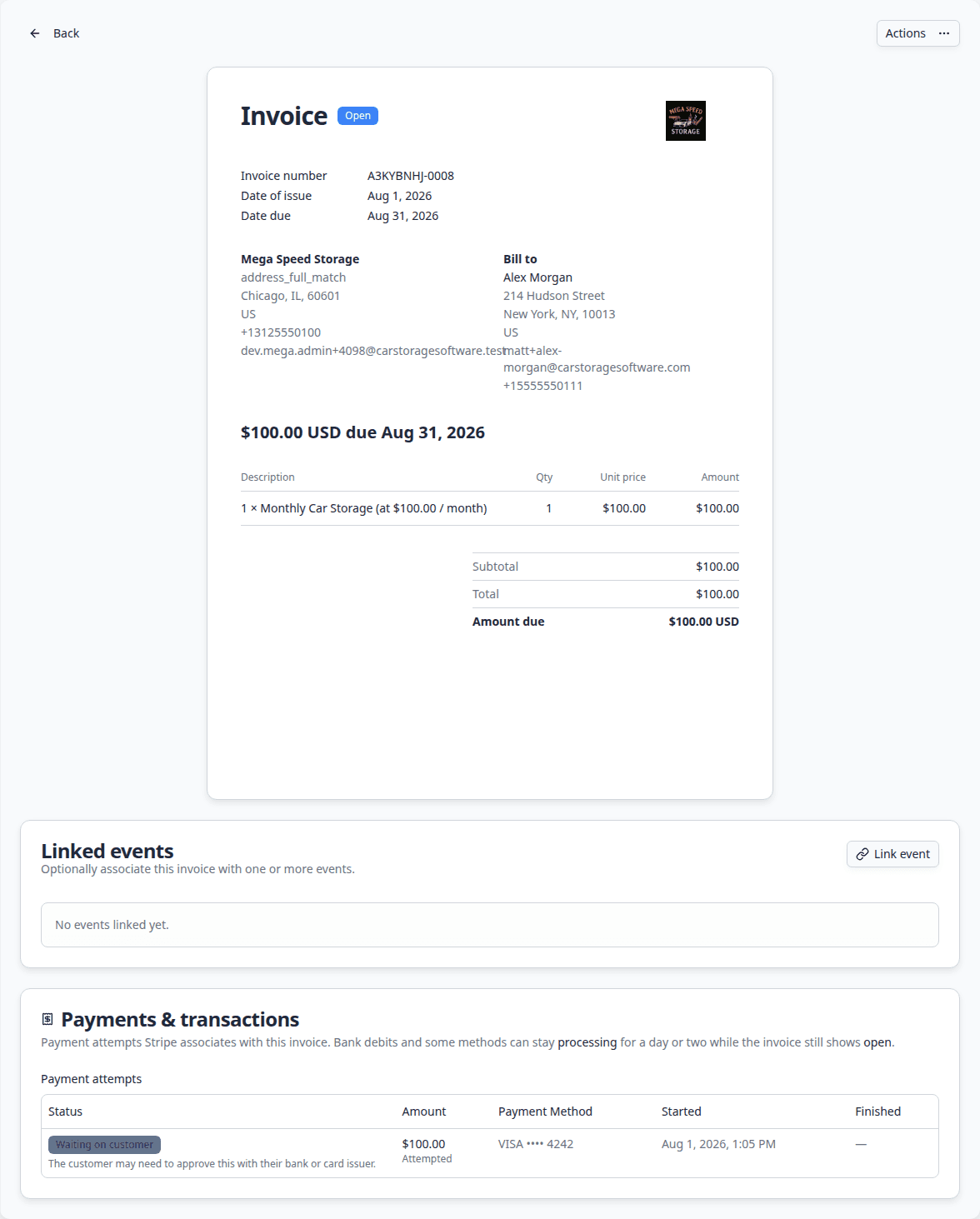
Expected result: The invoice detail page opens with the customer name, Status badge, amount due, and Actions on the right (for open invoices).
Fix a draft before anyone pays
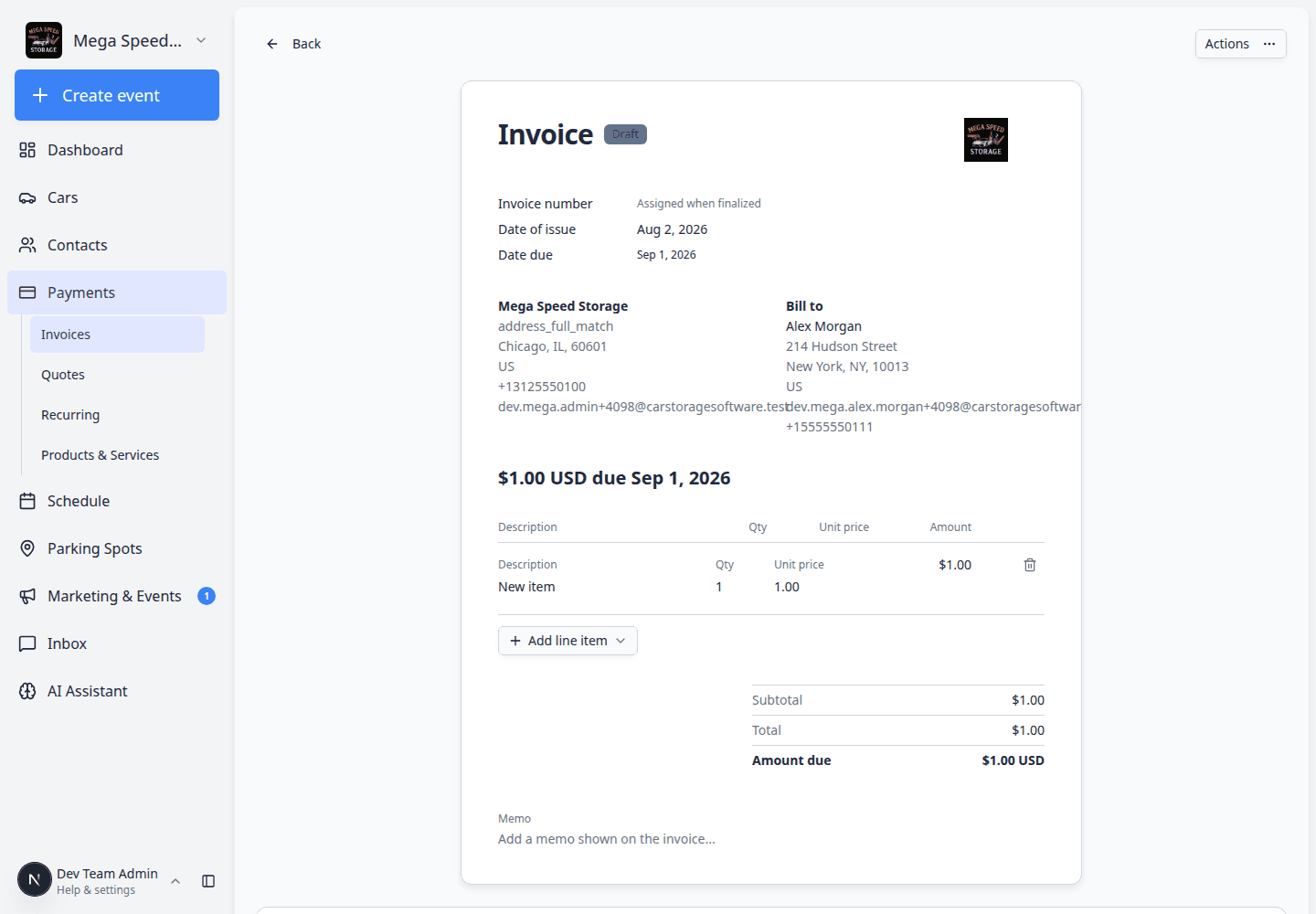
Drafts are the safest time to catch mistakes—nothing has been sent to the customer yet.
- Open the draft invoice
From the Customer tab, click a row with Draft status.
- Review line items and total
Scroll through each line. Fix descriptions, quantities, tax, or due date on the page if your role allows editing.
Why this matters: Changes on a draft do not affect the customer until you finalize.
- Delete if the draft is not needed
Click Actions, then Delete draft if the whole invoice was created by mistake.
Expected result: The invoice disappears from the list.
- Finalize when correct
Click Finalize invoice when the bill is ready to send or charge.
Expected result: Status becomes Open or Waiting for customer.
Void an invoice
Use Void invoice when the customer should not pay this bill at all.
- Confirm the invoice is Open
Void invoice appears when status is Open. You cannot void a Draft (delete the draft instead) or a Paid invoice (ask your manager about refunds or credits).
Expected result: Status badge shows Open.
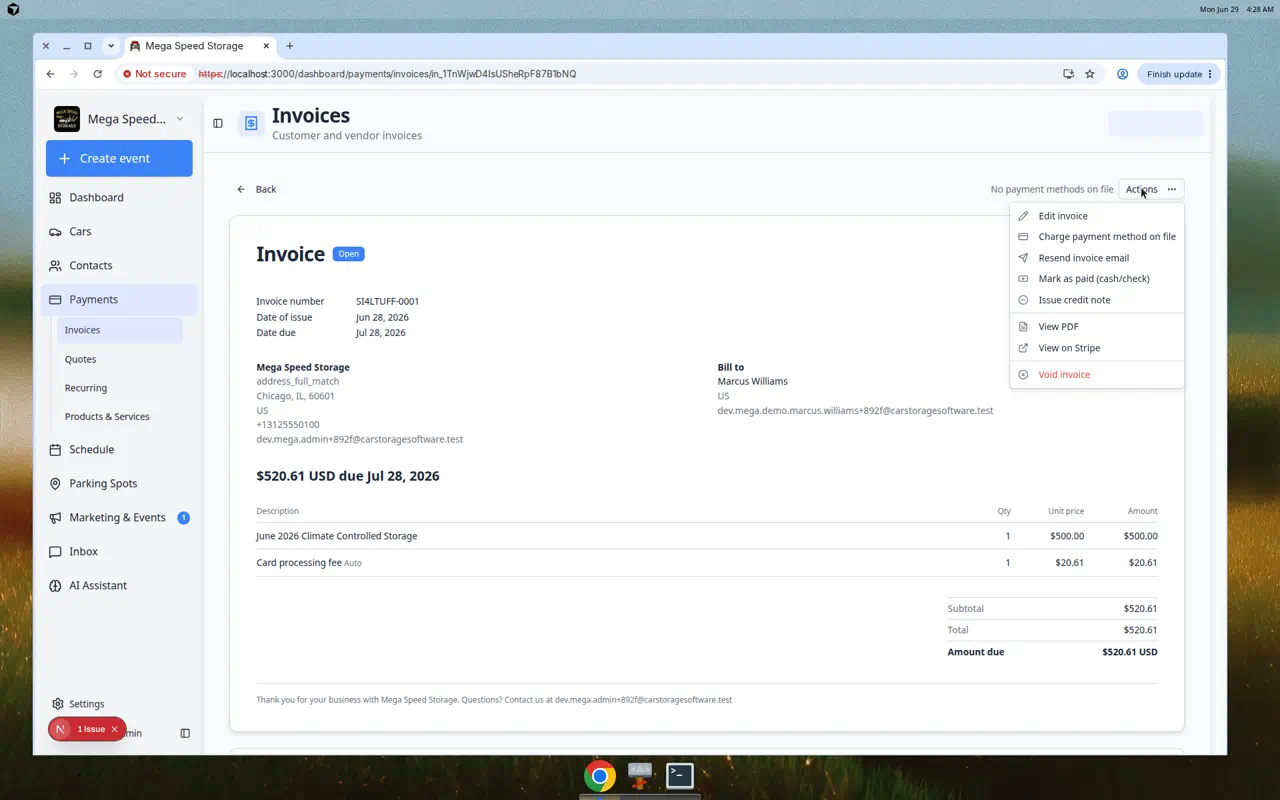
- Open Actions
Click Actions in the top-right area of the invoice detail page.
- Choose Void invoice
Scroll to the bottom of the menu and click Void invoice (red text).
Why this matters: Voiding tells the system this bill is canceled. The customer's old payment link will stop working.
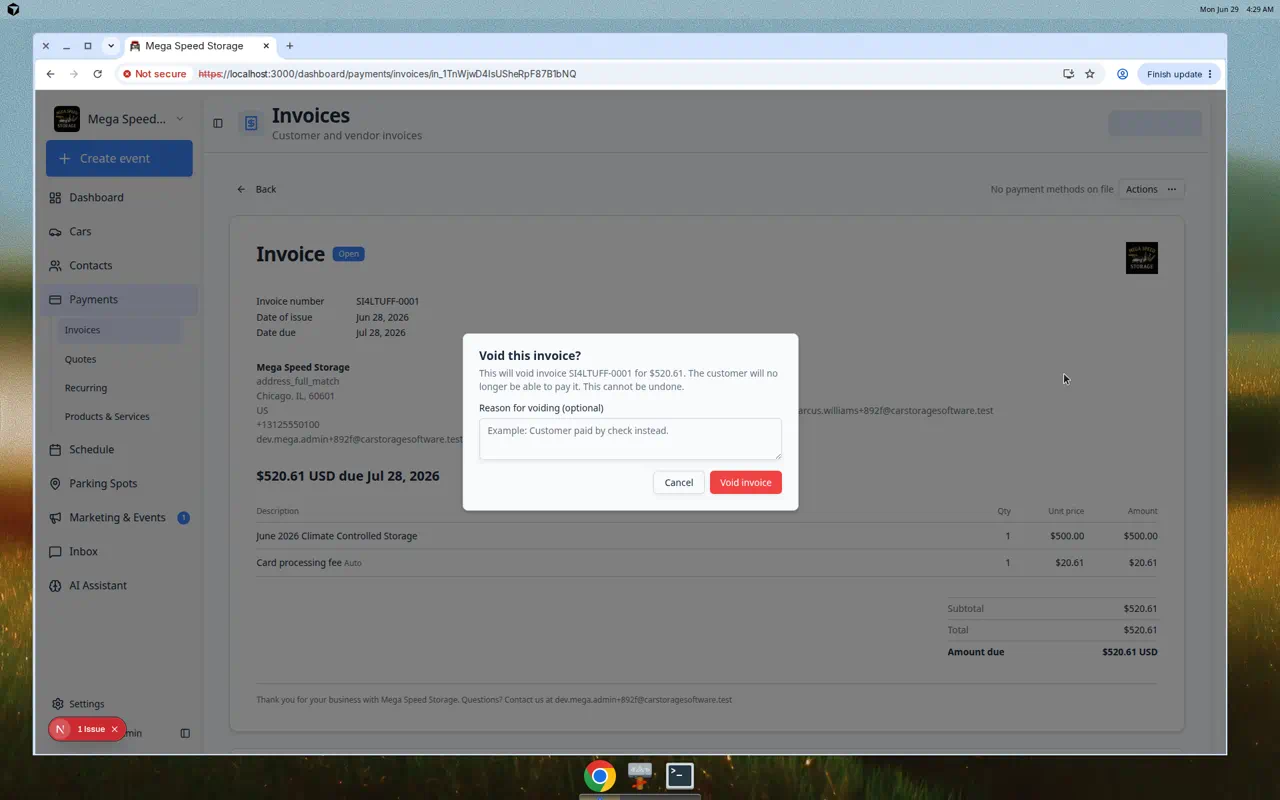
- Read the confirmation window
A window titled Void this invoice? appears. Read the warning: the customer can no longer pay this invoice, and voiding cannot be undone.
Add an optional Reason for voiding (for example Duplicate of INV-1042).
- Click Void invoice to confirm
Expected result: Status changes to Void. The invoice stays on the list for your records but can no longer be paid.
Issue a credit note
Use Issue credit note when the invoice should stay open but the amount due should go down.
- Open an Open invoice
From Payments > Invoices (Customer tab), open the invoice with Open status.
- Open Actions and choose Issue credit note
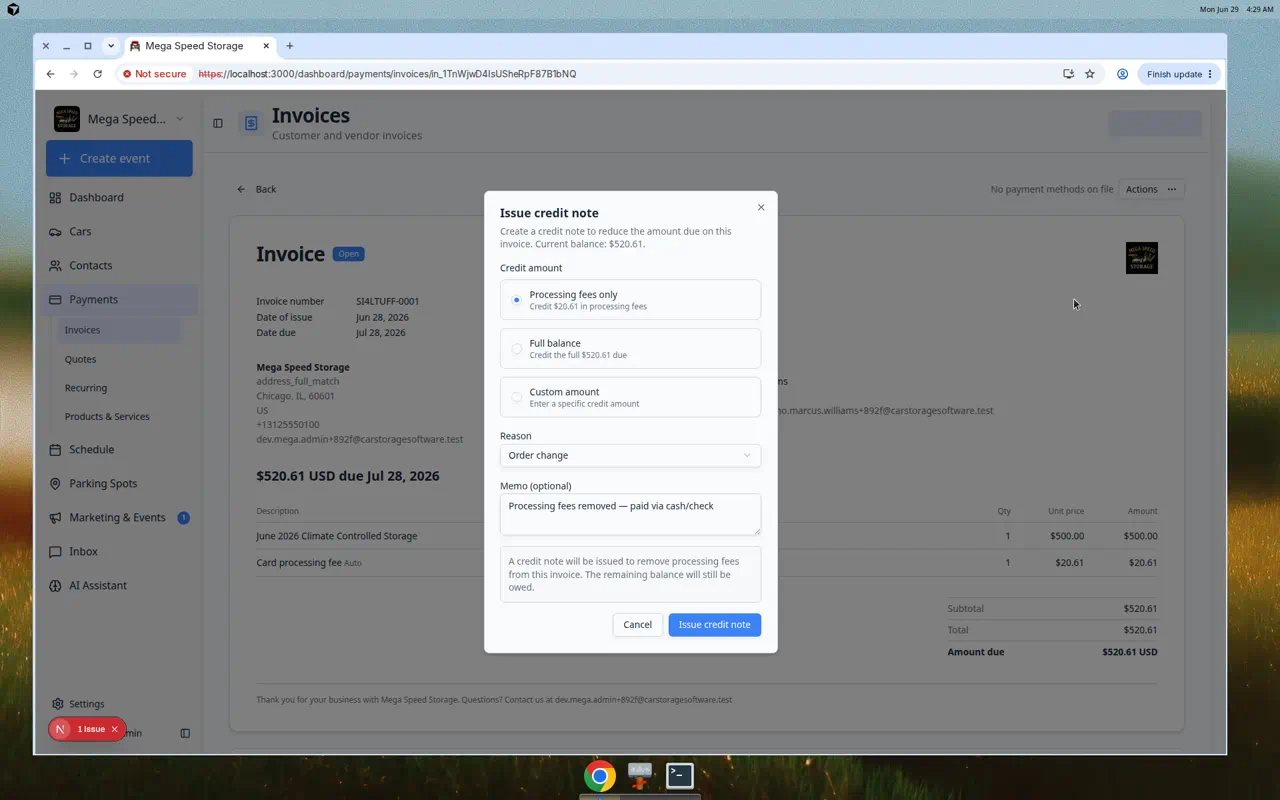
Expected result: A window titled Issue credit note opens showing the current balance.
- Choose the credit amount
Pick one option:
- Processing fees only — Removes card processing fees (common after cash or check payment).
- Full balance — Credits everything still owed on the invoice.
- Custom amount — Enter a specific dollar amount (cannot exceed the balance).
- Save the credit note
Click Issue credit note.
Expected result: The amount due drops. Resend the invoice if the customer needs to see the new balance—see Send and collect customer payments.
Edit a finalized invoice (void and recreate)
Use Edit invoice when line items, quantities, or descriptions need to change and you want a new draft built from the current bill.
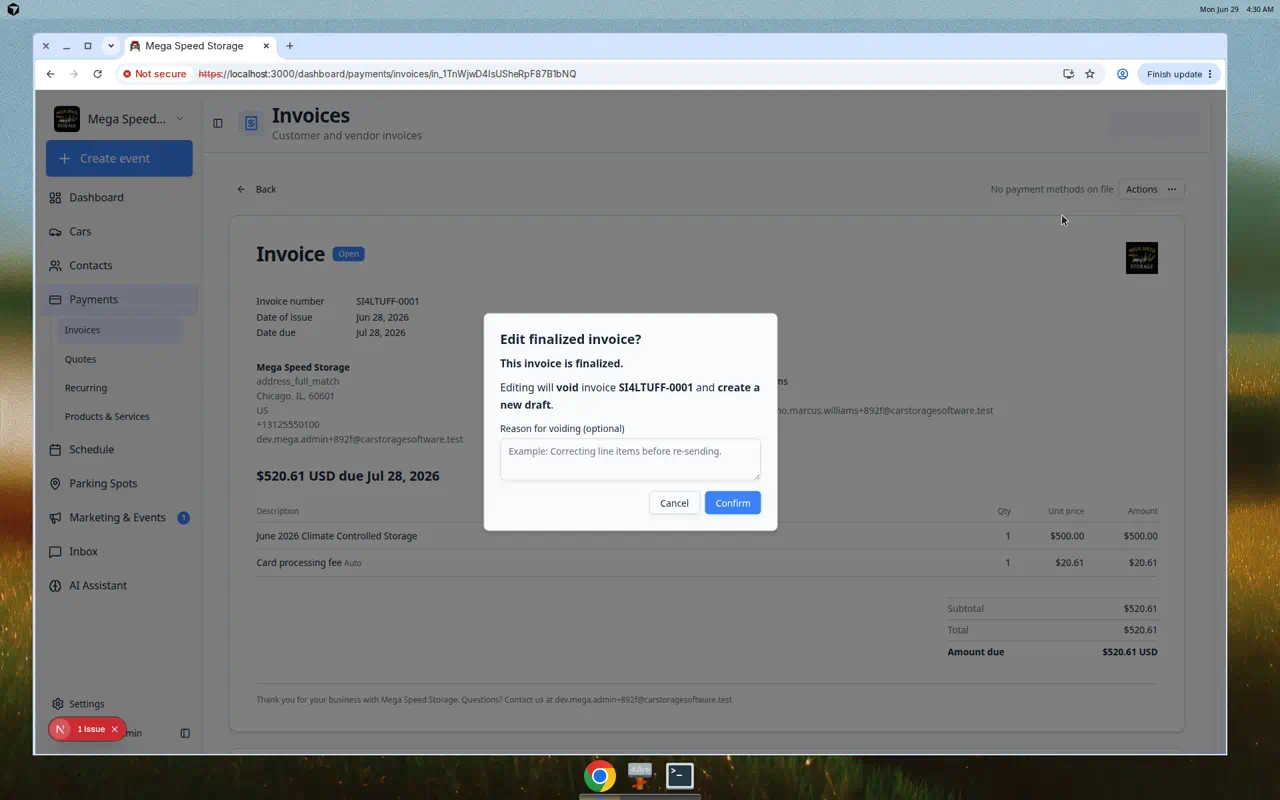
Important: The system voids the current invoice and creates a new draft you must review and finalize again.
- Open Actions and choose Edit invoice
On an Open invoice, click Actions, then Edit invoice.
Expected result: A window titled Edit finalized invoice? explains the old invoice will be voided.
- Click Confirm
Add an optional void reason, then click Confirm.
Expected result: You land on a new Draft invoice. The old invoice status becomes Void.
- Fix the draft and finalize again
Update line items and totals. Click Finalize invoice, then resend so the customer gets the corrected bill.
Expected result: A new Open invoice replaces the voided one.
Common mistakes to avoid
- Do not void an invoice the customer already paid without manager approval.
- Do not create a second open invoice for the same job without voiding or crediting the first one—customers may pay twice.
- Do not skip telling the customer when voiding and sending a replacement bill.
- Do not use Issue credit note when you meant to void the entire invoice.
Troubleshooting
What to do next
- Invoice is correct and unpaid → Send and collect customer payments
- Need a brand-new bill → Create an invoice
- Month-end totals → Review the Invoices Report