Cars
View full vehicle activity history
Search and filter every event, parking move, note, and billing change for one car on a dedicated activity page.
The Activity Feed on a car detail page shows recent work at a glance. When you need the complete story—with search, filters, and a longer scrollable list—open the full Vehicle activity page.
Use this guide when a customer asks detailed questions about past service, when you are researching a dispute, or when the short feed on the car record is not enough.
What you will accomplish
You will open a searchable history of everything that happened on one car: scheduled events, completed sessions, parking moves, listing changes, notes, and more.
Expected outcome: You can find a specific visit or change without opening each event one by one from the summary feed.
When to use the full activity page
- A customer asks what happened on a specific date or during a past visit.
- The Activity Feed on the car detail page shows View all or View more activity because history is long.
- You need to search for a keyword, event type, or date range across all activity for this vehicle.
- A manager is reviewing the complete record before releasing a car or closing a billing issue.
Before you start
- Open the correct car from Cars.
- Know roughly what you are looking for—a date, event name, or type of change—so search and filters save time.
Open vehicle activity from the car record
- Open the car
Go to Cars and click View on the vehicle.
Expected result: The car detail page loads with Activity Feed on the right (or below Vehicle Details on smaller screens).
- Expand the feed when needed
On the Activity Feed card, click View all or View more activity at the bottom when you see it.
Alternative: Open the full page directly from the car record—click View all or View more activity at the bottom of the Activity Feed card.
Expected outcome: A page titled Vehicle activity opens with the car's year, make, and model under the title.
- Use Back to vehicle when finished
Click Back to vehicle in the top-right area to return to the main car detail page.
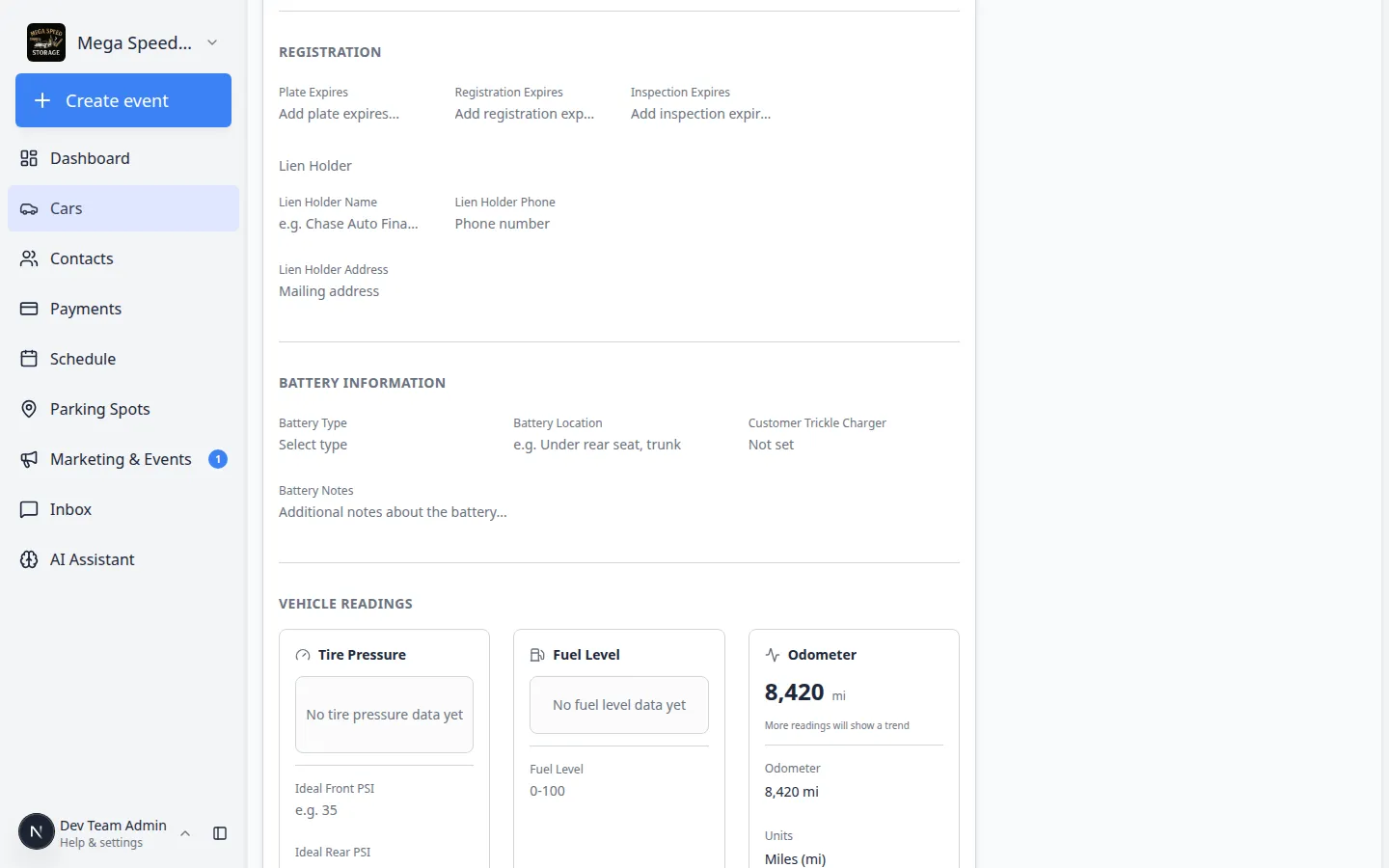
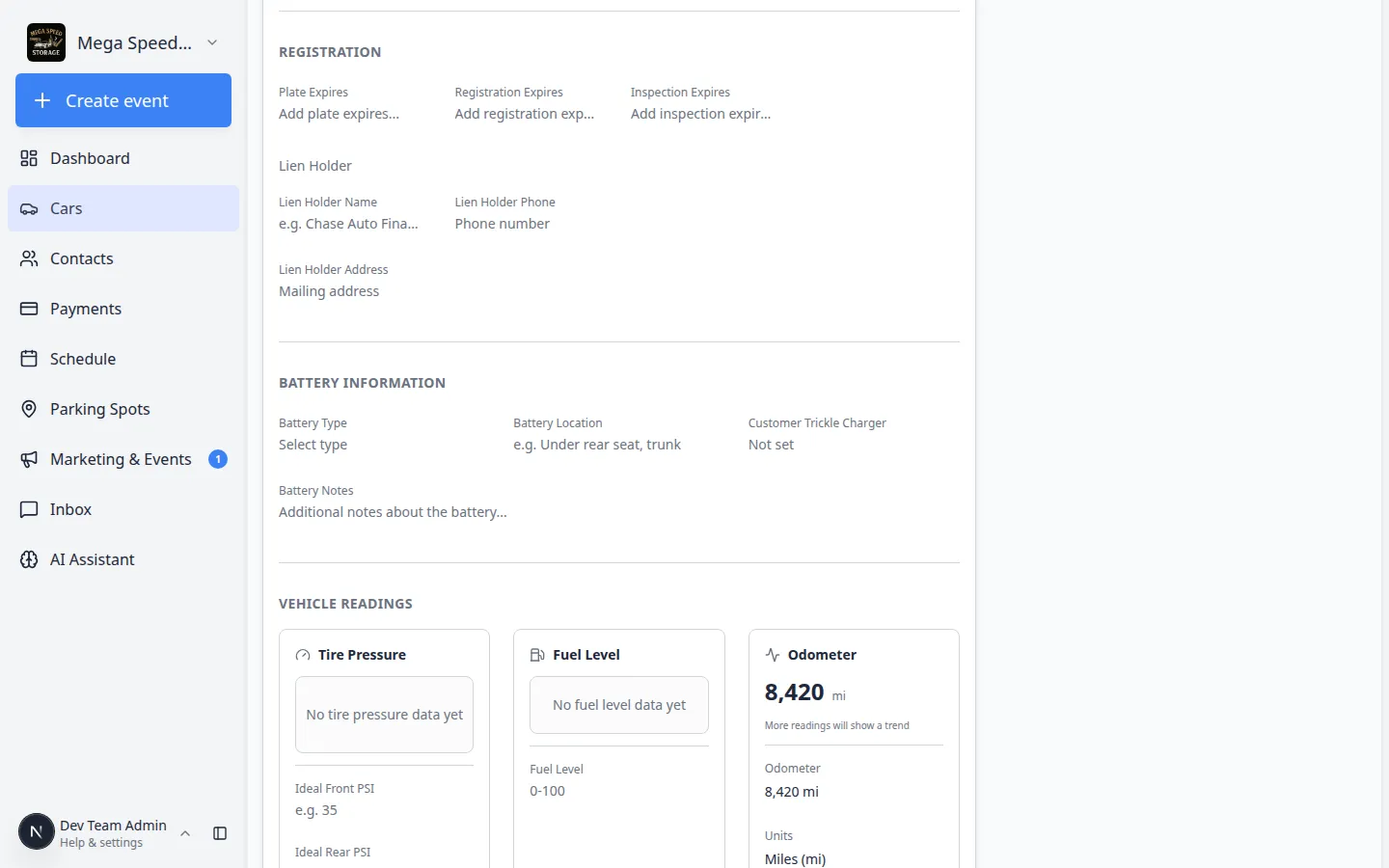
Read and search the timeline
- Scan newest items first
The list is usually sorted with the most recent activity near the top—similar to the short feed on the car page.
Why this matters: Recent rows answer most customer questions about "what happened last."
- Use search when you know a keyword
Type in the search box if the page provides one. Try an event name, staff member, or note text.
Expected result: The list narrows to matching rows only.
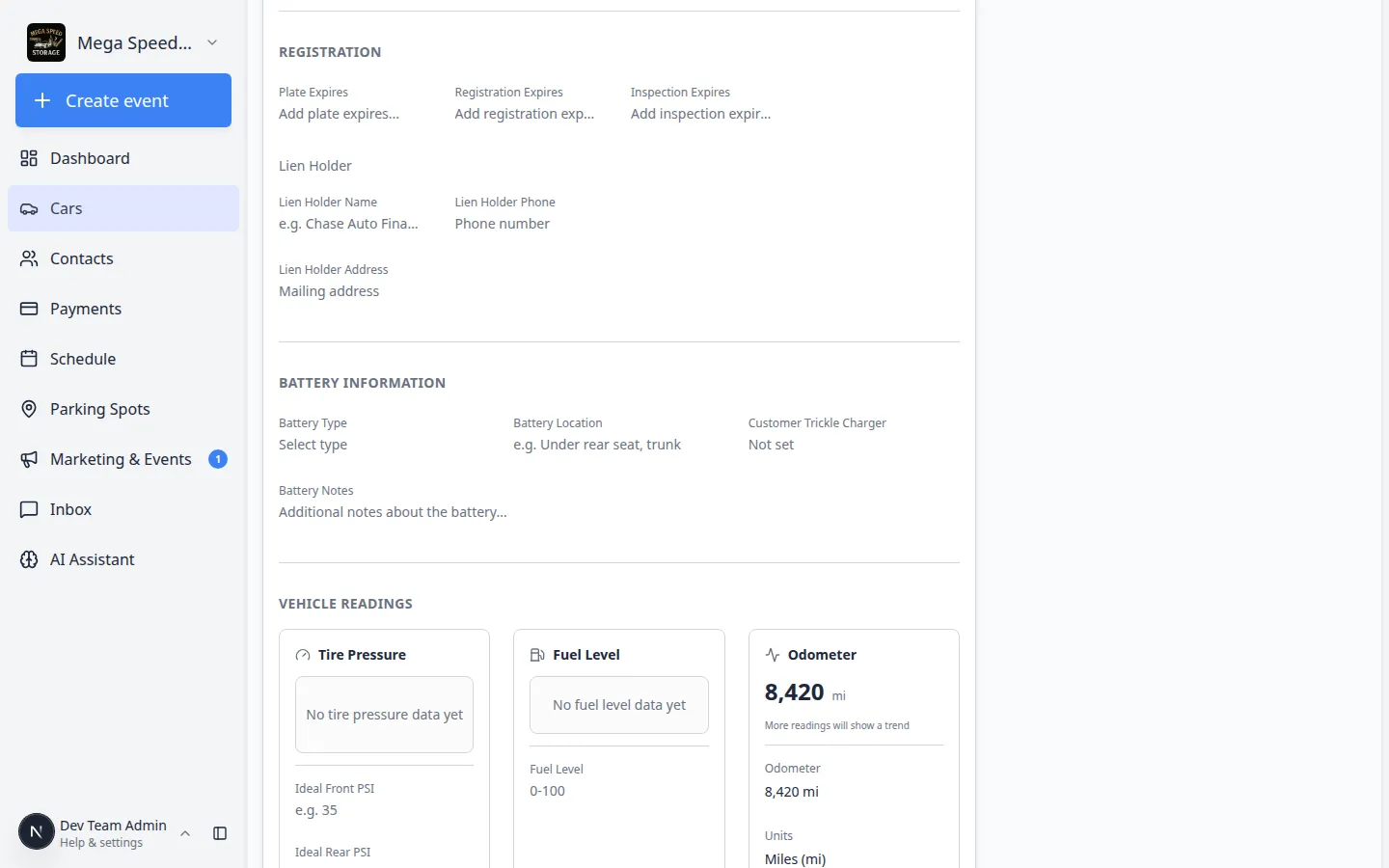
Search works across event names and notes. Try a month, a service type, or a teammate's name when the full timeline is too long to scroll. - Open a row for full detail
Click any activity row to open the event or session detail—the same detail you would see from the car's Activity Feed.
Expected outcome: You see photos, readings, signatures, assignments, and status for that specific visit.
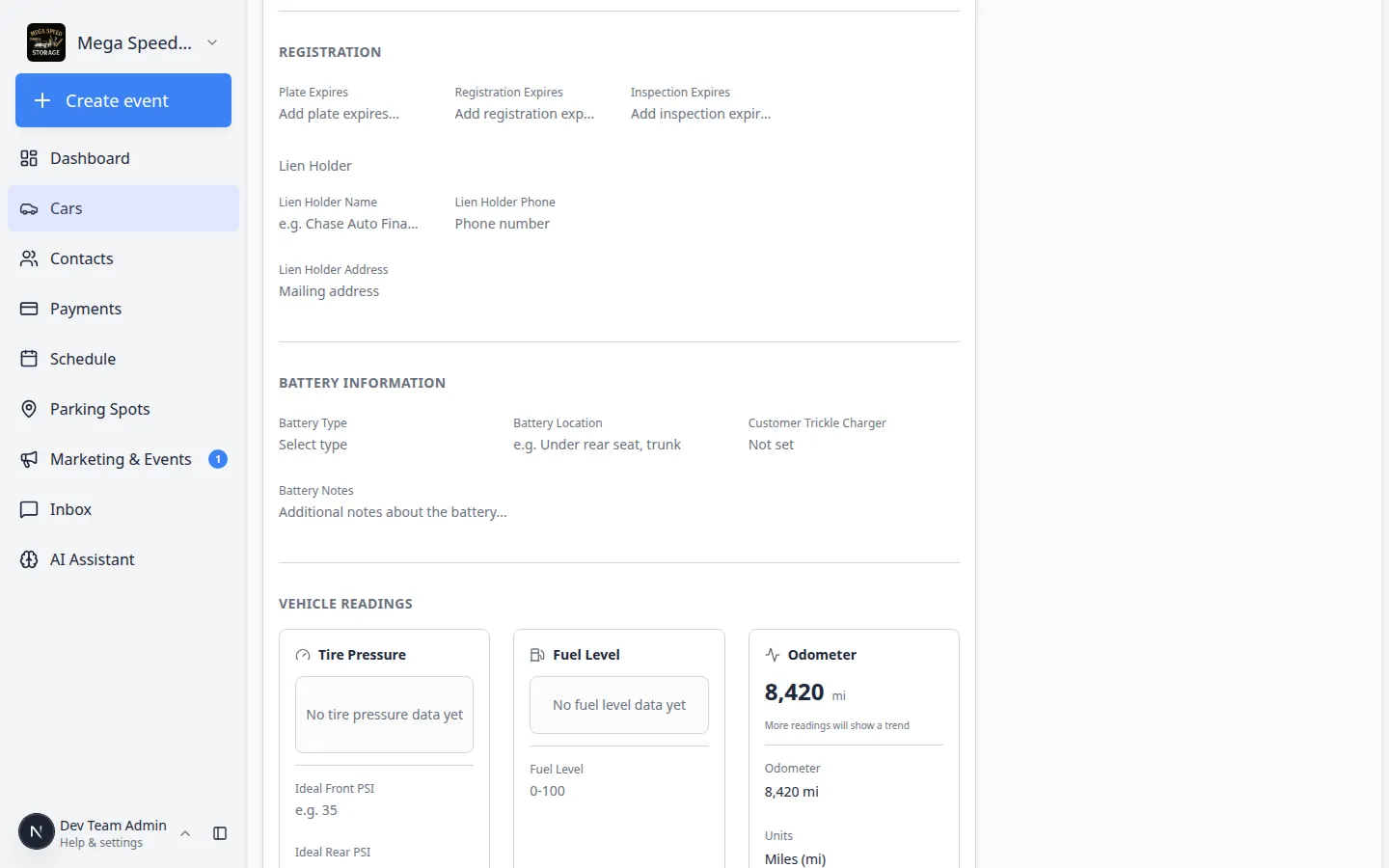
Click a row to open full event detail. Use this when a customer asks what happened during a specific visit. - Check status before replying to customers
Look for labels such as Scheduled, In progress, or Completed before you tell a customer work is finished.
Why this matters: The full page makes it easy to spot old scheduled items that were never completed.
What appears in vehicle activity
Depending on how your facility uses the product, you may see:
- Service and intake events — inspections, detailing, transport, and custom event types
- Parking moves — when the car changed spots or zones
- Marketplace changes — when a vehicle was listed or sold on your public page
- Notes and system updates — internal context and automatic record changes
If a row type is unfamiliar, click it for detail or ask a manager before interpreting it for a customer.
Troubleshooting
What to do next
- For day-to-day replies, return to Respond to a conversation or Review car activity, notes, and photos.
- To schedule follow-up work, use Start a car session or Create an appointment.