Inbox
Use Inbox from your Overview dashboard
Glance at unread customer messages and jump into a conversation without leaving your Overview dashboard.
Use this guide when you want to see who messaged your facility while you are already on the Overview dashboard.
The Inbox panel on Overview shows recent conversations and unread counts. It is a quick way to spot new texts, emails, or calls before you open the full Inbox page.
What you will accomplish
- Find the Inbox panel on your Overview dashboard.
- Search conversations and see unread badges at a glance.
- Open a customer thread in the full Inbox when you are ready to reply.
Before you start
- Your facility should already use the Overview dashboard. If you still see an older home page, ask an admin about dashboard layout or read Customize your Overview dashboard.
- Inbox should be set up. If message buttons are gray everywhere, start with Configure communication settings for Inbox.
- You need permission to open staff Inbox and Overview pages.
Open the Inbox panel on Overview
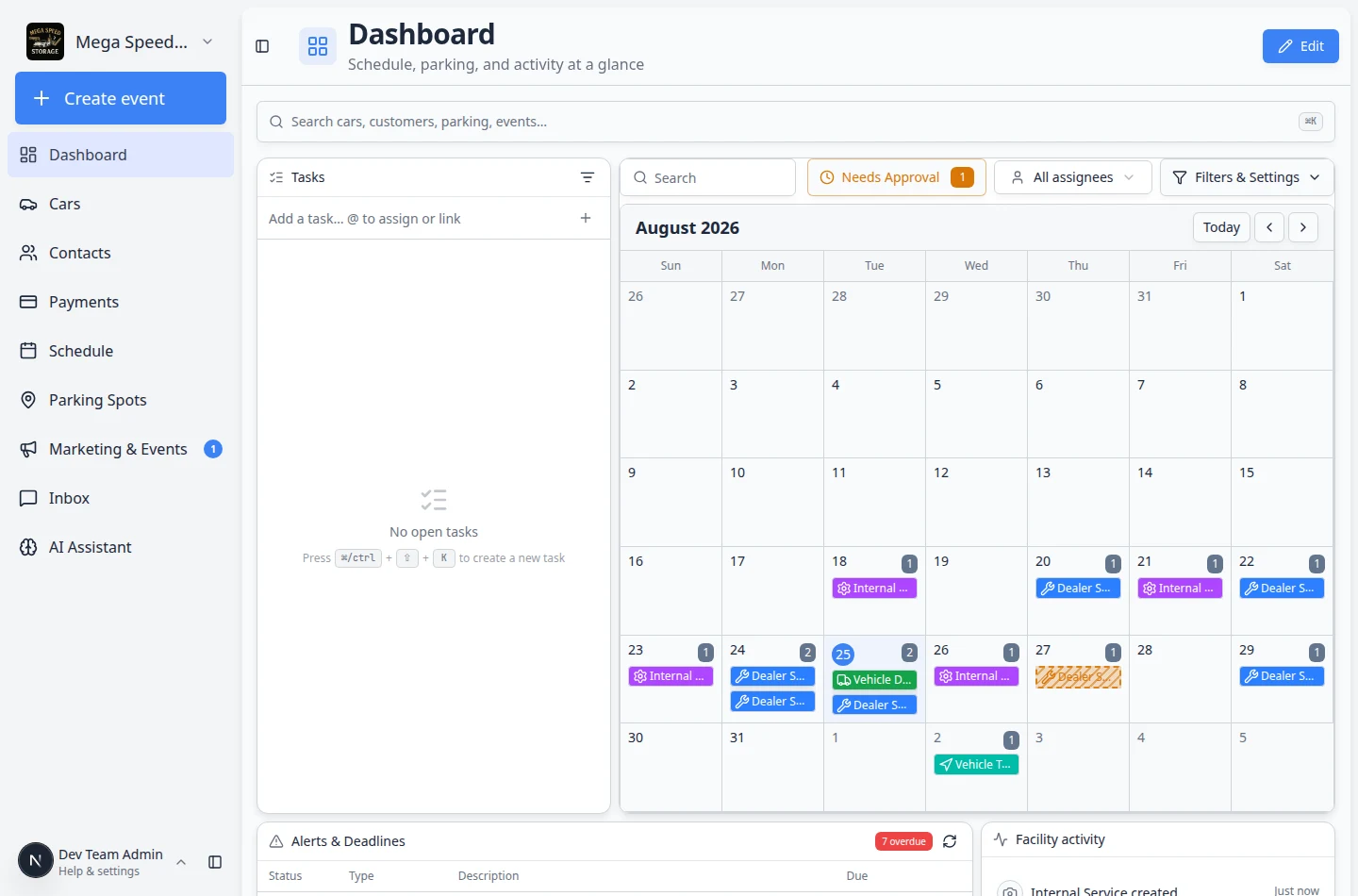
- Go to Overview
Open Overview from the dashboard sidebar.
Why this page: Overview is meant to be your command center. Many facilities add schedule, parking, and Inbox panels here so front-desk staff see what needs attention in one place.
- Find the Inbox panel
Scroll until you see a panel titled Inbox (your admin may have renamed it).
The panel includes:
- A Search conversations field at the top
- A list of customer names with message previews
- Small number badges when a conversation has unread activity
Expected result: You can see who contacted your facility recently without opening the full Inbox page.
- Search if the list is long
Type in Search conversations to filter by customer name or the text in the latest message preview.
This search only filters what is shown in the panel. It does not search your entire customer database. To find someone who has never messaged you, use Start a new Inbox conversation from the full Inbox page instead.
Open a conversation in full Inbox
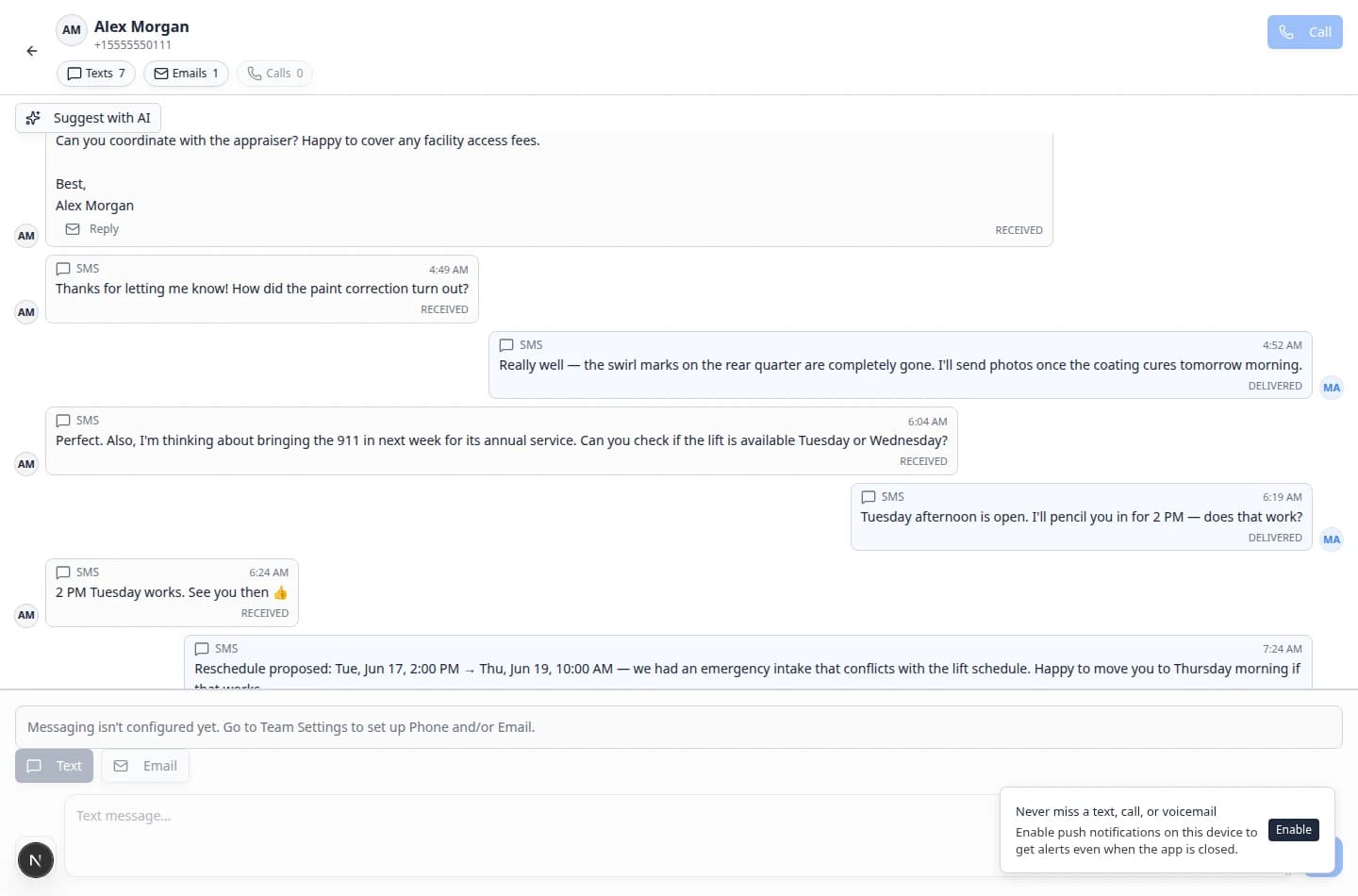
The Overview panel is for scanning and quick jumps. When you need the full timeline, filters, Text, Email, Call, or Suggest with AI, open the customer in the main Inbox page.
- Click a customer row
In the Inbox panel, click the customer you want to help.
Expected result: Your browser opens the full Inbox conversation for that customer.
- Or open all of Inbox
Click the panel's link to open the full Inbox page (often labeled Inbox with an external-link icon in the panel header).
Use this when you want the full conversation list, the + button to start a new thread, or Quick call from the Inbox toolbar.
- Reply from the full page
Follow Respond to a conversation to read the timeline and send your answer.
Why this matters: The full Inbox page keeps every text, email, and call in order. Replying from there protects your team from sending an answer without reading earlier messages.
When to use Overview vs full Inbox
Use the Overview Inbox panel when…
- You are already on Overview checking schedule or parking
- You want a quick list of unread conversations
- You need to jump into one customer thread
Open the full Inbox page when…
- You need to start a new conversation with +
- You want timeline filters (Texts, Emails, Calls)
- You are coordinating with teammates using Live updates and Mark unread
- You need Quick call, image attachments, or Suggest with AI
Add or adjust the Inbox panel
If you do not see an Inbox panel on Overview, your layout may not include it yet.
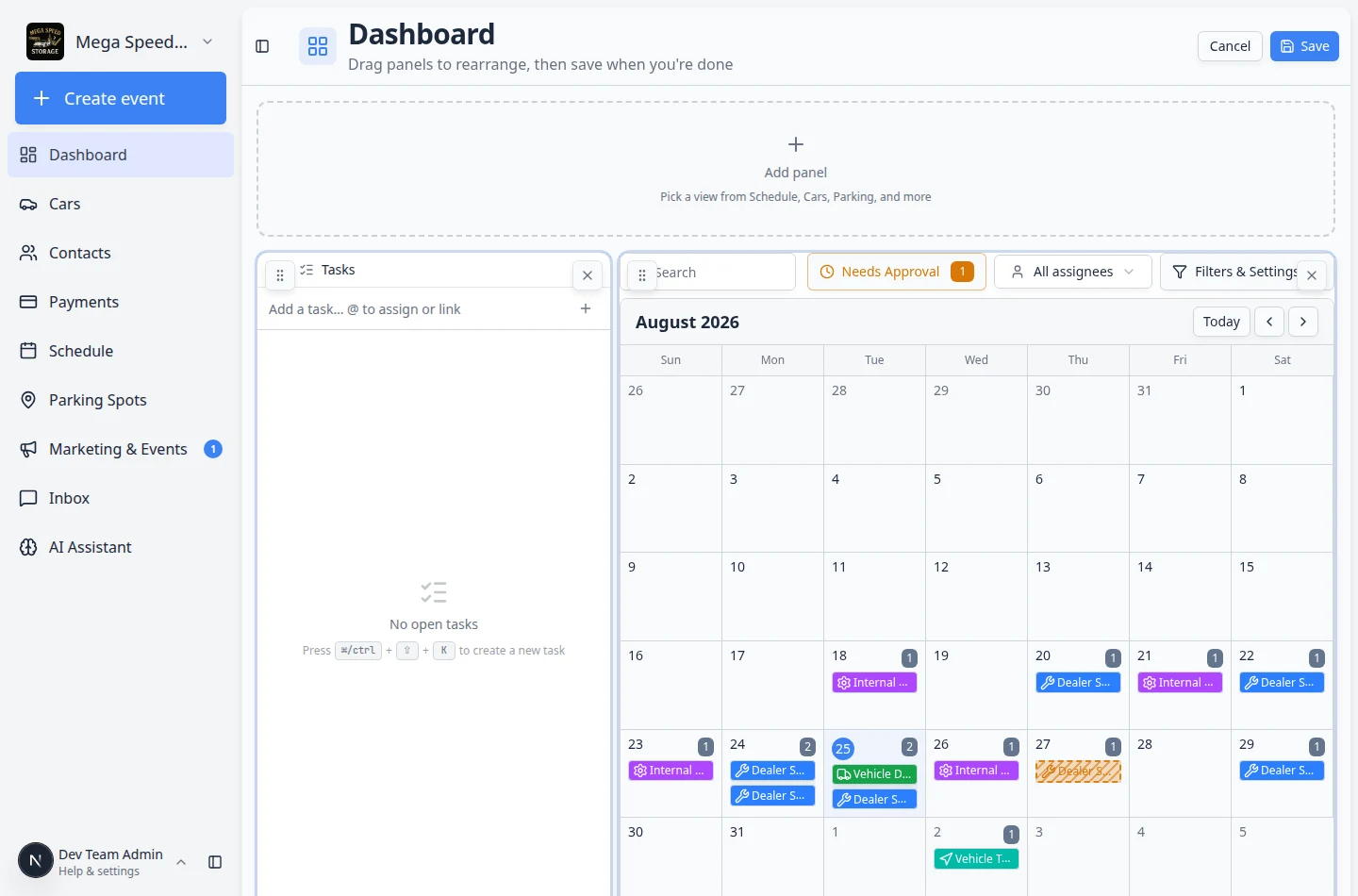
- Open Overview edit mode
Go to Overview and click Edit in the top-right corner of the page.
Why this step matters: Edit mode lets you add, remove, and rearrange panels without changing how other staff see the dashboard until you click Save.
- Add an Inbox panel
Click + Add panel (or the dashed empty slot at the top of the grid).
In the panel picker, choose Inbox from the component list. You can often turn on options such as unread only if you want the widget to show just conversations that still need a reply.
Drag the new Inbox panel where you want it on the grid, then click Save in the top-right corner.
Expected result: A panel titled Inbox appears on your Overview page with a Search conversations field and a list of customer names.
- Ask an admin if edit mode is locked
If you do not see Edit, your role may not be allowed to change the dashboard layout. Ask a facility admin to add the Inbox panel for your team.
See Customize your Overview dashboard for the full layout workflow.
What success looks like
- You can see unread customer conversations from Overview without hunting through separate tools.
- Clicking a customer opens the correct thread in full Inbox.
- Your team knows when to stay on Overview for a quick glance vs when to work in the full Inbox page.
Troubleshooting
What to do next
Continue with Inbox overview for the full list of guides, or jump straight to Respond to a conversation when you are ready to reply.