Documentation

How-to guides for Car Storage Software

Practical guides for setting up your facility, managing cars and customers, and running day-to-day operations.

Search documentation

Search documentation guides and how-to articles.

Browse documentation

AI Assistant

Use the AI Assistant from iMessage

Connect a team iMessage group chat so staff can ask the facility assistant questions from their phones.

What you will accomplish

You will connect a team iMessage group chat to your facility's AI Assistant so staff can ask questions by text—such as today's schedule, where a car is parked, or a customer lookup—without opening the dashboard on a computer.

This guide is for facility owners and managers who set up the connection, and for staff who will text the assistant from their phones.

When to use iMessage vs the dashboard assistant

Use iMessage when staff are on the lot, at a show, or away from a desk and need a quick answer on their phone.

Use AI Assistant in the dashboard when you need to review proposal cards before saving new customers, cars, or appointments—or when you want a larger screen for follow-up questions.

Before you start

  • An owner or admin can open Settings > AI Agent.
  • Your facility has the iMessage AI Agent feature turned on by Car Storage Software support. If the page says the feature is not enabled yet, contact your account representative before continuing.
  • Each staff member who will text the assistant has an iPhone with iMessage turned on.
  • You know which teammates should have access (usually front desk, lot staff, and managers).

Open AI Agent settings

  1. Sign in to your facility dashboard.
  2. In the left sidebar, click Settings.
  3. Click AI Agent, or go directly to Settings > AI Agent.

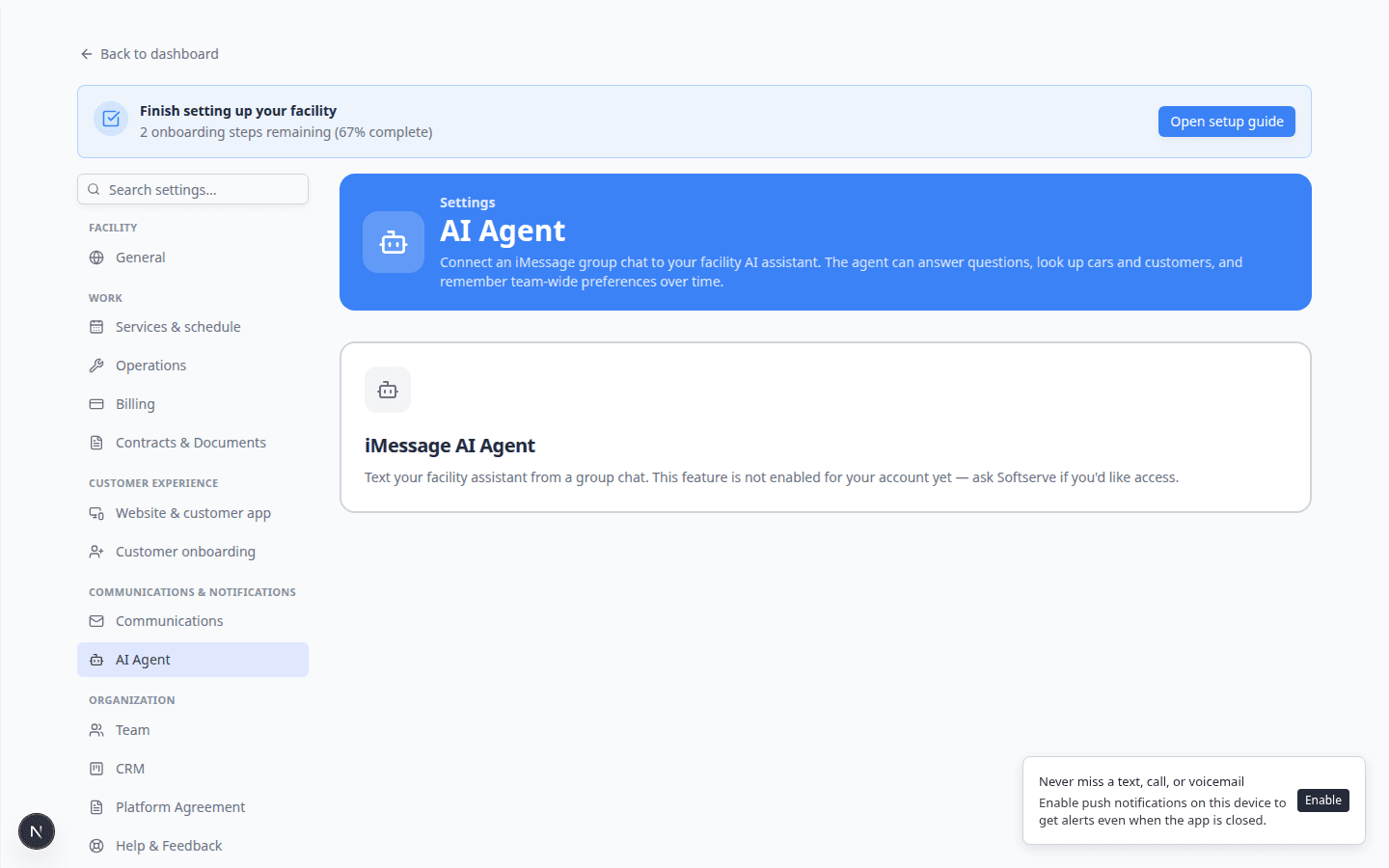
Expected result: The page title is AI Agent. You see a short description about connecting an iMessage group chat.

Settings AI Agent page showing iMessage AI Agent card when the feature is not yet enabled for the account
If you see **This feature is not enabled for your account yet**, contact Car Storage Software support. The steps below apply after the feature is turned on for your facility.

Step 1 — Add team members who may text the assistant

Only phone numbers you add here can use the group chat assistant. This keeps outside numbers from accessing your facility data.

  1. Click Add member

    On the Team members card, click Add member (admins only).

    Expected result: A window titled Add team member opens.

  2. Choose the teammate

    Open the Team member list and select yourself or a coworker who already has a dashboard login.

    Why this matters: The assistant ties each phone number to a real staff account and its permissions.

  3. Enter their mobile number

    Fill in First name, Last name, and Mobile number using the phone they will text from.

    Use the number exactly as it appears on their iPhone. Include the area code.

    Expected result: The row appears in the table with status Pending.

  4. Have them send one text to verify

    The settings page shows an assistant phone number. From that teammate's iPhone, send any text message to that number.

    Why this matters: This proves the person controls the phone before they can use the group chat.

    Expected result: The status badge changes from Pending to Verified.

Step 2 — Create the team group chat in Messages

Your staff will talk to the assistant inside a group chat in the iPhone Messages app—not in a one-on-one thread.

  1. Copy the assistant phone number

    On Settings > AI Agent, find Assistant phone number under Connect a group chat. Click Copy.

    Expected result: You have the facility assistant number on your clipboard.

  2. Start a new group in Messages

    On an iPhone, open Messages. Start a new group and add:

    • The teammates who were verified in Step 1
    • The assistant phone number you copied

    Why this matters: The assistant only responds inside linked group chats. A direct message to the assistant number alone will not connect your facility.

  3. Name the group (optional)

    Give the group a clear name such as Mega Speed — Team Assistant so staff know which thread to use.

Step 3 — Link the group chat to your facility

An admin must generate a one-time link code and send it inside the group chat from a verified phone.

  1. Verify your own phone first

    If you are the admin generating the code, your number must show Verified in the Team members table.

    Expected result: The Generate link code button is available—not grayed out with a warning.

  2. Click Generate link code

    On the Connect a group chat card, click Generate link code.

    Expected result: A box appears with a command to send, such as LINK ABCD1234. It also shows when the code expires.

  3. Copy and paste into the group chat

    Click Copy, then paste the full command into your team group chat in Messages. Send it from your verified iPhone.

    Why this matters: The code ties that specific group thread to your facility. Anyone in the group can see messages after linking—only add trusted staff.

  4. Confirm the link on the settings page

    Return to Settings > AI Agent. Under Linked group chats, you should see your group with status active.

    Expected result: Staff can now ask questions in that group chat and receive replies from the assistant.

What to ask in the group chat

Use the same plain-language questions that work in the dashboard AI Assistant:

  • What's on the schedule today?
  • How many parking spots are available?
  • Look up Alex Morgan's cars. (use a real customer name from Contacts)
  • Where is the 2017 Lamborghini Huracan parked?

What iMessage cannot do

The group chat assistant is for lookups and quick answers. It does not replace careful review for sensitive work.

Do not rely on iMessage alone for:

  • Creating new customers, cars, or appointments (use dashboard proposal cards—see Prepare work with the AI Assistant)
  • Finalizing invoices, quotes, or payments (use Payments)
  • Sending contracts or customer messages (use Inbox)
  • Voiding or deleting important records

Treat every answer as information to read and confirm before you tell a customer or change a record.

Manage linked group chats

On Settings > AI Agent, the Linked group chats section lists each connected thread.

ButtonWhat it does
PauseStops automatic replies temporarily. Messages stay in the group; the assistant does not answer until you Resume.
ResumeTurns replies back on for a paused group.
UnlinkDisconnects the group from your facility. Use this if you created the wrong group or a staff member left the company.

Expected result after Pause: Staff can still read old messages, but new questions will not get assistant replies until an admin clicks Resume.

Team memory (optional)

Admins can save short team memory facts the assistant remembers across iMessage and dashboard chats—for example, Pickup requests usually need 24 hours notice.

  1. Scroll to Team memory

    On Settings > AI Agent, find the Team memory card.

  2. Type a clear fact

    Enter one sentence your whole team would want the assistant to remember. Click Add fact.

    Expected result: The fact appears in the list. The assistant may use it in future answers.

  3. Remove outdated facts

    Click the trash icon next to a fact that is no longer true.

    Why this matters: Old policies confuse the assistant and your staff.

Troubleshooting

The page says the feature is not enabled

Your facility needs the iMessage AI Agent turned on at the platform level. Contact Car Storage Software support or your account manager. You can still use the dashboard AI Assistant in the meantime.

Generate link code is disabled

Your phone must show Verified in the Team members table. Send a text to the assistant number from the same iPhone you registered, then refresh the page.

The group never shows as linked

  • Send the link command inside the group chat, not a one-on-one thread with the assistant.
  • Send from a Verified phone listed in Team members.
  • Generate a new code if the old one expired.
  • Confirm the assistant phone number is a member of the group.

A teammate cannot get answers

Check that their phone is Verified, they are in the linked group chat, and the group status is active (not paused). Confirm their dashboard role includes access to the area they are asking about—see Manage team permissions.

Answers look wrong

Do not act on a text reply until you verify in Contacts, Cars, Schedule, or Parking Spots. For phone lookups, see Ask about schedule, parking, and records.

Remove someone's iMessage access

An admin can click the trash icon on that person's row in Team members. This removes iMessage access only—it does not delete their dashboard login.

What to do next