Cars
Find and filter cars
Search, filter, and adjust the Cars list so you can quickly find the right vehicle record.
Use the Cars page when you need to find a vehicle record quickly.
This guide shows you how to search, filter, switch views, choose table columns, and use inline editing safely.
What you will accomplish
You will be able to narrow a long vehicle list down to the one car—or the group of cars—you need, then open the correct record with confidence.
Expected outcome: The Cars table or card view shows only the vehicles that match your search or filters, with the columns your team cares about today.
When to use this guide
Use these steps when:
- A customer calls and you need to open their car record.
- A teammate asks where a car is parked.
- You want to see only cars that match a certain make, year, tag, location, insurance status, or service plan status.
- You want the Cars table to show the information your team uses most.
Before you start
- You should be signed in to the dashboard.
- Open Cars from the left sidebar.
- If you are looking for one car, have one helpful detail ready, such as the customer name, plate number, year, make, model, VIN, or stock number.
- On a phone, you can also tap Scan in the bottom bar to look up a car by VIN. See Look up a car by VIN.
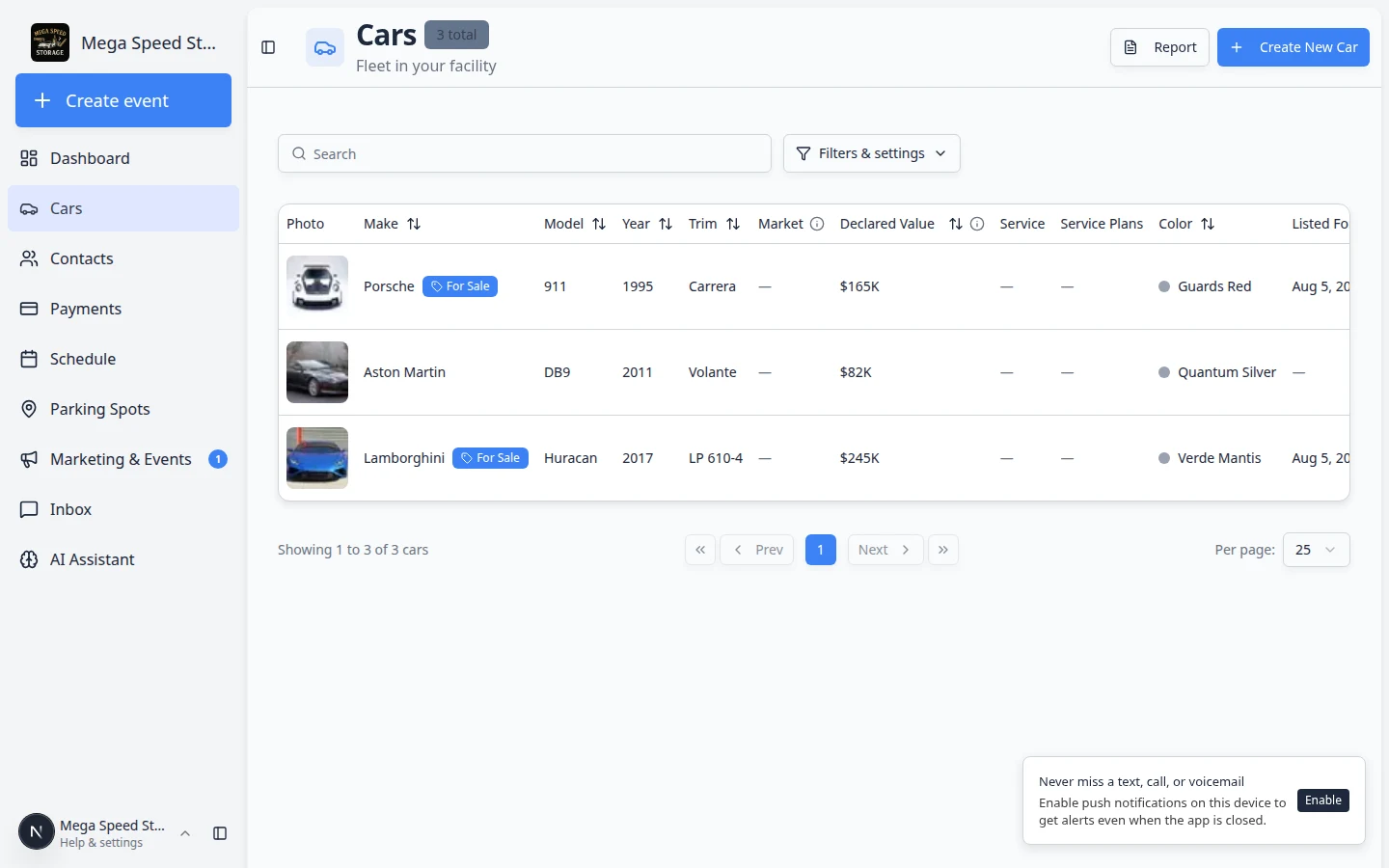
Search for one car
- Click the Search box
At the top of the Cars page, click the box labeled Search.
Expected result: The search box is active and ready for typing (you may see a blinking cursor).
- Type what you know
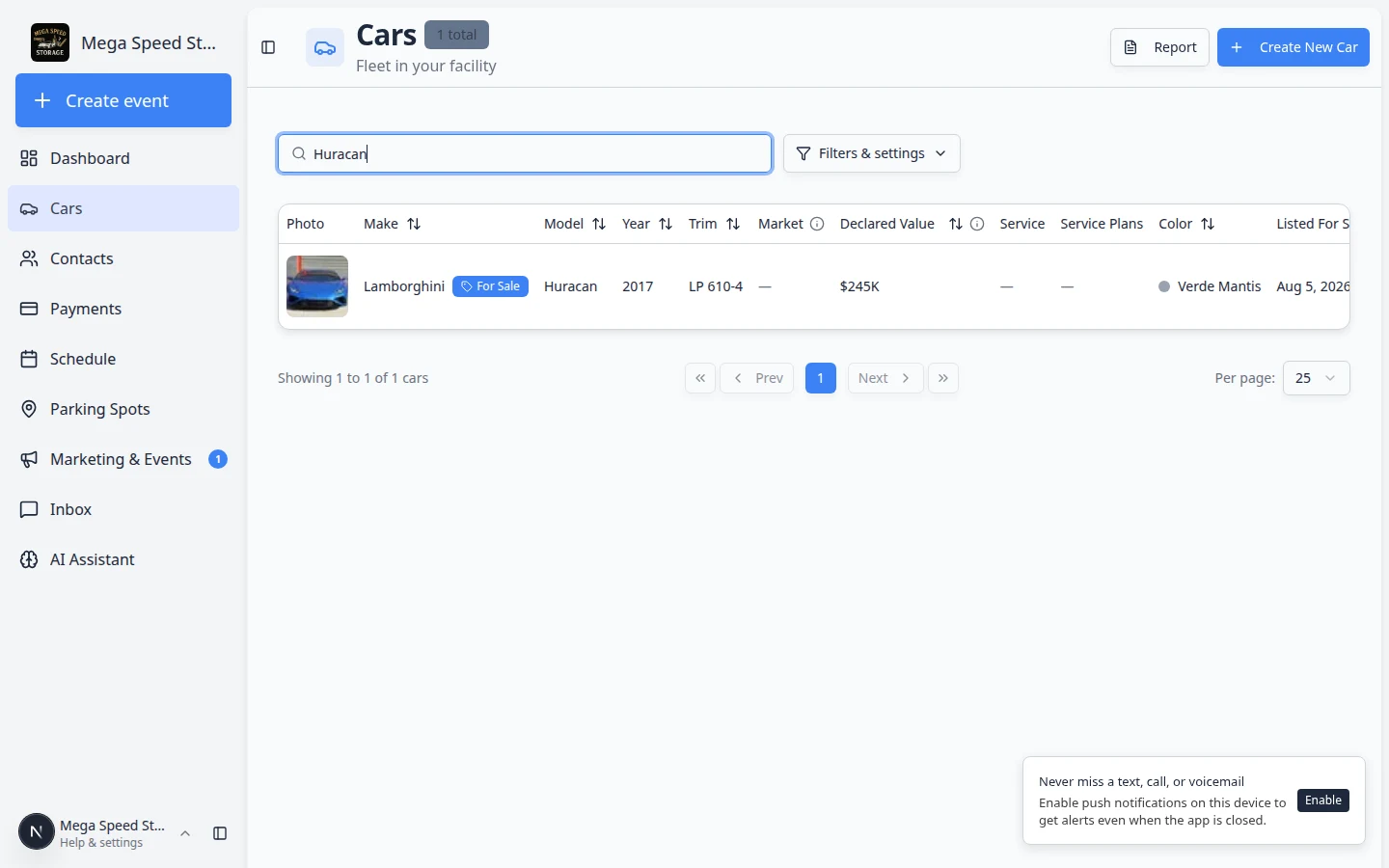
Type one or more details about the car. You can search for a customer name, make, model, year, VIN, license plate, stock number, or other visible car detail.
Good searches include:
- Porsche 911
- 1995 Porsche 911
- AIR993
- Alex Morgan
- Review the filtered list
The table updates to show matching cars. If you typed a year, the page may show it as a separate search chip. A chip is a small label that shows one part of your search.
Expected result: Only vehicles that match your search remain in the list. If nothing matches, the table is empty—try a shorter search (plate only or last name only).
- Clear search chips when needed
If the list looks too short, click the X on any search chip near the search box to remove that part of your query. You can also clear the search box and start over.
Why this matters: An old year or make chip can hide cars you still need to find.
- Open the record
When you see the right car, click View in the Actions column. (If Inline edit is turned on, turn it off first so clicking a row does not edit a field by mistake.)
Expected result: The car detail page opens with the correct year, make, model, and customer on the banner.
Use Filters & Settings
Filters help when you want a group of cars, not just one record.
- Click Filters & Settings
On the Cars page, click Filters & Settings near the top-right area of the list.
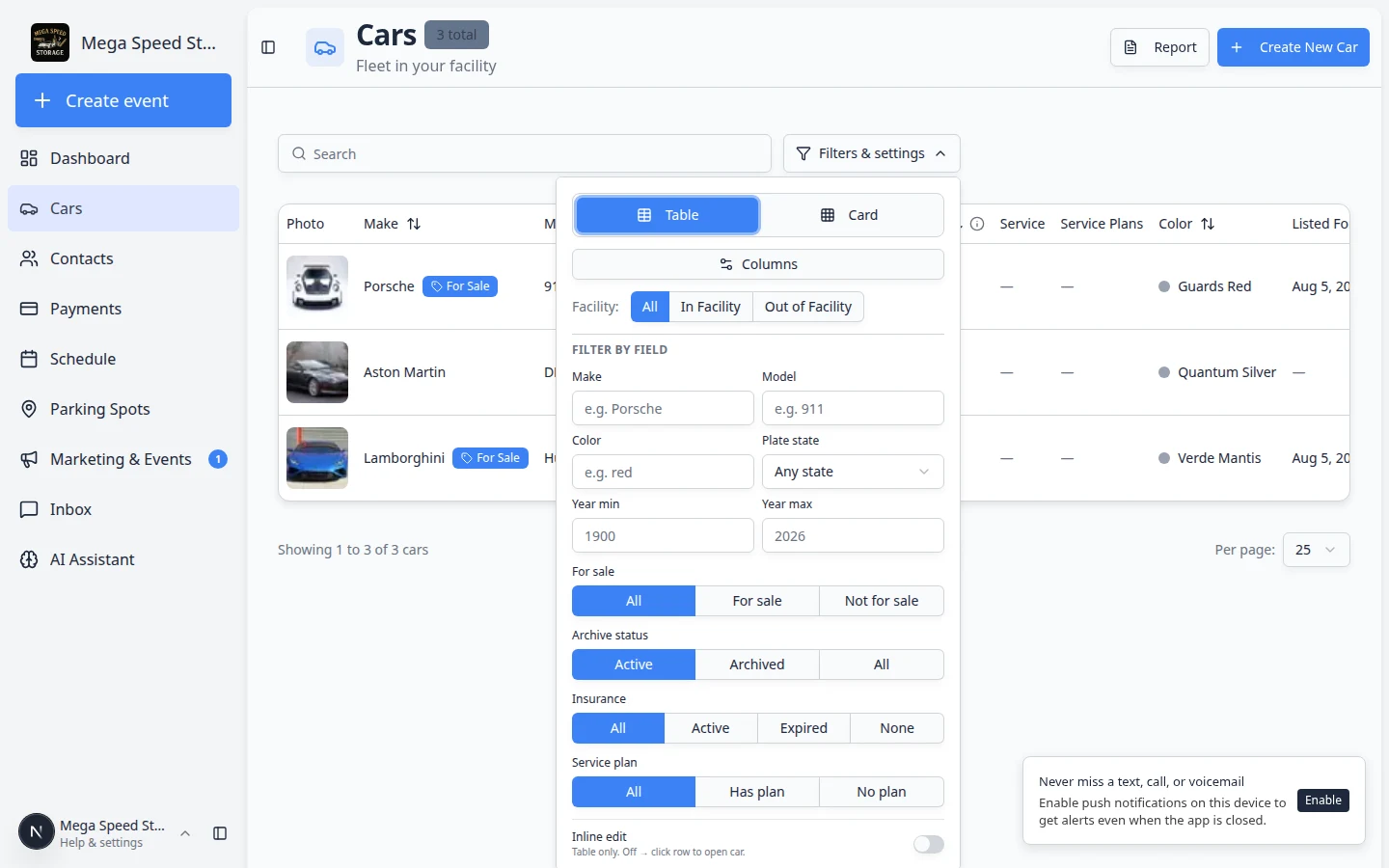
Expected result: A panel slides open from the right with Table, Card, Columns, filters, and other list options.
- Choose the view you want
Use Table when you want columns, sorting, and editable fields.
Use Card when you want a more visual view with larger vehicle cards.
- Choose useful columns
Click Columns to show or hide table columns. This keeps the table focused on the information you need today.
For example, a storage team may want Parking Spot, Insurance Exp, and Customer Name visible. A service team may want Service, Mileage, and Last Event visible.
- Add field filters
Use the filter fields to narrow the list. You can filter by details such as make, model, color, plate state, year range, for sale status, insurance status, service plan status, facility location, or tags.
Why this matters: A for sale filter helps marketing or sales staff see only vehicles listed on your marketplace without scrolling the full inventory. A tags filter groups VIP or consignment cars—see Organize vehicles with tags for how to create and attach tags.
Expected result: The Cars list shrinks to show only vehicles that match every filter you turned on.
- Filter by insurance status
In the filters panel, find Insurance (or Insurance status). Choose one option:
- Active — policy expiration date is still in the future.
- Expired — expiration date has passed.
- None — no insurance dates are saved on the record.
Why this matters: Your team can pull a list of cars that need updated insurance cards before a customer pickup—without opening every record one by one.
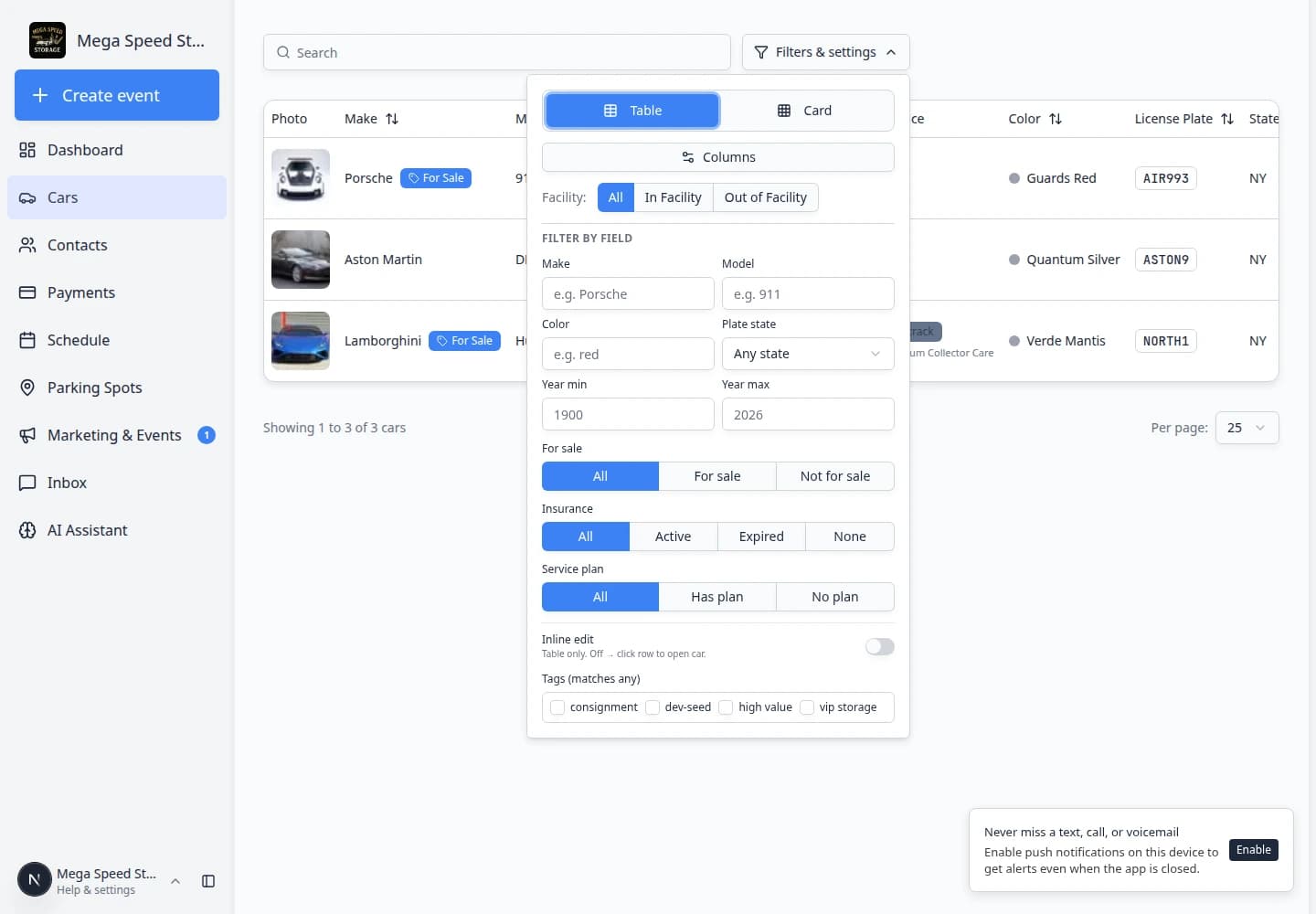
Use the Insurance filter to find cars with active, expired, or missing insurance information. - Filter by in-facility status
Some facilities use an In facility filter (or similar wording) to separate cars currently on your floor plan from cars that are At vendor or otherwise away from your building.
- In facility — the car has a zone or spot on your Parking Spots map.
- Not in facility — the car is at a vendor, in transit, or has no parking assignment.
Expected result: The list matches where cars actually are—helpful before a walk-through or inventory count.
- Close the panel when you are done
Click outside the panel or press Esc. The list keeps your selected filters until you clear them or leave the page.
Expected result: The panel closes but your view mode, columns, and filters stay applied on the main Cars page.
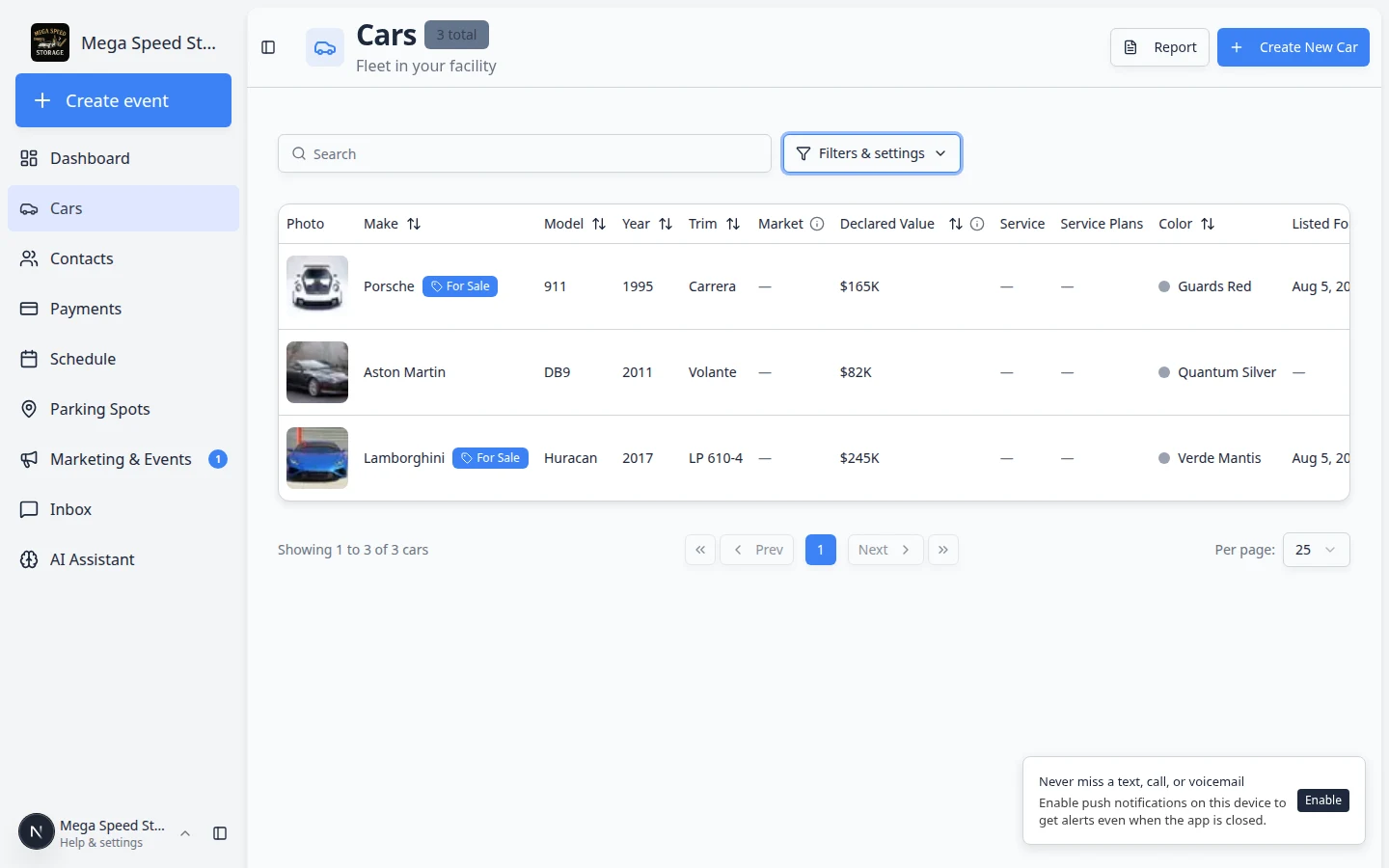
Use Card view when photos help you recognize cars
Card view is helpful when you are walking the lot, checking vehicles visually, or working on a tablet.
- Open Filters & Settings
On the Cars page, click Filters & Settings.
- Choose Card
Select Card instead of Table. The list changes to larger cards with vehicle photos when a photo is available.
- Close the panel
Press Esc or click outside the panel. The Cars page stays in card view until you switch back to table view.
Expected outcome: Each car appears as a card you can tap or click to open the full record.
Turn on inline edit only when you mean to edit
Inline edit lets you update certain car fields directly from the table. This can save time, but it also changes real records.
Fields you can usually edit inline (when your role allows) include:
- Make, Model, Year, Trim, Color
- License plate, Plate state, VIN, Stock number, Key number
- Declared value, Mileage, Fuel level
- Insurance company, Policy number, Policy expiration
- Registration and Inspection expiration dates
- Open Filters & Settings
Click Filters & Settings on the Cars page.
- Turn on Inline edit
Use the Inline edit switch. The helper text explains that inline edit is for the table view.
Why this matters: When inline edit is on, clicking a cell edits that field instead of opening the full car record.
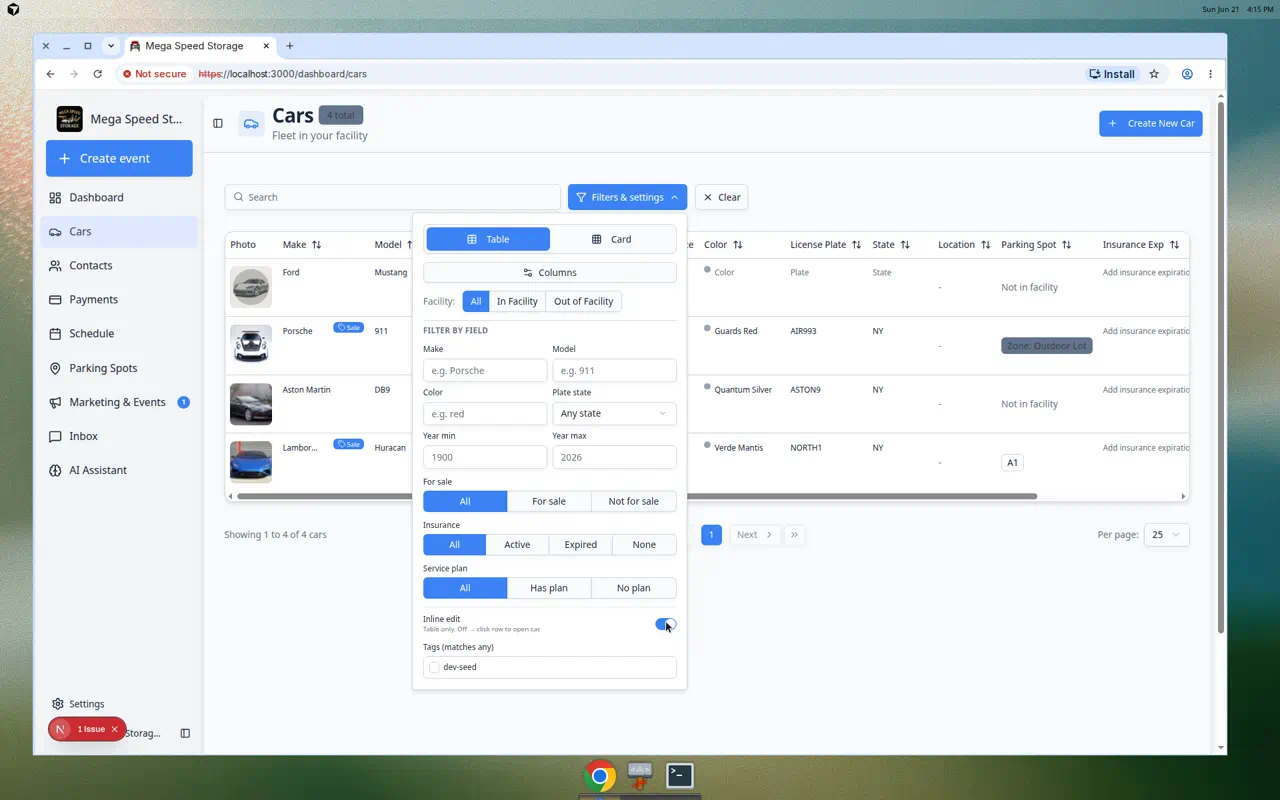
Turn Inline edit on only when you plan to change fields in the table. The blue switch means it is active—turn it off when you are done so rows open the full car record again. - Edit one field at a time
Click the field you need to update (for example Make, License plate, or Declared value), make the change, and wait for the save confirmation before moving to another field.
- Turn Inline edit off when finished
This helps prevent accidental changes when you are only trying to open a car record.
Read the Service column on the Cars table
The Service column helps your team spot cars that need attention on their storage or maintenance plan—without opening every record.
- Turn on the Service column
On the Cars page, click Filters & Settings, then Columns. Make sure Service is turned on.
Expected result: A Service column appears in the table (often near Customer Name or Parking Spot).
- Scan the badges
Each row may show a short label that tells you how that car's plan is doing:
- On track — the plan is active and nothing is overdue.
- 1 scheduled (or a higher number) — upcoming plan work is already on the calendar.
- 1 due or 2 due — plan items need to be scheduled or completed soon. A red badge usually means something is overdue.
- Plan set with Set start date — a plan is attached but the start date still needs to be entered on the car record.
- Plan empty — a plan name is linked but it has no items yet (ask an admin to finish setup in Settings).
- — (dash) — no service plan is linked to this car.
Why this matters: A collector calls about their Porsche and you can see at a glance whether seasonal service is overdue before you promise a pickup date.
- Open the car when you need details
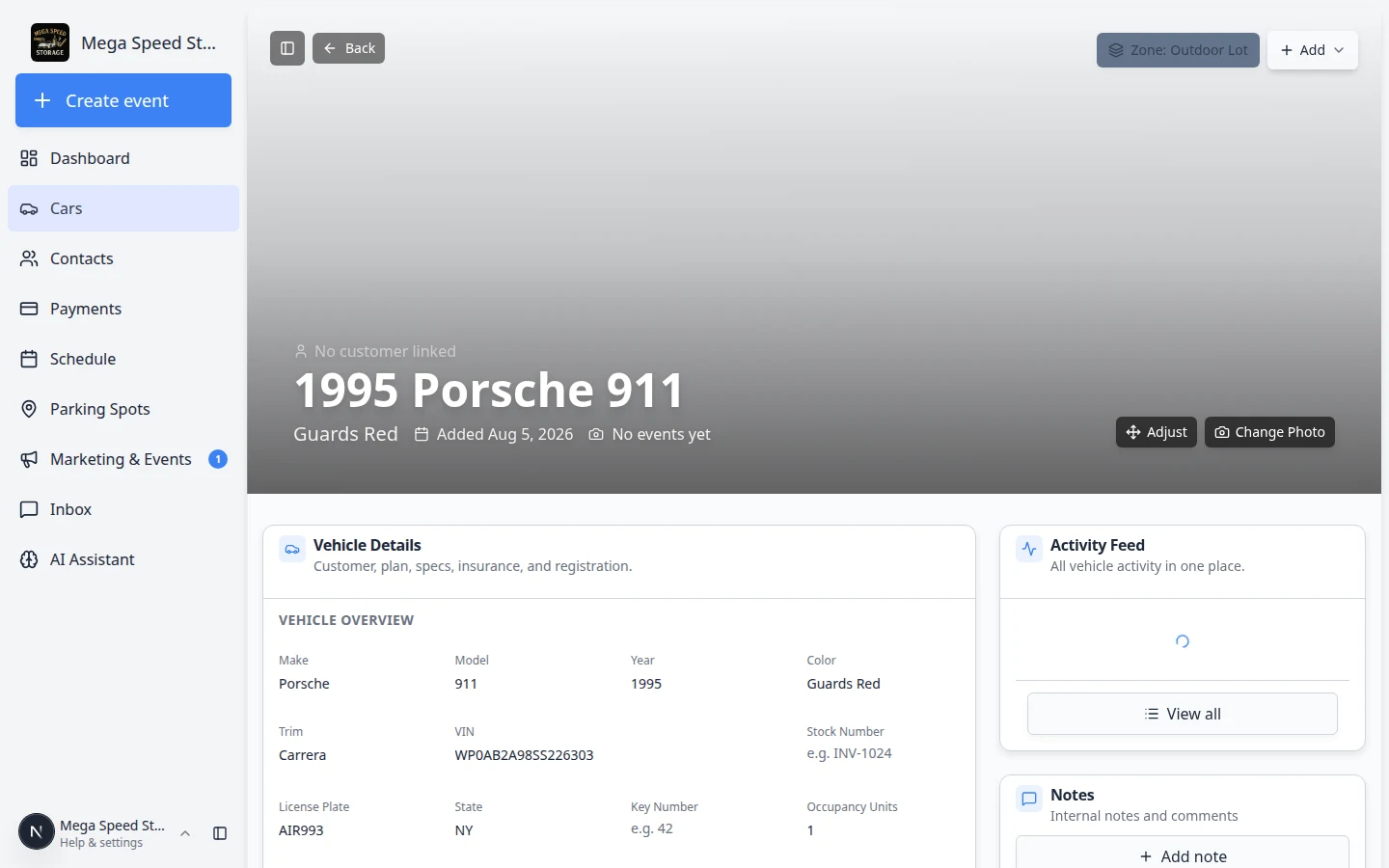
Click View on the row to open the car record. Scroll to SERVICE PLANS inside Vehicle Details for the full plan list, or open Schedule to see booked appointments.
Expected outcome: The badge on the list matches what you see on the car's SERVICE PLANS block.
Sort, paginate, and organize the table
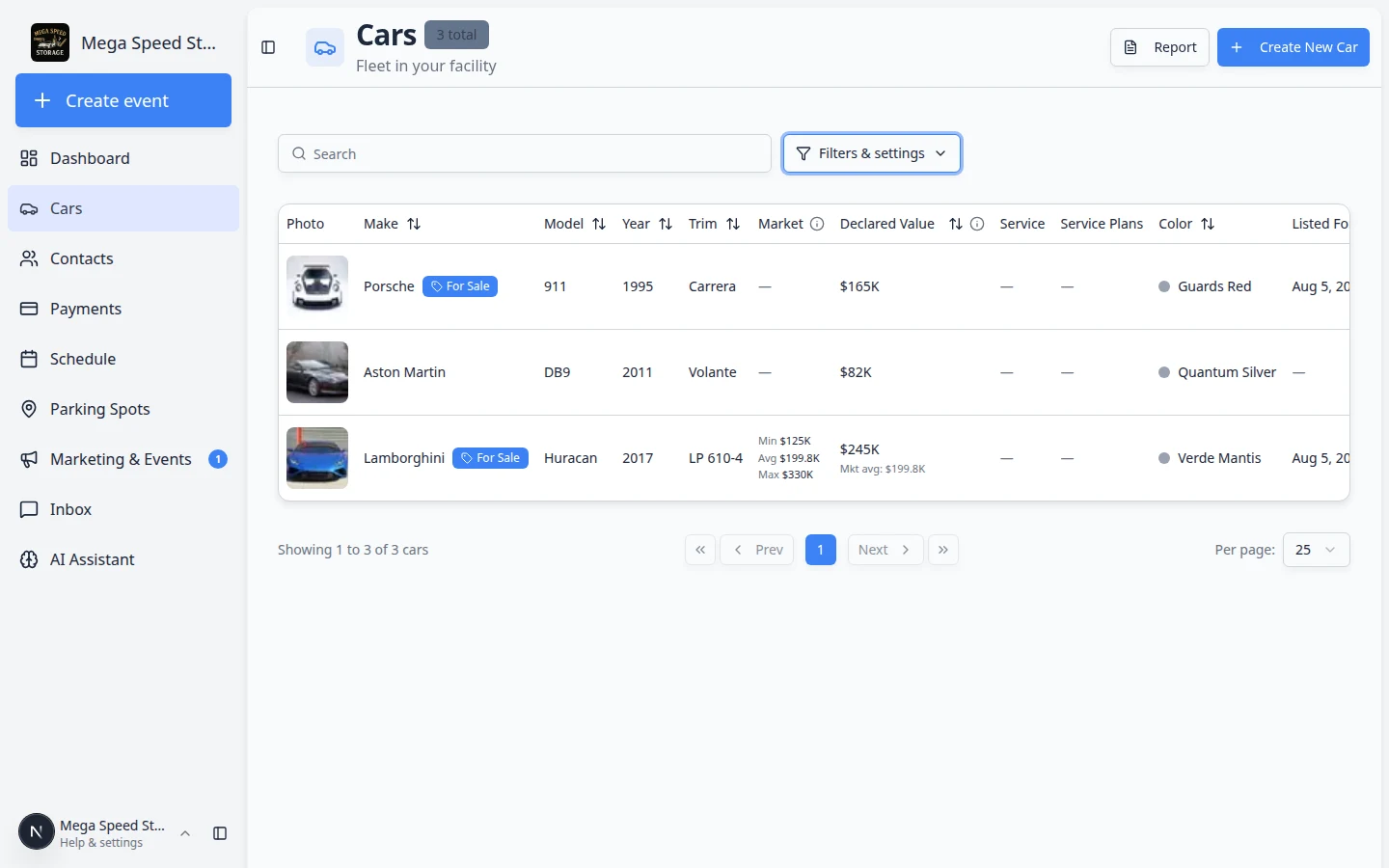
When you use Table view, column headers may allow sorting. Click a column name such as Year or Customer Name to sort the list. Combine sorting with filters when you want a short list—for example, all Porsches sorted by year.
At the bottom of the table you may see page controls:
- Rows per page — choose how many cars appear at once (for example 25, 50, 100, or 250).
- Next / Previous — move through pages when your facility tracks more cars than fit on one screen.
Why this matters: A large facility may have hundreds of records. Pagination keeps the page fast while filters narrow which cars you are browsing.
Expected result: The footer shows which page you are on (for example 1–25 of 142) and updates when you change filters or search.
What success looks like
After using search or filters:
- You can see the car or group of cars you need.
- The table columns show the information that matters for your task.
- You can open the correct car record without guessing.
Common mistakes to avoid
- Do not search with too many details at once if nothing appears. Start with one strong detail, such as plate number or customer name.
- Do not leave filters on if the list looks unexpectedly short. Open Filters & Settings and clear any filters you no longer need.
- Do not leave Inline edit on after you finish editing.
Troubleshooting
What to do next
After you find the correct car, open it and review or update the record using View and edit vehicle details.