Contacts
Add and manage customer notes
Leave short notes on a customer record so your team remembers preferences, promises, and follow-up without digging through messages.
Use this guide when your team needs to remember something about a customer that does not belong in a name, phone, or address field.
Notes live on the customer record in Contacts. They help the next teammate understand context quickly—without searching through Inbox or guessing from memory.
What you will accomplish
- Add a note on a customer record from the Customer Notes section.
- Choose whether a note is Customer visible or Internal only.
- Read notes from the customer page and from the combined activity feed.
- Know what belongs in a note versus a tag, CRM field, or Inbox message.
When to use customer notes
- A customer prefers email over text, or only wants calls for urgent issues.
- Your team promised a follow-up that is not yet on the calendar.
- A tour, inspection, or paperwork step finished and the next person needs context.
- An assistant or spouse handles scheduling—you want that written where every teammate can see it.
Before you start
- The customer already exists in Contacts.
- You know whether the note should be visible to the customer in the portal (Customer visible) or only to staff (Internal only).
- Keep notes short and factual. Avoid storing passwords, gate codes, or payment card numbers in notes.
Open the Customer Notes section
- Open Contacts
Click Contacts in the left sidebar, then open the customer—for example from All Contacts.
- Scroll to Customer Notes
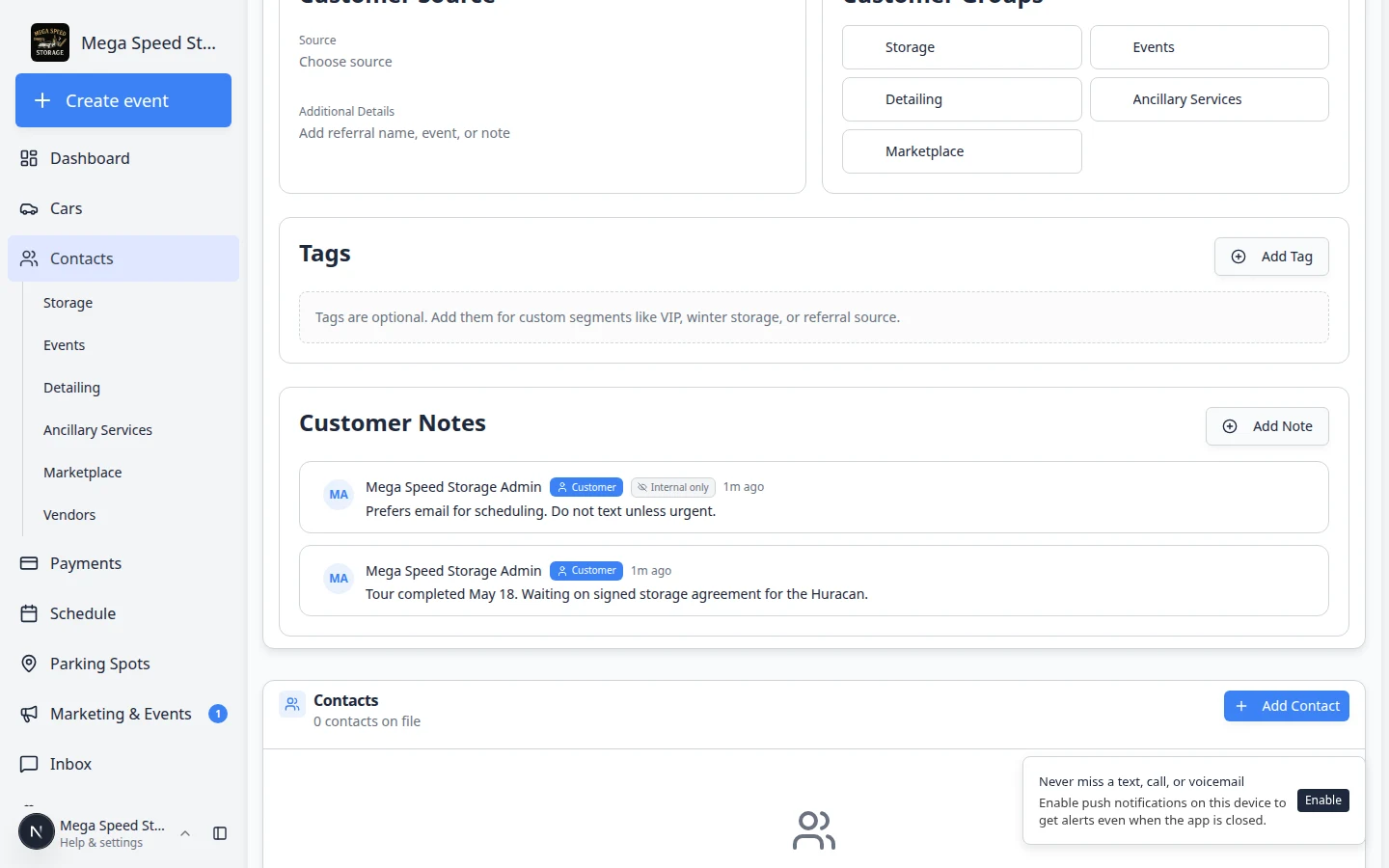
On the customer detail page, scroll past CRM Information until you see the Customer Notes card.
Expected result: You see existing notes (if any), who wrote them, and how long ago they were added.
Add a note
- Click Add Note
In the Customer Notes section, click Add Note in the top-right corner of the card.
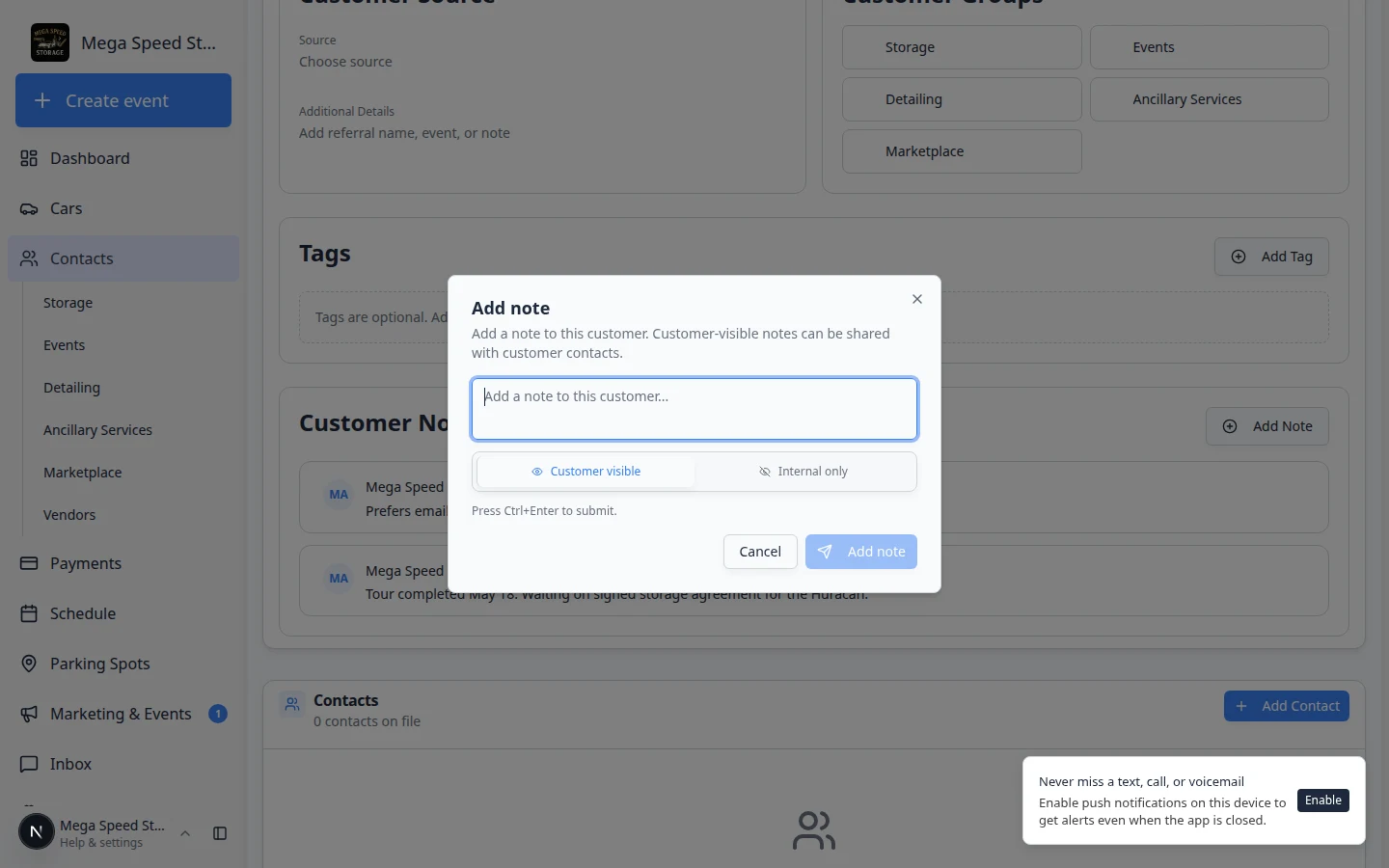
- Write a short, useful message
Type what the next teammate needs to know.
Good examples:
- "Prefers email for scheduling. Do not text unless urgent."
- "Tour completed May 18. Waiting on signed storage agreement for the Huracan."
- "Assistant Jordan handles all pickup times—see Additional Contacts."
Why this matters: The best notes answer one question: "What should the next person do or avoid?"
- Choose who can see the note
Below the text box, pick one option:
- Customer visible — the customer may see this note in the portal (use for friendly reminders they already know).
- Internal only — only staff on your team can see the note (use for internal preferences and follow-up).
Expected result: The toggle highlights the option you chose.
- Click Add note
Click Add note to save.
Expected result: The new note appears at the top of the Customer Notes list with your name and a Just now or time label.
Read notes from the activity feed
Customer notes also appear in the customer's Activity timeline alongside messages, invoices, and schedule changes. This helps your team see notes in context with everything else that happened on the account.
- Open Activity on the customer page
On the same customer record, find the Activity Feed section (usually on the right side of the page on a wide screen).
Expected result: Recent events appear at the top—messages, billing, schedule changes, and notes your team added.
- Look for note entries in the feed
Notes show up as their own lines in the timeline, often with the author's name and whether the note was Internal only or Customer visible.
Why this matters: A porter might add a note about parking preferences while a billing teammate adds one about payment timing. Activity puts both in one place so the next caller sees the full story.
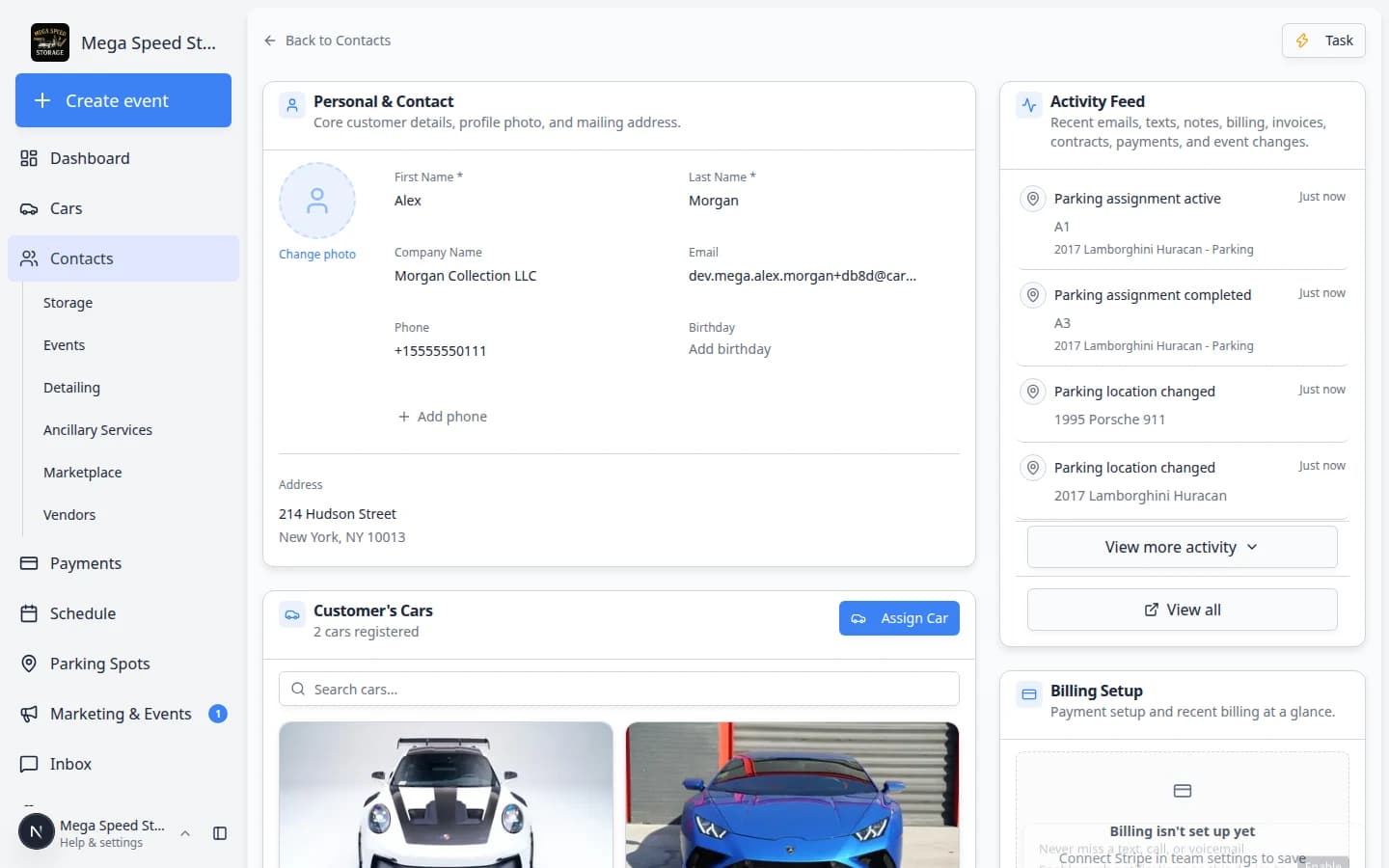
Notes appear in the Activity Feed together with messages and billing—use **View all** when you need to search a longer history. - Open View all for a longer history
If many events exist, click View all to open the full Customer activity page.
Expected result: Notes appear in time order with other customer events. You can filter to Notes or search by keyword on that page.
For a full walkthrough of the activity timeline, see Review customer activity and history.
Delete a note
Only remove a note when it is outdated or was added by mistake.
- Find the note in Customer Notes
Scroll to the note you want to remove.
- Click the trash icon
Click the small trash icon on the right side of the note row.
Expected result: The note disappears from the list. This cannot be undone—copy important text elsewhere first if you might need it later.
What belongs in a note vs other fields
| If you need to… | Use this instead |
|---|---|
| Label a customer (VIP, winter storage) | Manage contact tags and CRM fields |
| Change phone, email, or address | Edit customer details |
| Message the customer | Inbox |
| Track what car they want to buy | Track customer market interests |
| Log a phone call or text thread | Inbox — messages stay in the conversation timeline |
What success looks like
- New teammates can open a customer and understand preferences without asking around.
- Internal-only notes stay off the customer portal.
- Customer-visible notes match what you would say politely to the customer in person.
Troubleshooting
What to do next
- Review customer activity and history — see notes together with messages and billing.
- Manage additional contacts — add assistants or spouses when notes mention who handles scheduling.
- Respond to a conversation — reply to the customer when they need a real message, not just an internal note.