AI Assistant
When the assistant cannot help
Know what to do when the AI Assistant refuses a request, shows an error, or gives an answer you should not trust.
What you will accomplish
You will recognize when the AI Assistant is not the right tool—and what to do next so the customer still gets accurate help.
The assistant is powerful for lookups and drafts. It is not allowed to make risky changes to money, contracts, or deleted records on its own.
When to use this guide
Use this guide when:
- The assistant says it cannot complete your request.
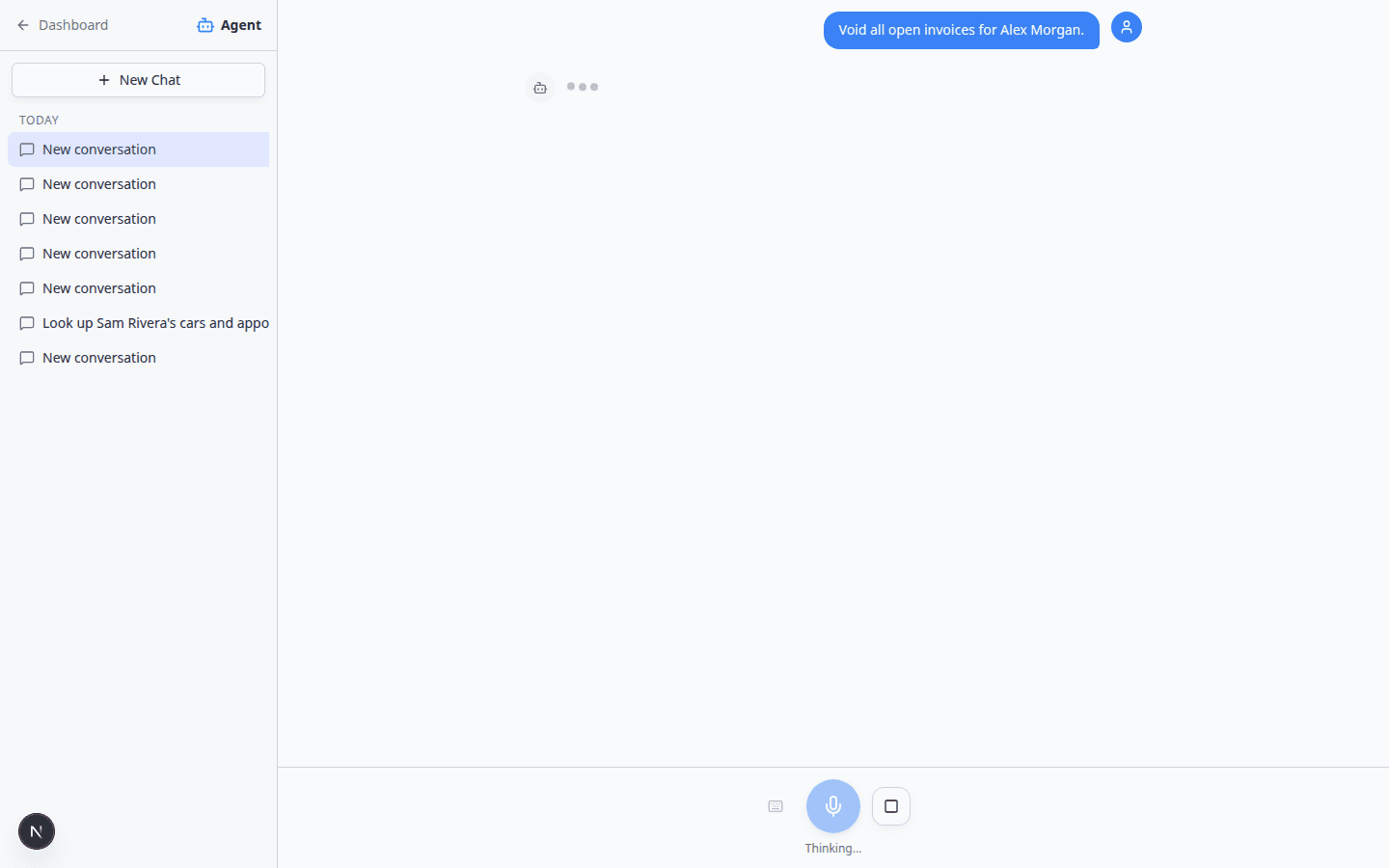
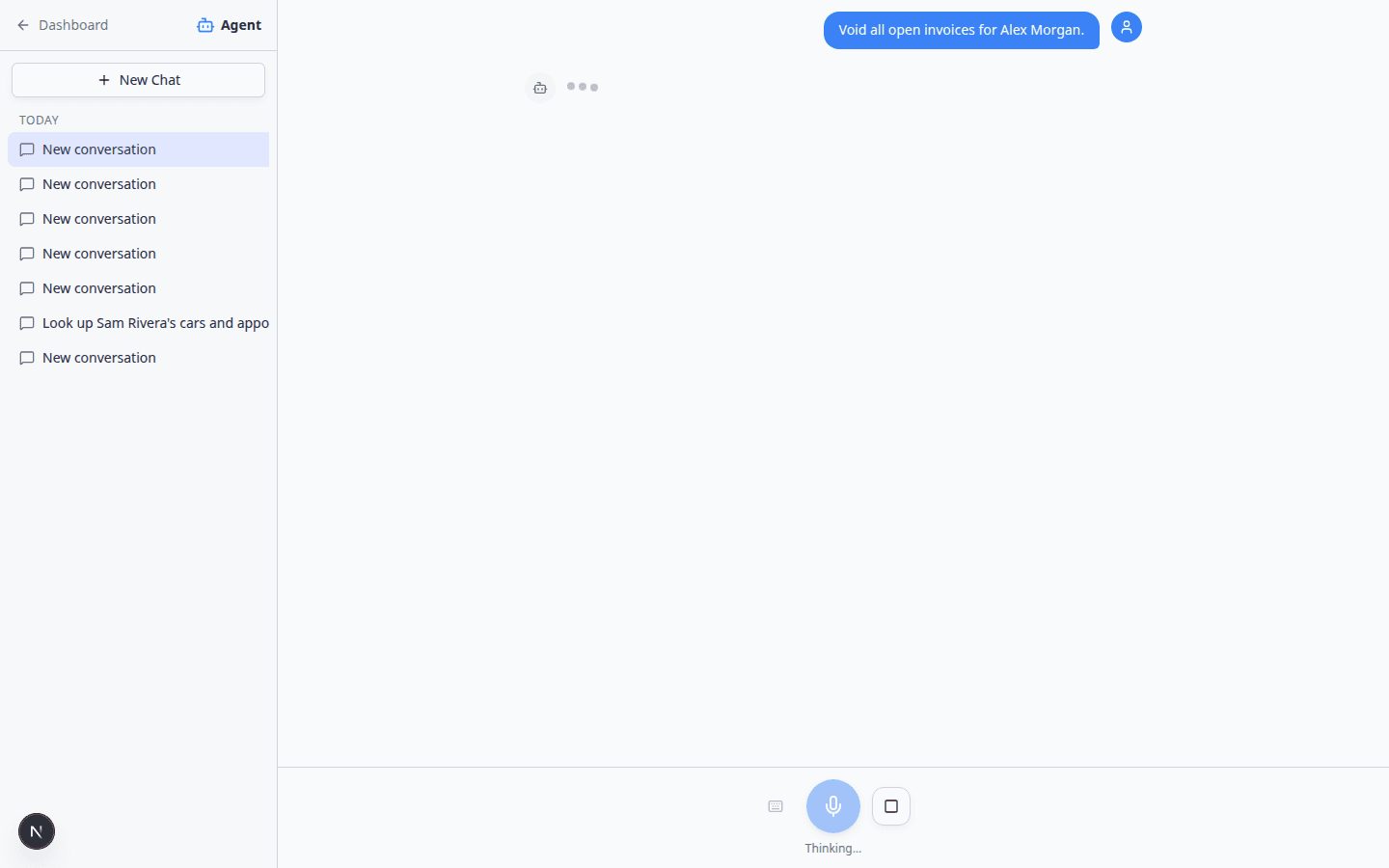
- You asked about voiding invoices, refunds, or contract changes and got a cautious answer.
- The answer looks incomplete, wrong, or unlike your facility's policies.
- AI Assistant is missing from the sidebar entirely.
Jobs the assistant is not meant to do
Use the dashboard directly for these tasks:
| Task | Use this instead |
|---|---|
| Void or refund an invoice | Payments — open the invoice and follow your facility's process |
| Change payment methods or run a card | Payments or the customer's billing record |
| Delete a customer, car, or contract | The relevant record page—with manager approval |
| Sign or void a contract | Contracts workflows |
| Send a message to a customer | Inbox — see From AI draft to customer message |
| Change team permissions | Settings > Team |
What to do step by step
- Pause and read the message
The assistant often explains why it stopped—for example, missing permission, no matching records, or a sensitive action.
Expected result: You understand whether this is a safety limit, a permissions issue, or simply nothing to change.
- Open the official record
- Ask a manager when unsure
If the request involves money, legal language, or an angry customer, involve a manager before you promise anything.
- Try a simpler assistant question
Lookups usually work when destructive actions do not. Example: Show me open invoices for Alex Morgan (then open each invoice yourself)—not Void all invoices for Alex Morgan.
iMessage limits
If your facility uses a team group chat, remember:
- The assistant replies with short text messages—not proposal cards you can review before saving.
- Creating customers, cars, or appointments still happens on AI Assistant in the dashboard.
- If a group is paused, questions will not get replies until an admin clicks Resume on Settings > AI Agent.
If the assistant cannot find a record
- Add spelling detail
Type the full name, email, phone, VIN, or license plate.
- Search manually
- Check for duplicates
Your facility may have two similar names. See Handle duplicate or merged customer records.
If you see a permission error
The assistant names the area you cannot access—such as Payments or Schedule.
- Try opening that page from the sidebar.
- If the page is blocked, ask a manager to update your permissions. See Who can use the AI Assistant.
- Do not use someone else's login.
If AI Assistant is missing from the sidebar
- Confirm you signed in with a staff account (not a customer portal login).
- Ask a manager to enable AI Assistant on your Team permissions.
- Refresh the page or sign out and back in after permissions change.
If the answer looks wrong but no error appeared
Slow down. Treat the answer as a hint, not a fact.
- Open the record in the dashboard.
- Compare names, dates, and amounts.
- Start New Chat and ask again with more detail—or skip the assistant for this task.
When the system seems slow or stuck
- Wait for Thinking... to finish
Complex questions can take longer. You may see Thinking... or bouncing dots below the assistant icon.
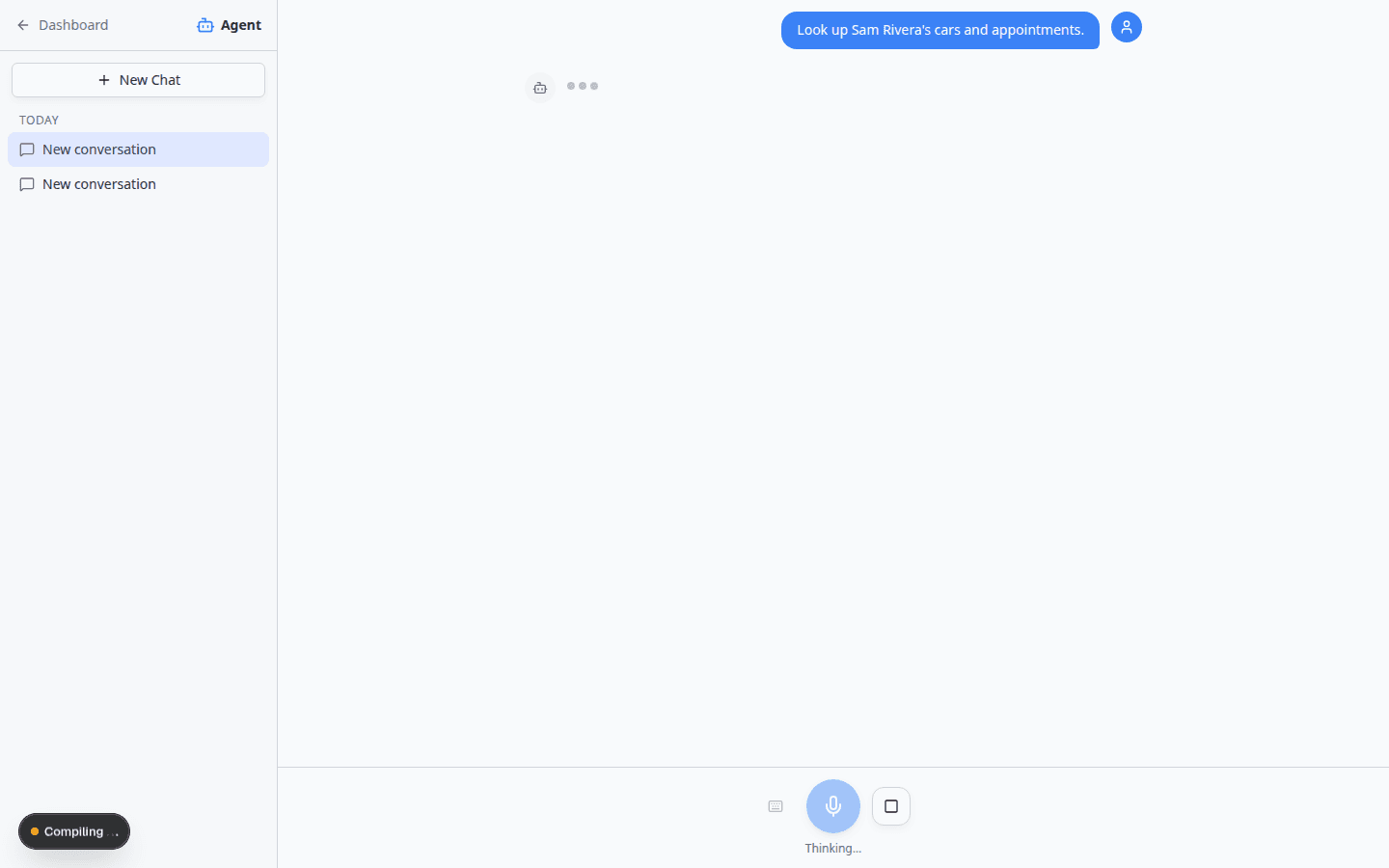
While the assistant works, you may see **Thinking...** and a **stop** button. Wait a few seconds before you try again—especially during customer lookups. See Fix voice and microphone problems to use the stop button or switch to typing.
- Refresh the page
If the page froze, refresh the browser and open AI Assistant again. Your past chats should still appear in the sidebar.
- Use the dashboard without the assistant
You can always complete work manually. The assistant is optional.
Open the official page when the assistant points you there
Sometimes the assistant summarizes an answer but tells you to finish on a dashboard page—for example, after a billing lookup.
- Click Go now when you see it
On some answers, a Go now bar appears at the bottom of the chat. Click it to open the matching record.
See Use the assistant during a customer call for an example with customer cards.
- Or open the page yourself
Go to Payments > Invoices, Contacts, or the area named in the assistant's message.
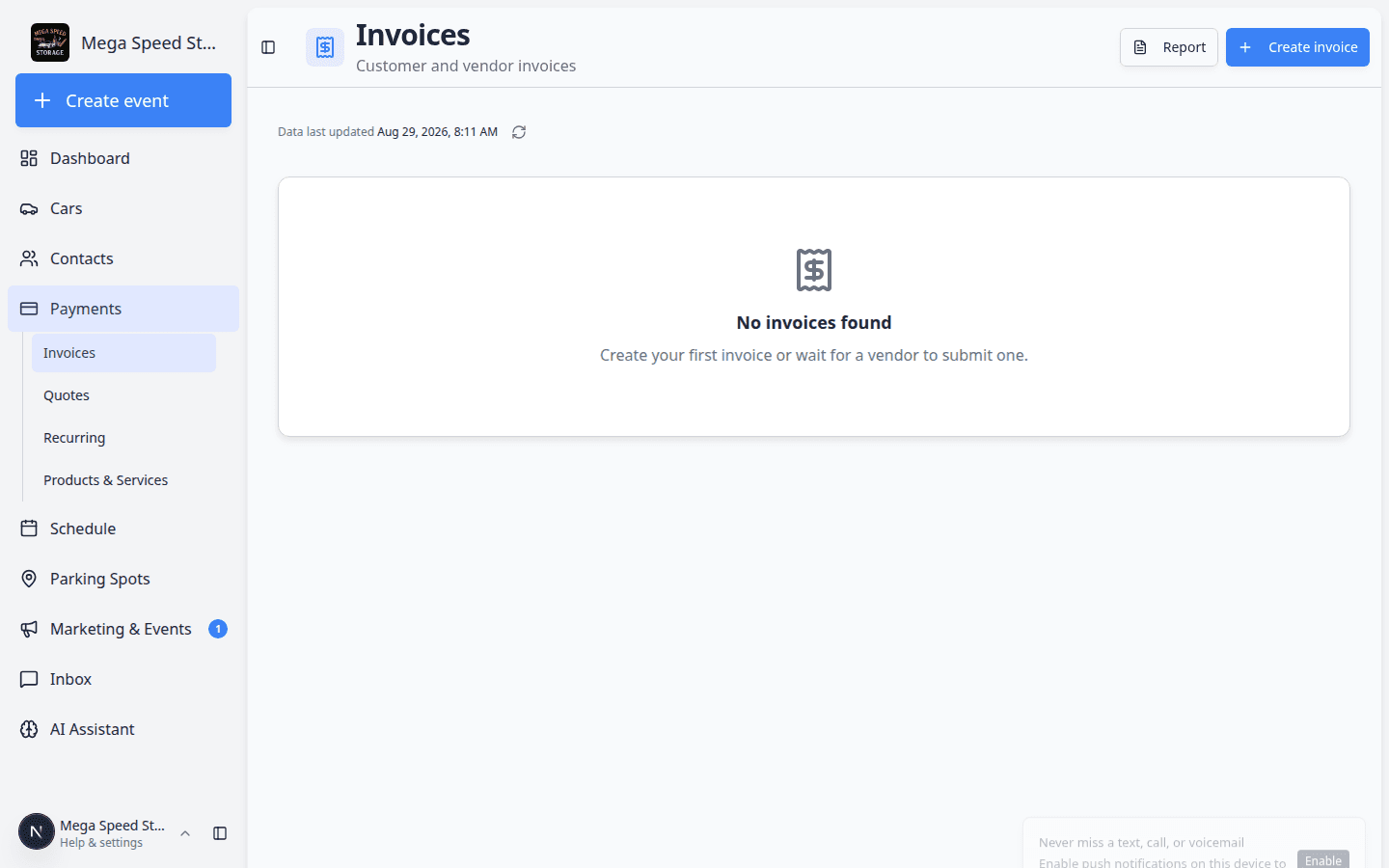
For money questions, [Payments > Invoices](/dashboard/payments/invoices) is the source of truth. Compare totals, line items, and status badges here before you tell a customer what they owe. Expected result: You see the full invoice with taxes, send history, and the exact status—not just the chat summary.
Quick fallback map
| I needed… | Go here instead |
|---|---|
| Customer phone or email | Contacts |
| Vehicle location or VIN | Cars |
| Appointment time | Schedule |
| Open parking spots | Parking Spots |
| Send a text or email | Inbox |
| Invoice or payment | Payments |
What to do next
- Who can use the AI Assistant — fix missing access.
- Use the AI Assistant — return to everyday lookups when the issue is resolved.
- Inbox overview — when the next step is customer communication.