Basics
Getting started
Follow a simple first-time setup path so your team can start using Car Storage Software with confidence.
Use this guide when your facility is brand new to Car Storage Software, when a new teammate needs a calm first tour, or when you want a short checklist before diving into detailed how-to guides.
You will learn what to set up first, where to find the most important pages, and which step-by-step guides to read next.
This page is the shortest path into the product. For a longer overview with a first-week checklist, read Getting started overview.
What you will accomplish
- Sign in and land on the staff dashboard (not the customer portal).
- Understand the best order for first-time setup.
- Use the in-app Setup Guide to track progress.
- Learn where customers, cars, payments, schedule, and help live in the sidebar.
- Add the first customer and car records your team needs for day-to-day work.
- Know which detailed guide to open for invoices, parking, contracts, or appointments.
Before you start
You should have a staff account that can open the dashboard.
- You can sign in at your facility's staff login page (often linked from your welcome email).
- You know who at your facility owns billing, customer communication, and day-to-day operations setup.
- You have your facility name, address, phone number, and public email ready if you will edit settings.
- If you cannot open the dashboard, ask your facility owner or manager to invite you in Settings > Team.
Your first day — seven calm steps
Follow these steps on day one. You can pause between steps. You do not need to finish everything in one sitting.
- Open the Setup Guide
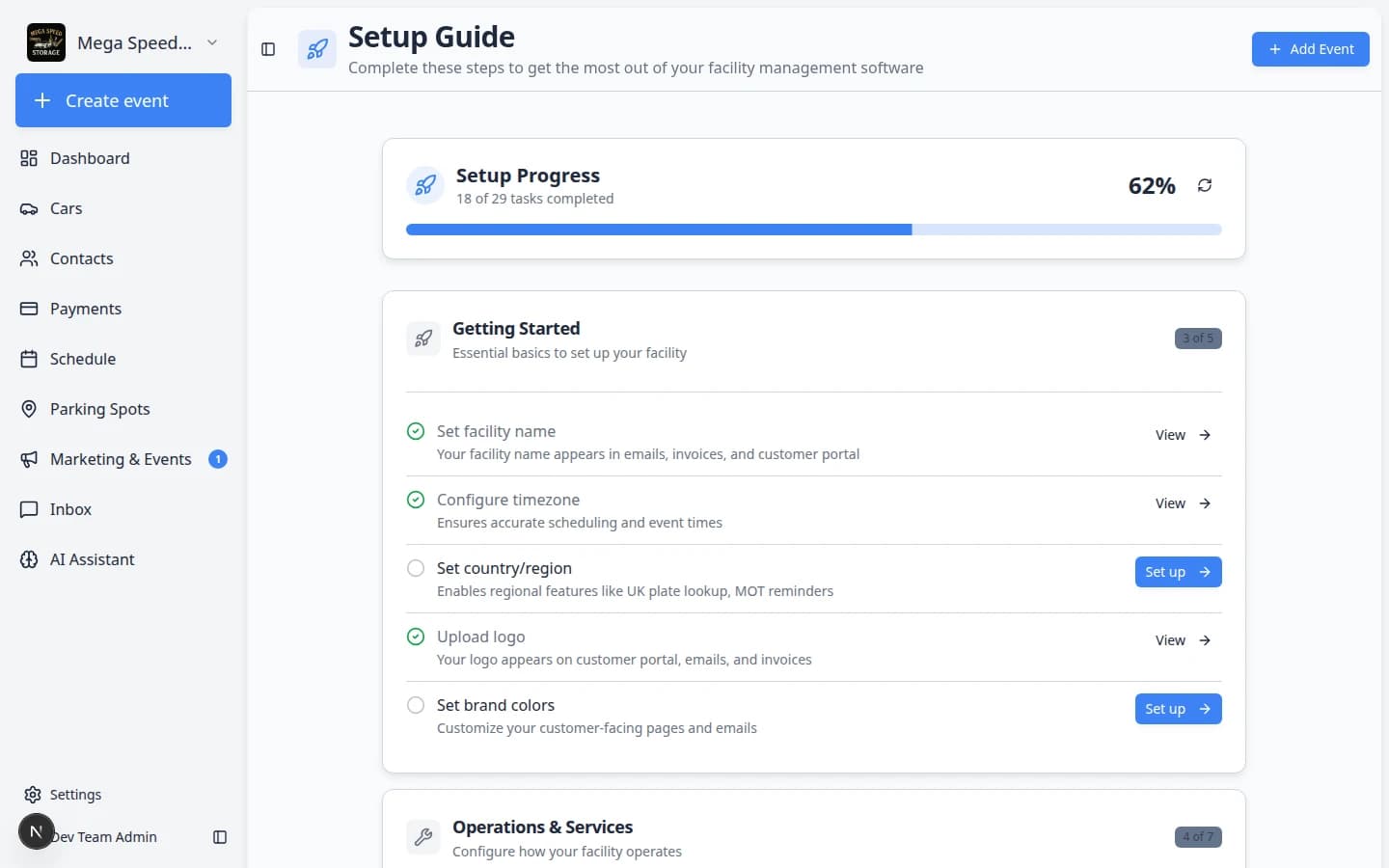
Go to Setup Guide. This page shows six setup cards and your progress (for example, 2 of 6 complete).
Expected result: You can see which setup areas are finished and open any card to continue.
For a full walkthrough, read Complete the Setup Guide or Complete the onboarding wizard.
- Notice which home screen you see
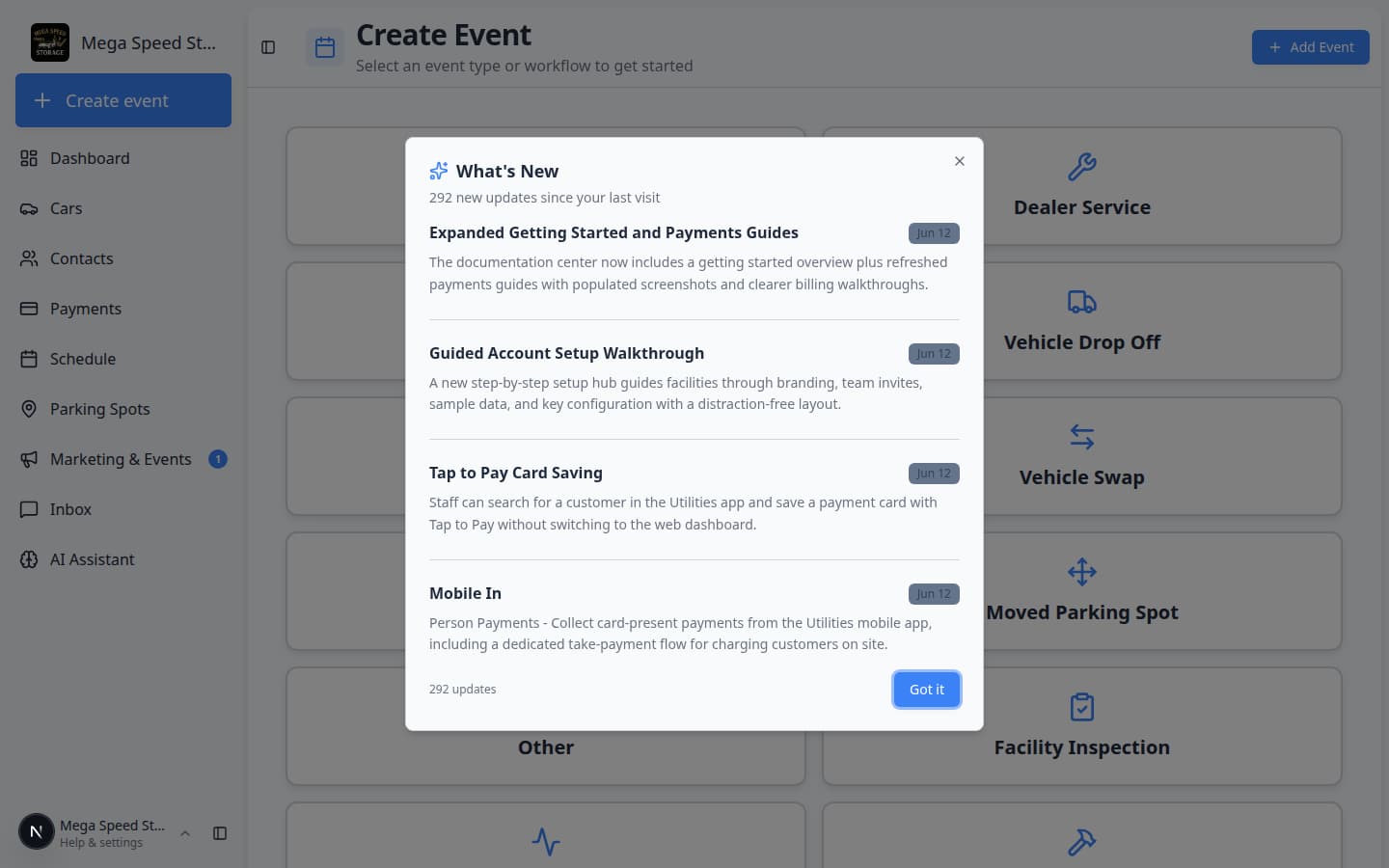
Most staff see Create event first — a page with large colored cards for starting vehicle work.
Some managers prefer Dashboard (labeled Beta in the sidebar) — a customizable page with schedule, parking, and inbox widgets.
Why this matters: Customers see your name and logo on forms, emails, invoices, and public pages. Correct time zones keep appointments on the right clock.
Read Set up your facility profile for step-by-step help.
- Add customers before cars
Open Contacts and add the customers your team works with most often.
Why this matters: A car record is easier to manage when it is connected to the correct owner from the start.
Read Prepare your first customer and car when you are ready to enter real records.
If you already have a spreadsheet of customers and vehicles, your manager may use Settings > Import instead — see Import customers and cars.
- Add cars in your care
Open Cars and create records for cars already stored, serviced, or tracked by your facility.
Expected result: Your team can search by customer, vehicle, VIN, plate, parking location, or other details.
- Learn where daily work lives
Open Learn the dashboard for a tour of Create event, Cars, Contacts, Schedule, Payments, Parking Spots, Inbox, Marketing & Events, AI Assistant, and Settings.
Why this matters: Knowing where to click first saves time and prevents duplicate records — including where customer messages and facility setup live.
- Prepare customer-facing work
If customers need to sign agreements, upload documents, pay invoices, request appointments, or use the customer portal, review those settings before inviting customers.
Start with Contracts overview, Payments overview, and Configure portal and website.
Where to find Setup Guide in the app
The Setup Guide is easy to miss on a phone. Use any of these paths:
- Direct link: Setup Guide
- Sidebar: scroll the left menu — Setup Guide often appears below the main work areas.
- From Settings: open Settings and look for a banner or link to setup progress.
Sidebar map — where daily work lives
Use this table when someone asks, “Where do I click for that?”
| Sidebar item | What it is for | Open it when… |
|---|---|---|
| Create event | Large cards to start vehicle work now | A car just arrived or work is starting on the floor |
| Dashboard (Beta) | Custom widgets — schedule, parking, inbox | You want one manager screen |
| Cars | Every vehicle your facility stores or services | You need VIN, photos, parking, or activity on a car |
| Contacts | Customers and companies | You need owner details, portal access, or billing contact |
| Schedule | Calendar for future appointments | You are booking or moving a date and time |
| Payments | Invoices, quotes, products, vendors | You need to bill or collect money |
| Parking Spots | Floor plan and spot assignment | You need to see or change where a car sits |
| Marketing & Events | Campaigns, social events, reviews | You run car meets or marketing outreach |
| Inbox | Texts, emails, calls with customers | A customer messaged your facility |
| AI Assistant | Ask questions about records in plain English | You need a quick answer without hunting pages |
| Settings | Facility-wide setup (admins) | You are configuring branding, team, or billing |
| Setup Guide | First-time checklist | You are launching or auditing setup progress |
For a visual tour with screenshots of each area, read Learn the dashboard.
Important words in plain English
Dashboard — The signed-in staff area of the app (addresses starting with /dashboard). Not the same as the customer portal.
Setup Guide — An in-app checklist at Setup Guide that links to the settings pages your facility still needs.
Customer record — A person or company in Contacts. Vehicles and billing connect here.
Car record — A vehicle in Cars. Every stored or serviced car should have one.
Event type — A labeled kind of work (drop-off, pickup, detail) shown as a card on Create event.
Portal — The customer-facing website where owners view cars, billing, and documents. Staff use the dashboard; customers use the portal.
Basics learning path
Step 2: Learn the sidebar menu
- Complete the Setup Guide
- Complete the onboarding wizard — detailed help for each setup card
- Set up your facility profile
- Use the Create event home page
- Learn the dashboard
- Search your facility quickly
- Prepare your first customer and car
- Customize your Overview dashboard — optional, when you want one screen for schedule, parking, and inbox
Then open the product area your team will use next:
- Cars overview — vehicle records, movement, and sessions
- Contacts overview — customers, portal invites, and tags
- Schedule overview — appointments and calendar work
- Payments overview — invoices, quotes, and recurring billing
- Settings overview — full facility configuration
Important words in plain English
Dashboard — The staff area of the app (not the customer portal). You are reading help for the dashboard.
Create event — The large-button home page for starting vehicle workflows today.
Customer record — A person or company in Contacts. Vehicles and billing connect here.
Car record — A vehicle in Cars. Every car in your care should have one.
Event type — A labeled kind of work (drop-off, pickup, detail) shown as a card on Create event.
Setup Guide — The in-app checklist at Setup Guide.
Portal — The customer-facing website where owners view cars, pay invoices, and sign documents. Customers use the portal; your team uses the dashboard.
Common first-day questions
What success looks like on day one
- You signed in and recognize your facility name in the sidebar.
- You opened Setup Guide and know what Set up does.
- You can find Cars, Contacts, and Create event without help.
- Your manager knows which setup tasks still need an owner (payments, communications, team invites).