Parking Spots
Reserve a parking spot
Hold a parking spot for a customer or car before the vehicle is physically parked there.
What you will accomplish
You will hold a parking spot for a customer or car so your team knows the space is spoken for before the vehicle arrives.
When you finish:
- The spot row shows Reserved in Table view (or a reserved label on the map).
- Other staff can see who the space is held for without calling around.
- When the car physically arrives, you assign it to the same spot so Currently Parked changes to Present.
When to use this guide
Use this guide when you want to hold a specific parking spot for a customer or vehicle before the car is physically there.
When you finish, the spot will show as reserved on the Parking Spots page. That tells your team the space is spoken for, even if the vehicle has not arrived yet.
When to reserve a spot
Reserve a spot when the decision is planned but the car is not in the space yet.
Good examples:
- A new storage customer has been approved and will arrive later this week.
- A customer is switching to a premium or lift spot after service is complete.
- Your team promised a specific space to a customer.
- A car is expected back from service and should return to the same location.
Before you start
- The spot should already exist in Parking Spots.
- The customer or car should already exist in Contacts or Cars.
- Confirm the spot should be held before you save the reservation.
- If you are reserving a lift space, confirm the correct lift level.
Step 1: Open Parking Spots
Go to Parking Spots.
If you are not sure which spot to reserve, start with Find parking spots and available spaces.
Step 2: Switch to Table view
Reservations are easiest to manage from the table.
- Click Filters & Settings
Click Filters & Settings near the top of the page.
- Choose Table
Click Table. The page changes to a list of spots.
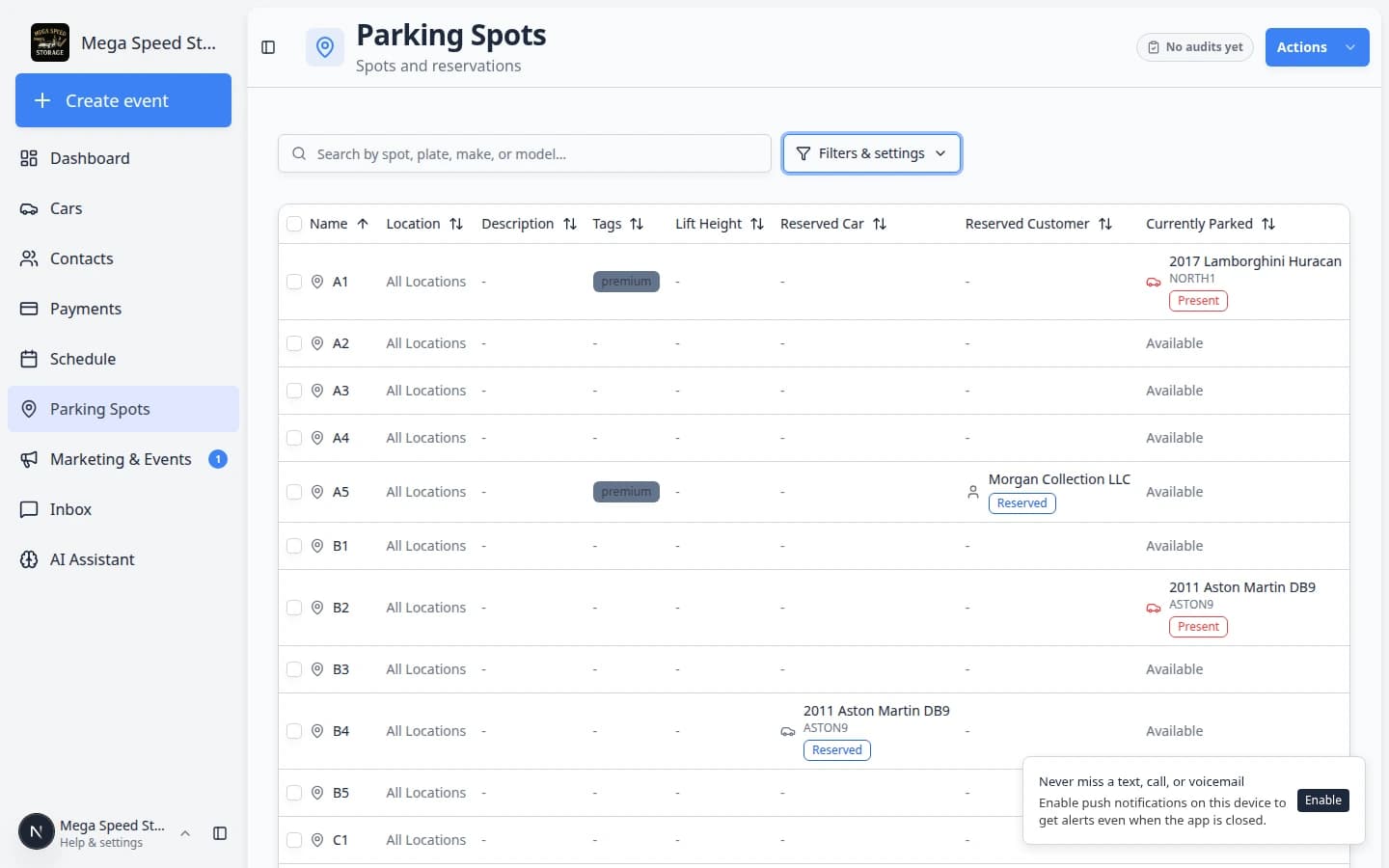
- Find the spot row
Search or scroll until you find the spot you want to reserve.
Expected result
You can see the spot row, including Reserved Car, Reserved Customer, Currently Parked, and Status (Active or Inactive).
Step 3: Open Reserve Spot
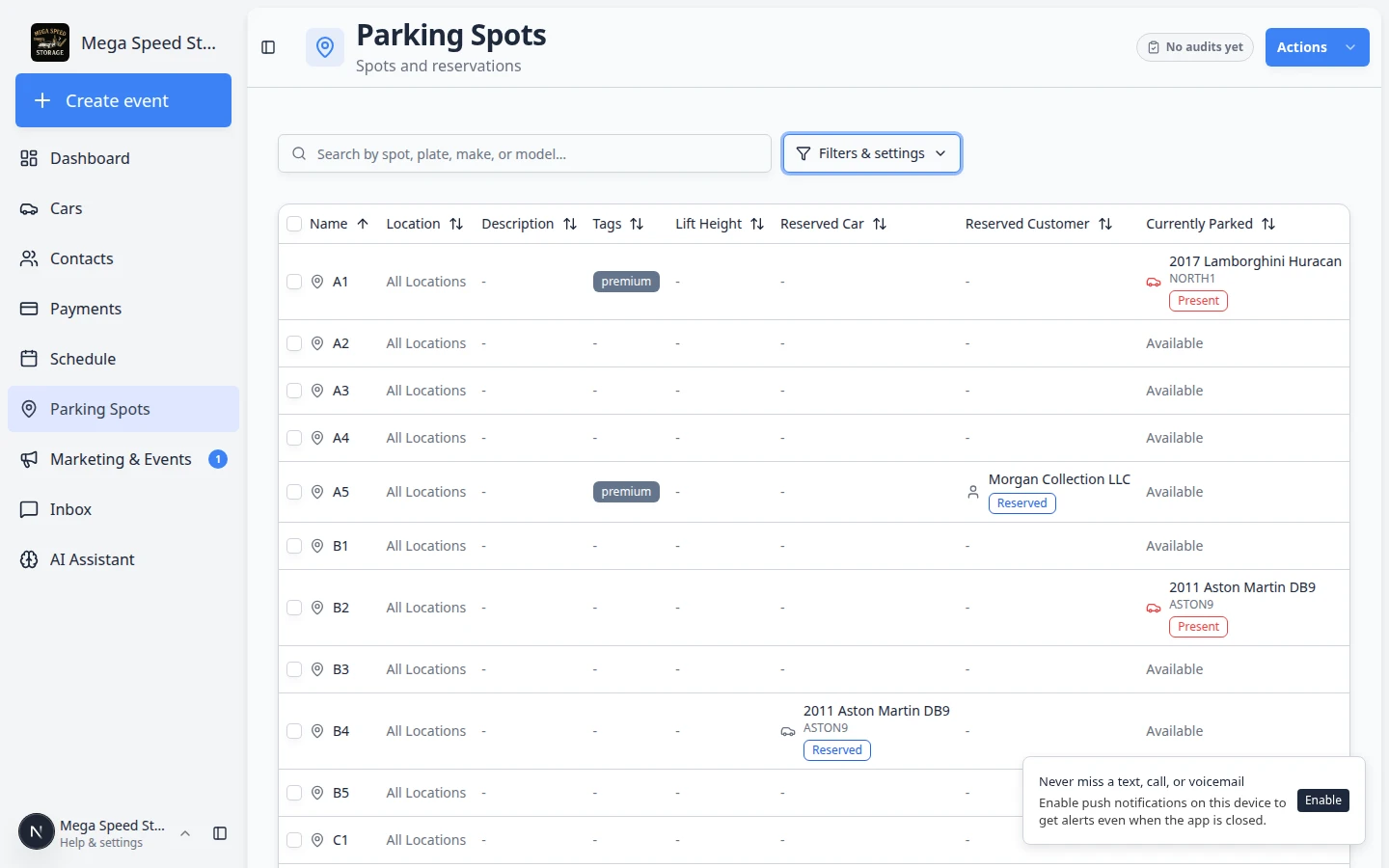
In Table view, each row has a three-dot menu (⋯) on the right side. That menu is where Reserve Spot lives.
- Find an open row
Look in the Currently Parked column for Available. Pick a spot that is truly open—not Present (car there now) or Reserved (already held).
Why this matters: Reserving a spot that already has a car or reservation creates confusion for the next teammate.
- Open the row menu
On the right side of the row, click the three-dot menu button (shown as ⋯).
Expected result: A small menu drops down with actions for that spot—including Reserve Spot when the row is open.
- Click Reserve Spot
Click Reserve Spot. If the spot already has a reservation, the menu may say Edit Reservation instead.
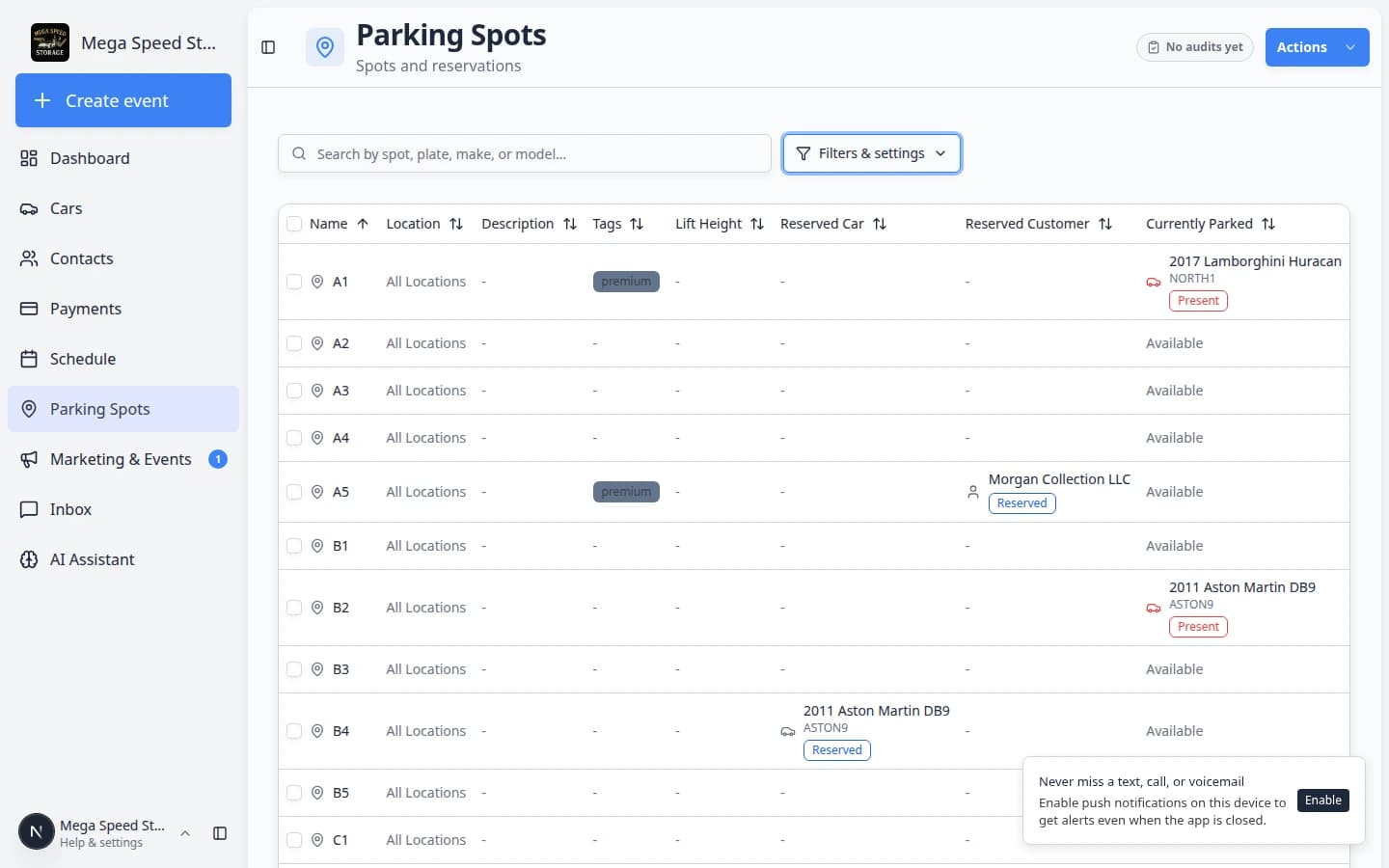
- Wait for the Reserve Parking Spot window
The window title should say Reserve Parking Spot.
Expected result: A dialog opens on top of the table. You are ready to choose a car or customer.
Step 4: Choose what the reservation is for
You can reserve a spot for a specific car or for a customer.
- Use Reserve for Car when you know the vehicle
Choose the car when the exact vehicle is known. This is best for a returning car, a scheduled drop-off, or a car that has already been added to the system.
- Use Reserve for Customer when you only know the customer
Choose the customer when the team wants to hold a spot but the exact car is not final yet.
- Check the selected name carefully
If the customer has more than one car, confirm the year, make, model, license plate, or VIN before saving.
Step 5: Save the reservation
Click the save button in the Reserve Parking Spot window.
After the reservation saves:
- The table row shows the reserved car or reserved customer.
- The spot is easier for staff to identify as planned, not open.
- Your team can still assign the car later when it physically arrives.
Expected result
The spot is held for the customer or car, and your team can see the reservation on Parking Spots.
Reserve from the map (optional)
Some teams prefer the map when they already know which box to hold.
- Open Parking Spots in Map view
Go to Parking Spots. If you see a table, open Filters & Settings and choose Map.
- Click an open spot
Click a spot that should be available (not already occupied).
- Use the reserve option in the spot dialog
If the spot dialog offers a way to reserve or hold the space, follow the on-screen steps. If you only see options to add or move a car, use Table view and Reserve Spot instead (steps above).
Step 6: Assign the car when it arrives
When the vehicle is physically parked in the reserved space, update the location record.
Follow Assign a parking spot.
This final step matters because a reservation does not prove the car is physically present. Assigning the spot keeps the map, car record, and parking report accurate.
Change or clear a reservation
Use this when a plan changes—for example the customer cancels, picks a different spot, or the car arrives early.
- Open the same spot row
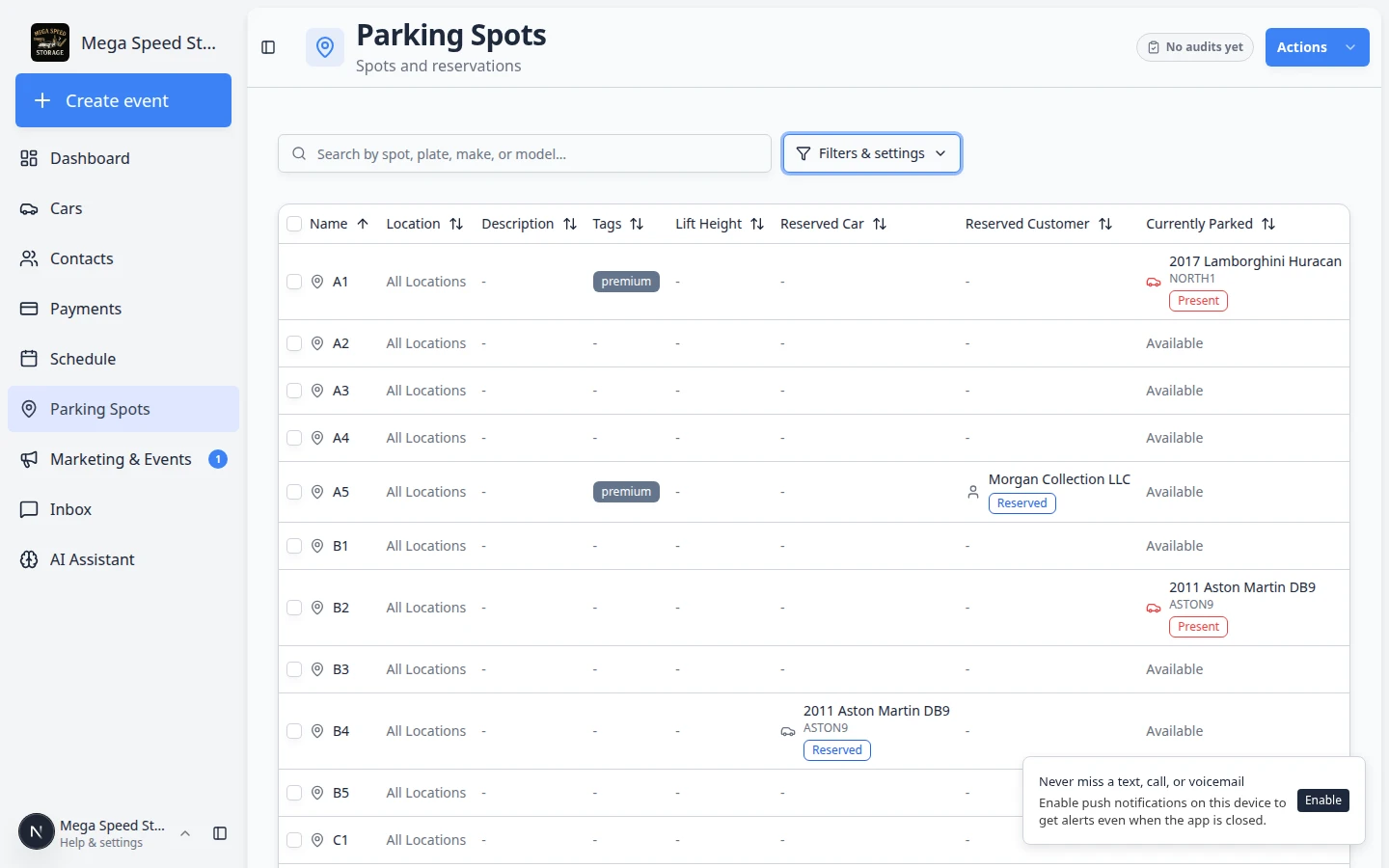
Go to Parking Spots, switch to Table view, and find the reserved spot. Sort by Currently Parked or search for the customer name if the list is long.
Tip: Reserved spots often show a name under Reserved Customer or Reserved Car, and Currently Parked may show Reserved.
- Click Edit Reservation
Open the ⋯ row menu on the right side of the row and click Edit Reservation.
Expected result: A window titled Reserve Parking Spot opens.
- Review the current hold
Read the grey Current Reservation box at the top. It tells you who the spot is held for today.
Why this matters: You can confirm you opened the correct row before you change anything.
- Choose a different car or customer if needed
Use Reserve for Car when you now know the exact vehicle. Use Reserve for Customer when you are still holding the spot for the owner but the car may change.
Expected result: The dropdowns show the new car or customer you picked.
- Clear the reservation if the spot is no longer held
Click Clear Reservation if the space should return to normal availability.
Expected result: Currently Parked shows Available and the reserved name columns are empty after you save or close the window.
- Save the change
Click Save Reservation after you edit who the spot is held for.
Expected result: The table row updates. Ask a teammate to refresh their screen if they still see the old reservation.
Common mistakes to avoid
- Do not reserve a spot and then forget to assign the car when it arrives.
- Do not reserve a spot for the wrong customer when two customers have similar names.
- Do not reserve a spot that is already physically occupied unless your team has confirmed the current car is leaving.
- Do not use reservations to hide broken or blocked spaces. Mark those spots inactive in the floor plan instead.
Troubleshooting
What to do next
After the car arrives, follow Assign a parking spot so the app shows the car as physically present.
If you need to check parking history later, use Review the parking report.