AI Assistant
Use the AI Assistant in iMessage
Ask your facility assistant questions from a team group chat in Messages and read short, helpful replies on your phone.
What you will accomplish
You will use your facility's team iMessage group chat to ask the AI Assistant everyday questions—schedule, parking, customer lookups, and more—right from your phone.
You do not need to open the dashboard for quick answers during a phone call or while walking the lot.
When to use iMessage vs the web assistant
Use iMessage when you are away from a computer, on the lot, or already texting with your team in the group chat.
Use the web AI Assistant when you need proposal cards to review new customers, cars, or appointments before saving—or when you want links that open straight to a dashboard page.
Before you start
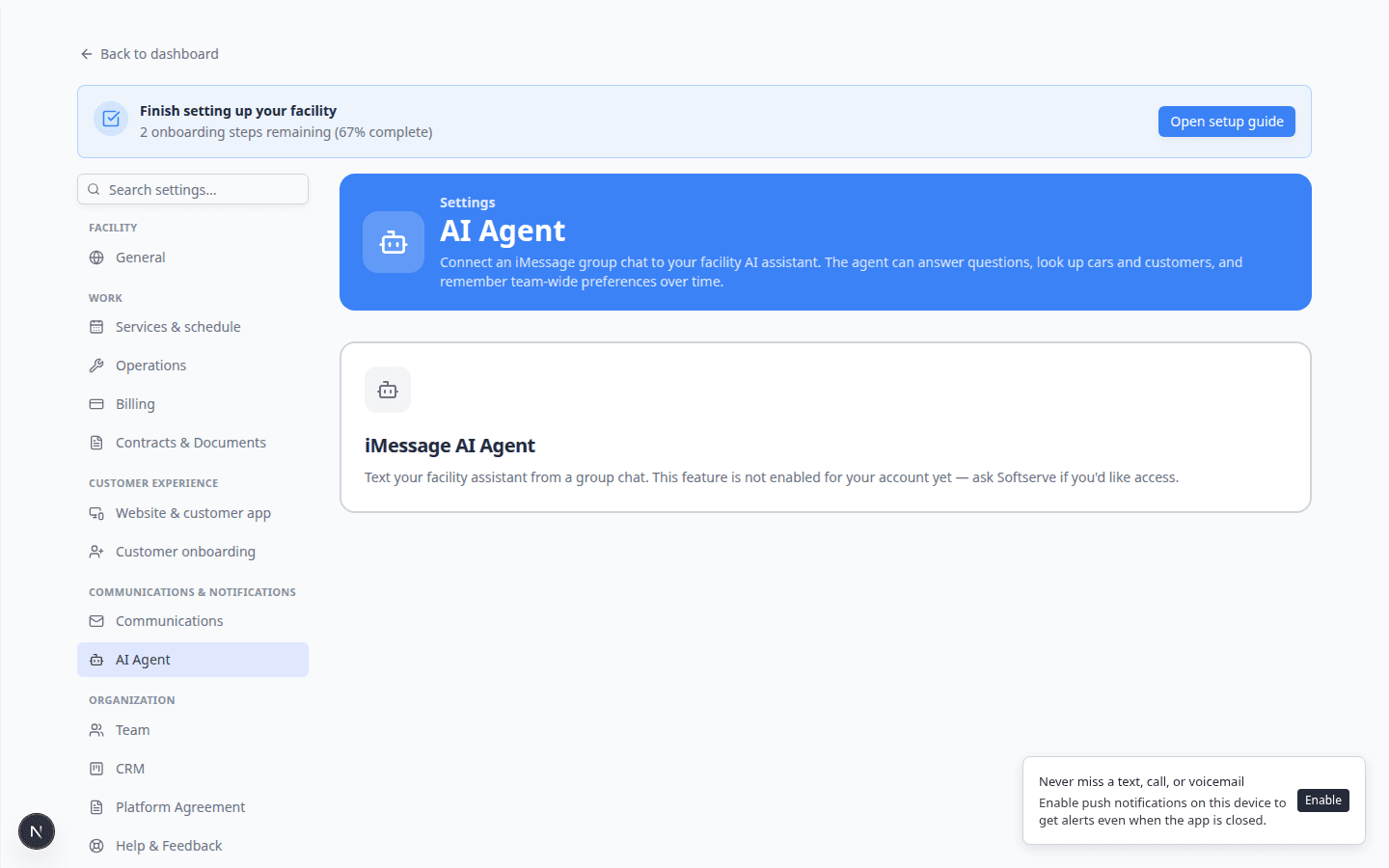
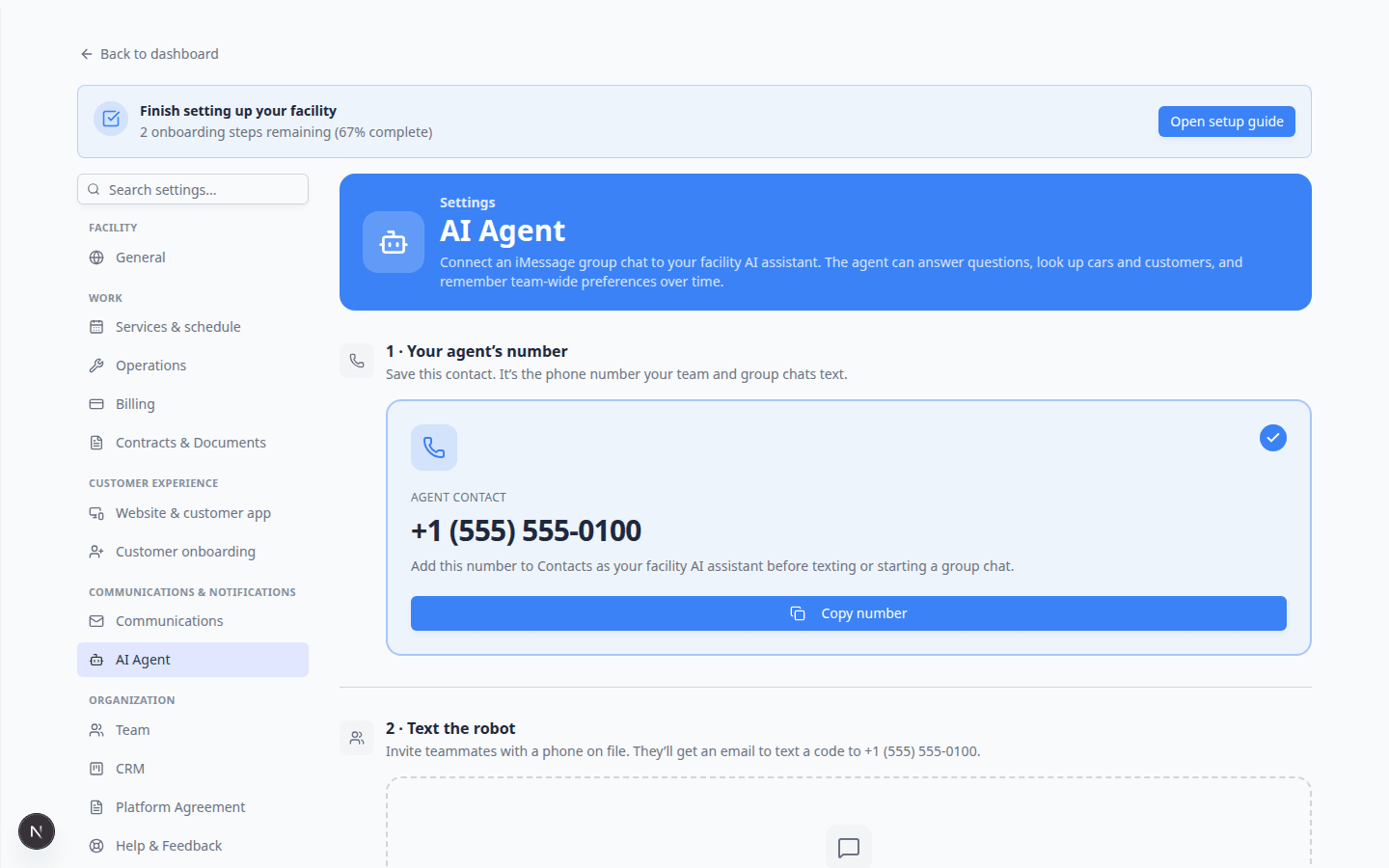
- Your phone shows a green checkmark under 2 · Text the robot on Settings > AI Agent (ask an admin if you are unsure).
- You are in the correct team group chat in Messages—not a chat with a customer.
- You know at least one detail to make the question clear: customer name, car, date, or spot number.
- You understand that replies are helpful drafts—double-check important times and amounts before promising a customer.
How replies look in the group chat
Unlike the web assistant, iMessage answers appear as regular text bubbles in the group.
- There are no proposal cards or Confirm All button in Messages.
- Replies are usually short so they are easy to read on a phone.
- The assistant may ask a follow-up question if your message was missing a name, date, or VIN.
- For changes that affect customers or money, the assistant may ask you to confirm in plain language before it acts.
Good questions to ask in the group chat
Use the same plain-English style as the web assistant.
Schedule and appointments
- What's on the schedule today?
- What appointments does Alex Morgan have this week?
- Is there a drop-off scheduled for the Porsche 911 tomorrow?
Expected result: A list of upcoming visits with times. Before you promise a customer on the phone, confirm on Schedule if the answer is critical.
Parking
- How many parking spots are available?
- Where is the 2017 Lamborghini Huracan parked?
- Is spot A1 open?
Expected result: Availability counts or a spot name. If the map is wrong in real life, update Parking Spots—the assistant reads what your team entered.
Customer and vehicle lookups
- Look up Alex Morgan's cars.
- Find the car with plate NORTH1.
- Show me the 1995 Porsche 911.
Expected result: Vehicle details and owner name. If the wrong person appears, send the full name, email, or VIN in a new message.
Billing and documents (if you have access)
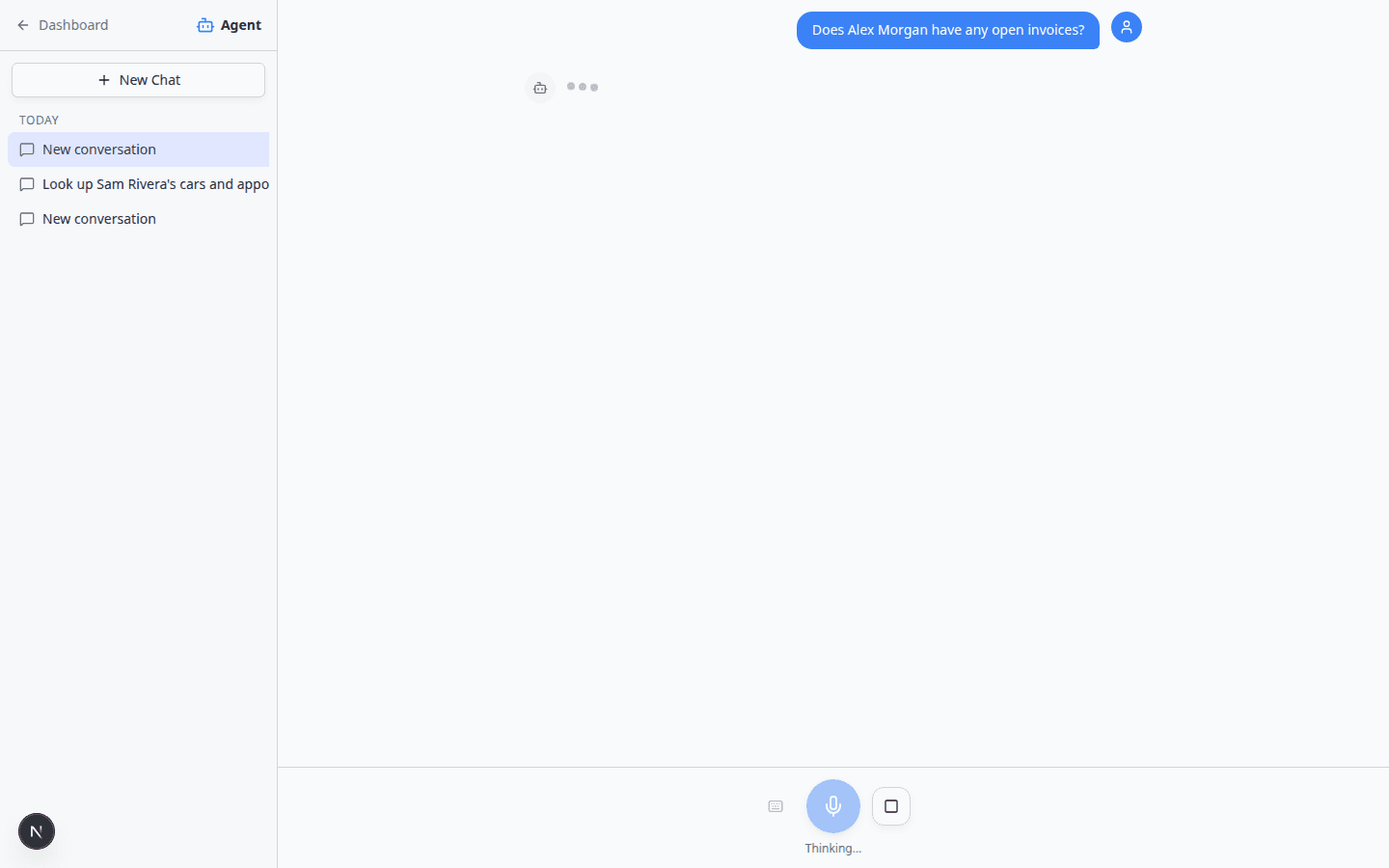
- Does Alex Morgan have any open invoices?
- What contracts are waiting for signature?
Expected result: A summary you can read quickly. Open Payments or the customer record before quoting dollar amounts. See Ask about billing, contracts, and alerts.
Write clear messages
- Say what you need first
Start with the job: look up, check, find, or list.
Good: Look up Alex Morgan's cars. Hard to answer: Alex Morgan?
- Add one specific detail
Include a full name, vehicle, date, or spot number.
Why this matters: Many customers share last names. Extra detail prevents mix-ups.
- Send one topic at a time
Ask about one customer or task per message when possible.
Expected result: Faster, clearer replies for everyone reading the group chat.
When the assistant asks you to confirm
For sensitive actions—canceling an appointment, sending a contract, or changing billing—the assistant may reply with a question such as “Should I go ahead?”
- Read the full message
Make sure you understand which customer, car, and action the assistant means.
- Reply clearly
Answer yes or no in plain language. Add corrections if something looks wrong.
Why this matters: In iMessage there is no Confirm All screen. Your written yes or no is the confirmation step.
- Open the dashboard for high-stakes work
For voiding invoices, changing payment methods, or deleting records, use the normal dashboard pages instead of the group chat.

What iMessage cannot do as well as the web page
- Review proposal cards before creating customers, cars, and appointments—use Prepare work with the AI Assistant on the web instead.
- Open dashboard pages with a Go now button—copy details from the text reply and open the app yourself.
- Send customer texts or emails—draft wording in the group if helpful, but always send from Inbox.
Troubleshooting
The assistant never replies
- Confirm the group is active in Settings > AI Agent (ask an admin).
- Confirm your phone is Verified.
- Check whether an admin Paused the group.
The answer mentions the wrong customer
Send a follow-up with the full name, email, or VIN. Do not use a wrong answer for customer promises or billing.
Times look wrong
Your facility time zone lives in Settings > General. Compare important appointments on Schedule.
I need to create a new customer and car
Use the web AI Assistant with Prepare work with the AI Assistant so you can review cards before saving—or enter records manually in Contacts and Cars.
What to do next
- Ask about schedule, parking, and records — more examples for the web assistant that also work in iMessage.
- Manage team memory for the AI Assistant — facts admins add so every chat stays consistent.
- Use the AI Assistant — voice, typing, and navigation on the web page.