Facility Web Pages
Configure the facility landing page
Set up the public page that introduces your facility, services, location, and calls to action.
What you will accomplish
Prospects will open a polished public page that explains your facility, shows your services, and offers clear next steps such as registration or marketplace browsing.
When to use this guide
Use this guide when you want one main link that tells prospects who you are and what they can do next—request storage, browse your marketplace, or contact your team.
Overview
You will set up the public page in Settings > Website & customer app under Public website.
When you finish, prospects can open a page that explains who you are, what services you offer, and which buttons to use for registration, marketplace, or vendor invoices.
After the public page looks ready, customize what signed-in customers see on Customize the customer mobile app.
Before you start
- Prepare a short description of your facility.
- List the services or amenities customers should know about.
- Choose what visitors should do next, such as register, view listings, or contact your team.
- Review Branding if your logo or colors need updates.
Step 1: Open Website & customer app settings
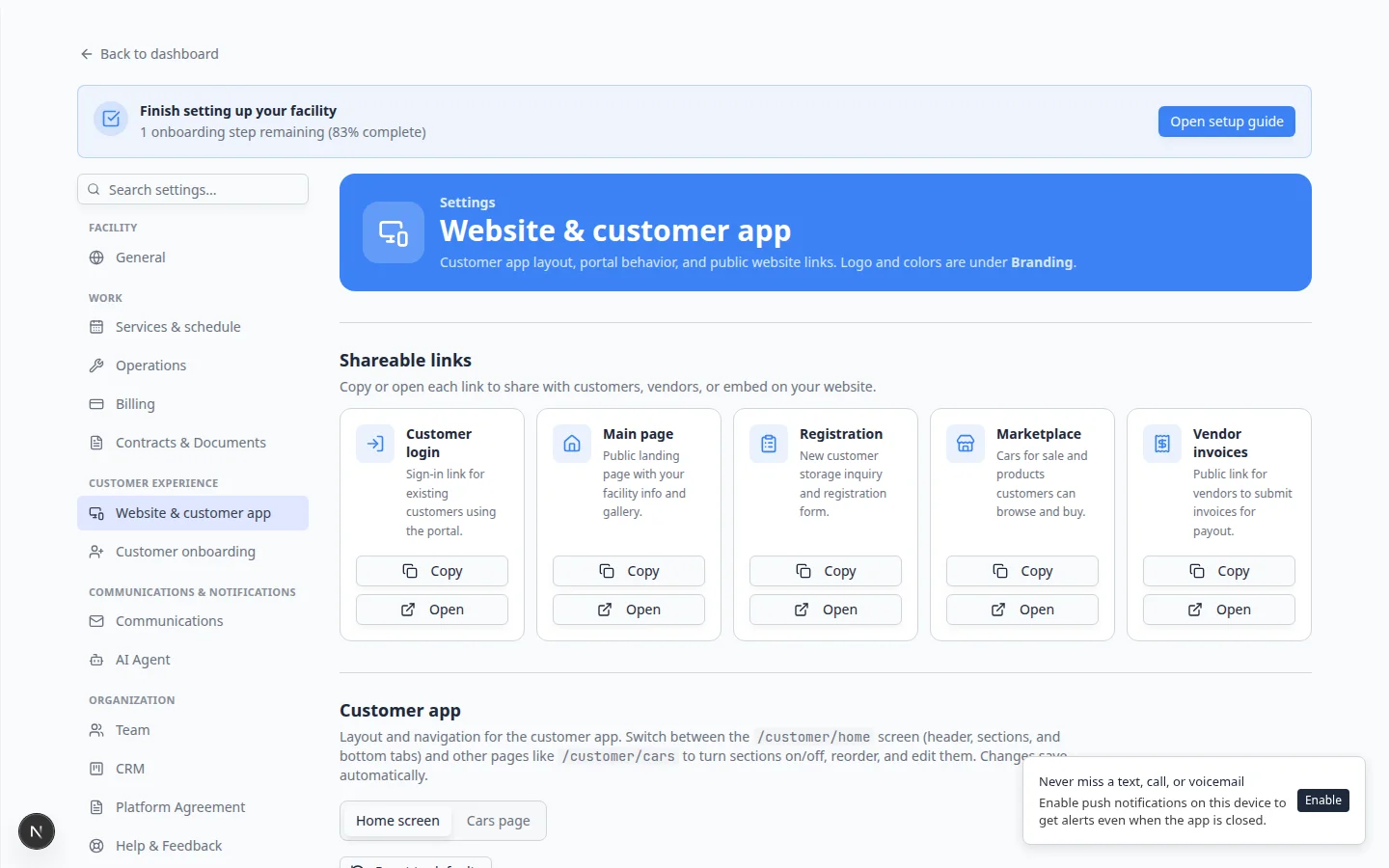
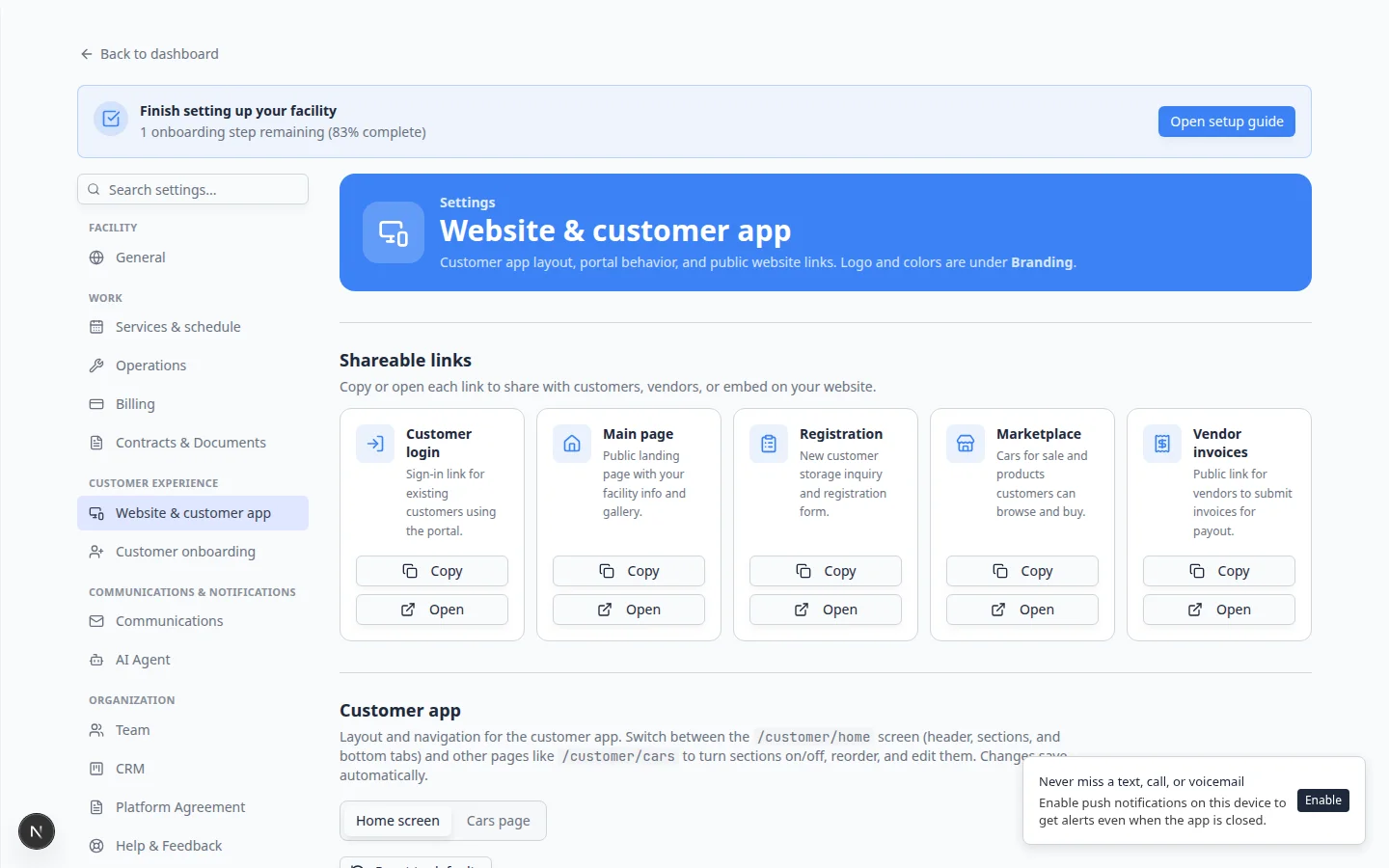
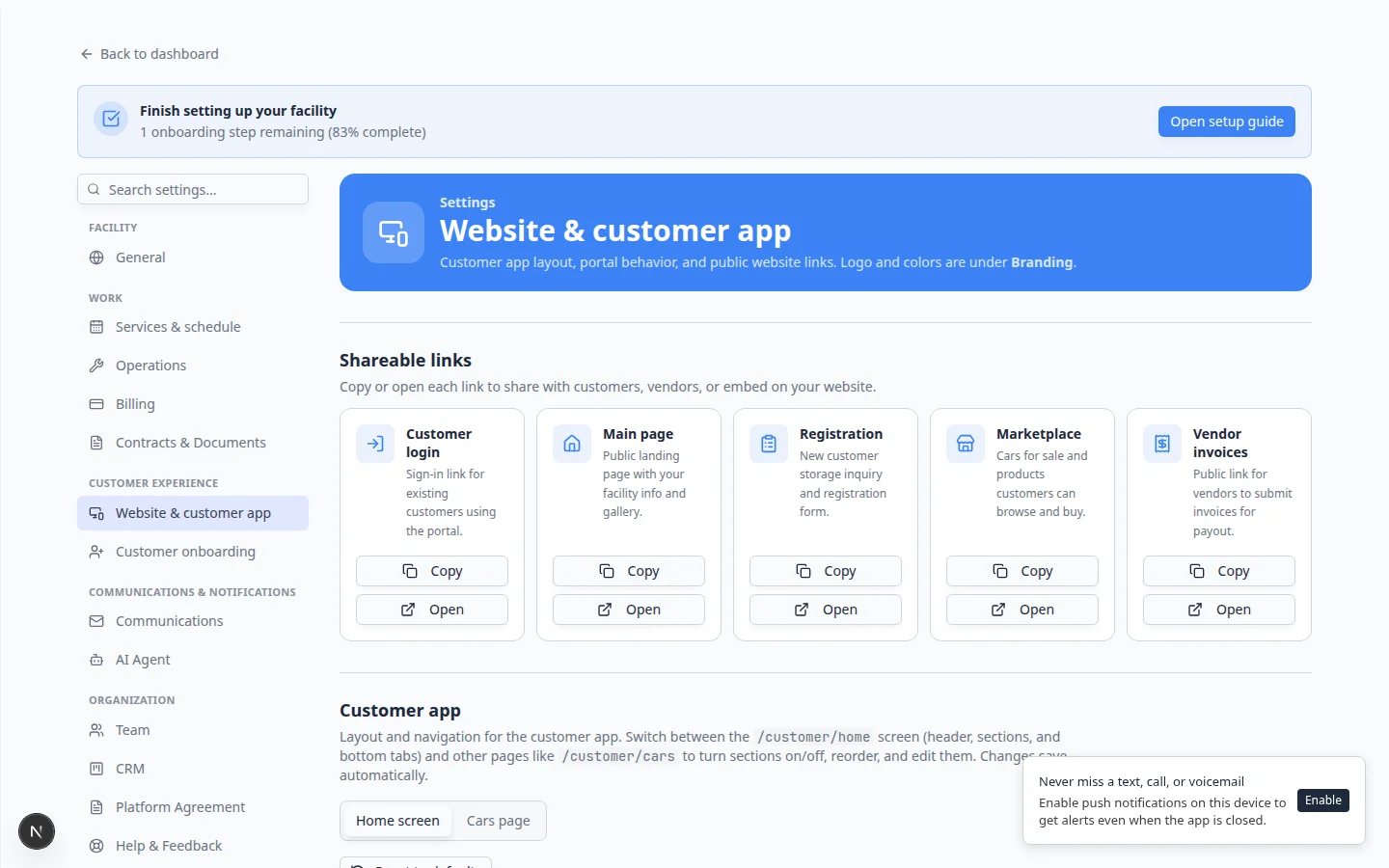
Go to Settings > Website & customer app.
Scroll to Public website.
Step 2: Turn on Public Facility Pages
Find the switch labeled Public Facility Pages and turn it on when you are ready for people outside your team to open your facility page.
Expected result
The live preview at the top of the page shows your facility page. The Page editor section appears below the preview.
Step 3: Choose your facility slug
In Page editor, open Header & page settings and find Facility slug.
A slug is the short name used at the end of your web address.
Good examples:
smith-storageapex-collector-carsdowntown-car-club
Avoid long names, spaces, punctuation, or words customers may spell wrong.
Your public page address will look like:
/facility/your-facility-slug
Expected result
Your facility has a public page address that your team can say, type, and share easily.
Step 4: Open Header & page settings
Before you add content sections, confirm the page address and any top-level toggles.
- Scroll to Page editor
On Settings > Website & customer app, scroll to Page editor.
- Expand Header & page settings
Click Header & page settings at the top of the editor panel.
Expected result: You see Header banner, Page address (Facility slug), and Vendor invoice portal.
Step 5: Edit the page with draggable sections
The Page editor lets you build your page section by section. Each draggable section appears in the live preview above.
- Click a section in the preview or the editor list
Click anything in the preview (for example the banner, services list, or a button area). The matching section opens in the editor below.
Why this matters: You see exactly what customers will see while you edit.
- Add or reorder sections
Use Add section to insert new rows. Drag the six-dot handle on the left to change the order.
Common built-in sections include:
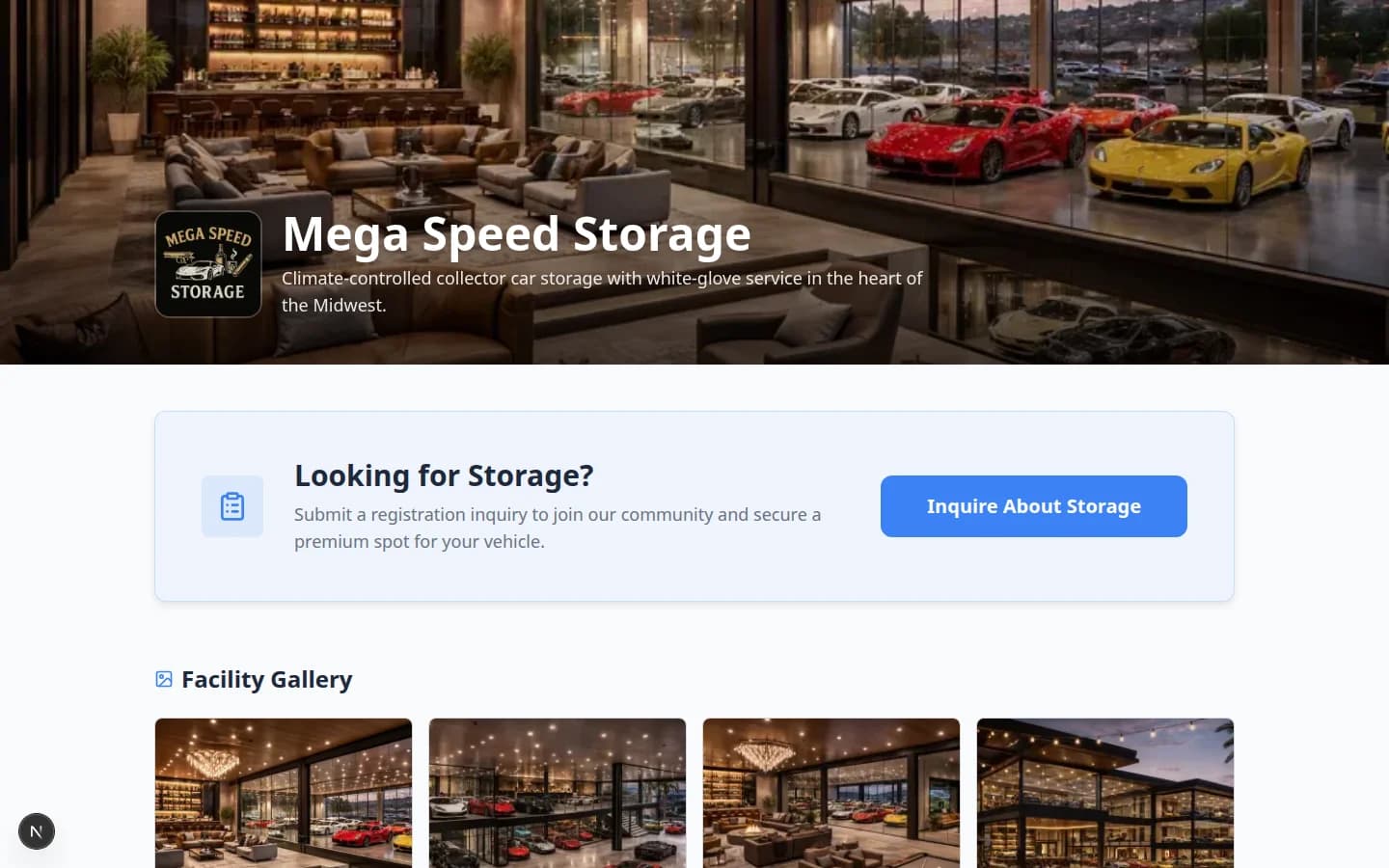
- Storage inquiry — a button on the public page. Customers see Looking for Storage? with an Inquire About Storage button that leads to registration
- Registration form — the full registration form embedded on the page
- About the facility — your description in plain language
- Services & amenities — checkboxes for climate control, detailing, transport, and similar
- Photo gallery — facility photos
- Customer reviews — reviews from Google or your team (see below)
- Cars for sale — preview of marketplace vehicles
- Marketplace — products, services, or memberships
- Set up Customer reviews (optional)
Click the Customer reviews section. If your facility has a Google Business profile, paste your Google Place ID and click the button to fetch reviews. Turn on the reviews you want visitors to see.
Why this matters: Real reviews help new prospects trust your facility before they call or visit.
- Turn a section on or off
Each section has its own on/off switch. Turn a section off when you are not ready for customers to see it yet.
Expected result: The live preview updates right away. Off sections disappear from the public page.
- Edit the header banner
In Header & page settings, upload a wide banner image (about 1920×600 pixels works well). Drag to adjust how the image is cropped.
Expected result: The top of your public page looks professional on desktop and mobile.
Step 6: Write a clear facility description
In the About the facility section (or your description field), write two or three sentences in plain language.
Example:
We provide secure indoor storage for collector and specialty vehicles. Our team helps with battery care, detailing appointments, and scheduled pickup or dropoff so your vehicle is ready when you need it.
Expected result
Visitors understand what your facility offers without needing to call first.
Step 7: Turn on customer actions your team is ready for
In the Page editor, each draggable section has its own on/off switch. Turn on only what your team can support today.
- Storage inquiry or Registration form
Use Storage inquiry when you want a button that leads to registration. Use Registration form when the full form should appear on the page itself.
Configure form questions in Settings > Customer onboarding.
- Marketplace
Turn on the Marketplace section when visitors should see cars, products, services, or memberships. Use the visibility control on that section to choose Public, Customers only, or All Car Storage Software users.
See Publish marketplace listings before sharing marketplace links widely.
- Vendor invoice portal (in Header & page settings)
Scroll to Header & page settings at the top of the Page editor. Turn on Vendor invoice portal only when outside providers should submit invoices through your public page.
Why this matters: This toggle is separate from draggable sections. After you turn it on, copy Vendor invoices from Shareable links.
Follow Set up the vendor invoice portal before sending that link.
Expected result
Visitors see the right buttons and sections for the next step you want them to take.
Step 8: Open the public page and review it
Open Main page from Shareable links, or click Open on that card.
Review the page as if you are a brand-new customer.
Check:
- The facility name is correct.
- The description is clear and friendly.
- The service list is accurate.
- The main button points to the right next step.
- Marketplace or registration sections appear only if you want them visible.
- The vendor invoice link appears only if vendors should use it.
Step 9: Check it on a phone-sized screen
Many prospects will open the page from a text message or mobile search result.
- Preview the public page on your phone
Open Main page from Shareable links on your phone. Check that text is easy to read and buttons are easy to tap.
- Compare with the mobile screenshot below
Your page should look similar: facility name at the top, clear services, and one obvious next action without sideways scrolling.
Why this matters: Many prospects open your link from a text message. A clear mobile layout builds trust before they call or register.
For the signed-in phone experience (after customers have an account), see Customize the customer mobile app.
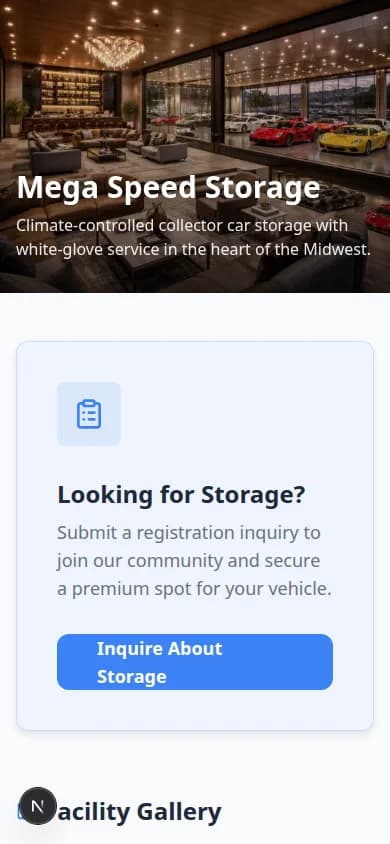
Check that:
- Text is easy to read.
- Buttons are easy to tap.
- Photos are not cut off in a confusing way.
- The most important action is visible without too much scrolling.
What success looks like
- Your public page has a simple Facility slug.
- The page explains your facility in plain language.
- Services and customer actions are accurate.
- Your team has previewed the page before sharing it.
Troubleshooting
What to do next
After the landing page looks ready, follow Set up customer registration if prospects should request storage from the page. If vendors should submit invoices through your public page, follow Set up the vendor invoice portal.