AI Assistant
Manage your assistant chats
Start a new conversation, find past chats, and keep each topic easy to follow.
What you will accomplish
You will learn how to use the chat list on the left side of the AI Assistant so your team can pick up where they left off, start a fresh topic, or delete an old conversation.
When to use this guide
Use this guide when:
- A staff member wants to ask a new question without mixing it into an old thread.
- You need to find yesterday’s lookup or setup conversation.
- A chat title is unclear and you want to clean up the list.
Before you start
- You can sign in to the dashboard as staff.
- You can open AI Assistant from the sidebar.
Open the chat list
On a computer, the chat list stays open on the left while you work. The top of that panel shows Dashboard (back arrow), New Chat, and your conversations grouped by day.
On a phone or small screen, use the History icon (clock) in the top-right corner of the page to open the chat list. Tap + beside it to start New Chat. Tap a conversation title to read it, then tap History again to hide the list when you need more room.
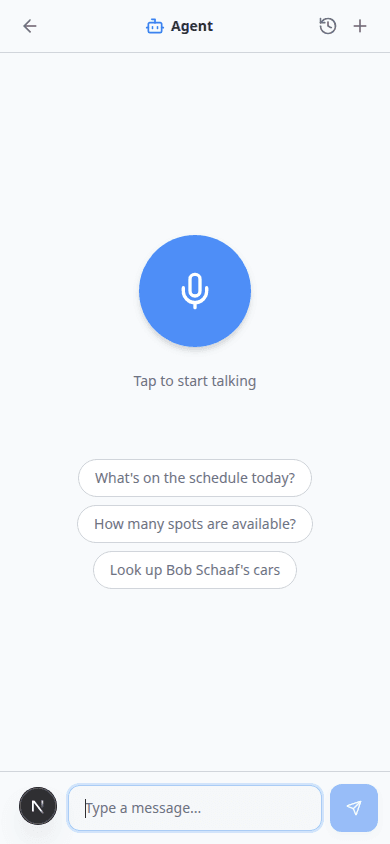
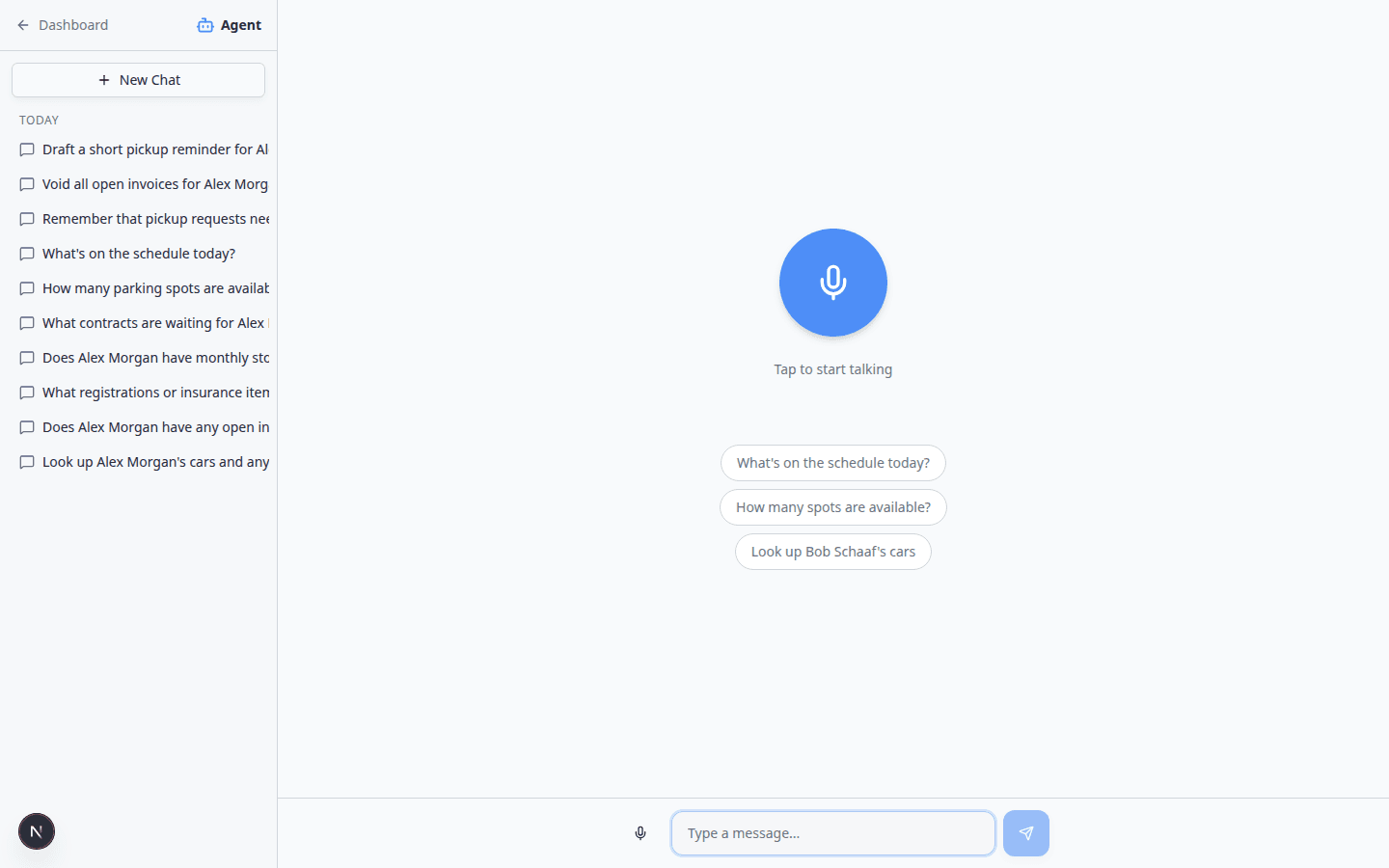
Expected result: You see Dashboard (to go back), New Chat, and your past conversations under headings such as Today, Yesterday, Last 7 days, and Older.
Start a new chat
- Open AI Assistant
In the dashboard sidebar, click AI Assistant, or open AI Assistant directly.
Expected result: The assistant opens on its own page with New Chat at the top of the left sidebar and your recent conversations listed below.
- Click New Chat
In the left sidebar, click New Chat.
Expected result: You return to the start screen with the microphone and suggested questions.
- Ask your question
Type in Type a message... at the bottom of the start screen, tap a blue suggestion chip, or speak after tapping the voice button.
Why this matters: A new chat keeps the assistant focused on one customer or task. The first message you send becomes the chat title in the sidebar (for example, Look up Alex Morgan's cars).
Tip: The blue suggestion chips on the start screen are shortcuts. They use customer names from your facility—click one to start quickly, or type your own customer's name.
Find an older conversation
- Scan the sidebar groups
Conversations are grouped as Today, Yesterday, Last 7 days, and Older.
Why this matters: Grouping helps you find a call from this morning without scrolling through months of history.
- Click the title you need
Click the conversation title. The full message history loads on the right.
Titles often match the first question you asked, such as Look up Alex Morgan's cars or What's on the schedule today?
Expected result: You see the same questions and answers from that session, including any proposal cards you did not confirm yet.
Delete a conversation you no longer need
Deleting a chat only removes the conversation history. It does not delete customers, cars, appointments, or messages you already saved.
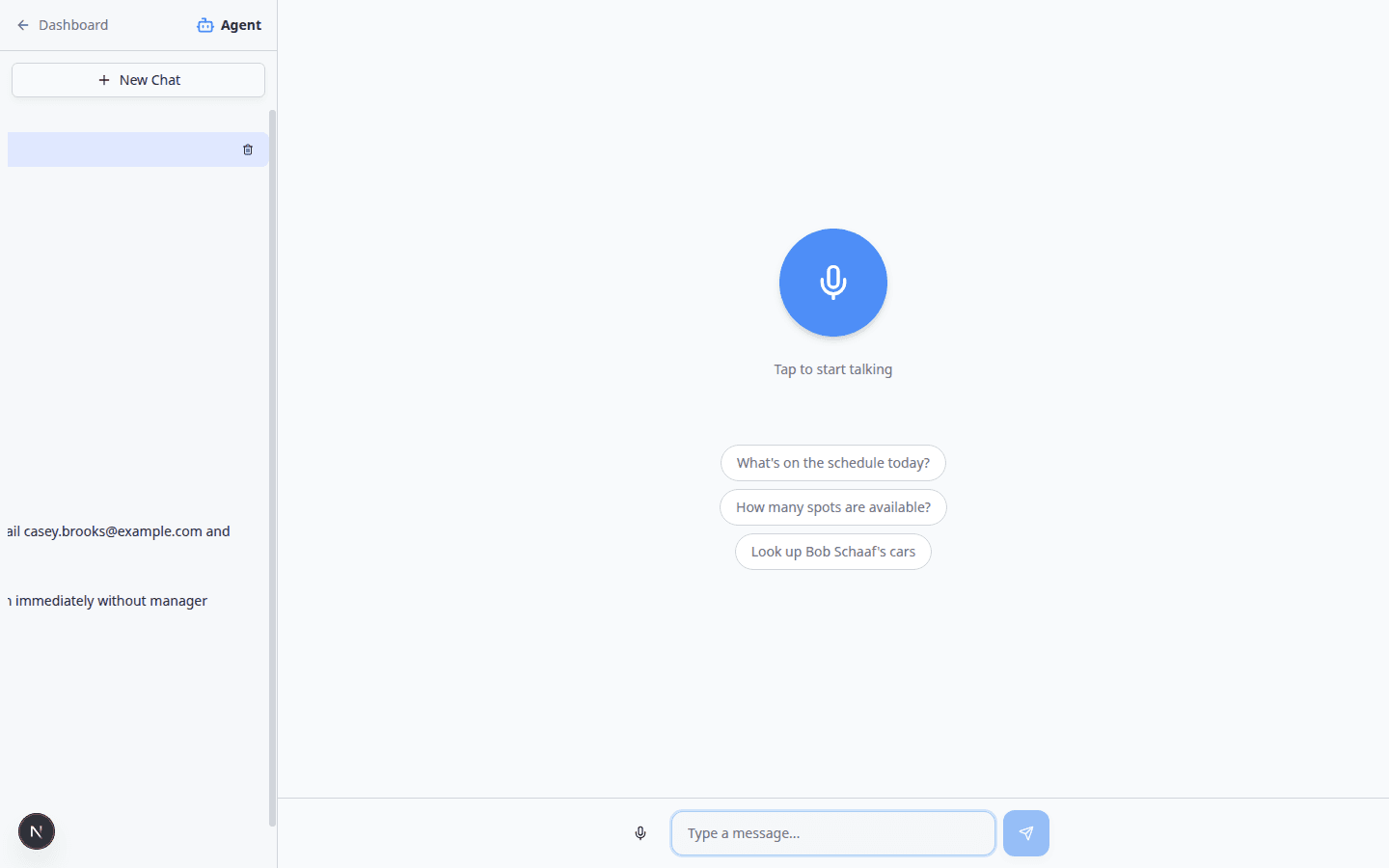
- Hover over the chat title
In the sidebar, move your pointer over the conversation you want to remove.
- Click the trash icon
Click the small trash icon that appears on the right side of that row.
- Confirm the chat is gone
The row disappears from your list.
Expected result: That conversation no longer appears in the sidebar. Your facility records are unchanged.
Return to the dashboard
- Click Dashboard
At the top of the left sidebar, click Dashboard (with the back arrow).
Expected result: You return to the main dashboard. Your chat history stays saved for next time.
Keep one topic per chat
One customer or job = one chat thread.
When you finish helping Alex Morgan and start helping Sam Rivera, click New Chat. That keeps history easy to read and prevents the assistant from mixing up names in follow-up answers.
When to delete old chats
You do not need to delete chats every day. Consider removing a conversation when:
- The title is confusing and you will never need that thread again.
- You started a test chat while training and do not want it in the list.
- You left unconfirmed proposal cards in a chat that is no longer valid—delete the chat after you confirm nothing important was saved.
Common mistakes
Troubleshooting
I do not see the left sidebar
On a small screen, tap the History icon in the top-right corner to open the chat list. On desktop, the list stays on the left automatically.
My chat list is empty
That is normal before anyone uses the assistant. After the first question, conversations appear under Today.
I cannot find a chat from last month
Scroll to the Older group in the sidebar. If it was deleted, you will need to ask the question again in a New Chat.
What to do next
- Use the AI Assistant in iMessage if your team texts the assistant from a group chat.
- Use the AI Assistant for clear questions and answers.
- Use the assistant during a customer call when you need fast lookups on the phone.
- Review AI proposals when the assistant prepares new records for you to confirm.