Contacts
Work with customer type lists
Use Storage, Detailing, Events, and other Contacts pages to focus on the right group of customers.
What you will accomplish
You will open the right customer type page in Contacts—such as Storage, Detailing, or Marketplace—so your list shows only the customers your team works with today. You will also know how to fix a missing customer when they do not appear on a type page.
Customer type pages are shortcuts. They do not create separate accounts. Each customer still has one main record on All Contacts.
When to use a type page
- Your role focuses on one service line (for example storage coordinators use Storage every morning).
- You want a shorter list without scrolling past marketplace buyers or event-only contacts.
- You are following up with everyone in one group after a campaign or event.
Use All Contacts instead when you are not sure which group someone belongs to, or when you need to search everyone at once.
Before you start
- You can open Contacts from the left sidebar.
- Your facility has already set up customer groups in Configure CRM settings (an admin task).
Open a customer type page
- Click Contacts in the sidebar
In the left sidebar, click Contacts.
Expected result: The Contacts area opens. On desktop, you may see sub-links such as All Contacts, Storage, and Vendors.
- Expand Contacts if needed
If you only see one Contacts link, click the small arrow beside Contacts to expand the list.
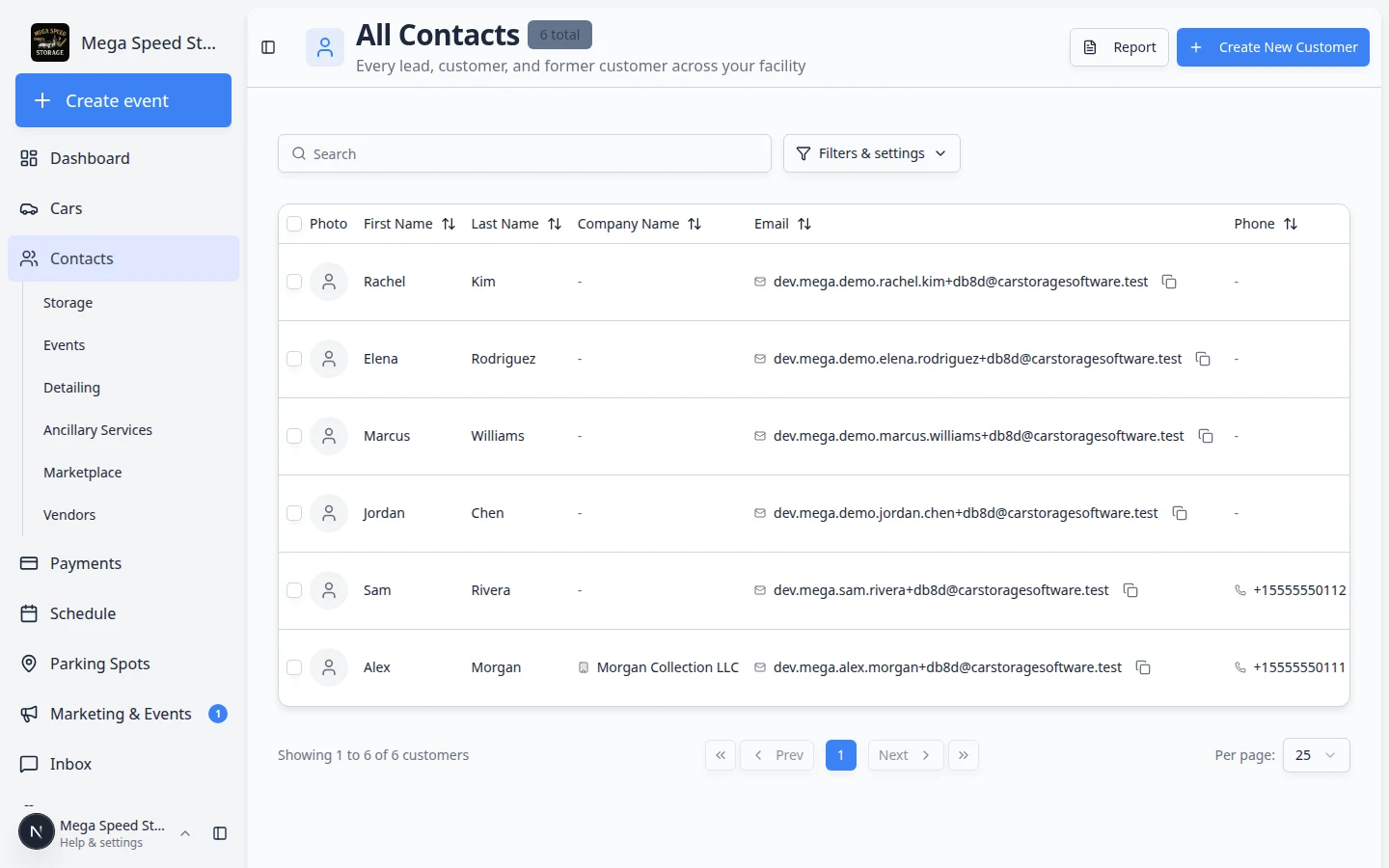
Each link under Contacts opens customers who belong to that customer group. - Click the type that matches your work
Choose the page that fits your task—for example Storage for vehicle storage customers.
You can also open links directly:
- All Contacts
- Storage
- Events
- Detailing
- Ancillary Services
- Marketplace
- Vendors (outside providers—not customers)
Expected result: The page title at the top matches the type you chose (for example Storage).
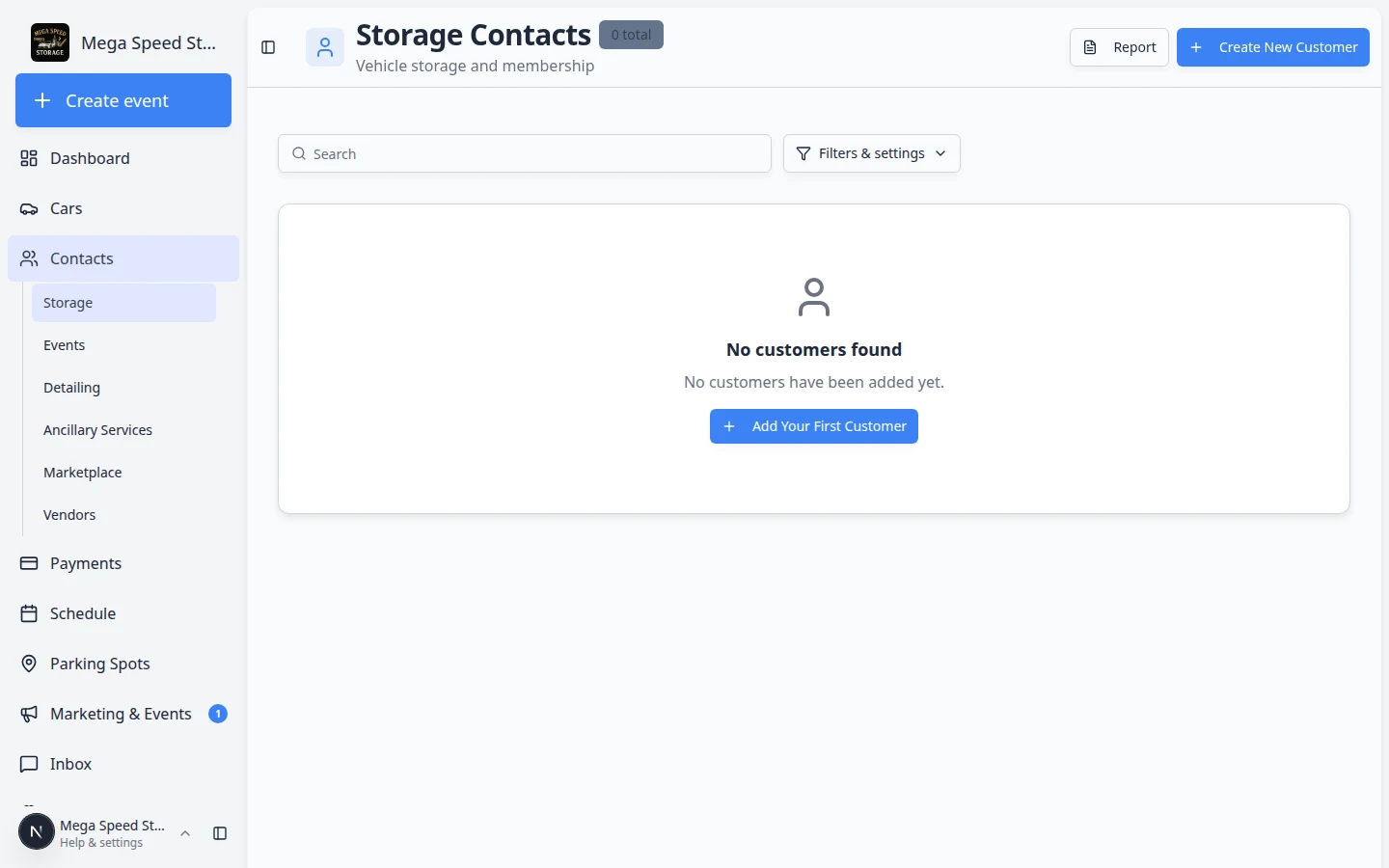
What changes on a type page
| Tool | Same as All Contacts? | Notes |
|---|---|---|
| Search | Yes | Searches within this type only |
| Filters & Settings | Yes | Table, Card, and Board views work the same |
| Create New Customer | Yes | Remember to add the right Customer Groups on the new record |
| Report | Yes | Opens the full Customer Report |
| Who appears in the list | No | Only customers with this type on their record |
Why this matters: A customer can belong to more than one group. Someone might appear on both Storage and Detailing if your team tagged them that way.
Add or change a customer's type
If a customer is missing from a type page, their record probably needs the right Customer Groups tag.
- Open the customer on All Contacts
Go to All Contacts and open the customer record.
Why this matters: You can edit groups from any page, but All Contacts is the safest place to start when you are not sure where someone belongs.
- Scroll to CRM Information
Find CRM Information on the customer detail page.
- Update Customer Groups
Under Customer Groups, add or remove types (for example Storage, Detailing).
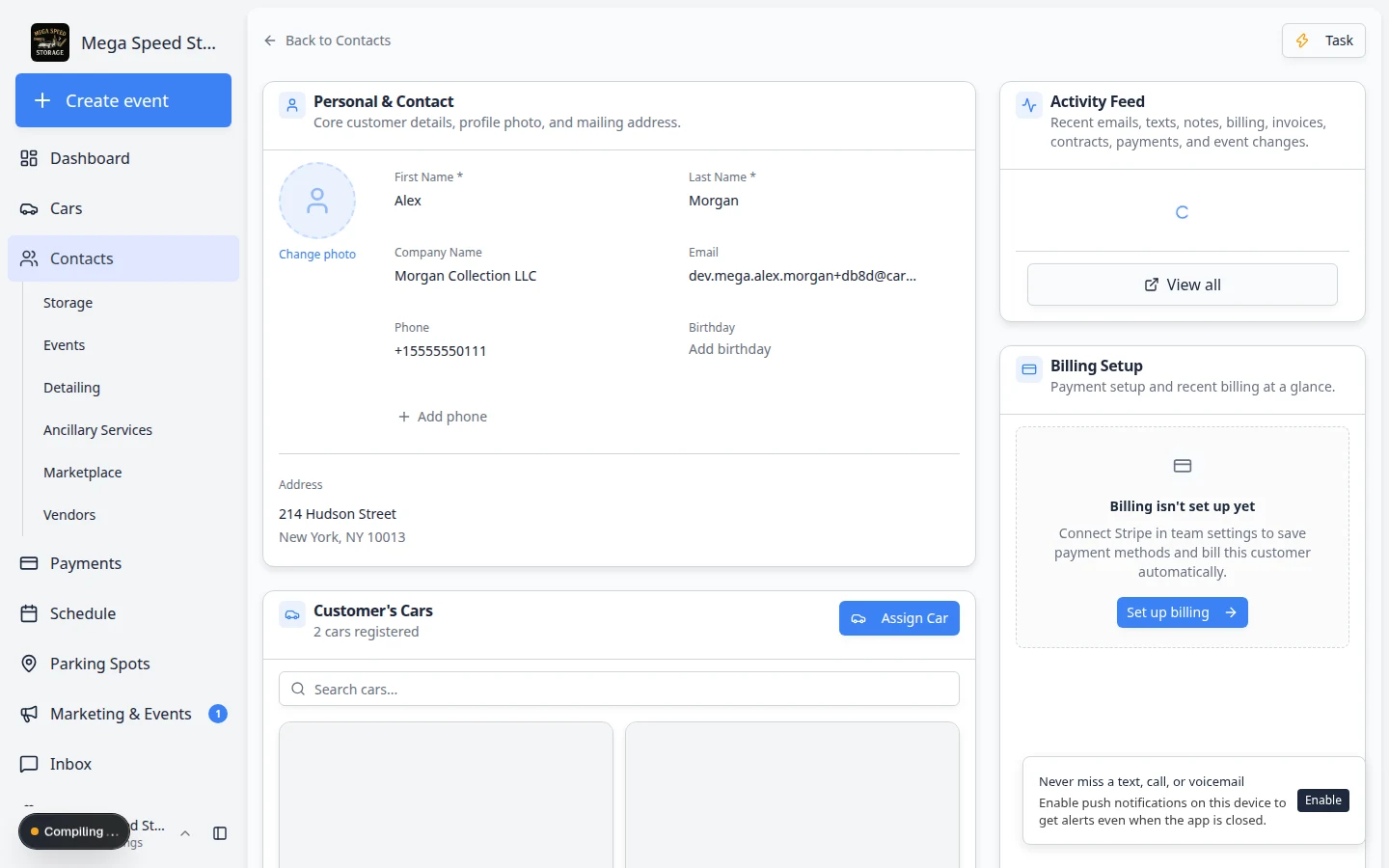
Customer Groups control which type pages show this customer. Add every group that applies—someone can appear on both Storage and Detailing. Expected result: After you save, the customer appears on each matching type page. Refresh the Storage (or other) list to confirm.
See Manage contact tags and CRM fields for more on stages, sources, and tags.
Vendors are different
Vendors appears under Contacts in the sidebar, but vendors are outside companies your facility pays—not storage customers.
Use Work with vendor contacts for detailers, transport companies, and similar partners. Use customer type pages for people who store cars or buy services from you.
Troubleshooting
What to do next
- Learn search and Board view: Find and filter contacts
- Add a new customer with the right groups: Add a customer
- Manage outside providers: Work with vendor contacts