Events
Set up service plans
Bundle recurring services into named plans so stored vehicles get the right care on a repeating schedule.
What you will accomplish
You will create a service plan—a named package of repeating work (monthly checks, quarterly dealer service, yearly inspections) that your team can assign to vehicles on Cars.
When service plans are set up well:
- Staff know which recurring care belongs to each storage tier or membership level.
- Schedule shows upcoming recurring appointments without manual re-booking every month.
- Customers understand what is included in their plan name and description.
- Managers can review which cars are on which plan from the vehicle record—not from a spreadsheet.
When to use a service plan
Use a service plan when the same bundle of work repeats for stored vehicles—for example Basic Storage Check (one monthly internal service) or Premium Care Plan (monthly internal + quarterly dealer service).
Do not use a service plan for one-time charges. Use Create an invoice or Manage recurring billing for repeating payments.
Before you start
- You can open Settings > Services & schedule as a team admin.
- Event types already exist for each kind of work in the plan (for example Internal Service, Dealer Service). Create them first with Configure event types.
- You decided on a customer-friendly plan name and a short description.
- Optional: if the plan ties to a paid membership, finish Connect payment processing before linking a price.
Review the Service plans section
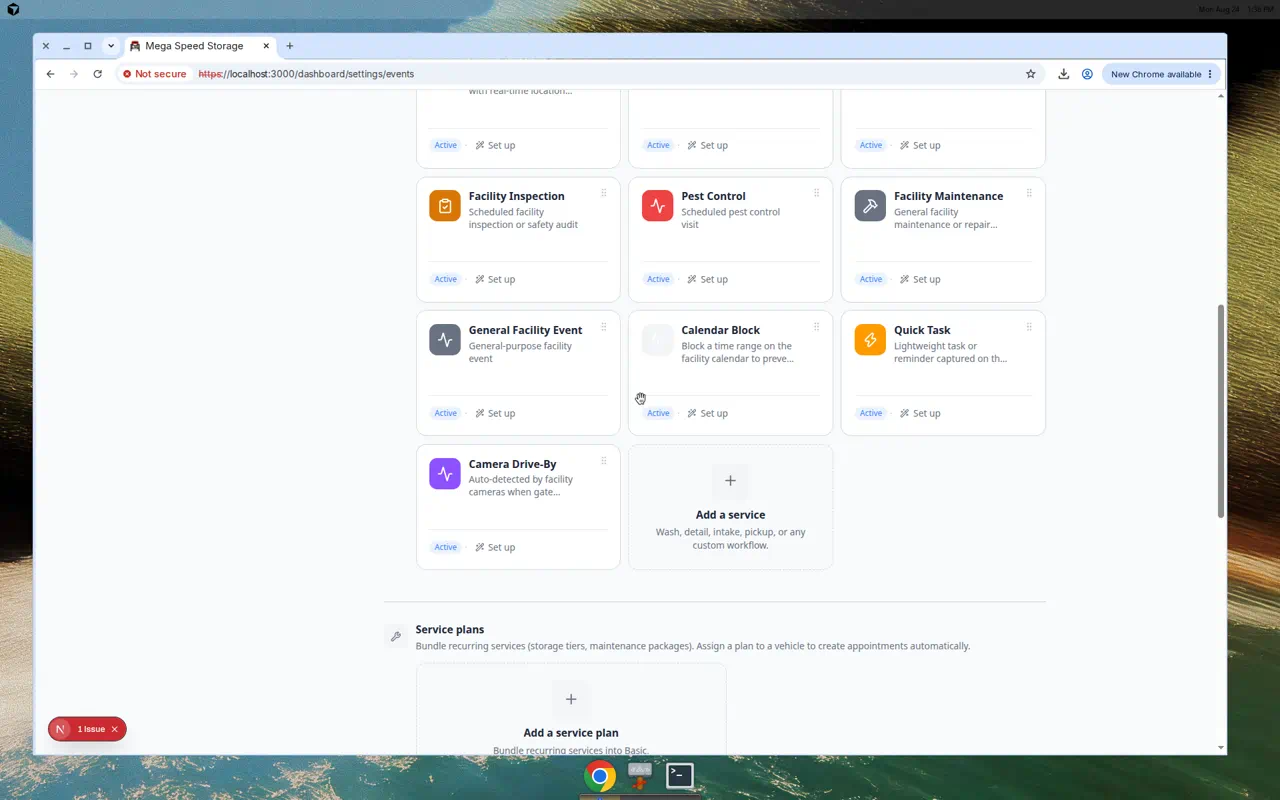
Before you add a plan, scroll to Service plans on Settings > Services & schedule. An empty section shows only the Add a service plan tile. A populated section shows plan cards with item counts and Active status.
Create a service plan
- Open Services & schedule
Go to Settings > Services & schedule.
Scroll to Service plans.
Expected result: You see plan cards (or an empty section with Add a service plan if this is your first plan).
- Click Add a service plan
Click the dashed Add a service plan tile.
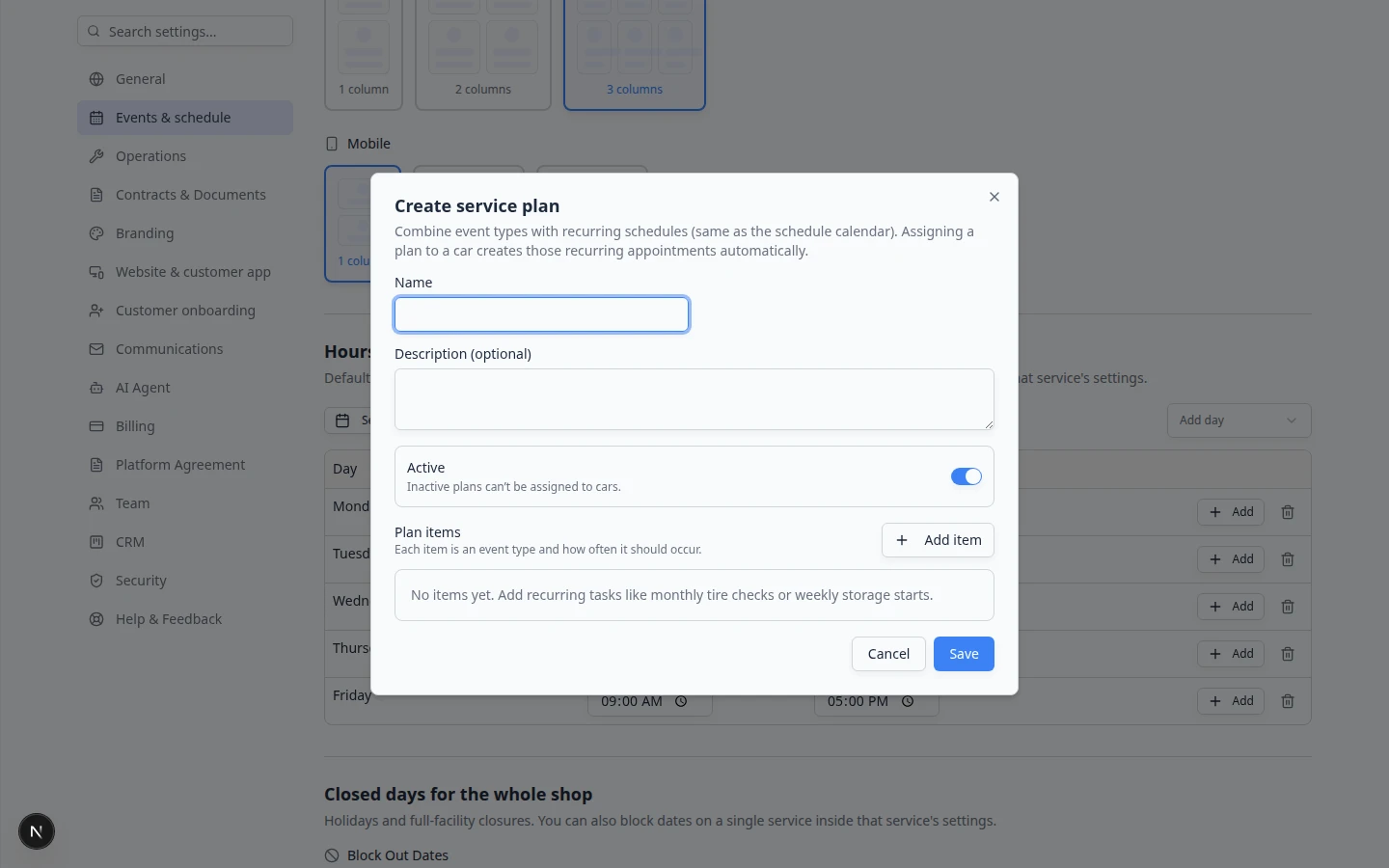
Expected result: A window titled Create service plan opens with fields for name, description, Active, optional linked price, and Plan items.
- Name the plan
In Name, type a label staff will recognize on car records.
Good examples: Basic Storage Check, Premium Care Plan, Climate Storage Plus.
Why this matters: The same name appears when staff assign care to a vehicle and when managers review the schedule.
- Add a plain-English description
In Description (optional), write one sentence about what is included.
Example: Monthly internal service, quarterly dealer service, and yearly condition review.
Expected result: A new teammate can read the description without asking what the plan covers.
- Keep Active turned on
Leave Active on if staff should assign this plan now. Turn it off while you are still drafting—inactive plans cannot be assigned to new vehicles.
- Add plan items
In Plan items, click Add item. For each row, set:
- Event type — the kind of work (from your event types list).
- Recurring schedule — how often it repeats (weekly, monthly, quarterly, and so on). Leave Until empty for no end date.
- Default start time and Duration — when the first occurrence should appear on Schedule.
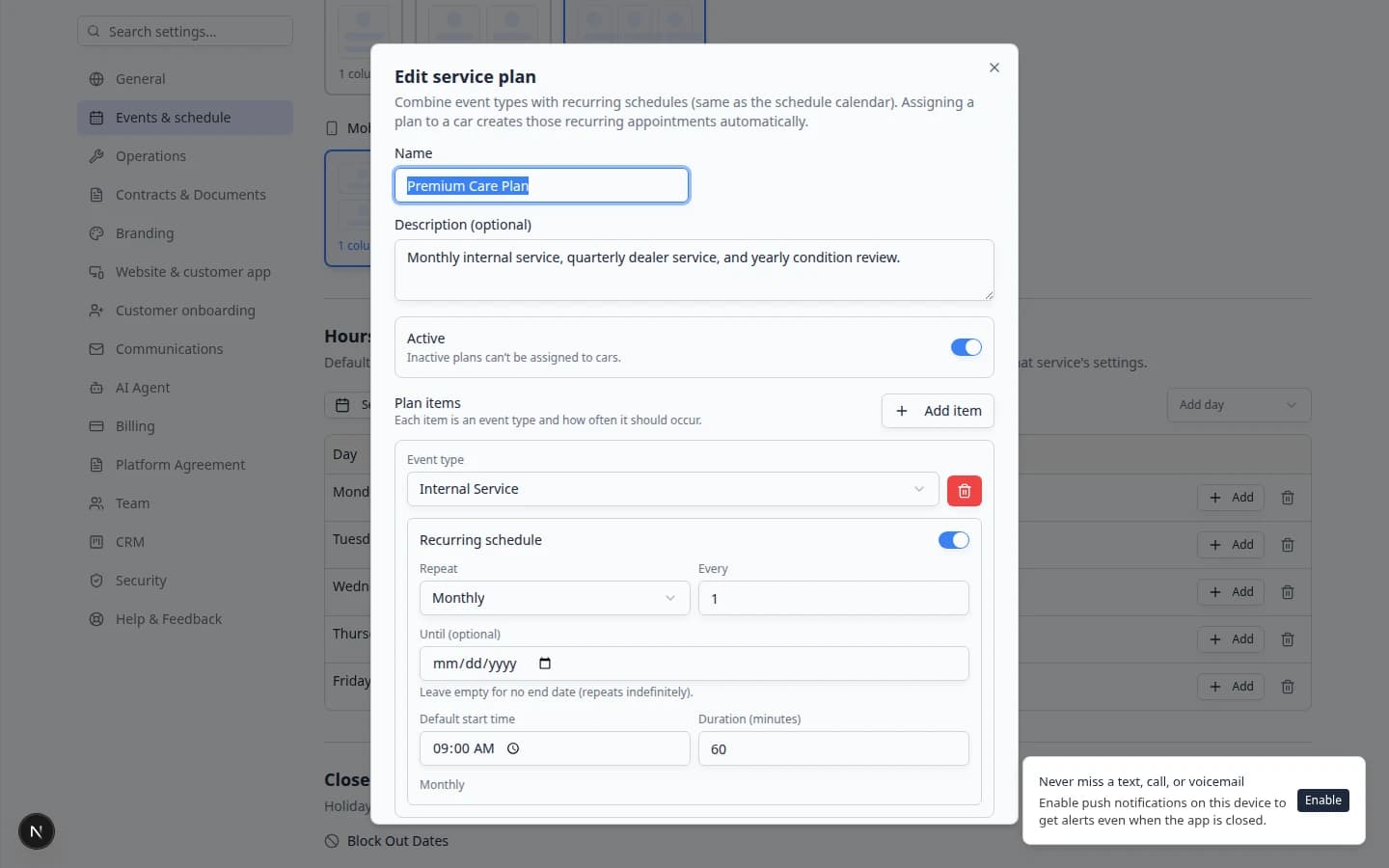
Example: Internal Service, repeats monthly, starts at 9:00 AM for 60 minutes.
Click Add item again for each additional repeating task.
- Click Save
Click Save at the bottom of the window.
Expected result: The plan appears as a card in the Service plans section with an item count and Active status.
Example plan items
A Premium Care Plan might include:
- Internal Service — every 1 month
- Dealer Service — every 1 quarter
- New Car Intake — every 1 year (yearly condition review)
Start with one monthly item if you are unsure. You can add more items later without rebuilding the plan from scratch.
Assign a plan to a vehicle
Creating the plan does not attach it to cars automatically. Each vehicle needs its own assignment and start date—usually the day storage begins or the day the membership starts.
- Open Cars
Go to Cars and open the vehicle that should receive this care (for example a stored Lamborghini or Porsche).
- Find Service plan on the car page
Scroll to Service plan on the vehicle detail page.
Expected result: You see a dropdown of active plans and a start date field.
- Choose the plan and start date
Select your plan from the list. Set the start date when recurring care should begin (often the storage start date).
Save the car record.
Expected result: The car shows the active plan name. Upcoming recurring work appears on Schedule based on the plan items and start date.
- Confirm recurring appointments on Schedule
Open Schedule and look a few weeks ahead for the vehicle.
Why this matters: Service plans only help when staff see the future appointments on the calendar—not just the plan name on the car record.
Expected result: You see tentative or scheduled events for each plan item (for example monthly Internal Service). If nothing appears, check that the start date is today or in the past and the plan is Active.
For how those appointments look on the calendar, read Understand tentative and service plan events.
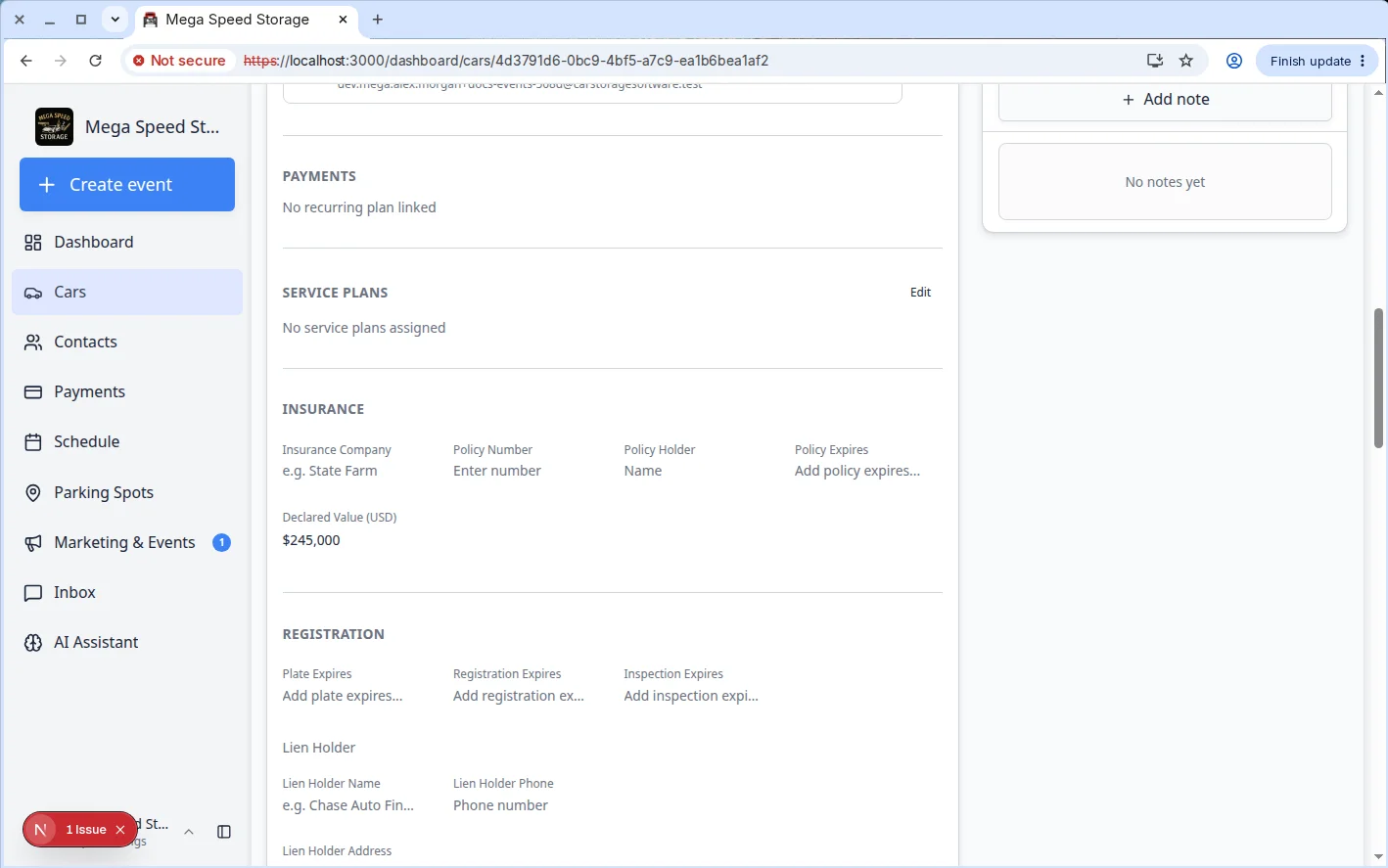
For additional screenshots of the assignment field from the Settings docs path, see Set up vehicle service plans.
Edit or archive a plan
- Return to Service plans
Open Settings > Services & schedule and scroll to Service plans.
- Click Edit
Click Edit on the plan. Update the name, description, items, Active switch, or linked price. Click Save.
Why this matters: Changing repeat rules affects future appointments. Review Schedule for cars already on the plan after you save.
- Click Archive when the plan retires
Click Archive when the plan should no longer be assigned to new cars.
Why this matters: Archiving keeps history for cars that already used the plan while hiding it from new assignments.
What success looks like
After setup:
- Each storage tier or membership has a clearly named plan staff recognize.
- Cars on a plan show the plan name on the vehicle record.
- Schedule shows upcoming recurring appointments without someone re-booking each month by hand.
- Customers can read the plan description and know what care is included.
Troubleshooting
What to do next
- Assign the plan to more vehicles from Cars.
- Run Test an event setup for each event type used in the plan.
- Review Understand tentative and service plan events so staff know how recurring items appear on the calendar.
- Return to Events overview for the full setup path.