Inbox
Configure communication settings for Inbox
Set up phone, text, email, and staff alerts so your team can use Inbox with confidence.
Use this guide when Inbox buttons are grayed out, messages will not send, or your team is getting ready to use customer texts, emails, and calls for the first time.
Most setup happens on Settings > Communications. This guide explains what to check on that page and why each setting matters for day-to-day Inbox work.
What you will accomplish
- Understand which settings control texting, calling, and email in Inbox.
- Confirm your facility has a customer-facing phone number and email domain.
- Choose who should receive alerts when customers need a reply.
- Know how to test Inbox safely before messaging real customers.
Before you start
- You should be signed in as a team member who can open Settings > Communications. Facility owners and admins usually have this access. Other staff need the Inbox permission—ask your admin to review Manage team permissions if the page is blocked.
- Know the phone number your customers already recognize for your facility.
- Know the email address style you want to use, such as service@yourfacility.com.
- Have someone ready to help with website or domain records if the app asks for DNS verification.
- Decide which staff members should watch Inbox and respond to customers.
Open communication settings
- Open Settings > Communications
Go to Settings > Communications.
This page controls phone and text messaging, email sending, social links, review requests, and notification preferences.
- Scan the page from top to bottom
Work through these areas in order:
- Phone Number & SMS Text Messaging — needed for texts and calls in Inbox.
- Email Domain & Deliverability Settings — needed for emails from Inbox.
- Notification Preferences & Alerts — tells staff when customers need a reply.
- Other sections on this page (such as social links or review requests) are optional for Inbox but help your overall customer communication.
- Save your changes
Save any updates before returning to Inbox.
If the page shows verification steps, finish those steps before you test texting or email with customers.
Expected result: You can see all three communication sections and any setup buttons your team still needs to finish.
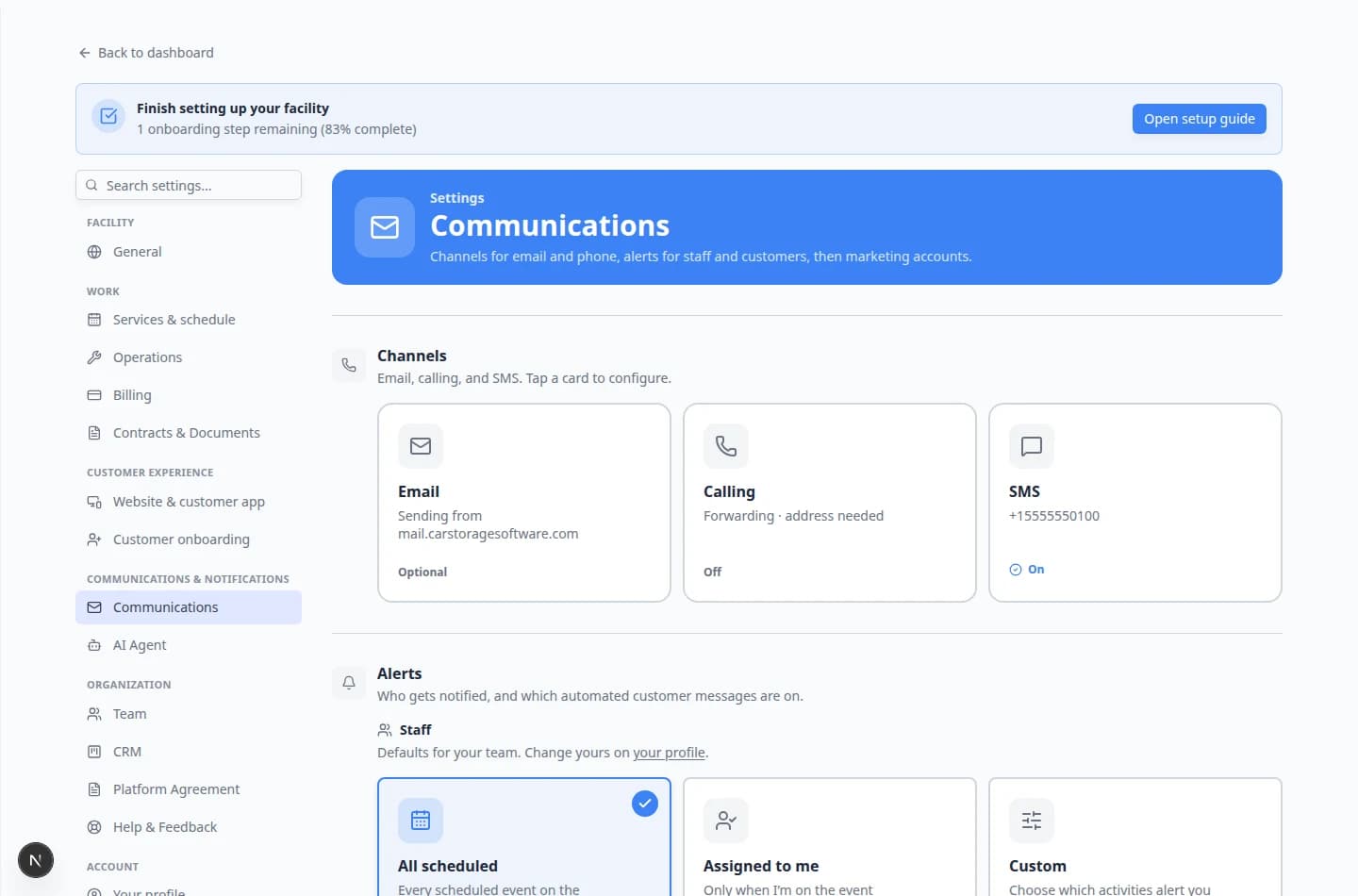
Check phone and text messaging
Phone setup affects customer texts, bulk text tools, and calling from Inbox.
- Find Phone Number & SMS Text Messaging
On Settings > Communications, find the heading Phone Number & SMS Text Messaging.
This section is near the top of the page.
- Confirm your team has a phone number
Your facility should show a business phone number customers can recognize.
If there is no number yet, follow the setup option on the page or ask your admin to connect one.
- Confirm SMS is ready
Text messaging must be active before staff can send customer texts from Inbox.
If the Text button is gray in Inbox, start here first.
- Confirm calling is ready if your team uses calls
Calling must be active before staff can use Call or Quick call from Inbox.
Expected result: Inbox can show an active Text button and Call button when a customer has a valid phone number.
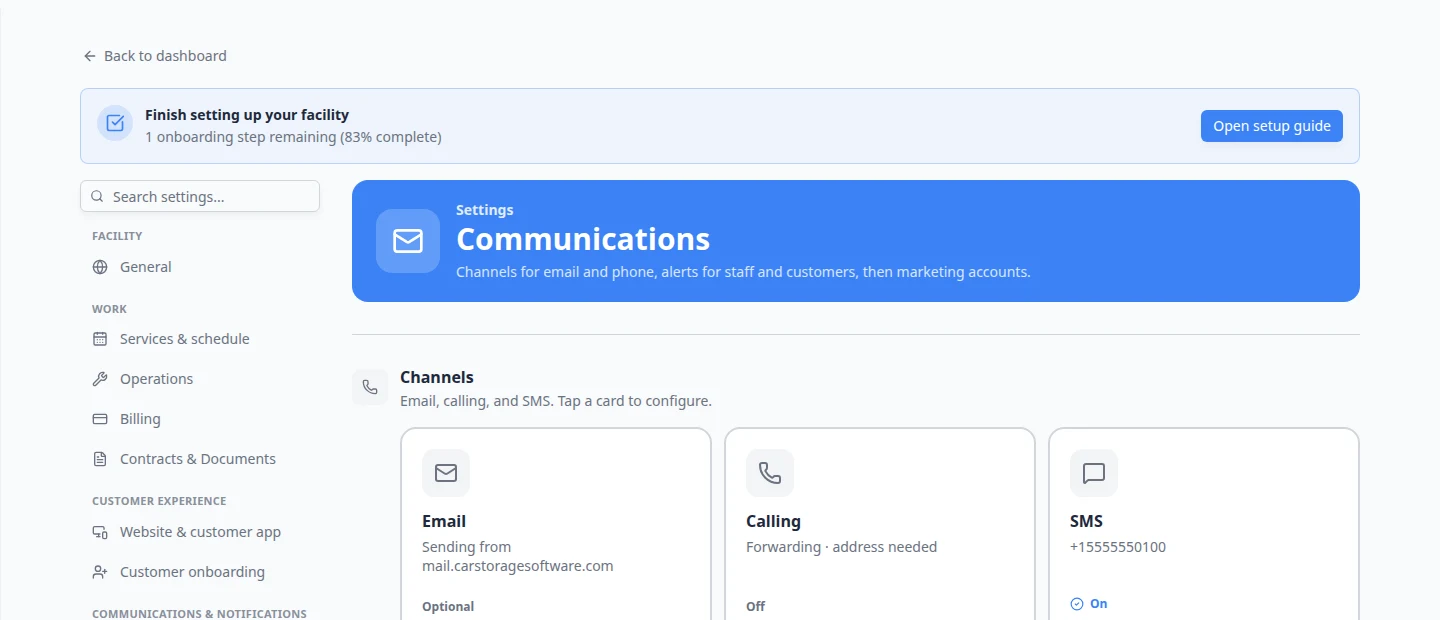
Check email sending
Email setup affects Inbox replies, invoice emails, portal invites, campaign emails, and other customer messages.
- Find Email Domain & Deliverability Settings
Scroll to Email Domain & Deliverability Settings on the same page.
- Confirm your sending domain
The domain is the part after the @ symbol in an email address.
Example: in service@yourfacility.com, the domain is yourfacility.com.
- Complete verification if requested
The app may ask for domain records such as SPF, DKIM, DMARC, or MX.
These records are usually added where your website domain is managed. If those terms are unfamiliar, copy the records exactly and send them to the person who manages your website or domain.
- Return to Inbox and test email
After email is verified, open Inbox, choose a customer with an email address, click Email, and confirm the Subject and message fields are available.
Expected result: The Email button in Inbox is available for customers who have an email address on file.
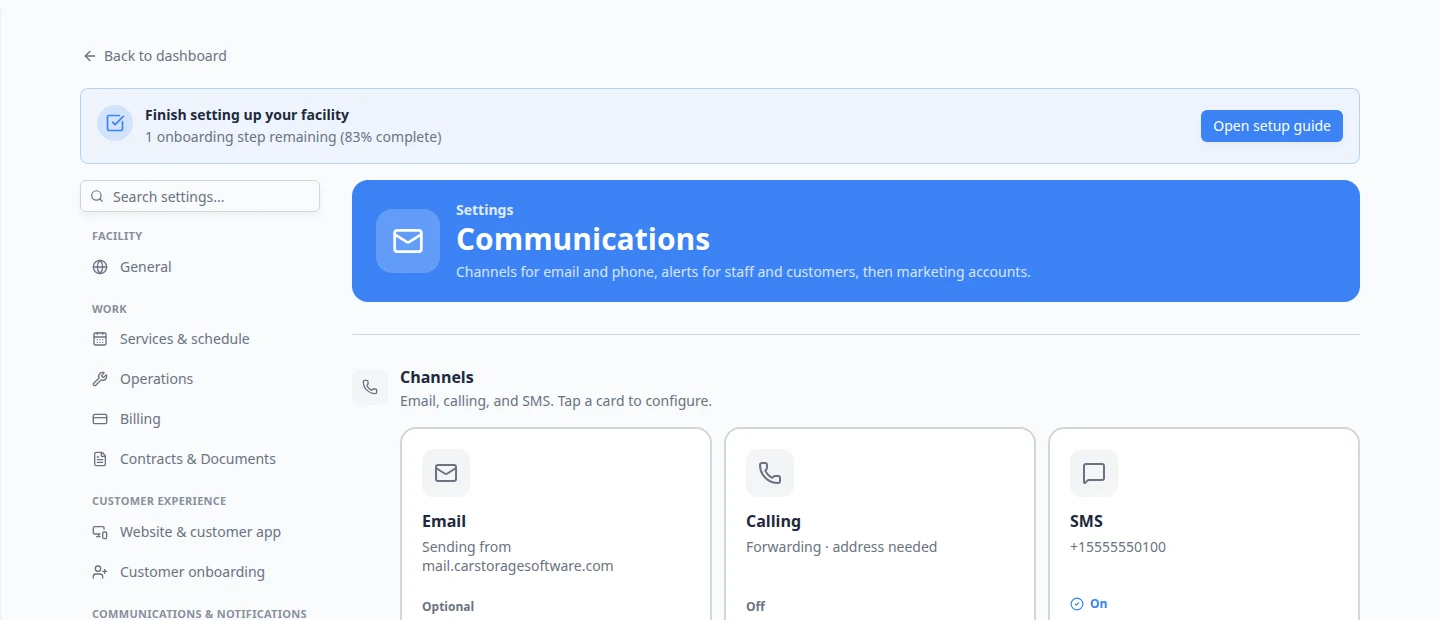
Check staff notifications
Notifications help staff know when a customer needs attention.
- Find Notification Preferences & Alerts
Scroll to Notification Preferences & Alerts on Settings > Communications.
- Turn on alerts people can act on
Turn on alerts for the staff who should respond.
Avoid sending every alert to everyone. Too many alerts can make important messages easier to miss.
- Review team roles if someone is missing alerts
If a staff member cannot open Inbox or does not receive expected alerts, review their access in Settings > Team.
- Turn on personal push alerts (optional)
Each staff member can also choose how they want to be notified on their own account. Open your profile menu (your name or avatar at the top of the dashboard), then open Notification preferences.
Why this matters: Facility-wide settings on this page tell the system who may get alerts. Personal preferences tell the system how each person wants to be pinged (for example browser notifications on their laptop).
Expected result: Staff who watch Inbox during busy hours receive new-message alerts without everyone on the team getting every ping.
Expected result: The right people know when a new customer text, email, or call needs follow-up.
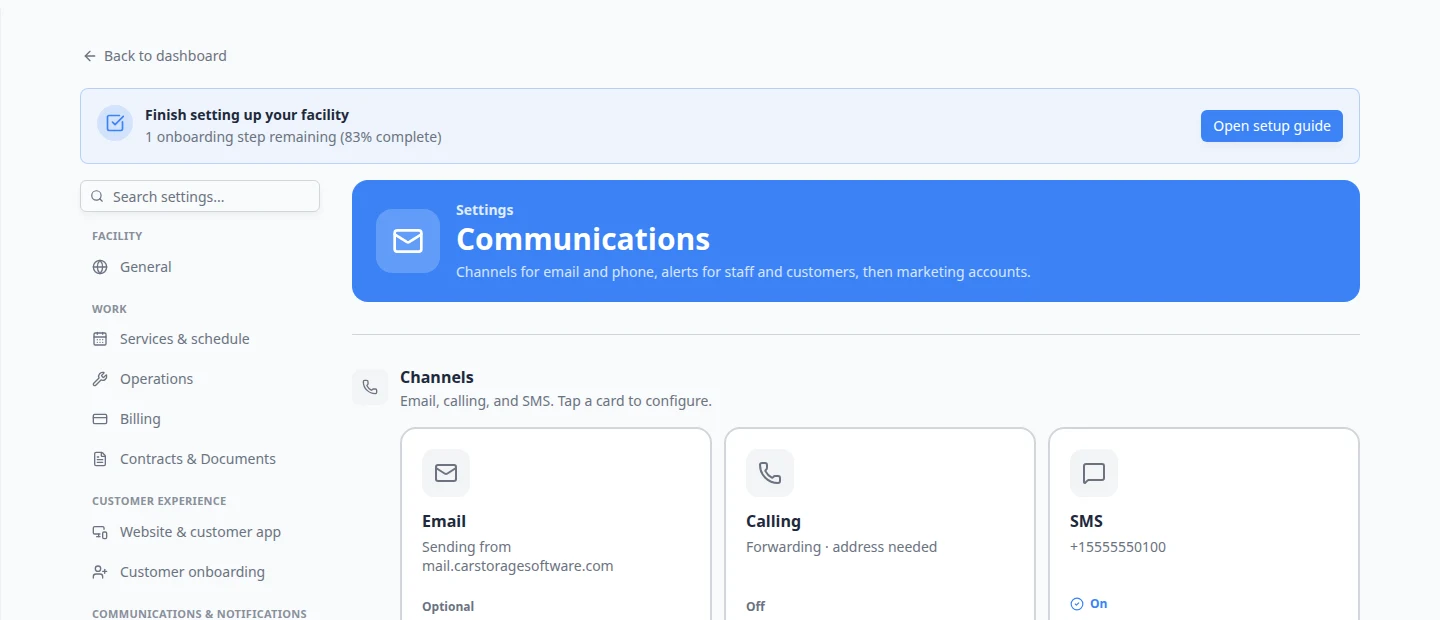
Test before you message customers
After you save settings, confirm each channel works before real customers depend on replies.
- Open Inbox and check the yellow banner
Go to Inbox.
Expected result: The yellow Inbox isn't configured yet banner is gone when at least one channel (text or email) is ready. If the banner remains, return to Settings > Communications and finish the missing section.
- Pick an internal test customer
Use a customer record your team controls, such as a staff-owned test account.
Why this matters: A test message to a real customer can cause confusion. Use someone on your team who expects the test.
- Send one small test text or email
Follow Start a new Inbox conversation or Send an email from Inbox with that test customer.
Check that Text, Email, and Call buttons look active (not gray) when the customer has phone and email on file.
Expected result: The message appears in the timeline. Texts should show DELIVERED when SMS is configured.
- Confirm staff alerts (optional)
Ask one front-desk teammate to open Overview on another browser tab, then send a test message to your facility line.
Expected result: The teammate sees the conversation in the Inbox panel or receives a browser notification when alerts are enabled.
- Fix setup before going live
If buttons stay gray or messages fail, return to Settings > Communications and finish the missing step.
Expected result: Your team can send a test message successfully before using Inbox with real customers.
Quick setup checklist
Use this table before you tell staff Inbox is ready:
| Check | Where to look | Ready when… |
|---|---|---|
| Business phone number | Phone Number & SMS Text Messaging | A number your customers recognize is shown |
| Texting (SMS) | Same section | Text is not gray in a test conversation |
| Calling | Same section | Call and Quick call are not gray |
| Email domain | Email Domain & Deliverability Settings | Domain shows verified (or your admin finished DNS records) |
| Staff alerts | Notification Preferences & Alerts | The right people receive new-message alerts |
| Internal test | Inbox | A test text or email appears in the timeline |
What success looks like
After setup:
- Inbox shows available Text, Email, and Call options when setup is complete and the customer has contact details on file.
- Customer messages are sent from a phone number or email domain your customers recognize.
- Staff know who is responsible for watching Inbox.
- Your team completed a small internal test before using the channel with customers.
Troubleshooting
What to do next
After communication settings are ready, open Inbox and run the test before you message customers steps above. When a test message appears in the timeline, continue with Start a new Inbox conversation.
If more than one person will answer customers, share Coordinate with your team in Inbox.
For the full settings walkthrough outside Inbox, see Configure communications.