Product update
Bulk customer stage updates
Select many contacts on the customer list and move them to a new CRM follow-up stage in one action.
After a show, renewal push, or import cleanup, updating stages one row at a time does not scale.
Why we built it
CRM stages tell your team who is a lead, who is in onboarding, and who needs follow-up today. When dozens of contacts should move together—everyone who toured last weekend, or every lead from one ad—bulk customer stage updates let staff select multiple rows on All Contacts and apply a single new stage in one dialog instead of opening each record.
Who it is for
- Sales and front-desk staff maintaining pipeline hygiene on the contacts Table view.
- Managers aligning stages after Import customers or acquisitions.
- Teams that filter by stage or source first—see Smarter campaign audience targeting—then bulk-move the same cohort.
What you can do
- Select contacts with row checkboxes in Table view.
- Open the selection Actions menu and choose Change CRM stage.
- Pick the target stage from grouped Lead, Customer, and Former Customer lists (stages come from Configure CRM settings).
- Apply the stage to every selected contact in one confirmation—use Customizable customer list columns to show stage and follow-up fields while you work.
How it fits your day
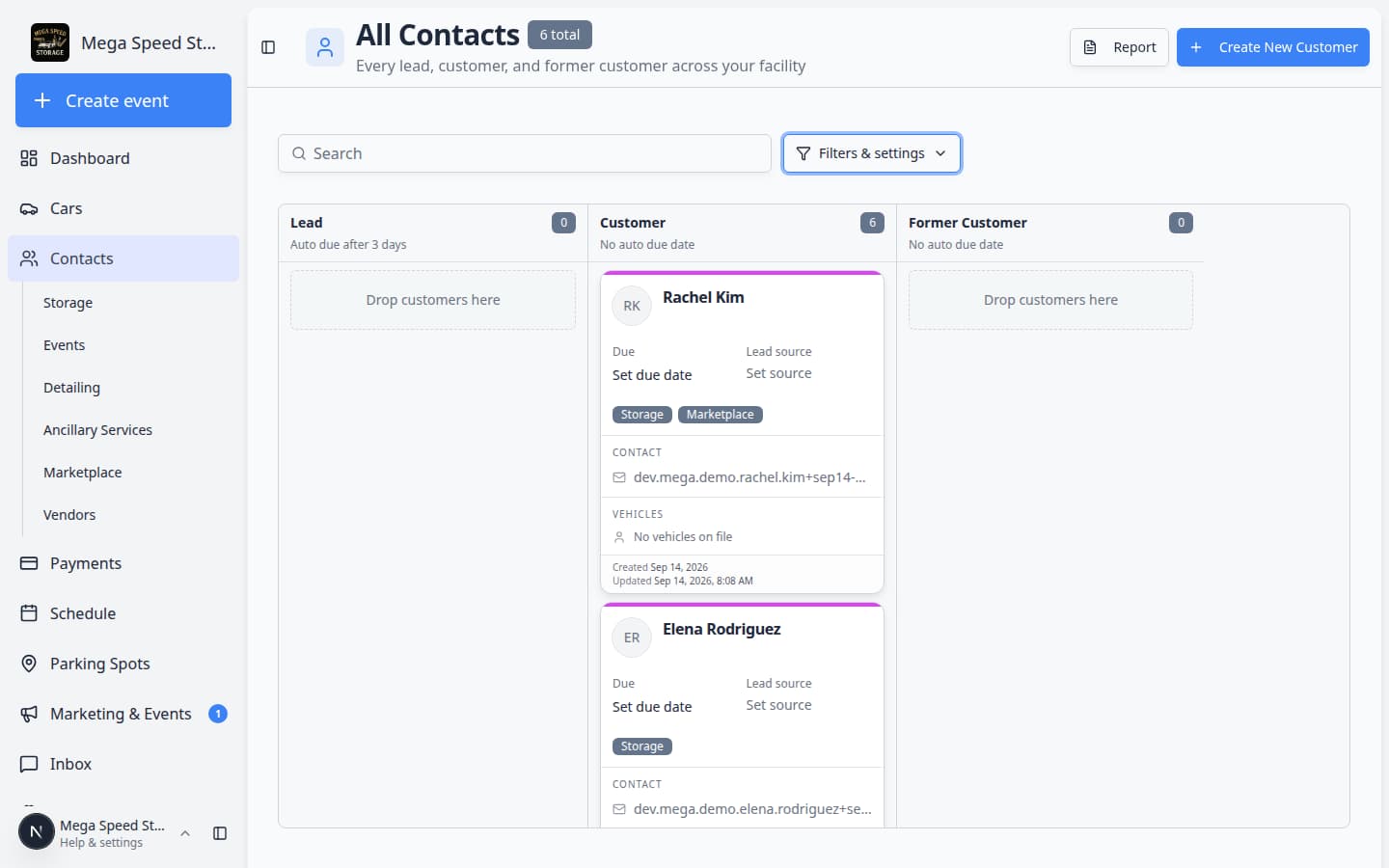
Bulk stage moves pair with contract sends for the same selection—see Bulk contact actions for Send contract and readiness checks. For one customer at a time, edit stage on the customer record or drag cards on the Board view.
Get started
Filter All Contacts to the group you need, select a handful of test rows, run Change CRM stage, and confirm the stage column updates without opening individual profiles.
Questions about this update?
Book time with our team or browse the rest of the changelog.