Product update
Parking zones in the customer list
At single-location facilities, the Location column on All Contacts shows parking zones where each customer’s cars are parked—not a separate facility picker.
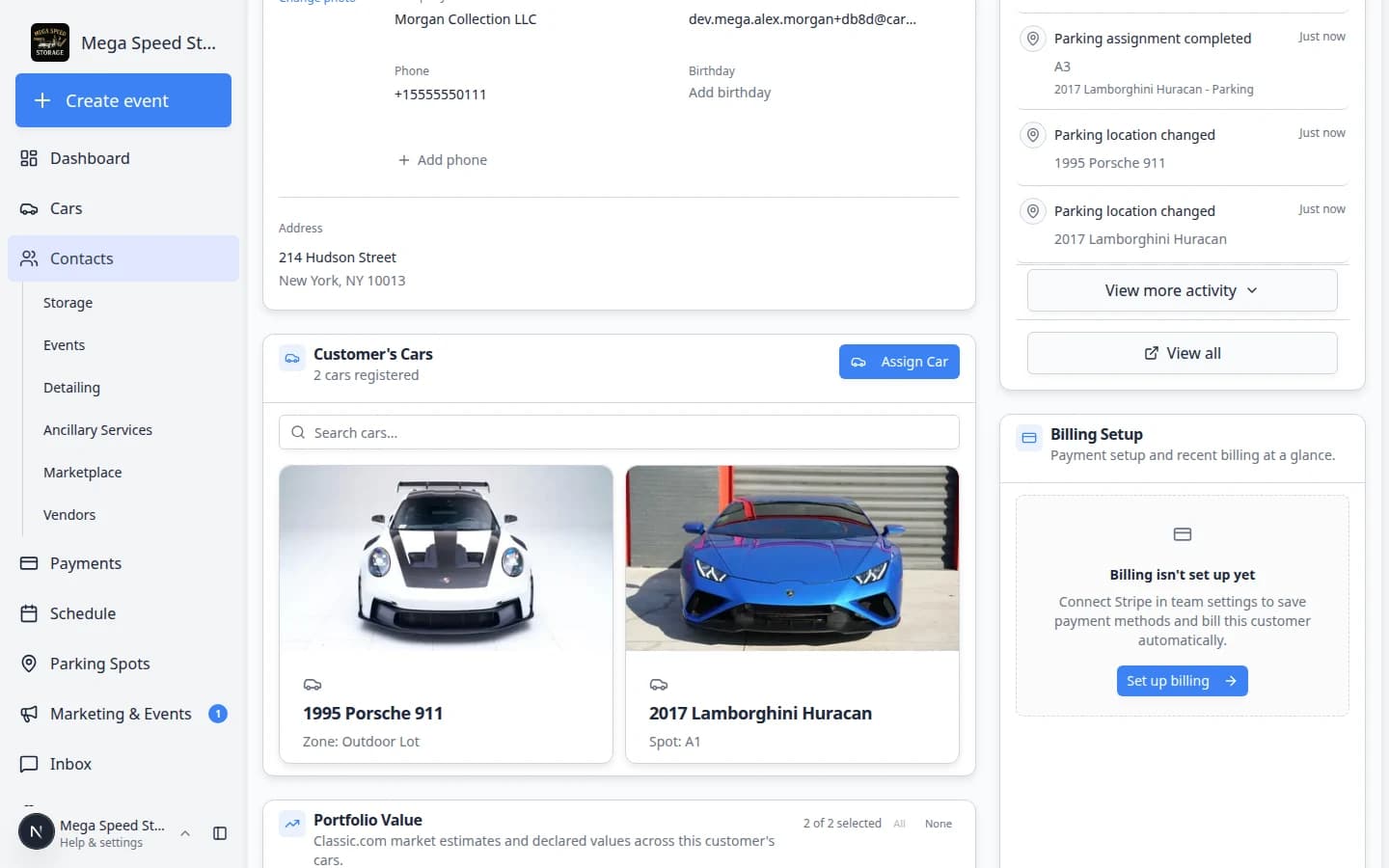
When you operate one site, “where is this customer’s metal?” matters more than which building name is on the account.
Why we built it
Multi-location teams still use Location on All Contacts for facility names. Single-location facilities repurpose that column: it lists parking zones tied to the customer’s on-site vehicles—zone assignments and zone tags from spots—comma-separated when they have cars in more than one area. Front desk and lot staff scan the table for “Warehouse A” or “Upper deck” without opening every car record. Turn the column on or off like any other field under Filters & settings → Columns (or Card fields in grid view).
Who it is for
- Single-site storage operators who organize the lot by zones rather than multiple addresses.
- Staff triaging walk-ins who ask “where are my cars?” from the contact list.
- Teams pairing this with customizable customer list columns to keep Cars and Location visible together.
What you can do
- Enable Location on All Contacts when your team has one facility location enabled.
- See zone names derived from each customer’s parked cars (direct zone placement or zone tags on spots).
- Sort and filter the list with other columns—zone text updates as cars move on the parking map.
How it fits your day
Run a morning pass on All Contacts sorted by Location to group call-backs by warehouse wing. When a car moves zones on the map, the customer row reflects the new zone on the next list refresh.
Learn more
Questions about this update?
Book time with our team or browse the rest of the changelog.