Product update
Notify customer, not just email
Before many dashboard updates, staff choose whether the customer gets email, text, and push—or skip customer notifications while team alerts still fire.
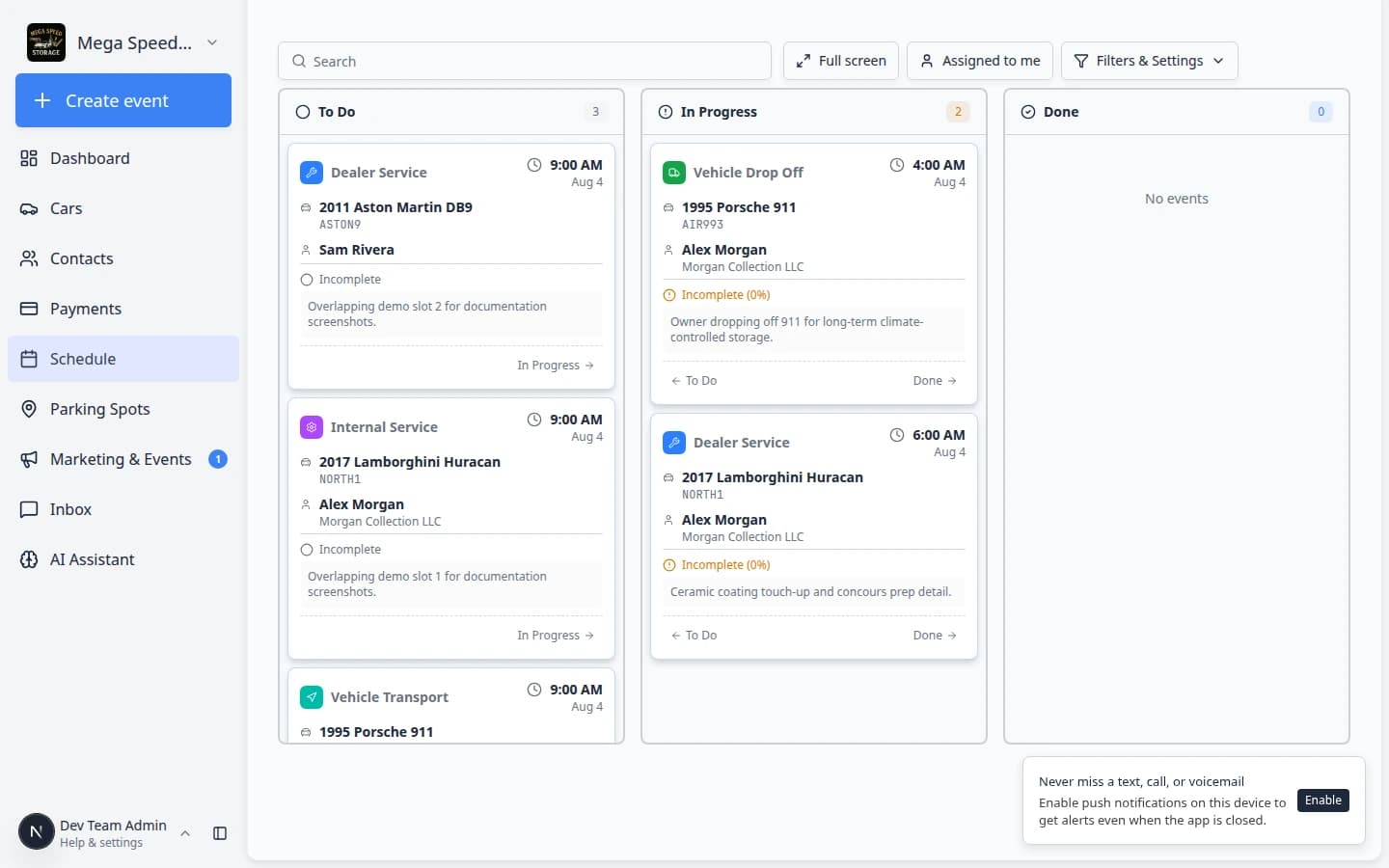
Front desk and shop staff often need to log a change quietly—fix a typo, cancel internally, or finish paperwork before the customer hears about it.
Why we built it
Dashboard actions used to assume customer-facing email (and related channels) whenever an update might notify someone. That made “update the record only” awkward. Staff now see Notify the customer? with Yes or No on many workflows—schedule changes, parking pickup, prepayments, quotes, recurring plan changes, transport status, and more. No sets sendCustomerEmail to false so email, SMS, and push to the customer are skipped for that action. Team notifications (assignees, inbox, internal alerts) follow your existing rules and are not gated by this prompt.
Who it is for
- Schedule coordinators rescheduling or completing events without pinging the owner yet.
- Parking staff recording pickup or leave-facility moves while the customer is still on site.
- Billing and front desk staff applying credits, prepayments, or status changes before a formal customer message goes out.
What you can do
- Answer Notify the customer? when the dashboard asks—Yes keeps normal customer email/SMS/push where your communication settings allow.
- Choose No to save the operational change without customer-facing notifications for that action.
- Cancel the dialog to abort the action if you are not ready to commit the update.
- Still use explicit Send invoice, Send receipt, or similar confirmations when an action is only about delivering a specific email—these remain separate from the update prompt.
How it fits your day
Complete the service in the shop, choose No on notify, then call the owner and send the invoice when you are ready. Reschedule a tentative booking with Yes so the customer portal and calendar stay accurate. The prompt appears at commit time so you decide once per action—not buried in settings.
Learn more
- Configure communications (email/SMS preferences)
- Schedule overview
- Record where a pickup is going — same prompt when a car leaves the lot
Questions about this update?
Book time with our team or browse the rest of the changelog.