Product update
Guided marketing campaign setup
A step-by-step flow for message design, audience, scheduling, and review—so outreach launches with fewer surprises.
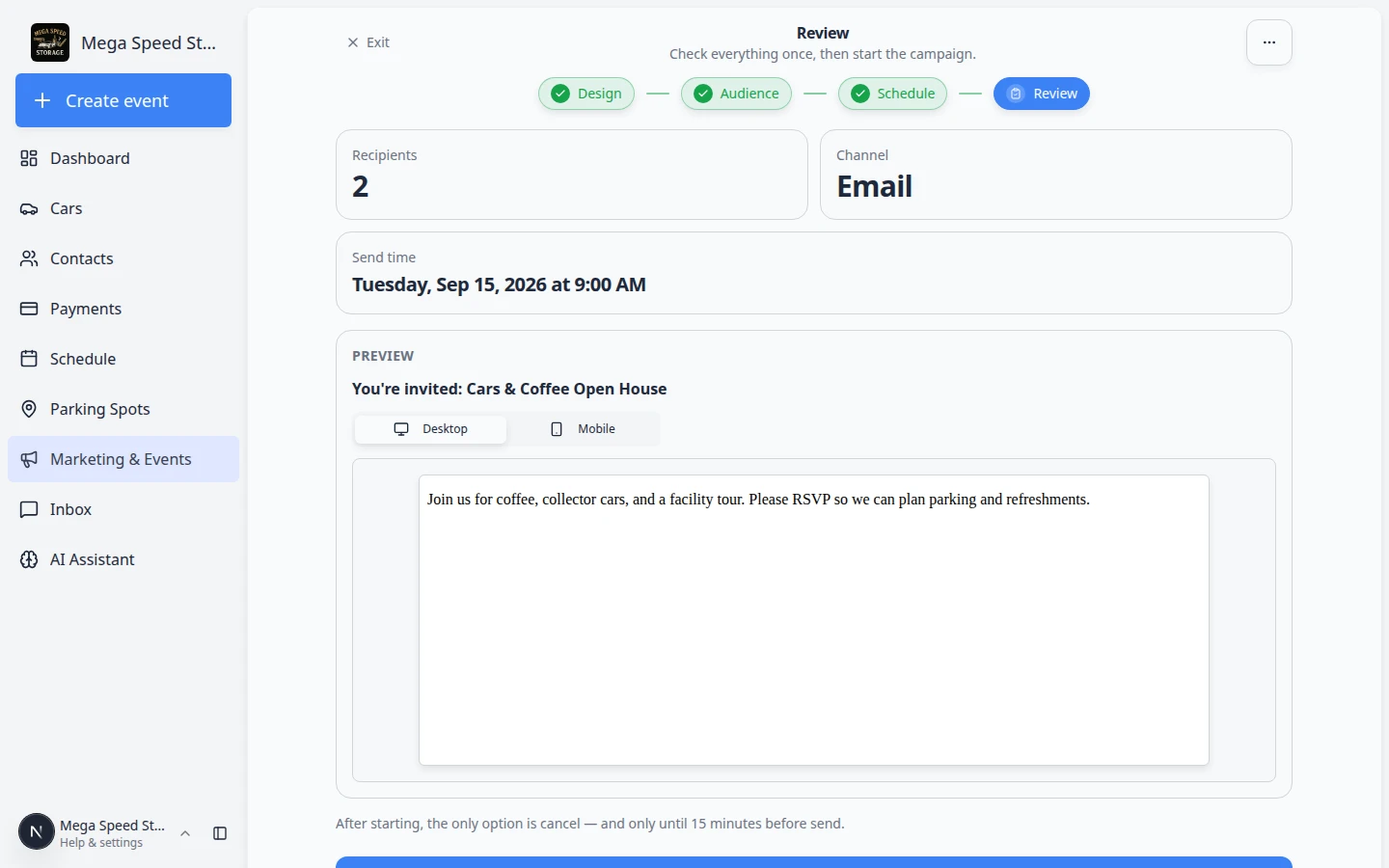
Broadcast updates should feel as deliberate as a one-to-one reply—not a rushed blast from a blank screen.
Why we built it
Facilities use campaigns for open houses, seasonal reminders, and service promotions. Scattered screens made it easy to write a message before choosing who should receive it, or to schedule a send without a final sanity check. The guided flow walks design → audience → schedule → review in order so teams see recipient counts, channel requirements, and timing before anything goes out.
Who it is for
- Marketing leads planning email, text, push, or social outreach from Marketing & Events.
- Owners who want the calendar to show planned sends alongside social events.
- Staff who need confidence they targeted the right segment—not the entire contact list by accident.
What you can do
- Build the customer-facing message in a dedicated design step with a clear preview path.
- Choose audience filters so the campaign reaches the customers you intend (tags, stages, and related criteria).
- Set schedule date and time so the send appears on the team marketing calendar.
- Confirm everything on review before publishing or scheduling the send.
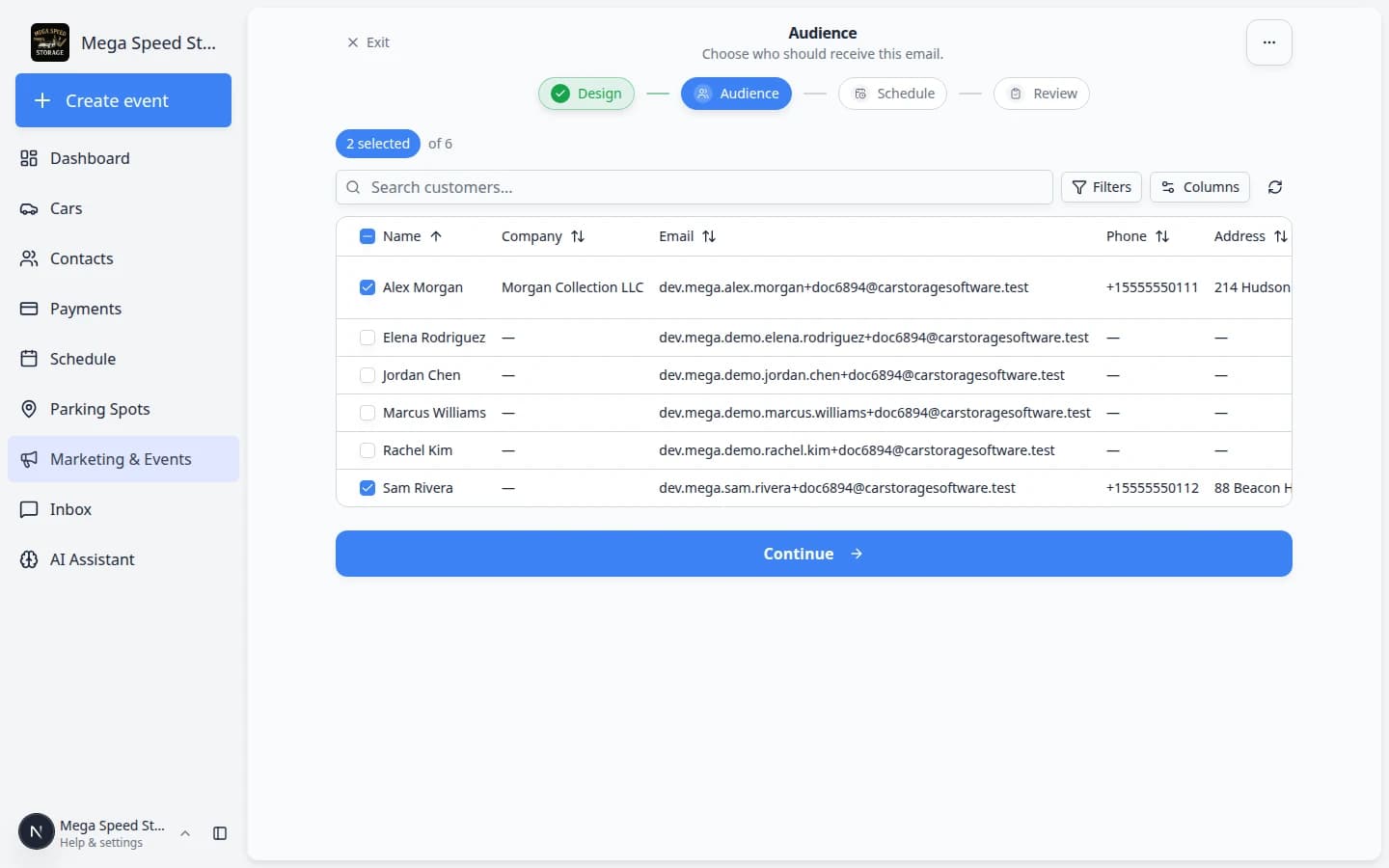
How it fits your day
Start from Create New on the marketing calendar, pick email, text, push, or social, then follow the wizard. For channel-specific tips (SMS setup, social connections), use Create a text, push, or social campaign. Filter audiences by CRM stage, customer type, or lead source when you need a tighter list than “everyone.”
Get started
New to campaigns? Read Create a campaign, then Add campaign message, audience, and publish for the full publish path.
Questions about this update?
Book time with our team or browse the rest of the changelog.