Product update
Flexible parking lift numbering
Label lift stacks with numbers per level, letters, or facility-wide sequential platform numbers—with top-to-bottom or bottom-to-top order.
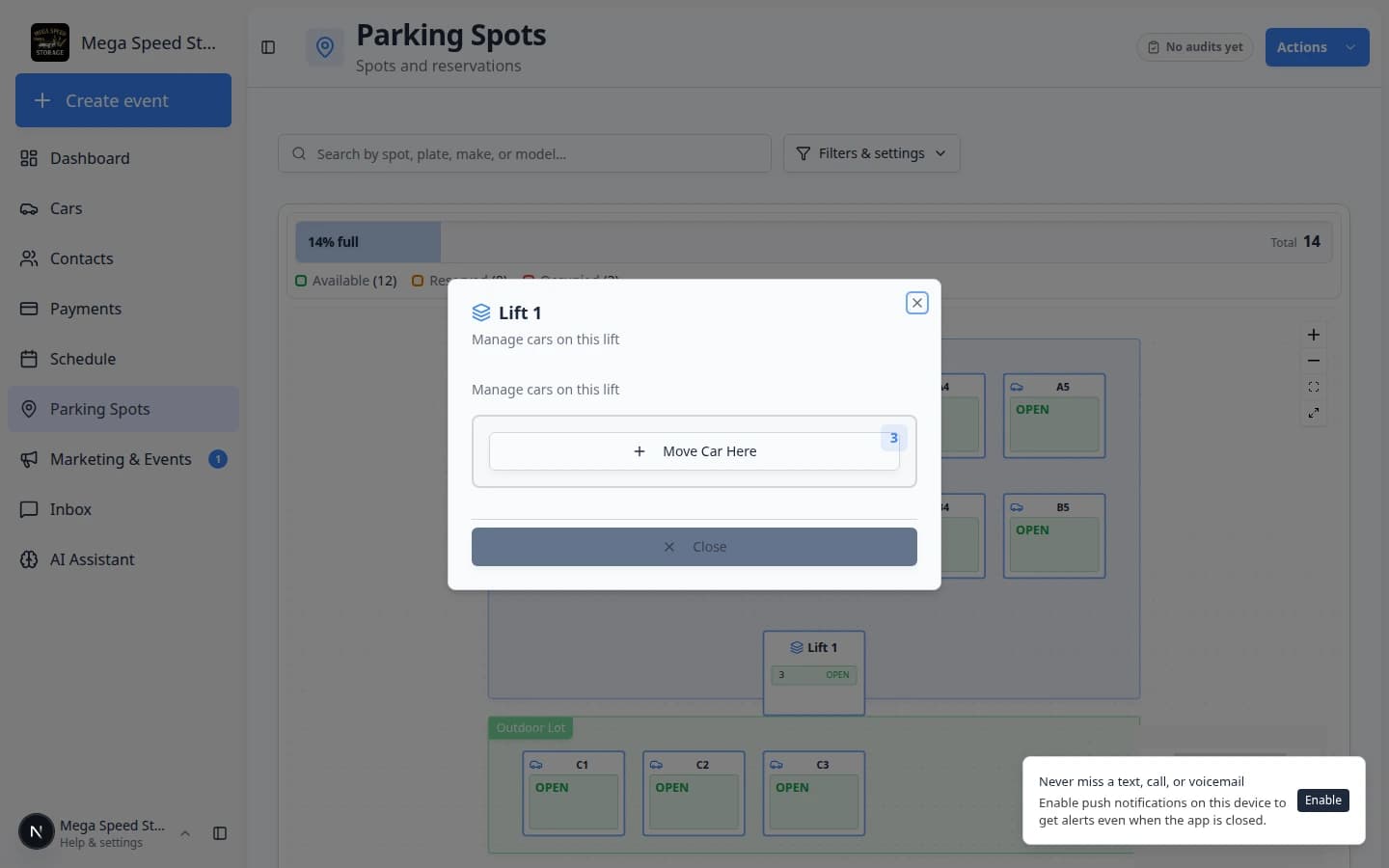
Lift stacks should read the way your crew talks about them—A/B decks, L1/L2, or one running platform count across the building.
Why we built it
Multi-level lift spots need labels that match the physical stack and how drivers find cars. Flexible parking lift numbering lets admins choose numeric levels (L1, L2), alphabetic levels (LA, LB), or sequential platform numbers that continue across lifts on the floor plan. Direction controls whether the ground level gets the first or last label in the pair—top-to-bottom vs bottom-to-top—so map badges and spot names stay consistent in the editor, on the parking map, and in assignment dialogs.
Who it is for
- Admins drawing lifts in Settings → Floor Plan.
- Lot staff reserving or assigning lift levels from the parking map and spot dialogs.
- Facilities setting up lifts per Set up parking spots and zones.
What you can do
- Pick numeric, alphabetic, or sequential label style when creating or bulk-adding lift spots.
- Set ascending or descending order so ground level maps to the correct end of the stack.
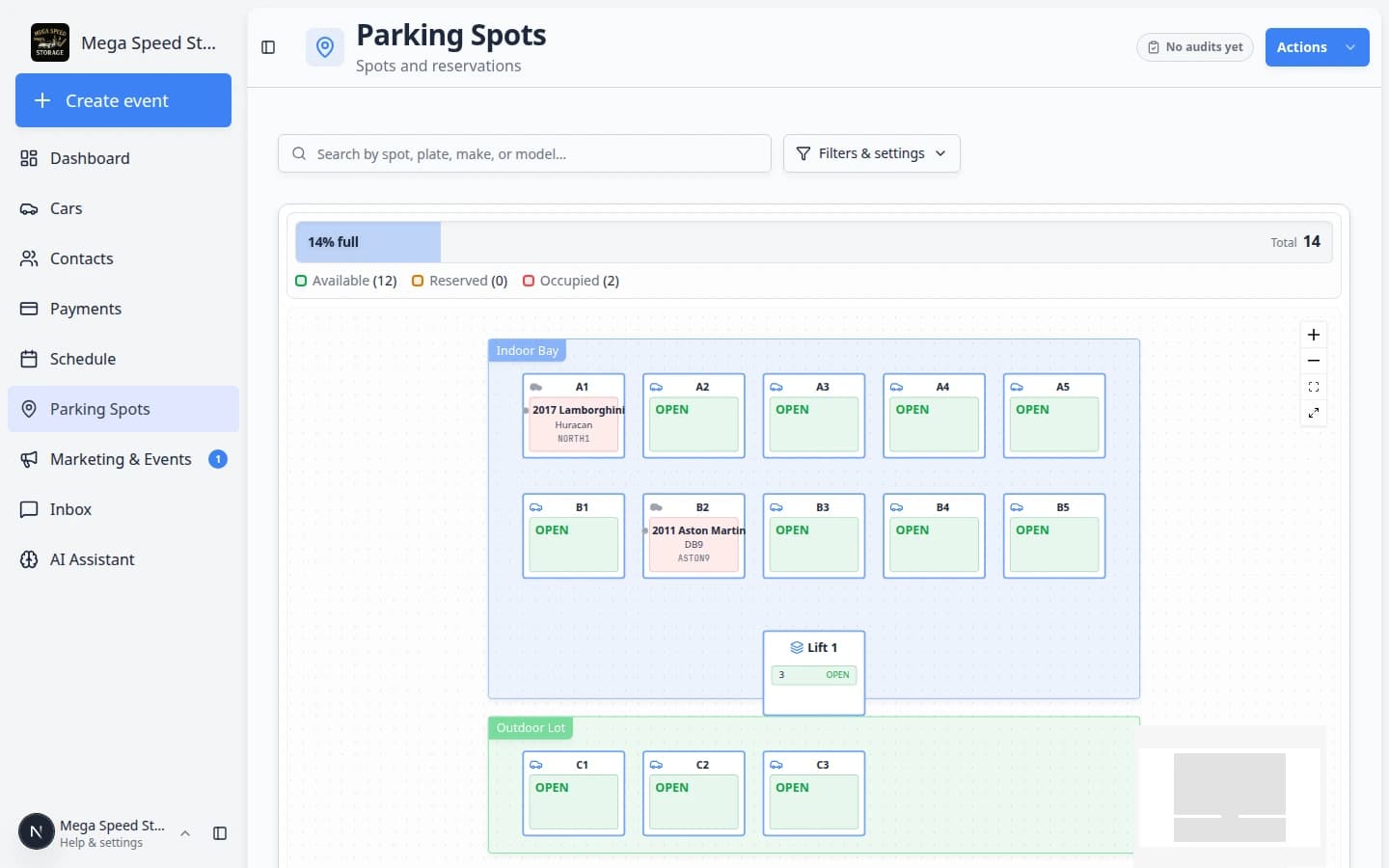
- Use sequential numbering to continue platform IDs across multiple lifts (e.g. 1–2 on lift one, 3–4 on lift two).
- See matching short labels on the floor-plan map and in spot detail when moving cars.
How it fits your day
Choose one style per lift configuration before staff memorize spot names. Sequential mode is ideal when every platform has a unique number facility-wide; numeric or alphabetic fits when each column keeps its own L1/L2 or A/B pair.
Get started
Open the floor plan editor, add or edit a lift spot, try alphabetic labels with desc direction on one test column, save, and confirm the map shows ground as the expected letter or number.
Questions about this update?
Book time with our team or browse the rest of the changelog.