Product update
Customize the contact page
Choose which blocks appear on every customer contact page and drag to reorder them within each column—Settings → CRM → Contact page.
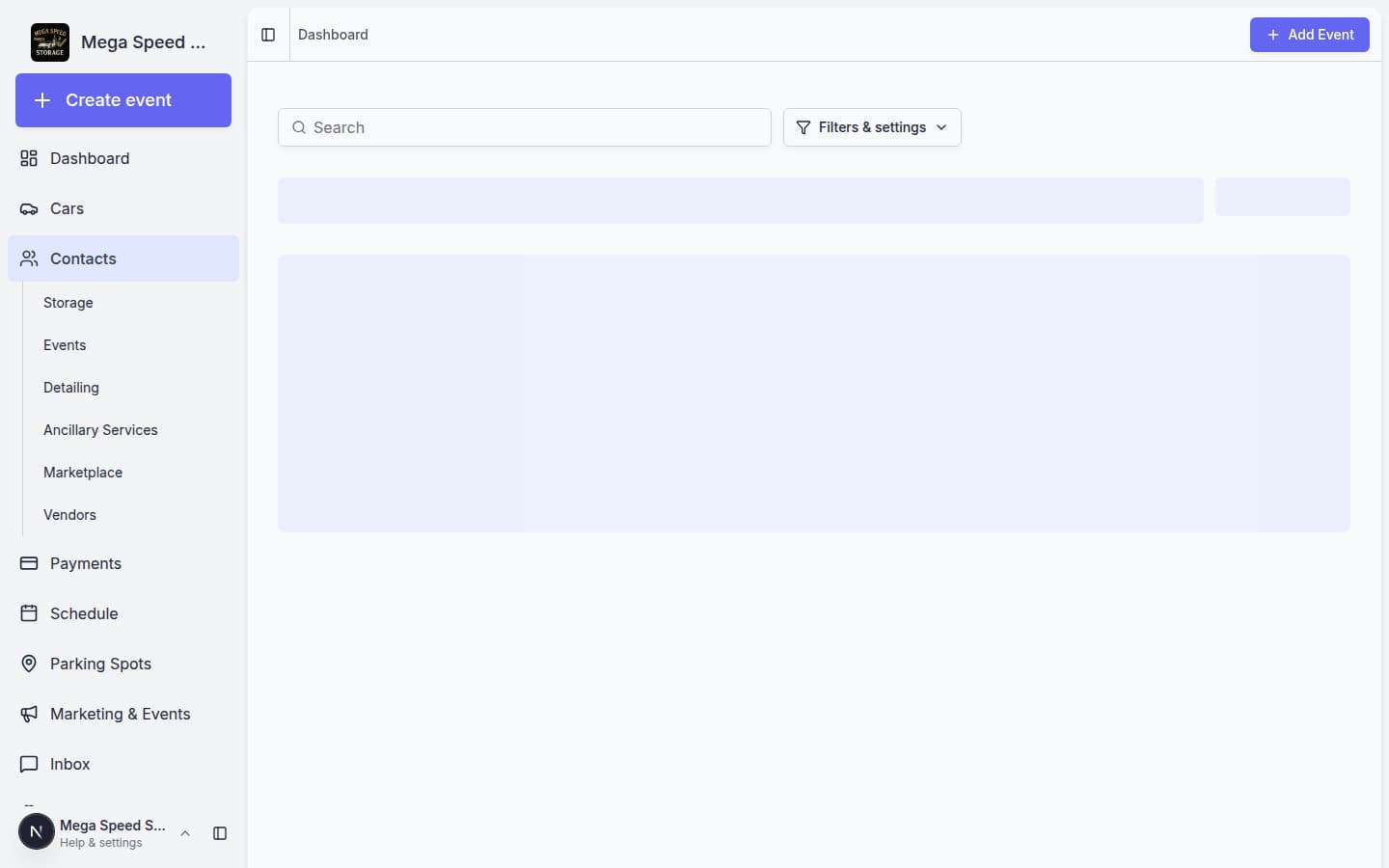
Every team uses the contact record differently—billing-heavy, car-heavy, or CRM-first.
Why we built it
The customer contact detail page packed cars, documents, billing, CRM stage, activity, and more into a fixed layout. Customize the contact page gives admins a layout editor under Settings → CRM → Contact page: toggle blocks on or off and drag to reorder within the left, right, and full-width regions. Changes apply team-wide so every contact shares the same structure—sales sees portfolio and CRM up top; ops can emphasize Cars and Payments. Settings autosave with a reset to defaults when you want a clean slate.
Who it is for
- Team admins standardizing what front desk vs billing sees on All Contacts.
- Facilities using Customer portfolio value or Market interests who want those blocks positioned deliberately.
- Anyone onboarding staff—see the in-app guide at Customize the contact page.
What you can do
- Enable or disable blocks such as Personal & contact, Customer's cars, Documents, Activity feed, Billing setup, and Danger zone.
- Reorder cards inside each column—blocks stay in their column; you control vertical order.
- Preview the skeleton layout in settings before staff open live customer records.
- Reset to the default layout if an experiment does not work out.
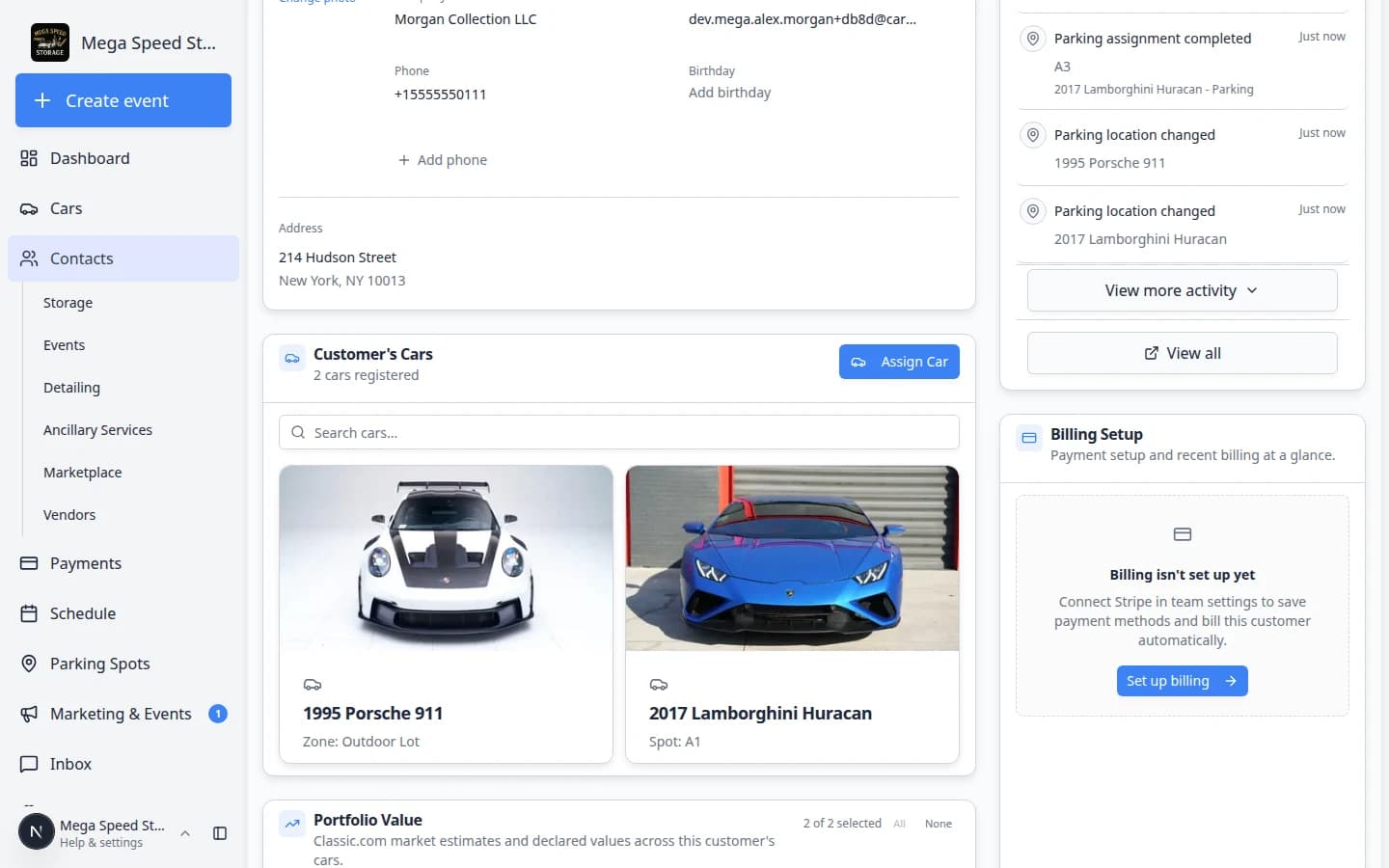
How it fits your day
Hide Social events for a storage-only facility, move Account balance under Payments, and publish once. New hires opening any customer see the same priorities you configured.
Get started
Go to Settings → CRM → Contact page, turn off one block your team never uses, drag Activity feed where you want it, open a customer record, and confirm the layout matches.
Questions about this update?
Book time with our team or browse the rest of the changelog.