Product update
Easier team member management
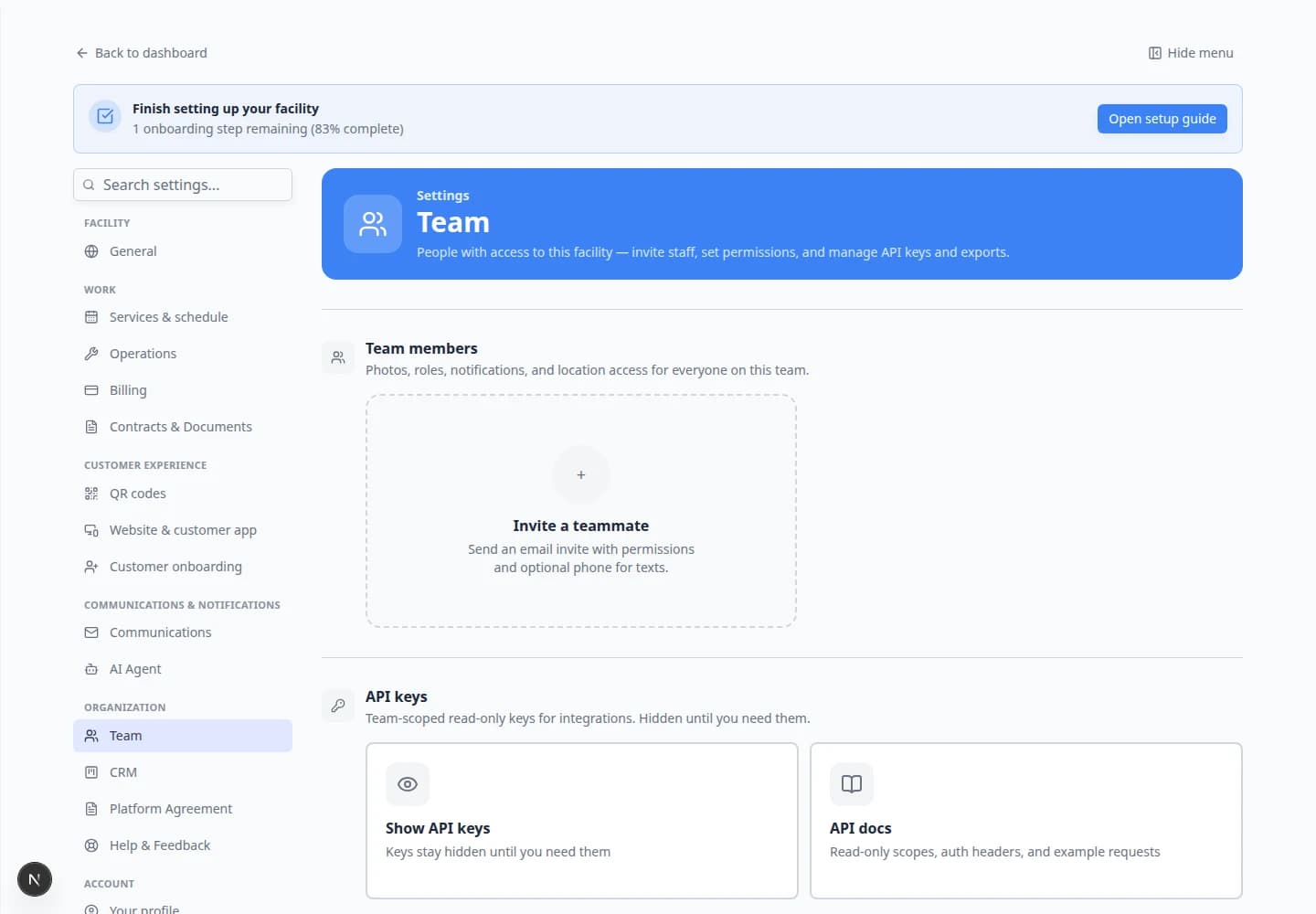
Edit a teammate’s name or phone, resend a pending invite, or remove access from a single actions menu on Settings → Team.
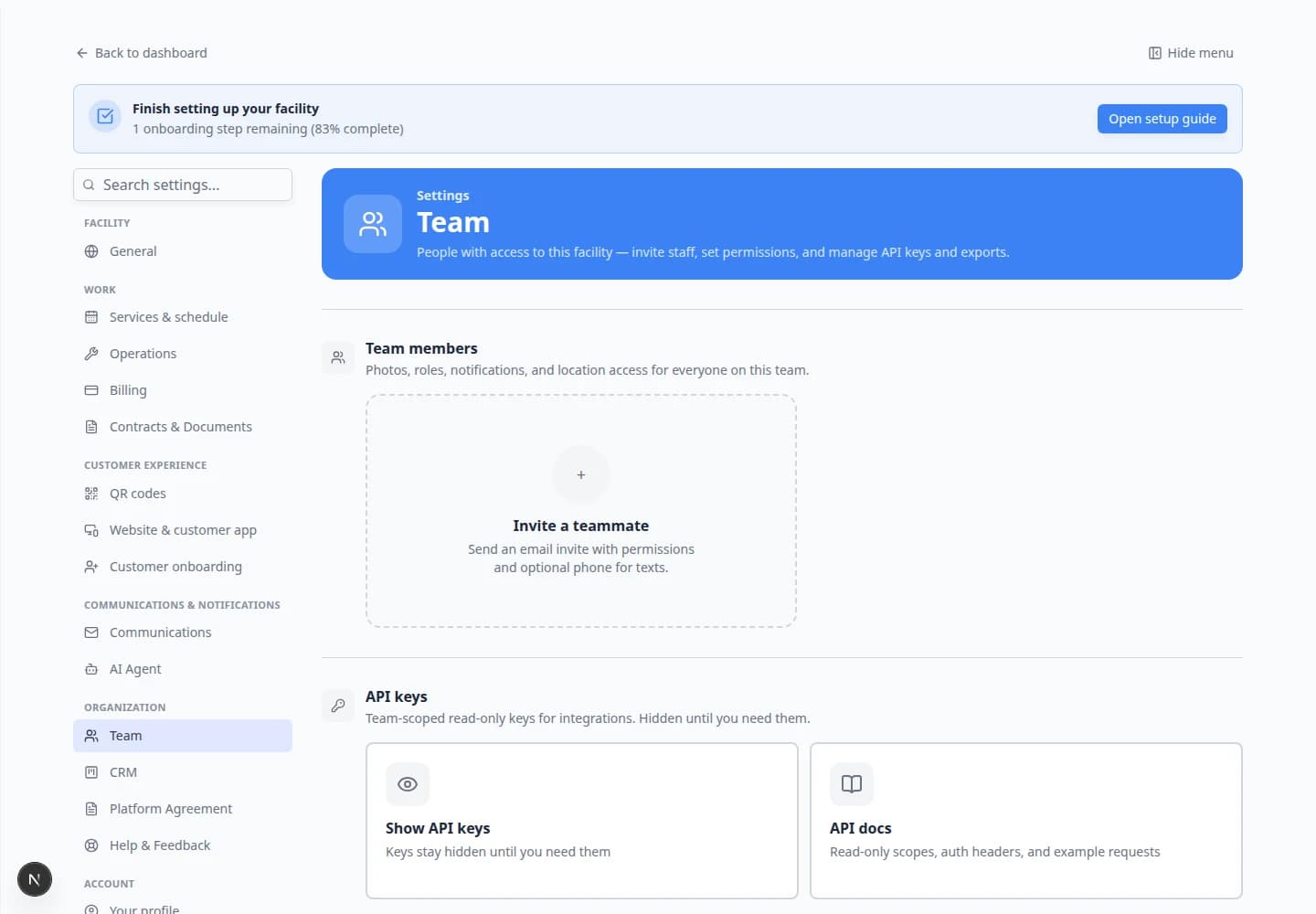
Routine team changes should not require hunting through separate screens.
Why we built it
Admins constantly fix display names, add mobile numbers for text alerts, resend invites when someone missed email, and remove access when someone leaves. Easier team member management puts those actions in one ⋯ menu on each row in Settings → Team—Edit, Resend invite (for members who have never signed in), and Delete with confirmation—so you stay on the team list instead of opening unrelated admin tools.
Who it is for
- Facility owners and admins who invite staff and manage roles.
- Managers updating a teammate’s phone so Profile phone numbers for text alerts and SMS notifications work.
- Anyone onboarding hires alongside Complete the setup guide.
What you can do
- Open Edit to change full name and phone; sign-in email stays fixed because magic links use it.
- Choose Resend invite for pending members who have not completed their first sign-in.
- Use Delete to remove a member from the team after confirming in the dialog.
- Still adjust roles, permissions, and notification defaults from the same team page when you need deeper access control.
How it fits your day
When someone says they never got onboarding email, resend from their row instead of creating a duplicate invite. When a name is misspelled on the schedule, fix it in Edit—display names flow into assignments and activity. Removing access is immediate after confirm; pair with a quick permissions review if they held admin rights.
Get started
Open Settings → Team, pick a member, click ⋯, and run the action you need. For a pending hire, Resend invite first; for an active user, Edit their phone before they enable text alerts.
Questions about this update?
Book time with our team or browse the rest of the changelog.