Product update
Easier mobile parking filters
Multi-location teams can pick a facility location on Parking Spots map and list views from a phone—without hunting for a desktop-only control.
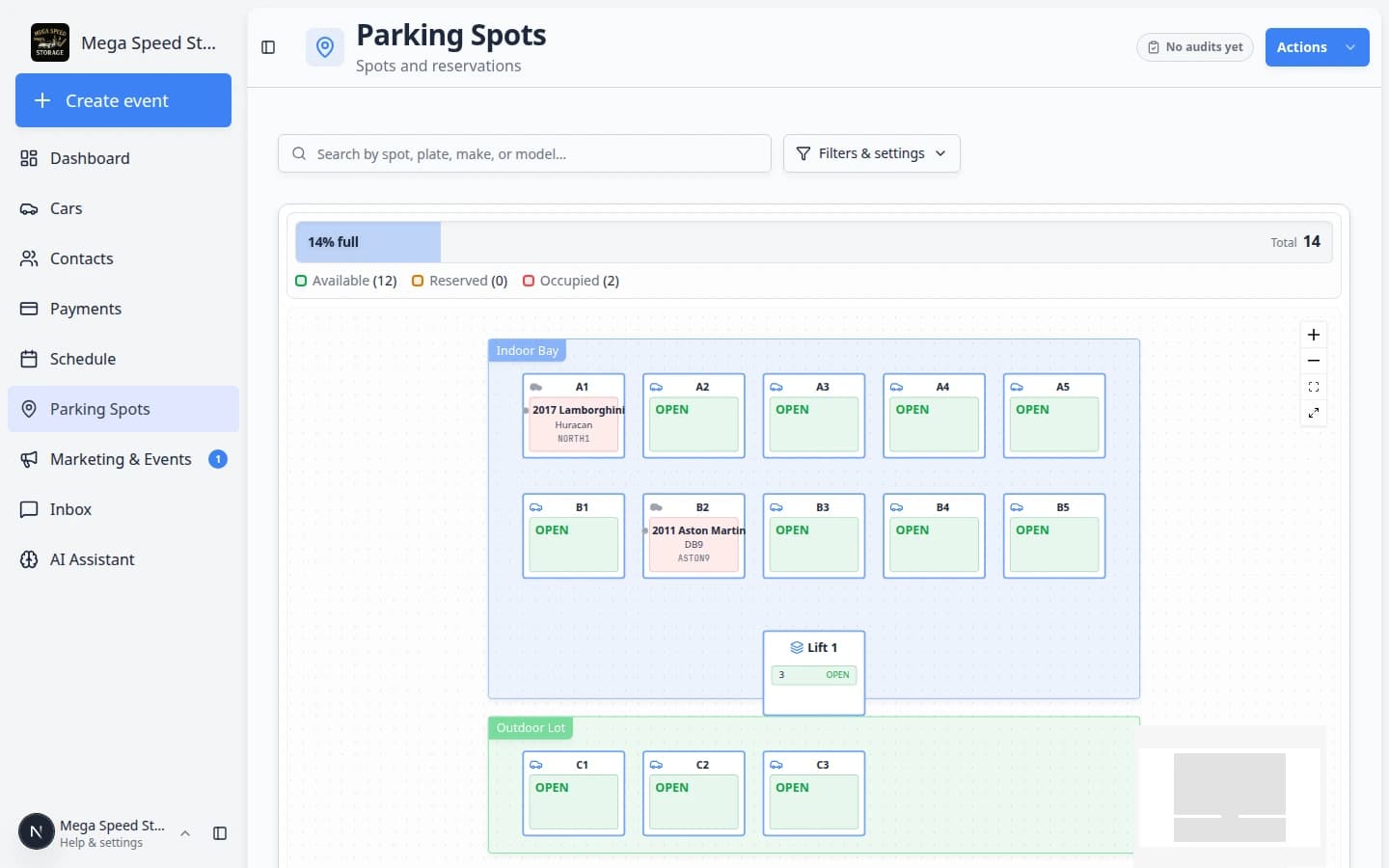
Walking the lot with the wrong campus on screen wastes time and erodes trust in the map.
Why we built it
Teams with multiple facility locations need the parking map, table, and occupancy data scoped to the building they are standing in. Easier mobile parking filters bring the location selector into mobile-friendly Filters & Settings on Parking Spots—including Map view—so staff narrow the lot and spot list on a phone instead of switching to desktop for the campus dropdown.
Who it is for
- Multi-location operators whose staff live in Map view on tablets and phones.
- Valet and lot teams running Guided parking audits at one site at a time.
- Admins who assign teammates to specific locations in Settings → Team—users only see locations they can access.
What you can do
- When multi-location is enabled and you have more than one site, open Filters & Settings and choose Location.
- Switch between Table and Map—the selected location drives floor plan, spots, and occupancy for that campus.
- On desktop, use the header location dropdown in table view; on smaller screens, use the same control inside filters.
- Start audits and zone work against the filtered map so counts match the physical lot you are in.
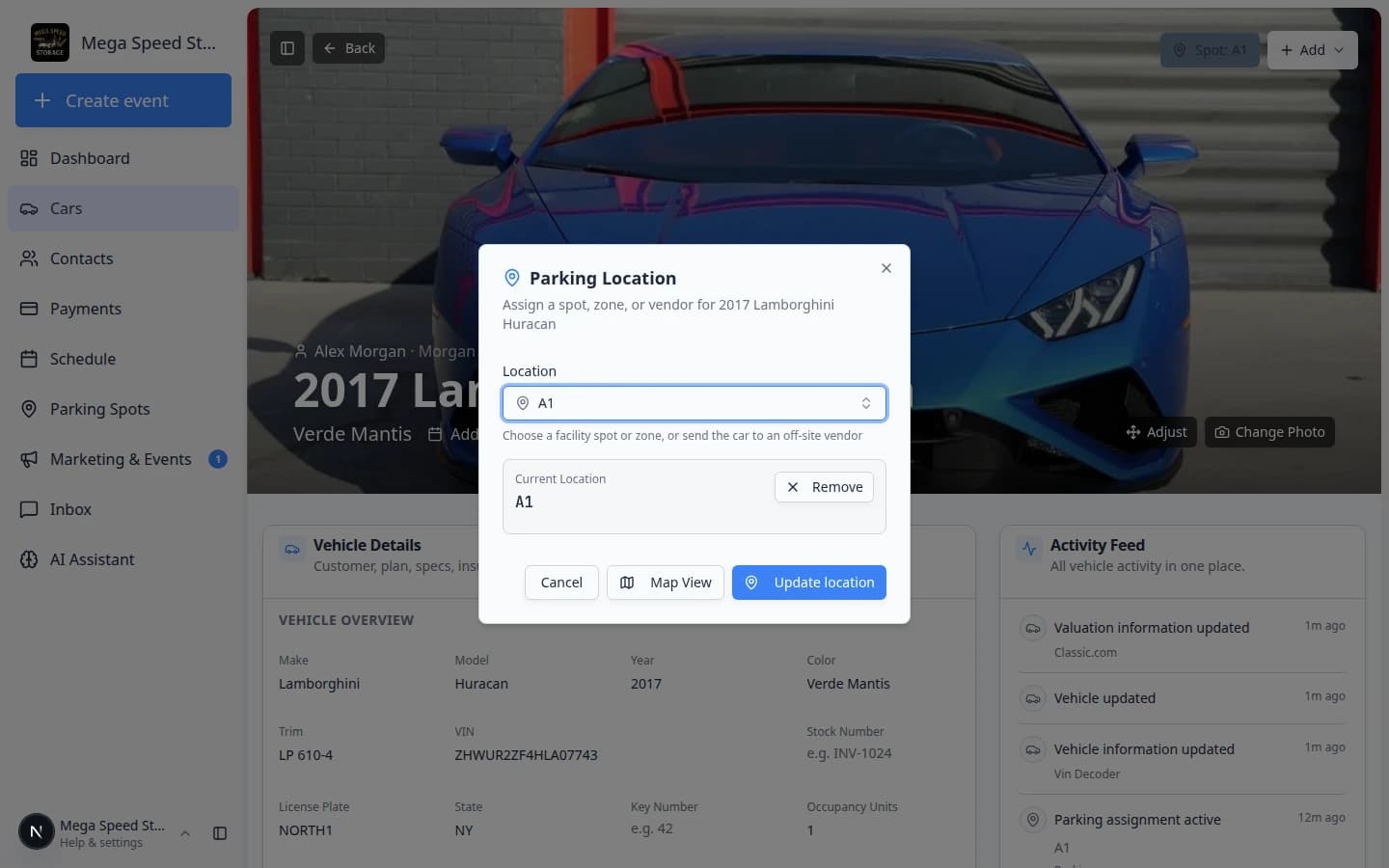
How it fits your day
Single-location facilities do not see the selector; everything loads as today. For AI and comms tied to location context, see Location-aware facility assistant.
Get started
On a phone, open Parking Spots → Map, open Filters & Settings, pick your Location, and confirm the map footprint matches the building you are auditing.
Questions about this update?
Book time with our team or browse the rest of the changelog.