Product update
Clearer invoice report filtering
Filter the Invoices Report to paid or unpaid rows—summary cards and Excel exports recalculate to match what is on screen.
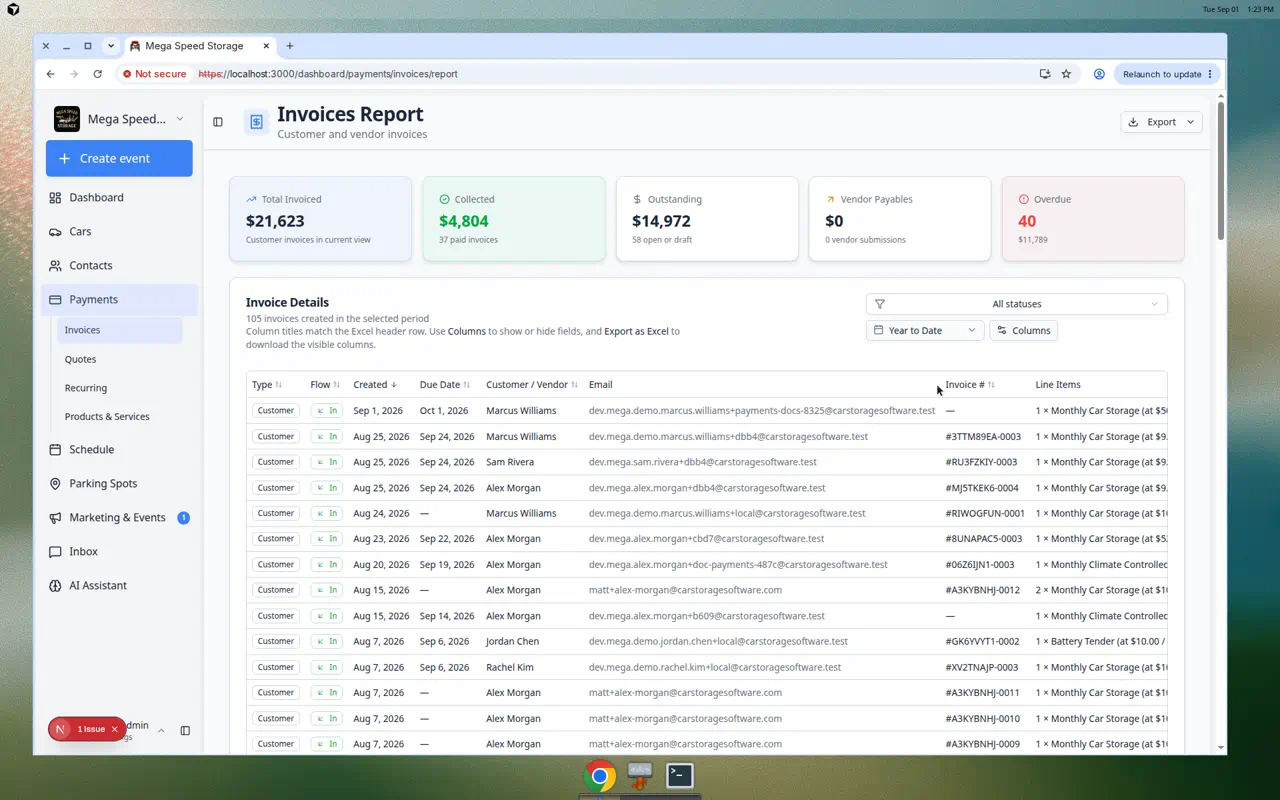
Month-end review should not mix collected cash with open AR in one total.
Why we built it
The Invoices Report spans customer and vendor invoices for any date range. Clearer invoice report filtering adds All statuses, Paid only, and Unpaid only so bookkeepers can focus reconciliation. Paid means invoices marked paid; Unpaid includes open, draft, waiting for customer, and other outstanding states. Summary cards (Total invoiced, Collected, Outstanding, overdue counts) recompute from the filtered rows, and Export as Excel downloads the same subset with matching footer totals—not the full unfiltered period.
Who it is for
- Billing leads closing a month who need collected totals without open drafts in the math.
- AR follow-up—filter Unpaid only and sort by due date to chase overdue customer invoices.
- Teams already using More detailed invoice report exports who want status-scoped exports.
What you can do
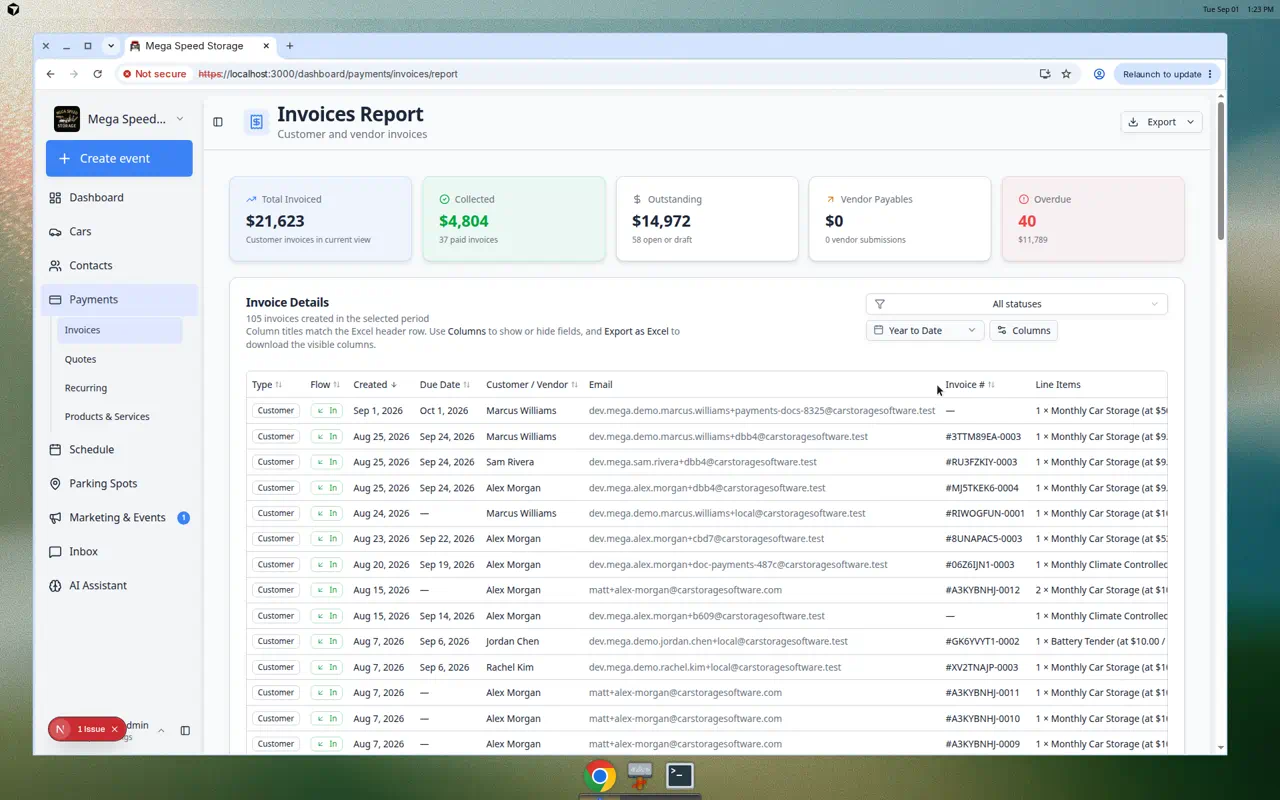
- Choose Paid only or Unpaid only from the status control above the table.
- Watch summary cards update to reflect only visible invoices.
- Export Excel when filtered; footer totals match the filtered set.
- Switch back to All statuses for a full-period picture—see Review the invoices report for the full workflow.
How it fits your day
Run Month to date, set Paid only, export for the owner’s cash recap, then flip to Unpaid only for the collections list—without changing the date range twice.
Get started
Open Invoices Report, pick Unpaid only, and confirm Outstanding on the summary cards matches the visible rows before exporting.
Questions about this update?
Book time with our team or browse the rest of the changelog.