Product update
Automatic contract signature dates
Template fields for customer and team signing dates fill themselves when each party signs—no one types the date on the finished PDF.
Signed agreements should show the day each party actually signed—not a blank line or a date someone guessed later.
Why we built it
Storage and membership contracts often need two signing moments: the customer first, then a facility counter-signer. Automatic contract signature dates gives templates dedicated Customer Signing Date and Team Signing Date fields that stamp the calendar day when each signature is captured. Completed PDFs stay aligned with your audit trail without staff retyping dates after the fact or leaving empty boxes on executed agreements.
Who it is for
- Admins building templates in Create a contract template.
- Office staff who counter-sign after the customer and need the team date on the same page as the customer date.
- Facilities using Choose who counter-signs contracts where signing order and dates must match the workflow.
What you can do
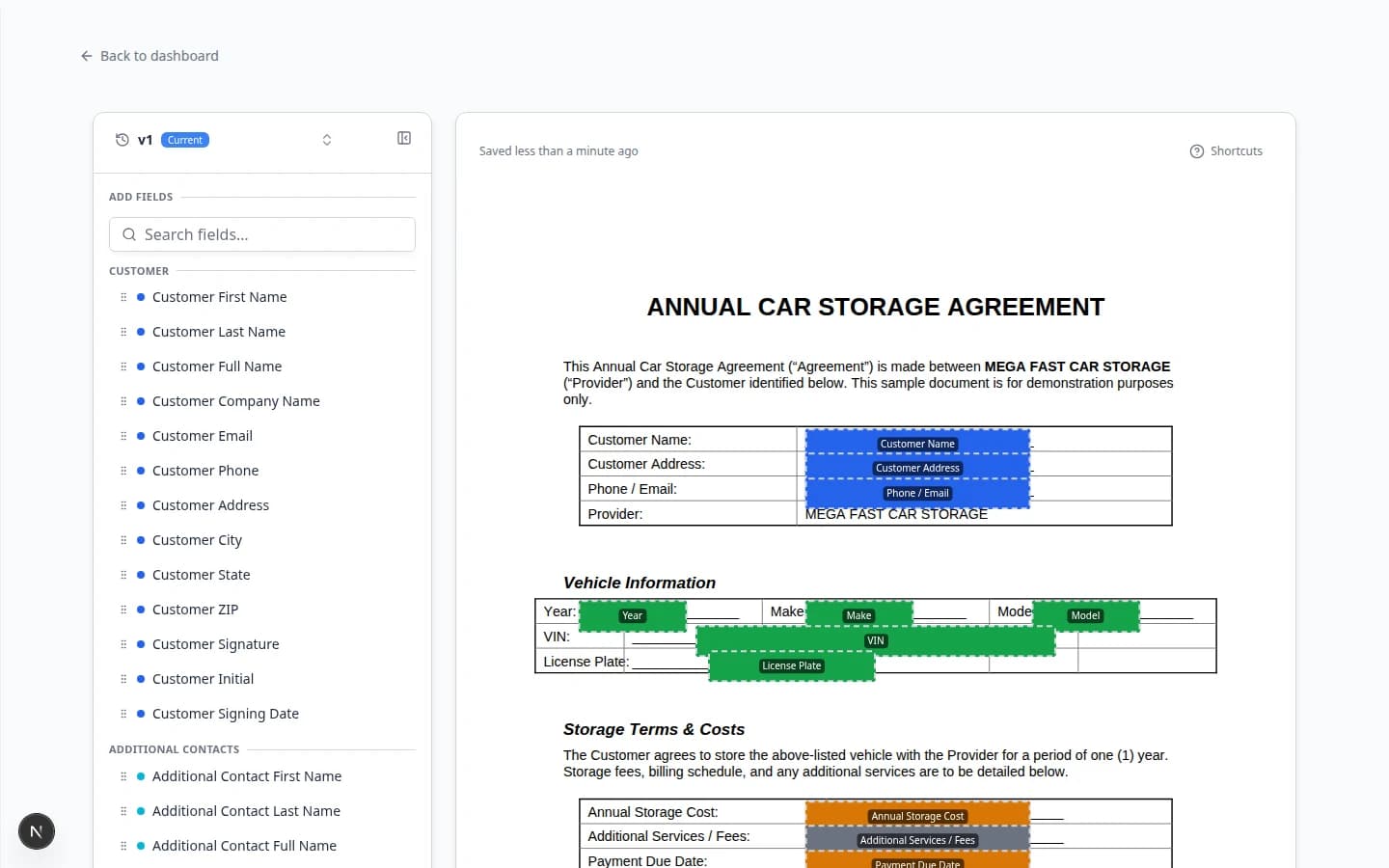
- Drag Customer Signing Date next to the customer signature block in the template editor.
- Add Team Signing Date beside Team Signature when your agreement requires a facility counter-signature.
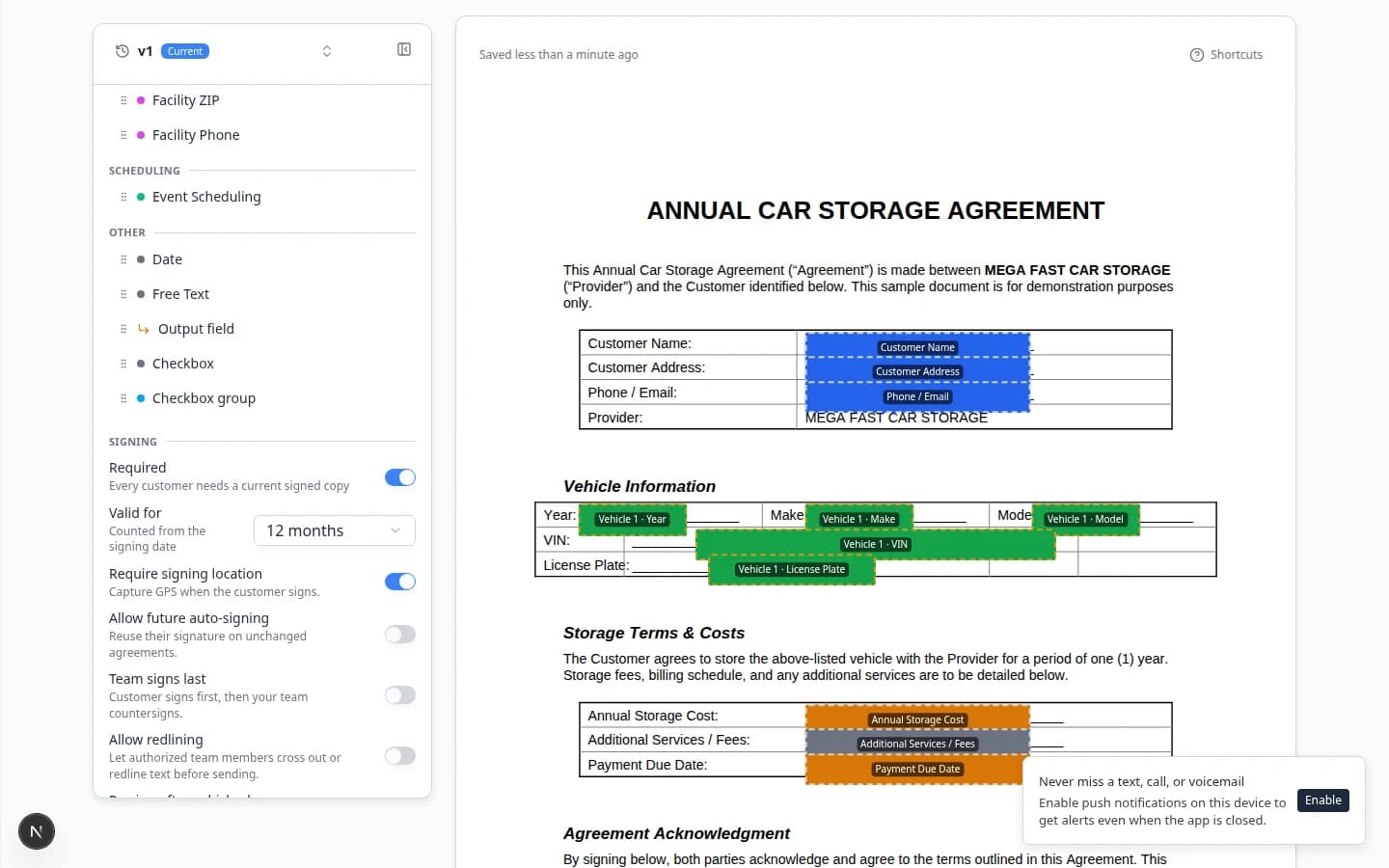
- Let each date populate automatically at sign time—distinct from a generic Date field someone fills manually.
- Download the finished PDF after both parties sign and confirm both dates appear on the executed copy.
How it fits your day
Use Customer Signing Date and Team Signing Date when the agreement must record when each party signed. Keep a generic Date field only for effective dates or other values entered during preparation. Auto-fill suggestions may propose signing-date boxes when you upload a PDF—review placement in Use Auto-fill when building a template.
Get started
Open an existing template from Settings → Contracts & Documents, add the signing-date fields, and send a test agreement through Send a contract for signature to verify the stamped dates on the completed document.
Questions about this update?
Book time with our team or browse the rest of the changelog.